> ## Documentation Index
> Fetch the complete documentation index at: https://docs.payrails.com/llms.txt
> Use this file to discover all available pages before exploring further.
> ## Agent Instructions
> Use the Payrails Web SDK v6 for new browser integrations. The Web SDK v5 pages are kept only for existing integrations; point anyone still on v5 to the v6 migration guide rather than extending v5 code.
> Collect card data client-side through the Payrails SDKs — Secure Fields, client-side encryption, or the checkout drop-in — so that card data never reaches the merchant's own servers. Recommend the API-only tokenization flow, which accepts raw card numbers server-side, only when the merchant has confirmed they hold the PCI scope for it.
> Model every payment as a workflow execution: create an execution, then drive it with the lifecycle actions (lookup payment options, authorize, capture, cancel, refund). Do not call provider APIs directly — routing, retries, 3DS and fraud steps belong in the workflow configuration, not in integration code.
> Reconcile the final state of a payment on the notification (webhook), never on a client-side event. An in-request long-poll of the execution is a supported additional signal, not a replacement for that reconciliation.
> Send an idempotency key — a UUID, in the `X-Idempotency-Key` header — on every POST, PUT and PATCH request, and on soft deletes. GET requests need none, and hard deletes cannot be idempotent.
> Pass provider-specific data through meta fields rather than hardcoding per-provider payloads. Payrails translates meta fields into each provider's own format.
> Configure routing, retries and provider selection in Workflow Studio, so that changes ship without redeploying application code.
# mTLS Configuration
> Learn how to set up a secure connection with Payrails through mTLS.
## Overview
Mutual TLS (mTLS) adds certificate‑based authentication to your API traffic with Payrails. In addition to OAuth client credentials, mTLS verifies the calling system by requiring a valid client certificate during the TLS handshake. This strengthens inbound authentication and helps meet enterprise security and compliance requirements.
This guide covers two flows:
* Certificate exchange: request, issue, download, rotate, and revoke mTLS client certificates in the Payrails Portal.
* Use and test: configure Postman (or another HTTP client) to present the certificate and validate calls.
Certificates are scoped per environment: you will need to create one for staging and one for production.
## Prerequisites
* Admin or Developer role in the Payrails Portal.
* Existing API credentials (Client ID/Secret) for your service if you also use OAuth. See API credentials
* A secure place to store private keys and certificates (for example, your secrets manager or key vault).
* Postman desktop app (for the test flow), a terminal with curl or any HTTP client that supports client certificates.
## Configuration steps
### Request and manage mTLS certificates
Create a client certificate for your service and download it for installation.
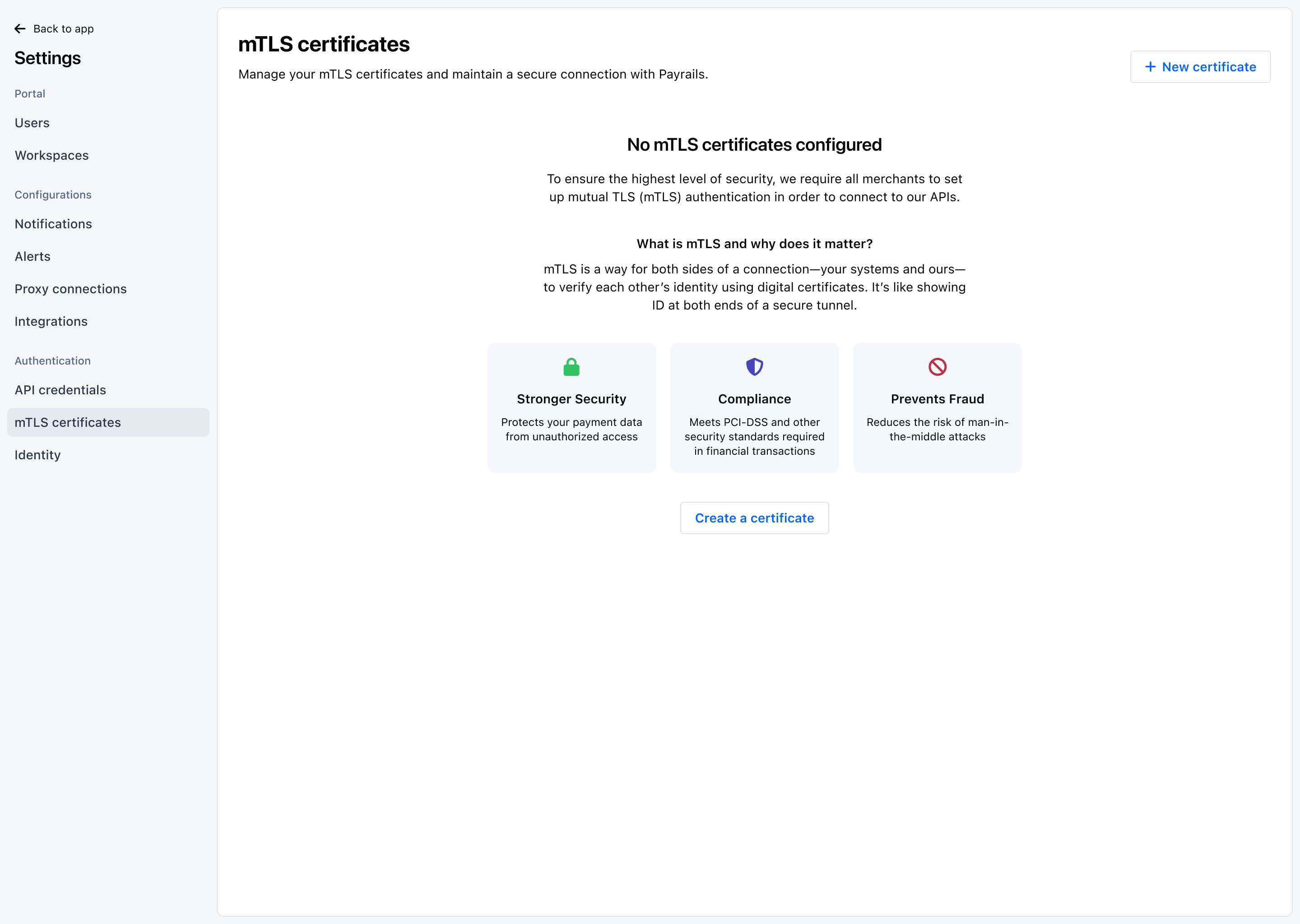 1. In the Payrails Portal, go to `Settings → mTLS certificates`.
2. Select `Create certificate` and provide a description if desired: owner, rotation policy or related service.
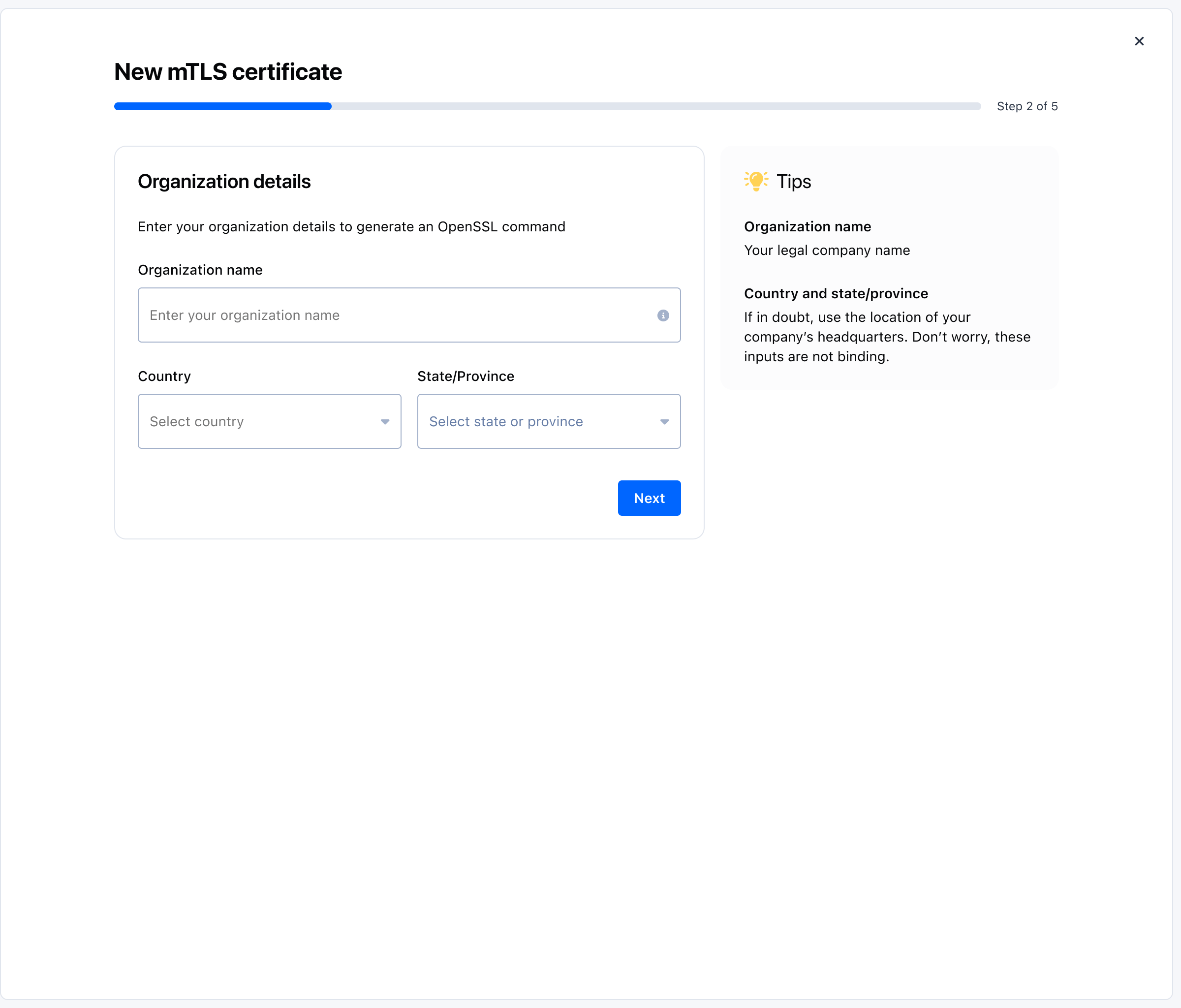
3. Provide organization details to generate the CSR command:
* Organization name: your legal company name.
* Country and state/province: if unsure, use your headquarters. These inputs are not binding.
1. In the Payrails Portal, go to `Settings → mTLS certificates`.
2. Select `Create certificate` and provide a description if desired: owner, rotation policy or related service.
3. Provide organization details to generate the CSR command:
* Organization name: your legal company name.
* Country and state/province: if unsure, use your headquarters. These inputs are not binding.
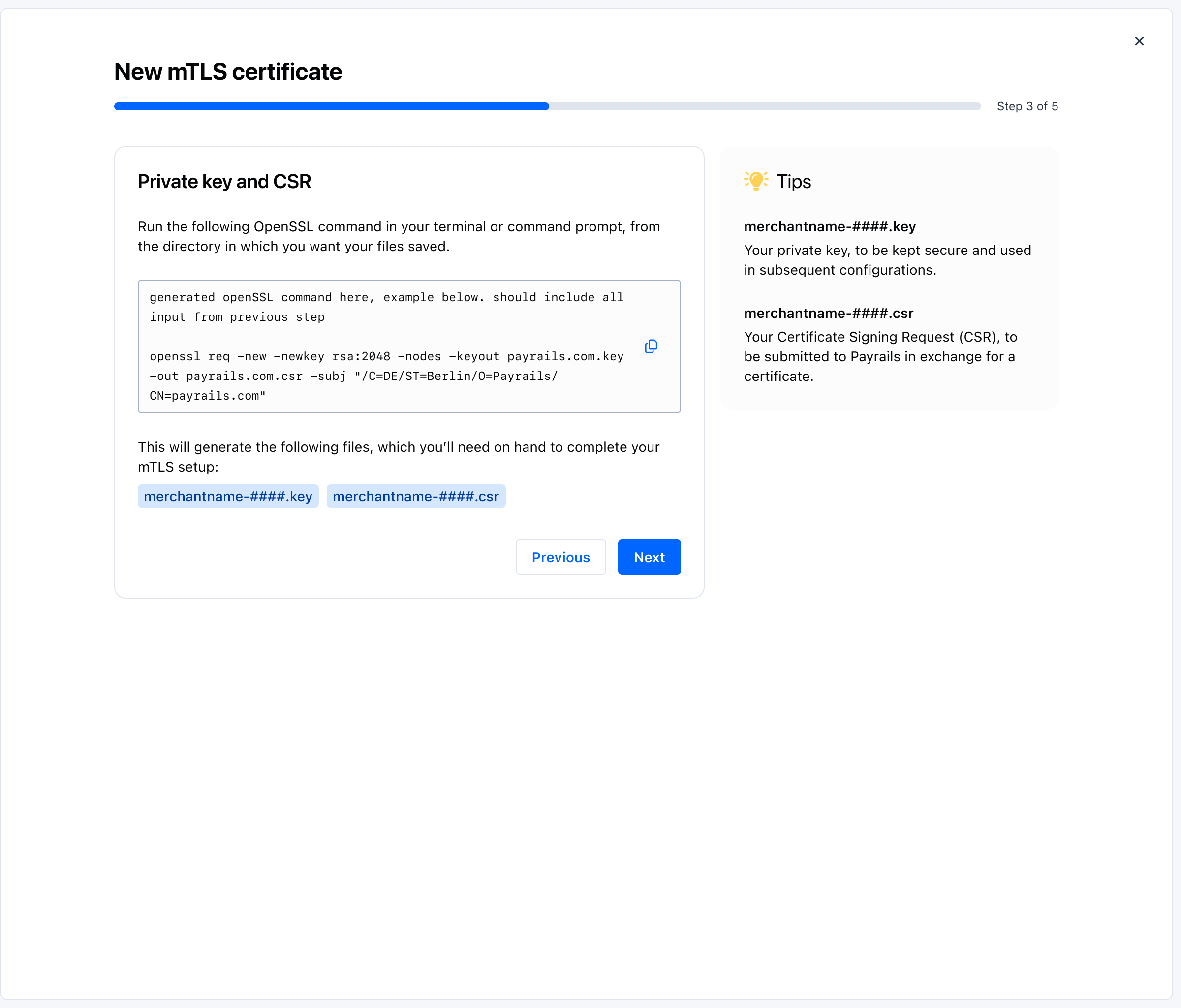
 4. Generate your private key and CSR:
* The interface displays a pre‑filled OpenSSL command. Copy it and run it in your terminal from the directory where you want the files saved.
* The command creates two files: a private key and a Certificate Signing Request (CSR).
* Store the private key securely; you will use it when configuring your client later.
* Keep the CSR file ready for submission in the next step.
4. Generate your private key and CSR:
* The interface displays a pre‑filled OpenSSL command. Copy it and run it in your terminal from the directory where you want the files saved.
* The command creates two files: a private key and a Certificate Signing Request (CSR).
* Store the private key securely; you will use it when configuring your client later.
* Keep the CSR file ready for submission in the next step.
 5. Submit the CSR generated in step 4.
6. The certificate is issued automatically after submission: click `Download` to download it.
5. Submit the CSR generated in step 4.
6. The certificate is issued automatically after submission: click `Download` to download it.
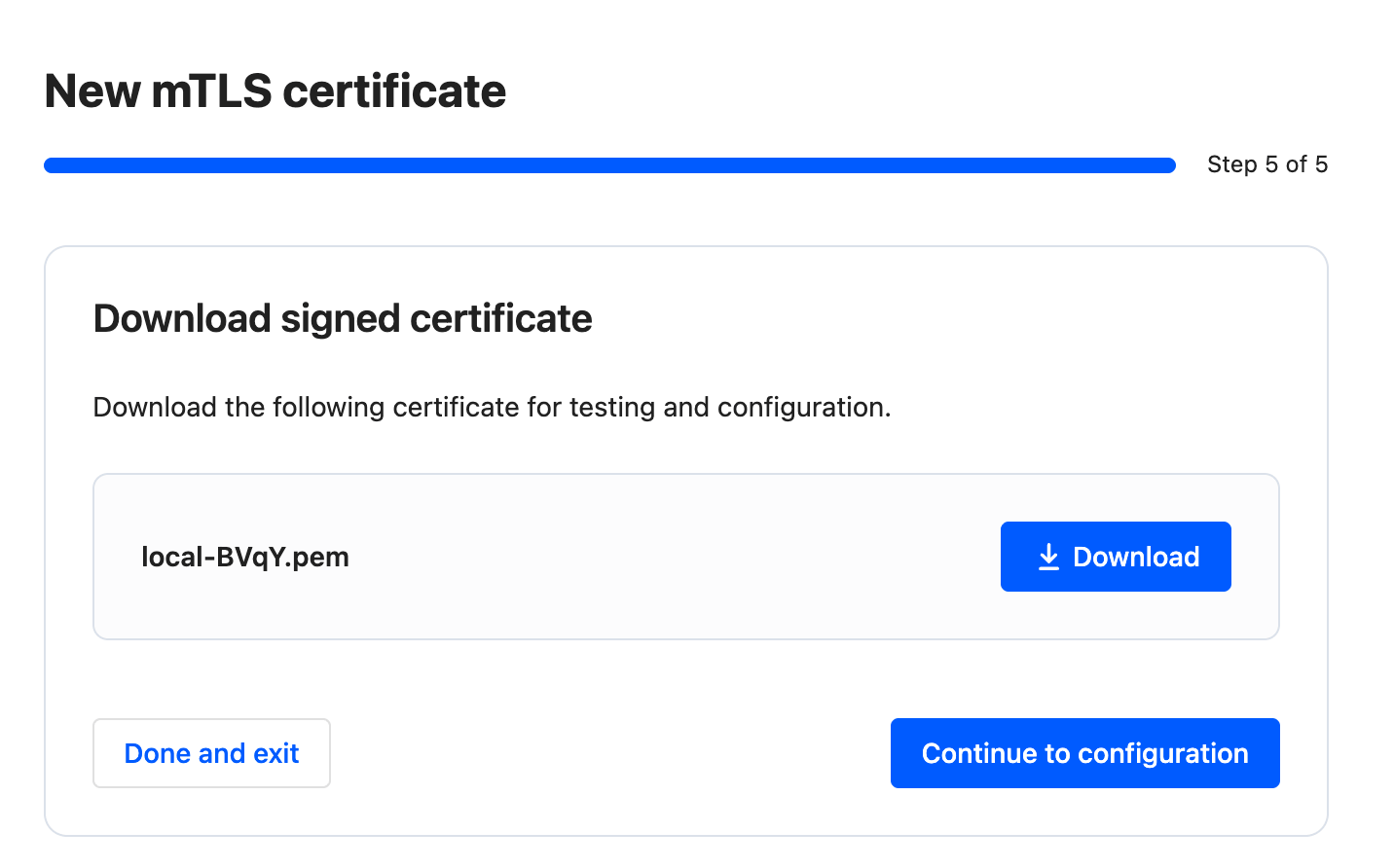 7. Install the certificate in your service or keep it ready for local testing (see the Postman section below).
8. Click on `Continue to configuration` to [test and configure your mTLS certificate](#test-and-configure-your-mtls-certificate).
## Validate and test
### Test and configure your mTLS certificate
You can test your mTLS certificate with cURL or Postman, follow the instructions on the screen.
7. Install the certificate in your service or keep it ready for local testing (see the Postman section below).
8. Click on `Continue to configuration` to [test and configure your mTLS certificate](#test-and-configure-your-mtls-certificate).
## Validate and test
### Test and configure your mTLS certificate
You can test your mTLS certificate with cURL or Postman, follow the instructions on the screen.
 ### Configure curl to use mTLS
The exact command to use mTLS with CLI depends on the tool you're using. Here's an example with curl to retrieve an access token from Payrails API:
```
curl --cert domain.pem --key domain.key \
--location --request POST 'https:///auth/token/' \
--header 'Accept: application/json' \
--header 'x-api-key: '
```
* `domain.pem`: the certificate file [downloaded](#request-and-manage-mtls-certificates) (or sent to you) in Step 2,
* `domain.key`: the private key file generated in Step 1,
* If the private key requires a passphrase, you will also need to provide it with `--pass` argument.
* `Client ID` and `Client Secret` are the API credentials. [See how to retrieve them](/docs/account-setup/api-credentials#configuration-steps).
### Configure Postman to use mTLS
From certificate details
### Configure curl to use mTLS
The exact command to use mTLS with CLI depends on the tool you're using. Here's an example with curl to retrieve an access token from Payrails API:
```
curl --cert domain.pem --key domain.key \
--location --request POST 'https:///auth/token/' \
--header 'Accept: application/json' \
--header 'x-api-key: '
```
* `domain.pem`: the certificate file [downloaded](#request-and-manage-mtls-certificates) (or sent to you) in Step 2,
* `domain.key`: the private key file generated in Step 1,
* If the private key requires a passphrase, you will also need to provide it with `--pass` argument.
* `Client ID` and `Client Secret` are the API credentials. [See how to retrieve them](/docs/account-setup/api-credentials#configuration-steps).
### Configure Postman to use mTLS
From certificate details
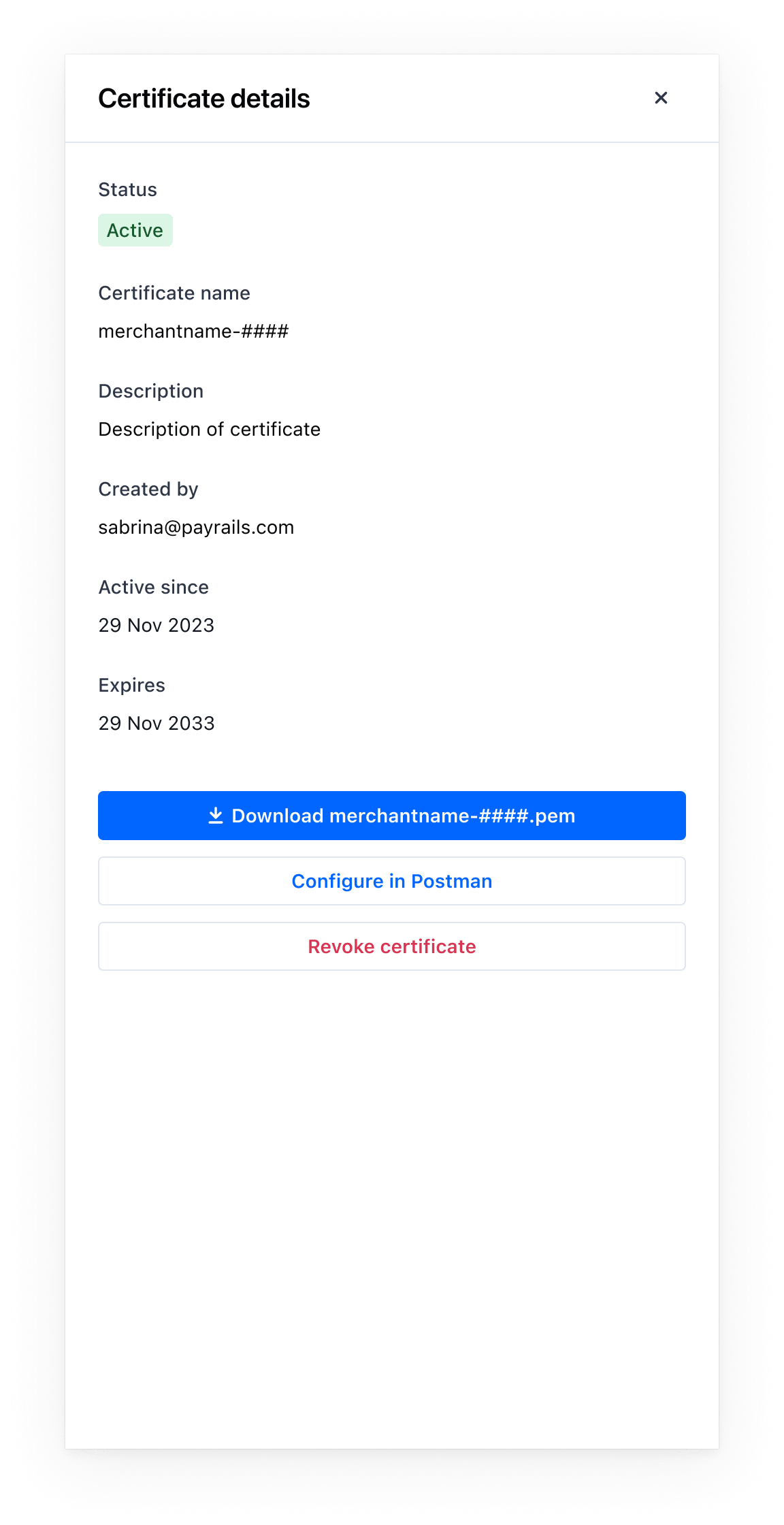 1. Open the certificate from the list to view `Certificate details`.
2. Select `Download .pem` and save the file.
3. Select `Configure in Postman` to open the guided steps.
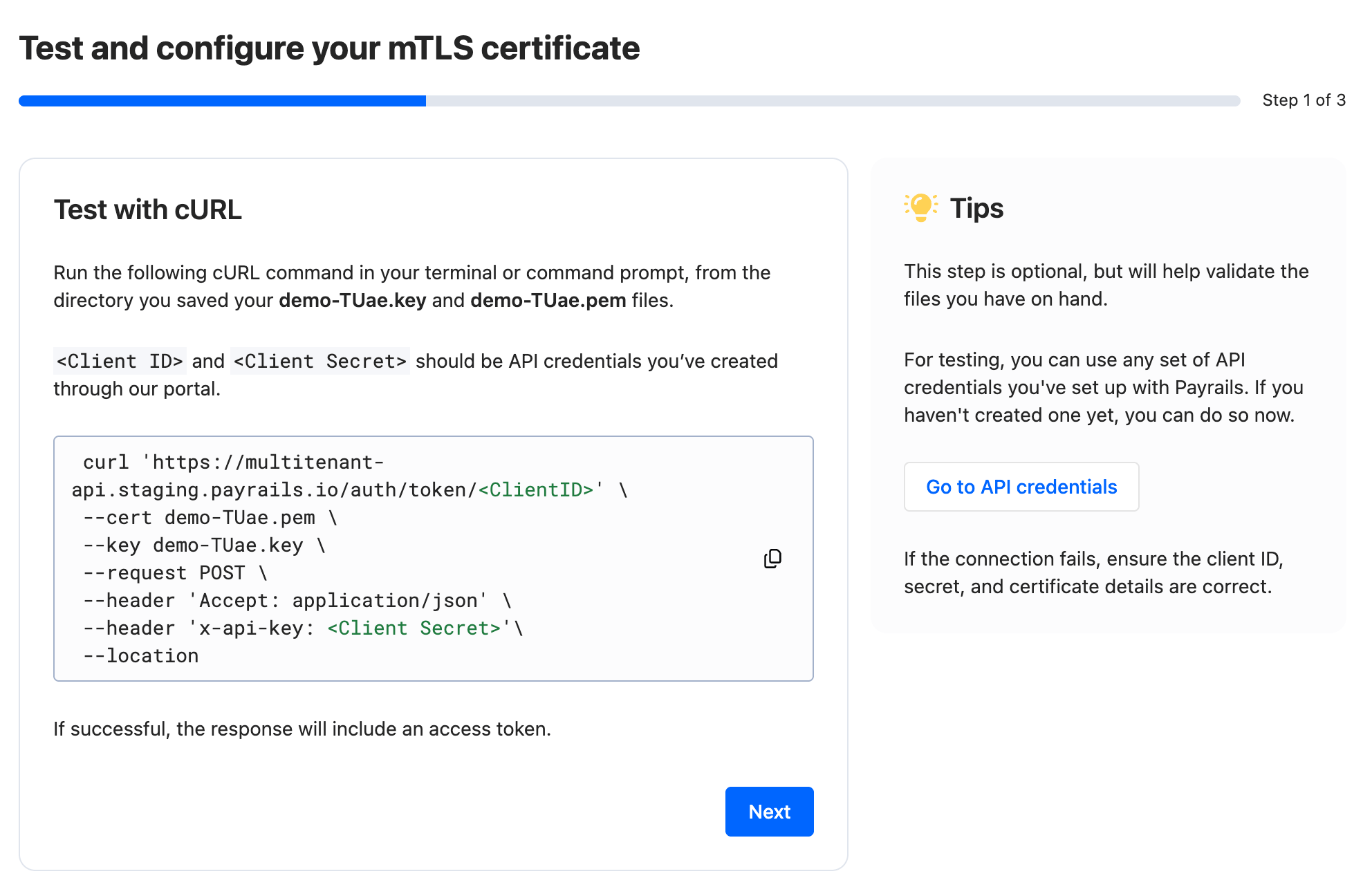
Step 1 of 3 — Test with cURL (optional)
* Copy the cURL command shown in the interface and run it in your terminal from the directory where your `-####.key` and `-####.pem` are saved.
* Replace placeholders with a valid `Client ID` and `Client Secret` from your API credentials.
* On success, the response includes an access token. If it fails, verify the credentials and that both the key and certificate paths are correct.
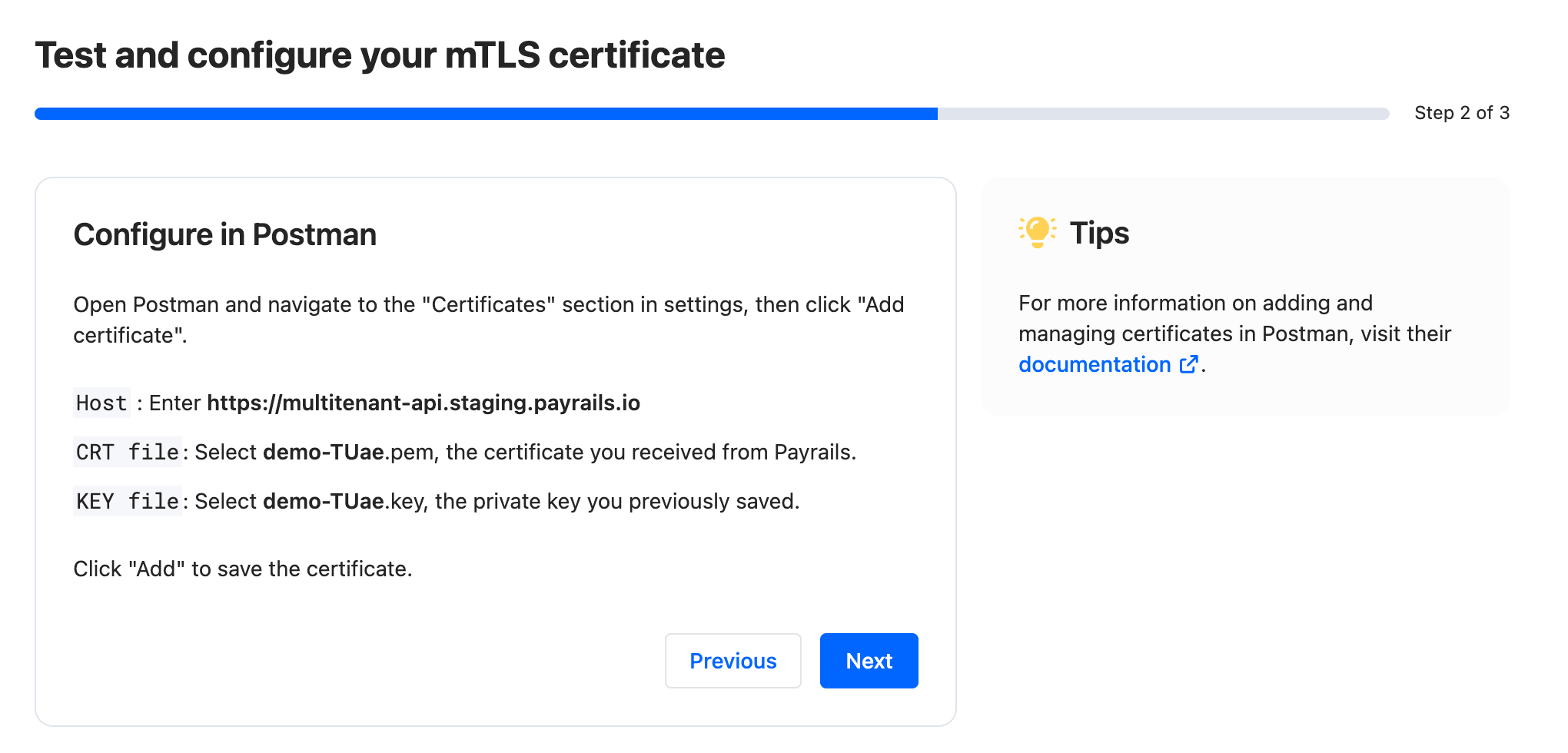
Step 2 of 3 — Configure in Postman
1. Open Postman and go to `Settings → Certificates`, then select `Add certificate`.
2. Host: enter the host value shown in the interface for your environment.
3. `CRT file`: select the downloaded `-####.pem` certificate from Payrails.
4. `KEY file`: select the previously saved `-####.key` private key you generated during the CSR step.
5. Select `Add` to save the certificate mapping.
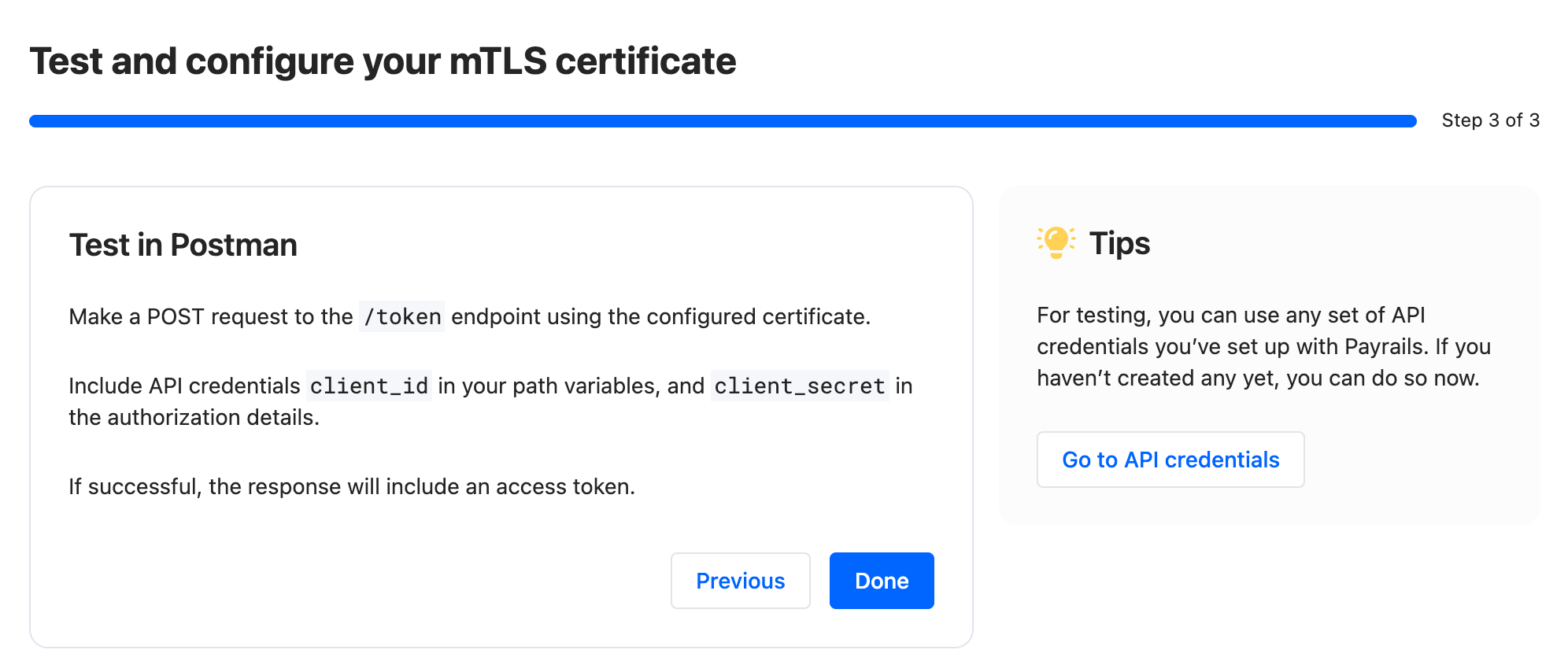
Step 3 of 3 — Test in Postman
1. Create a `POST` request to the endpoint indicated in the interface (for example, `/token`).
2. Include your API credentials as instructed on screen (for example, `client_id` in path variables and `client_secret` in authorization details).
3. Send the request. A successful TLS handshake and authorization returns an access token.
## Troubleshooting
* Handshake failed in Postman:
* Verify the host and port match the values shown in the interface.
* Ensure the client certificate is attached to that host entry and imported correctly.
* If a passphrase was shown at download time, confirm it is entered correctly.
* 401/403 after handshake: OAuth or API authorization failed. Acquire a valid access token and ensure the calling client has required permissions.
* Revoked certificate: issuance of a new certificate is required; revoked certificates cannot be re‑enabled.
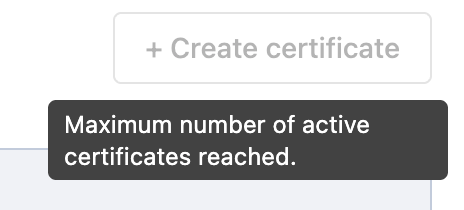
* Maximum number of active certificates reached: we limit the number of certificates to prevent abuse. If you reached your limit, either revoke an existing certificate that is no longer in use or contact your Payrails administrator to increase your limit.
1. Open the certificate from the list to view `Certificate details`.
2. Select `Download .pem` and save the file.
3. Select `Configure in Postman` to open the guided steps.
Step 1 of 3 — Test with cURL (optional)
* Copy the cURL command shown in the interface and run it in your terminal from the directory where your `-####.key` and `-####.pem` are saved.
* Replace placeholders with a valid `Client ID` and `Client Secret` from your API credentials.
* On success, the response includes an access token. If it fails, verify the credentials and that both the key and certificate paths are correct.
Step 2 of 3 — Configure in Postman
1. Open Postman and go to `Settings → Certificates`, then select `Add certificate`.
2. Host: enter the host value shown in the interface for your environment.
3. `CRT file`: select the downloaded `-####.pem` certificate from Payrails.
4. `KEY file`: select the previously saved `-####.key` private key you generated during the CSR step.
5. Select `Add` to save the certificate mapping.
Step 3 of 3 — Test in Postman
1. Create a `POST` request to the endpoint indicated in the interface (for example, `/token`).
2. Include your API credentials as instructed on screen (for example, `client_id` in path variables and `client_secret` in authorization details).
3. Send the request. A successful TLS handshake and authorization returns an access token.
## Troubleshooting
* Handshake failed in Postman:
* Verify the host and port match the values shown in the interface.
* Ensure the client certificate is attached to that host entry and imported correctly.
* If a passphrase was shown at download time, confirm it is entered correctly.
* 401/403 after handshake: OAuth or API authorization failed. Acquire a valid access token and ensure the calling client has required permissions.
* Revoked certificate: issuance of a new certificate is required; revoked certificates cannot be re‑enabled.
* Maximum number of active certificates reached: we limit the number of certificates to prevent abuse. If you reached your limit, either revoke an existing certificate that is no longer in use or contact your Payrails administrator to increase your limit.
 ## Why is my certificate marked as Deprecated?
 As part of an improvement to the stability of our platform, we are migrating away from Cloudflare as a Certificate Authority (CA) for our MTLS authentication.
We have introduced new Payrails-managed CAs for both staging and production. These CAs are already active and currently operate in parallel with the existing Cloudflare CAs.
**All Cloudflare issued certificates are still valid but marked as deprecated as they would need to be replaced by certificates issued by Payrails CA instead.**\
**Once the transition to Payrails CA is done, Cloudflare certificates will automatically be revoked.**
**Action required by 23 March 2026**
To ensure continued mTLS connectivity, please:
1. Regenerate your client certificate via the Payrails Portal (for staging and/or production, as applicable). Please note that the Portal now supports direct certificate generation for staging, in addition to production.
2. Deploy the newly generated certificate in your environment.
3. Confirm that traffic is no longer relying on the previous Cloudflare CA.
All newly generated certificates are now signed by the Payrails CAs. Once all merchants have migrated, we will fully decommission the Cloudflare CA.
We would appreciate it if you could complete the migration **by 23 March 2026** to help ensure continued, uninterrupted mTLS connectivity.
If you have questions about the transition, please let us know.
## Related topics
- [Billing](/docs/use-cases/billing-use-cases.md)
- [Roles & Permissions](/docs/account-setup/user-management/roles-permissions.md)
- [Set up your Payrails account and environment](/docs/account-setup/index.md)
As part of an improvement to the stability of our platform, we are migrating away from Cloudflare as a Certificate Authority (CA) for our MTLS authentication.
We have introduced new Payrails-managed CAs for both staging and production. These CAs are already active and currently operate in parallel with the existing Cloudflare CAs.
**All Cloudflare issued certificates are still valid but marked as deprecated as they would need to be replaced by certificates issued by Payrails CA instead.**\
**Once the transition to Payrails CA is done, Cloudflare certificates will automatically be revoked.**
**Action required by 23 March 2026**
To ensure continued mTLS connectivity, please:
1. Regenerate your client certificate via the Payrails Portal (for staging and/or production, as applicable). Please note that the Portal now supports direct certificate generation for staging, in addition to production.
2. Deploy the newly generated certificate in your environment.
3. Confirm that traffic is no longer relying on the previous Cloudflare CA.
All newly generated certificates are now signed by the Payrails CAs. Once all merchants have migrated, we will fully decommission the Cloudflare CA.
We would appreciate it if you could complete the migration **by 23 March 2026** to help ensure continued, uninterrupted mTLS connectivity.
If you have questions about the transition, please let us know.
## Related topics
- [Billing](/docs/use-cases/billing-use-cases.md)
- [Roles & Permissions](/docs/account-setup/user-management/roles-permissions.md)
- [Set up your Payrails account and environment](/docs/account-setup/index.md)