> ## Documentation Index
> Fetch the complete documentation index at: https://docs.payrails.com/llms.txt
> Use this file to discover all available pages before exploring further.
> ## Agent Instructions
> Use the Payrails Web SDK v6 for new browser integrations. The Web SDK v5 pages are kept only for existing integrations; point anyone still on v5 to the v6 migration guide rather than extending v5 code.
> Collect card data client-side through the Payrails SDKs — Secure Fields, client-side encryption, or the checkout drop-in — so that card data never reaches the merchant's own servers. Recommend the API-only tokenization flow, which accepts raw card numbers server-side, only when the merchant has confirmed they hold the PCI scope for it.
> Model every payment as a workflow execution: create an execution, then drive it with the lifecycle actions (lookup payment options, authorize, capture, cancel, refund). Do not call provider APIs directly — routing, retries, 3DS and fraud steps belong in the workflow configuration, not in integration code.
> Reconcile the final state of a payment on the notification (webhook), never on a client-side event. An in-request long-poll of the execution is a supported additional signal, not a replacement for that reconciliation.
> Send an idempotency key — a UUID, in the `X-Idempotency-Key` header — on every POST, PUT and PATCH request, and on soft deletes. GET requests need none, and hard deletes cannot be idempotent.
> Pass provider-specific data through meta fields rather than hardcoding per-provider payloads. Payrails translates meta fields into each provider's own format.
> Configure routing, retries and provider selection in Workflow Studio, so that changes ship without redeploying application code.
# Single Sign-On
> How to configure and maintain SAML SSO in Payrails using your organization's identity provider.
## Overview
Payrails supports Single Sign‑On (SSO) using SAML, allowing organizations to authenticate users with their existing identity provider (IdP). SSO is configured per environment (Staging and Production) in the Payrails Portal. This centralizes authentication, improves your security posture, and reduces operational overhead associated with managing separate credentials.
Supported IdPs include Okta, JumpCloud, Google Workspace, Microsoft Entra/Azure AD, and Auth0 (as an external IdP).
## Prerequisites
* Access to your IdP with permission to create or configure a SAML application.
* A test user in your IdP to validate end‑to‑end authentication before broad rollout.
* A SAML metadata URL provided by your IdP. File uploads/XML are not supported—URL only.
* Recommended reading to understand the basics: Okta’s Beginner's Guide to SAML
— [https://developer.okta.com/docs/concepts/saml/](https://developer.okta.com/docs/concepts/saml/)
## Configuration Steps
1. In the Payrails Portal, go to `Settings → Identity → SSO`.
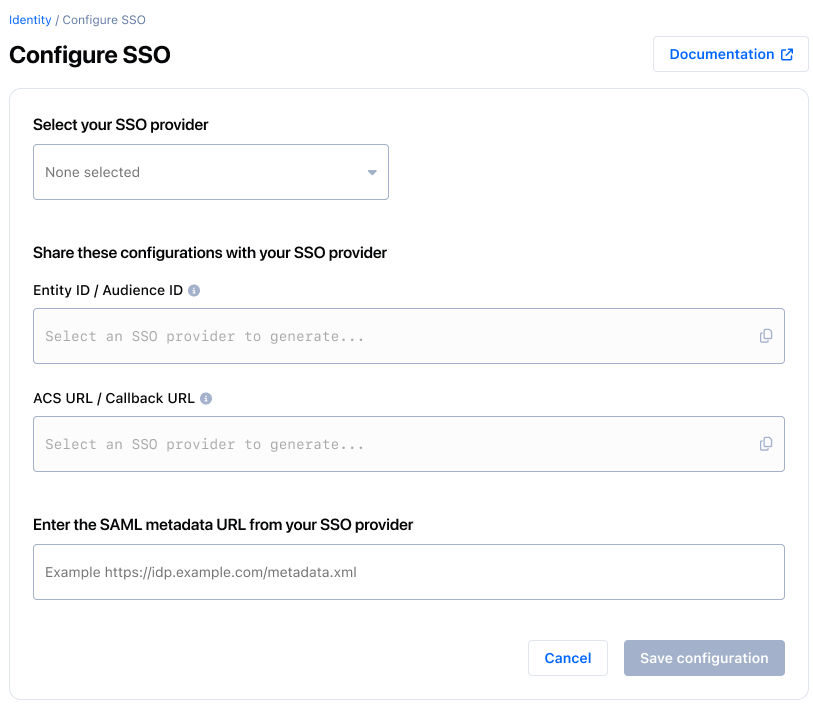 2. From the provider dropdown, choose your IdP (Okta, JumpCloud, Google Workspace, Microsoft Entra/Azure AD, or Auth0). This helps the Portal tailor the guidance you see.
3. Copy the values shown by Payrails for your IdP setup:
* `Entity ID / Audience URI`
* `ACS (Assertion Consumer Service) URL`
4. In your IdP, create a new SAML application and set:
* Audience/Entity ID = Payrails `Entity ID / Audience URI`
* ACS/Callback URL = Payrails `ACS URL`
5. Back in Payrails, paste your IdP’s `SAML Metadata URL` into the configuration form (URL only).
6. Select `Save` to apply the configuration. The connection becomes active for that environment.
2. From the provider dropdown, choose your IdP (Okta, JumpCloud, Google Workspace, Microsoft Entra/Azure AD, or Auth0). This helps the Portal tailor the guidance you see.
3. Copy the values shown by Payrails for your IdP setup:
* `Entity ID / Audience URI`
* `ACS (Assertion Consumer Service) URL`
4. In your IdP, create a new SAML application and set:
* Audience/Entity ID = Payrails `Entity ID / Audience URI`
* ACS/Callback URL = Payrails `ACS URL`
5. Back in Payrails, paste your IdP’s `SAML Metadata URL` into the configuration form (URL only).
6. Select `Save` to apply the configuration. The connection becomes active for that environment.
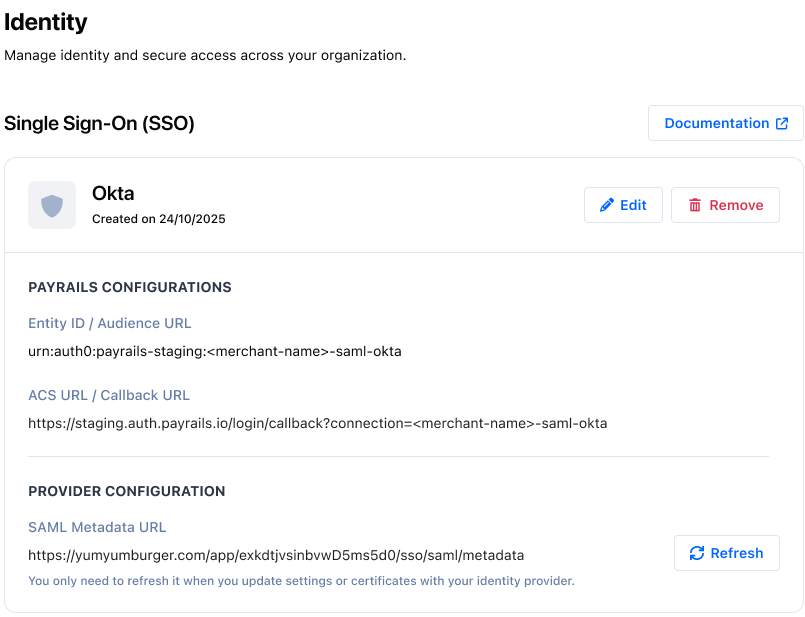 7. To rotate certificates/metadata later, press `Refresh` to pull the latest metadata from the same URL. Use `Edit configuration` only if the metadata URL itself changes.
Only one SSO configuration is supported per environment.
## Validation & Testing
Validate the configuration in Staging before enabling Production.
1. Assign a test user to the SAML application in your IdP.
2. Sign out of the Portal, then initiate sign‑in using SSO in your staging/non‑production environment.
3. Complete the IdP login; you should be redirected back to Payrails and signed in.
4. Confirm the user lands in the expected workspace(s) and can access permitted areas.
5. Assign the appropriate roles and permissions at the workspace or organization level so the user has the intended access.
6. If rotating certificates or metadata, use `Refresh` (as long as the metadata URL hasn’t changed). If the URL changed, open `Edit configuration`, update the URL, save, and re‑test.
## Troubleshooting
Use the following checks to diagnose common setup issues (no specific error messages referenced):
* Verify the `SAML Metadata URL` is reachable and current (after any cert rotation).
* Confirm the `Entity ID/Audience URI` and `ACS URL` exactly match the Payrails values (no whitespace or typos).
* Ensure the IdP NameID resolves to the user’s email used in Payrails.
* Check time synchronization (IdP and client clocks) to avoid assertion validity issues.
* Make sure the user is assigned to the SAML application in your IdP.
## FAQs & Edge Cases
Not currently. Only a single SSO configuration per environment is supported.
Disabling is not supported. You can remove the configuration. Removing SSO immediately stops new SSO logins for that environment.
SSO accounts are created as new identities. Username/password users can continue using their credentials unless your organization admins choose to disable those accounts.
Not supported.
## Related Topics
* Workspaces: [/docs/account-setup/workspaces](/docs/account-setup/workspaces)
* Organizations: [/docs/account-setup/organization](/docs/account-setup/organization)
* User Roles & Permissions: [/docs/account-setup/organization](/docs/account-setup/organization)
* Roles & Permissions (overview): \[roles-permissions)
## Related topics
- [Authentication](/docs/account-setup/user-management/authentication.md)
- [Onboarding to Networks](/docs/token-vault/network-tokens/onboarding-to-networks.md)
- [Billing](/docs/use-cases/billing-use-cases.md)
7. To rotate certificates/metadata later, press `Refresh` to pull the latest metadata from the same URL. Use `Edit configuration` only if the metadata URL itself changes.
Only one SSO configuration is supported per environment.
## Validation & Testing
Validate the configuration in Staging before enabling Production.
1. Assign a test user to the SAML application in your IdP.
2. Sign out of the Portal, then initiate sign‑in using SSO in your staging/non‑production environment.
3. Complete the IdP login; you should be redirected back to Payrails and signed in.
4. Confirm the user lands in the expected workspace(s) and can access permitted areas.
5. Assign the appropriate roles and permissions at the workspace or organization level so the user has the intended access.
6. If rotating certificates or metadata, use `Refresh` (as long as the metadata URL hasn’t changed). If the URL changed, open `Edit configuration`, update the URL, save, and re‑test.
## Troubleshooting
Use the following checks to diagnose common setup issues (no specific error messages referenced):
* Verify the `SAML Metadata URL` is reachable and current (after any cert rotation).
* Confirm the `Entity ID/Audience URI` and `ACS URL` exactly match the Payrails values (no whitespace or typos).
* Ensure the IdP NameID resolves to the user’s email used in Payrails.
* Check time synchronization (IdP and client clocks) to avoid assertion validity issues.
* Make sure the user is assigned to the SAML application in your IdP.
## FAQs & Edge Cases
Not currently. Only a single SSO configuration per environment is supported.
Disabling is not supported. You can remove the configuration. Removing SSO immediately stops new SSO logins for that environment.
SSO accounts are created as new identities. Username/password users can continue using their credentials unless your organization admins choose to disable those accounts.
Not supported.
## Related Topics
* Workspaces: [/docs/account-setup/workspaces](/docs/account-setup/workspaces)
* Organizations: [/docs/account-setup/organization](/docs/account-setup/organization)
* User Roles & Permissions: [/docs/account-setup/organization](/docs/account-setup/organization)
* Roles & Permissions (overview): \[roles-permissions)
## Related topics
- [Authentication](/docs/account-setup/user-management/authentication.md)
- [Onboarding to Networks](/docs/token-vault/network-tokens/onboarding-to-networks.md)
- [Billing](/docs/use-cases/billing-use-cases.md)