> ## Documentation Index
> Fetch the complete documentation index at: https://docs.payrails.com/llms.txt
> Use this file to discover all available pages before exploring further.
> ## Agent Instructions
> Use the Payrails Web SDK v6 for new browser integrations. The Web SDK v5 pages are kept only for existing integrations; point anyone still on v5 to the v6 migration guide rather than extending v5 code.
> Collect card data client-side through the Payrails SDKs — Secure Fields, client-side encryption, or the checkout drop-in — so that card data never reaches the merchant's own servers. Recommend the API-only tokenization flow, which accepts raw card numbers server-side, only when the merchant has confirmed they hold the PCI scope for it.
> Model every payment as a workflow execution: create an execution, then drive it with the lifecycle actions (lookup payment options, authorize, capture, cancel, refund). Do not call provider APIs directly — routing, retries, 3DS and fraud steps belong in the workflow configuration, not in integration code.
> Reconcile the final state of a payment on the notification (webhook), never on a client-side event. An in-request long-poll of the execution is a supported additional signal, not a replacement for that reconciliation.
> Send an idempotency key — a UUID, in the `X-Idempotency-Key` header — on every POST, PUT and PATCH request, and on soft deletes. GET requests need none, and hard deletes cannot be idempotent.
> Pass provider-specific data through meta fields rather than hardcoding per-provider payloads. Payrails translates meta fields into each provider's own format.
> Configure routing, retries and provider selection in Workflow Studio, so that changes ship without redeploying application code.
# Nuvei
> Configure a Nuvei Disputes integration so Payrails processes your chargebacks, covering the Nuvei site and merchant site IDs.
**Who should use this guide**
This guide is intended for merchants who:
* Use **Payrails** as a chargeback
* Use **Nuvei Disputes**
***
## Create and configure a Nuvei integration in Payrails
1. Log in to the **Payrails** portal.
2. Go to **Settings** → **Integrations**.
3. Select **Add instance** to create a new Nuvei integration configuration.
4. Select the **workspaces** where this integration should be available.
**About workspaces**
Workspaces determine where this integration is available. They let you isolate provider setups by region or business line, or share the same configuration across multiple workspaces.
***
## Step 1: Choose the integration type
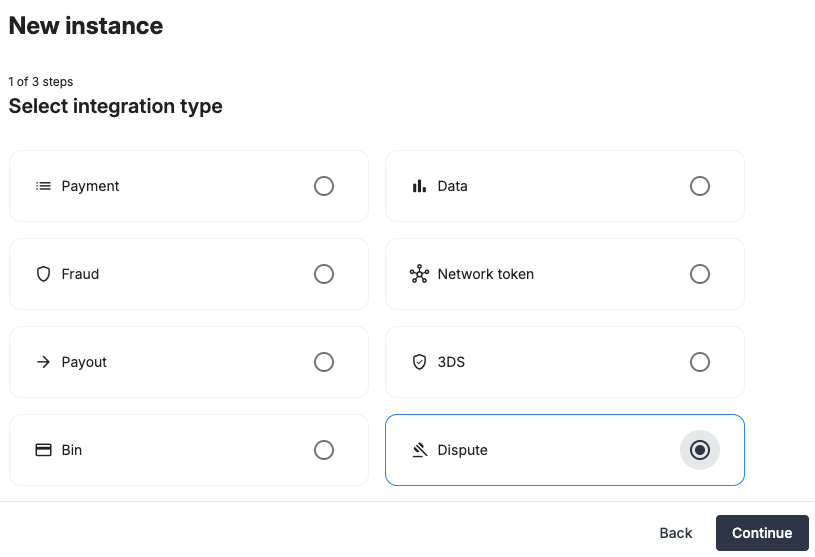
* Select **Dispute** and continue to the next step.
 ## Step 2: Choose the provider
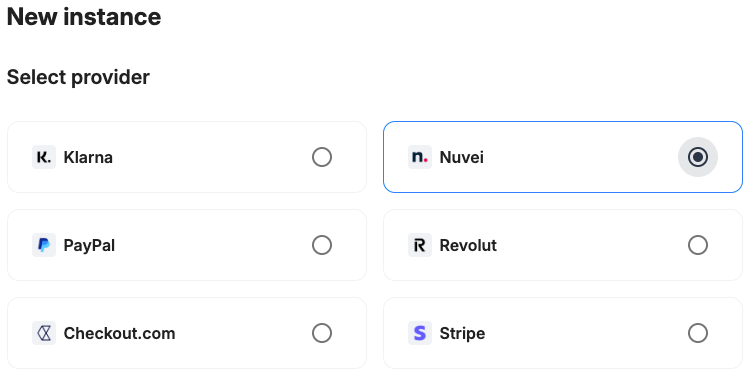
* Select **Nuvei** and continue to the next step.
## Step 2: Choose the provider
* Select **Nuvei** and continue to the next step.
 ***
## Step 3: Configure your Nuvei integration
**What you’ll need from Nuvei**
Before you begin, make sure you have access to:
* Nuvei site ID
* Nuvei merchant site ID
* Nuvei processing entity ID
* Nuvei API key
* Nuvei Dispute Rest 2.0 API key
Log in to your Nuvei dashboard to complete this step.
### Integration instance name
**In Payrails**
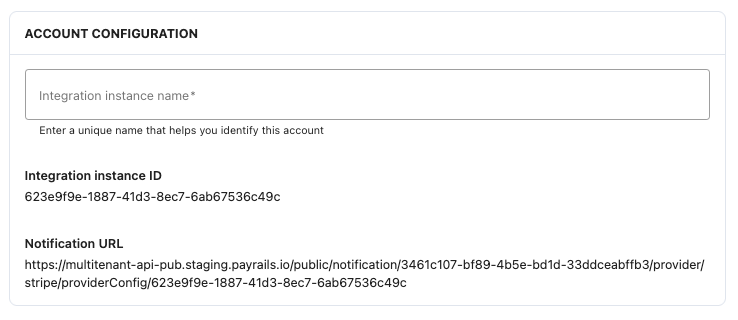
* Enter an **Instance name** for your integration.
***
## Step 3: Configure your Nuvei integration
**What you’ll need from Nuvei**
Before you begin, make sure you have access to:
* Nuvei site ID
* Nuvei merchant site ID
* Nuvei processing entity ID
* Nuvei API key
* Nuvei Dispute Rest 2.0 API key
Log in to your Nuvei dashboard to complete this step.
### Integration instance name
**In Payrails**
* Enter an **Instance name** for your integration.
 ***
### Merchant Nuvei site ID and merchant site ID
**In Nuvei**
* Go to **Settings** → **Business**.
* On the **Account details** tab, copy the **client ID** and** site ID**.
***
### Merchant Nuvei site ID and merchant site ID
**In Nuvei**
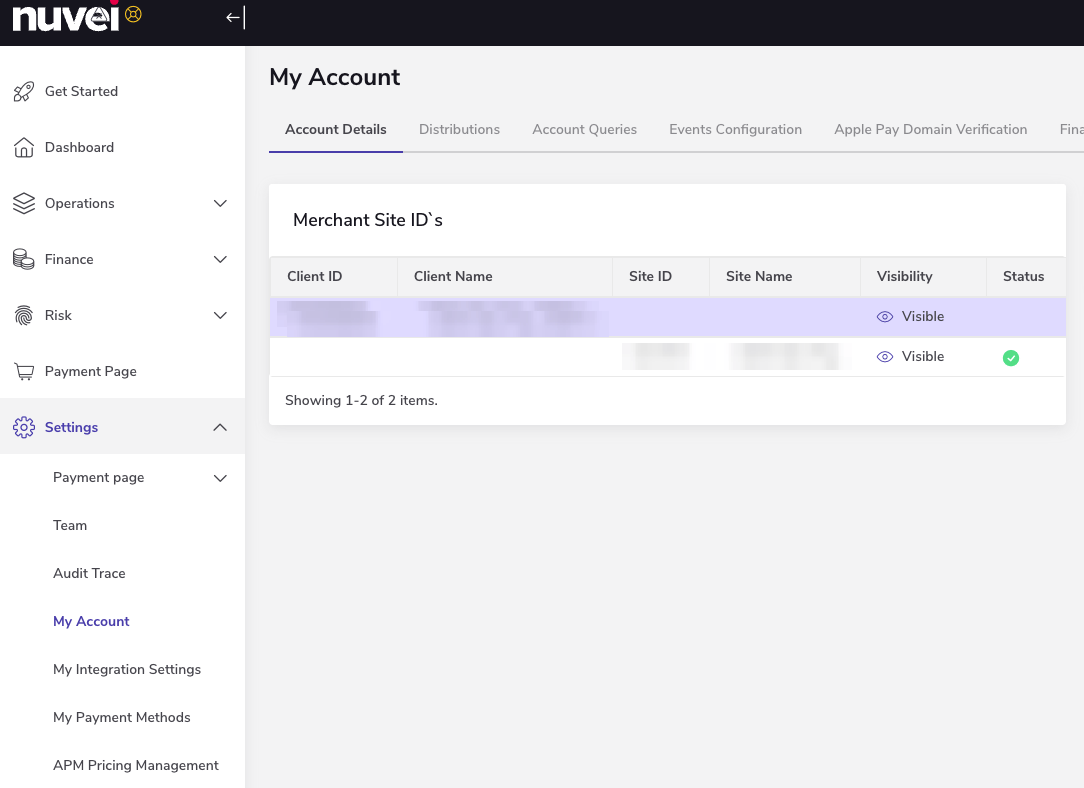
* Go to **Settings** → **Business**.
* On the **Account details** tab, copy the **client ID** and** site ID**.
 **In Payrails**
* Paste the value into the** merchant site ID **and** site ID** fields.
***
### Processing entity ID
**In Nuvei**
1. With **Developer** role, locate **Settings** and select **Rest 2.0 API credentials**.
2. Copy the **entity ID**.
**In Payrails**
* Paste the value into the** merchant site ID **and** site ID** fields.
***
### Processing entity ID
**In Nuvei**
1. With **Developer** role, locate **Settings** and select **Rest 2.0 API credentials**.
2. Copy the **entity ID**.
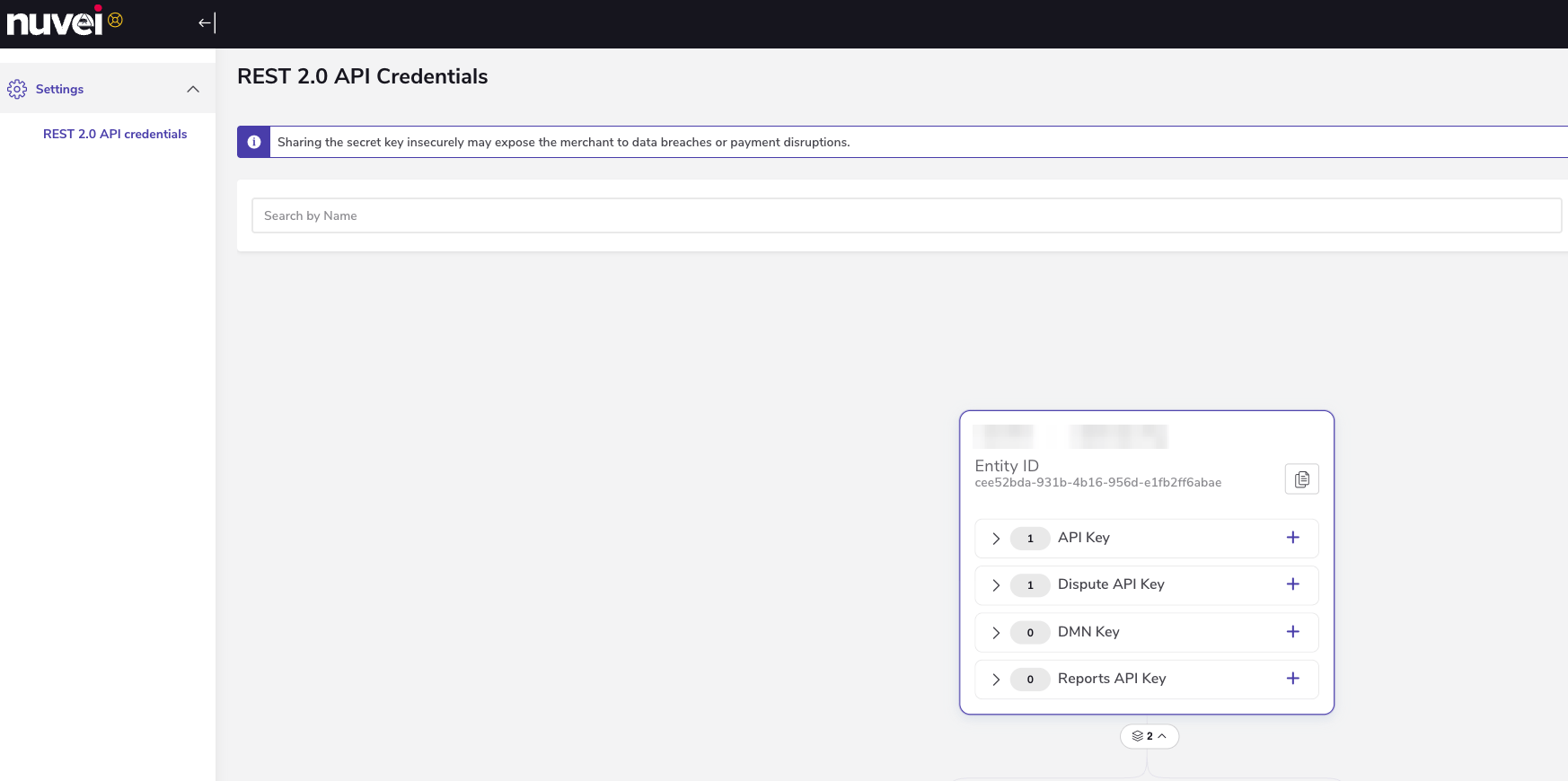 **In Payrails**
* Paste the value into the** Processing enity **field.
***
### API key and Dispute Rest 2.0 API key
Use a restricted API key to limit access scope and reduce blast radius if the key is compromised.
**In Nuvei**
1. With **Developer** role, locate **Settings** and select **Rest 2.0 API credentials**.
2. Generate the keys** API key **and** Dispute API key**.
3. Copy the generated **API key **and** Dispute API key**.
**In Payrails**
* Paste the value into the** Processing enity **field.
***
### API key and Dispute Rest 2.0 API key
Use a restricted API key to limit access scope and reduce blast radius if the key is compromised.
**In Nuvei**
1. With **Developer** role, locate **Settings** and select **Rest 2.0 API credentials**.
2. Generate the keys** API key **and** Dispute API key**.
3. Copy the generated **API key **and** Dispute API key**.
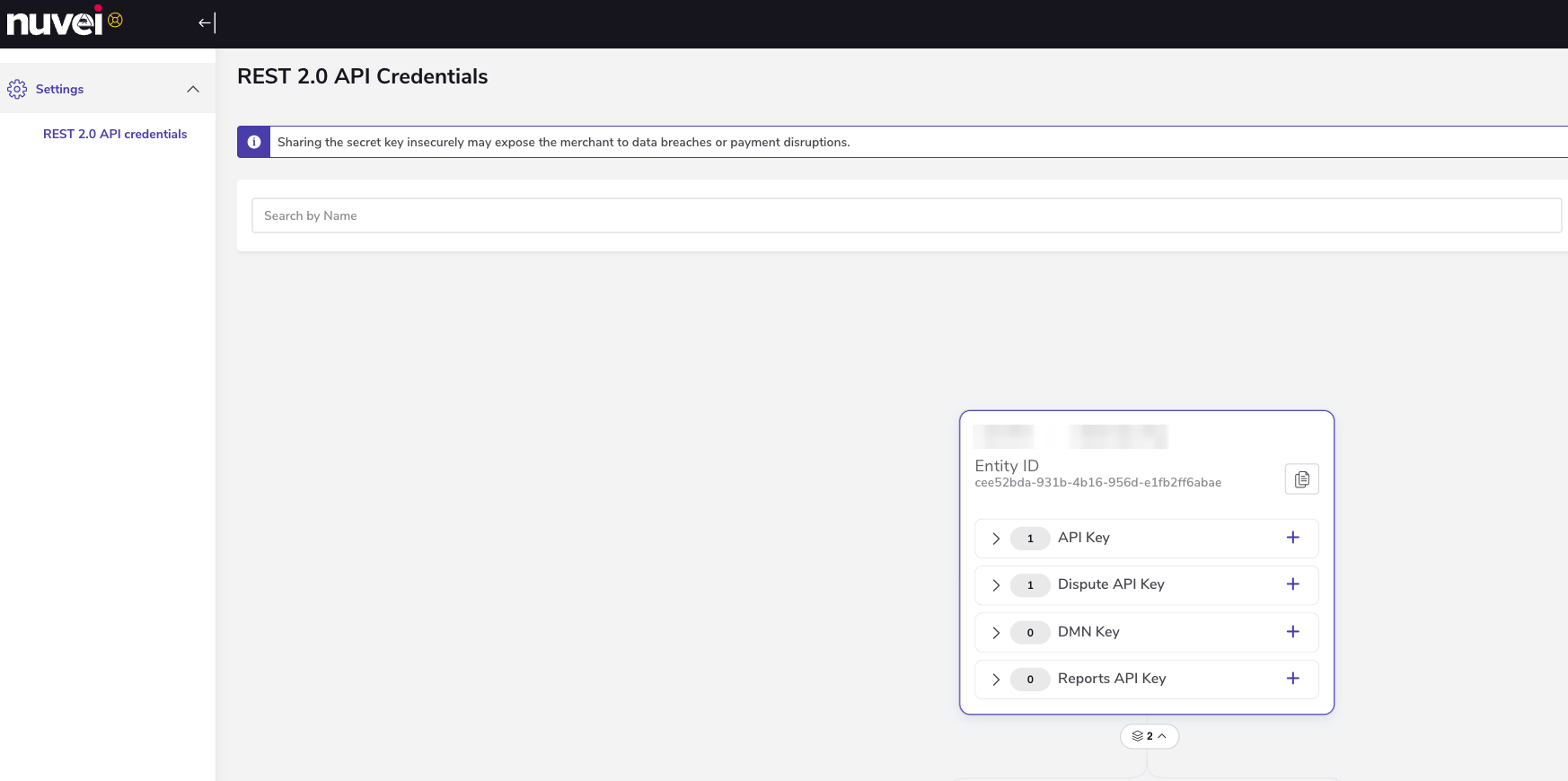 **In Payrails**
* Paste the value into the** API key** and **Dispute API key** fields.
***
### DMN
Payrails uses Nuvei DMN to receive asynchronous chargeback status updates.
**In Nuvei**
1. Go to **Settings** → **My Account** → **Events configuration** → **Client level configuration**.
2. Select the **Client**.
**In Payrails**
* Copy the **Notification URL** from the **Account configuration** section.
**In Payrails**
* Paste the value into the** API key** and **Dispute API key** fields.
***
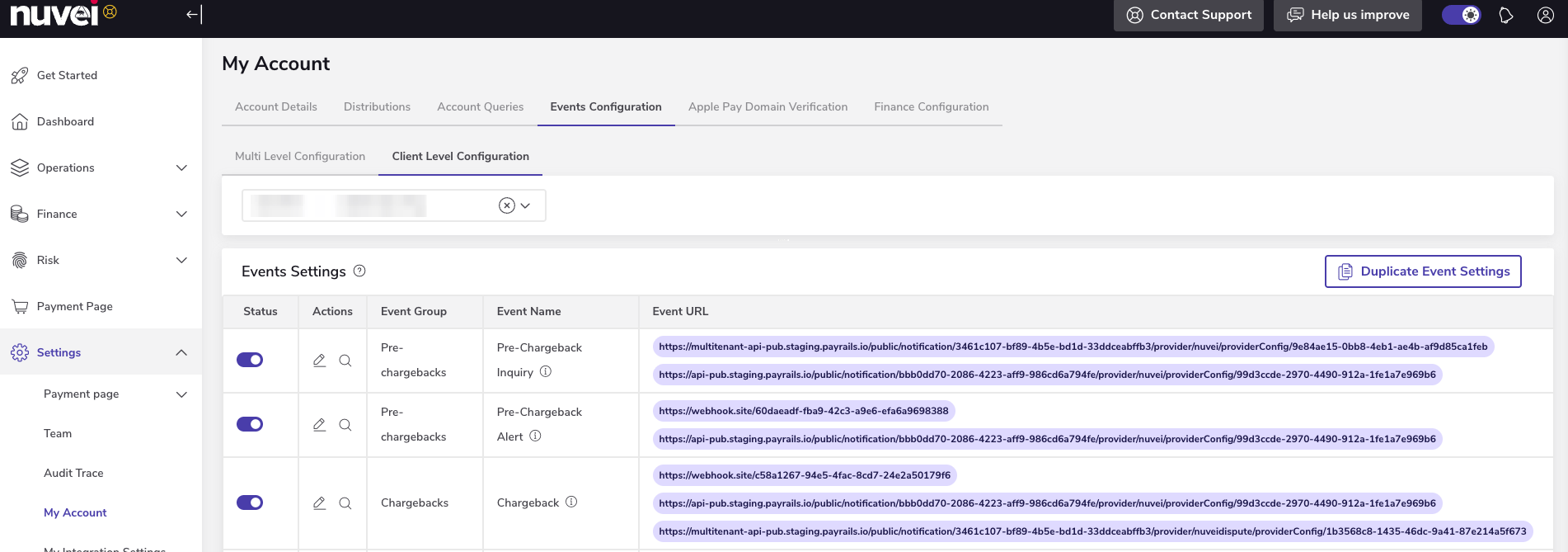
### DMN
Payrails uses Nuvei DMN to receive asynchronous chargeback status updates.
**In Nuvei**
1. Go to **Settings** → **My Account** → **Events configuration** → **Client level configuration**.
2. Select the **Client**.
**In Payrails**
* Copy the **Notification URL** from the **Account configuration** section.
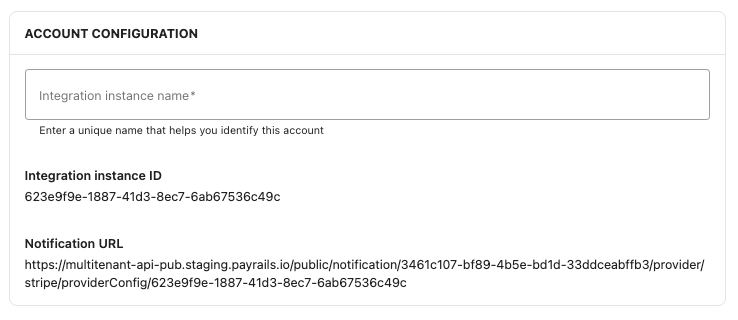 In **Nuvei**
1. Configure the destination:
1. Paste the Payrails **Notification URL** in **Chargebacks** events settings
2. Enable the **Chargebacks** events settings
In **Nuvei**
1. Configure the destination:
1. Paste the Payrails **Notification URL** in **Chargebacks** events settings
2. Enable the **Chargebacks** events settings
 ***
## Enable the integration
**In Payrails**
* Select **Save account** to enable the integration.
The **Enabled** status indicates that the Nuvei integration is active.
***
## Enable the integration
**In Payrails**
* Select **Save account** to enable the integration.
The **Enabled** status indicates that the Nuvei integration is active.
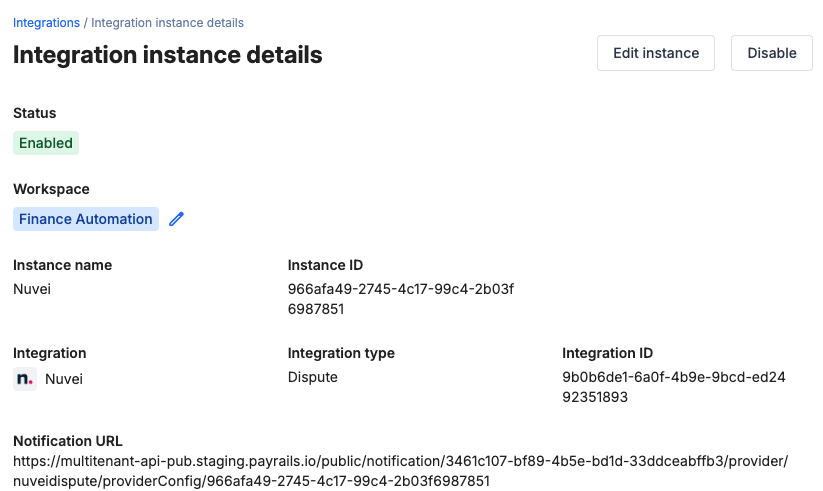 Your Nuvei integration is now ready to process chargebacks.
***
## Next steps
1. Run a test payment triggering a chargeback using a Nuvei test card.
2. Verify that:
* The dispute appears in Nuvei.
* The chargeback status updates correctly in Payrails.
3. Once verified in test mode, repeat the setup in live mode.
## Related topics
- [FawryPay](/docs/orchestration/payment-methods/fawrypay.md)
- [Cards](/docs/orchestration/payment-methods/cards/index.md)
Your Nuvei integration is now ready to process chargebacks.
***
## Next steps
1. Run a test payment triggering a chargeback using a Nuvei test card.
2. Verify that:
* The dispute appears in Nuvei.
* The chargeback status updates correctly in Payrails.
3. Once verified in test mode, repeat the setup in live mode.
## Related topics
- [FawryPay](/docs/orchestration/payment-methods/fawrypay.md)
- [Cards](/docs/orchestration/payment-methods/cards/index.md)