> ## Documentation Index
> Fetch the complete documentation index at: https://docs.payrails.com/llms.txt
> Use this file to discover all available pages before exploring further.
> ## Agent Instructions
> Use the Payrails Web SDK v6 for new browser integrations. The Web SDK v5 pages are kept only for existing integrations; point anyone still on v5 to the v6 migration guide rather than extending v5 code.
> Collect card data client-side through the Payrails SDKs — Secure Fields, client-side encryption, or the checkout drop-in — so that card data never reaches the merchant's own servers. Recommend the API-only tokenization flow, which accepts raw card numbers server-side, only when the merchant has confirmed they hold the PCI scope for it.
> Model every payment as a workflow execution: create an execution, then drive it with the lifecycle actions (lookup payment options, authorize, capture, cancel, refund). Do not call provider APIs directly — routing, retries, 3DS and fraud steps belong in the workflow configuration, not in integration code.
> Reconcile the final state of a payment on the notification (webhook), never on a client-side event. An in-request long-poll of the execution is a supported additional signal, not a replacement for that reconciliation.
> Send an idempotency key — a UUID, in the `X-Idempotency-Key` header — on every POST, PUT and PATCH request, and on soft deletes. GET requests need none, and hard deletes cannot be idempotent.
> Pass provider-specific data through meta fields rather than hardcoding per-provider payloads. Payrails translates meta fields into each provider's own format.
> Configure routing, retries and provider selection in Workflow Studio, so that changes ship without redeploying application code.
# Alerts
> Stop checking the dashboard every hour. Let Payrails tell you when something dips.
Alerts turn your payment data into proactive, email-based notifications so you know the moment something changes — a drop in authorization rate or authorization failure rate. Instead of logging in to see how things are going, you go about your day and Payrails mails you when action is needed.
***
## Why use Alerts
Payment performance moves fast. A single misconfiguration at an acquirer, a fraud attack, or a 3DS challenge gone wrong can silently eat into revenue before anyone notices. Alerts close that gap by continuously monitoring your payment authorization rate and emailing the right people the moment a threshold is crossed.
**What you get:**
* **Faster detection** — catch degradations once they happen, not at end-of-day
* **Less monitoring toil** — no more "refresh the dashboard" routines
* **Shared awareness** — route alerts to the teammates (or Payrails contacts) who need them
* **Fewer false alarms** — threshold and alert configuration and traffic filters prevent alert fatigue
**Who it's for:** High-volume merchants running on Payrails Orchestrator who want to protect authorisation rates and catch incidents early.
***
## How Alerts work
At its core, an Alert is a rule: *"If this metric crosses this threshold during this time window, email these people."*
Each Alert is made up of five building blocks:
| Building block | What it controls | Possible values |
| - | - | - |
| **Metric** | The KPI being monitored | Authorization rate, Authorization failure result |
| **Dimensions** | The slice of traffic to watch | Provider, Provider config, Payment method, Workspace |
| **Threshold** | The condition that triggers the alert | Auth Rate \< 85% |
| **Trigger window** | The evaluation period and exceptions | Rolling 1 hour; skip low-traffic hours |
| **Notifications** | Who gets notified and how | Email to [ops@merchant.com](mailto:ops@merchant.com) |
Alerts are evaluated on an **hourly cadence**. When a rule fires, recipients receive an email and a corresponding event is written to the Alert Events log.
***
## Quick Start (takes about a minute)
### 1. Open the Alerts page
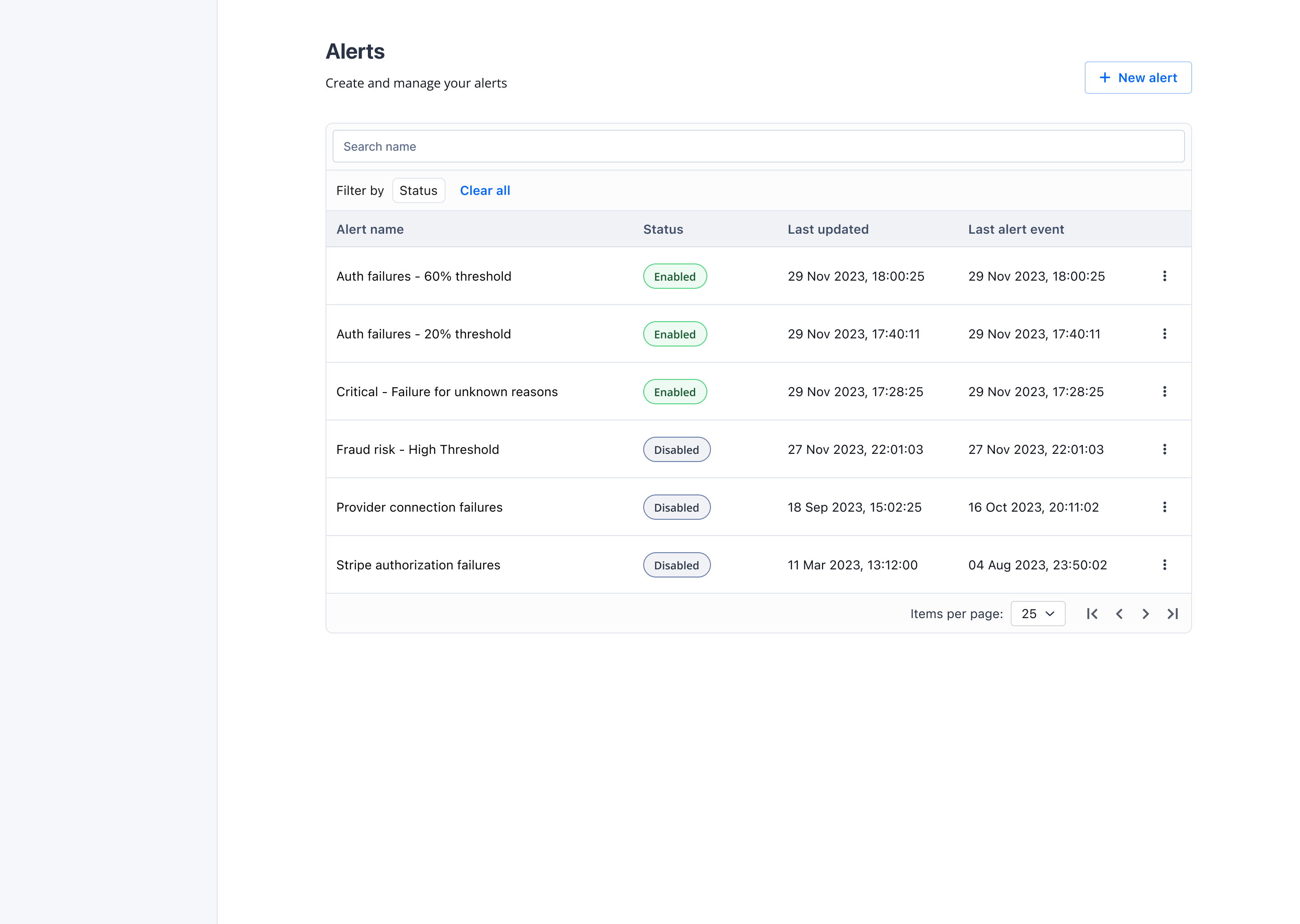
From the sidebar, go to **Settings → Alerts**. You'll see a list of all existing Alert configurations, with their status (enabled/disabled) and most recent events.
 ### 2. Create a new Alert
Click **+ New Alert** in the top-right corner.
### 3. Choose the scope
Select the **workspace** the Alert should apply to. Pick a specific workspace to target one business line, or choose **All Workspaces** to monitor across the board. Click **Continue**.
### 4. Fill in the Alert details
| Field | What to enter |
| - | - |
| **Alert Name** | A clear, descriptive title (e.g., *"Auth Rate drop — Card EU"*) |
| **Metric** | The KPI to monitor — e.g., Authorization rate |
| **Dimensions** | Optional filters to narrow the scope (provider, payment method, etc.) |
| **Threshold** | The trigger condition (e.g., *Auth Rate \< 85%*) |
| **Trigger** | When the rule is evaluated, plus any exception windows for low-traffic periods |
| **Notifications** | One or more email addresses to notify when the Alert fires |
| **Default status** | Enable or disable the Alert on save |
### 2. Create a new Alert
Click **+ New Alert** in the top-right corner.
### 3. Choose the scope
Select the **workspace** the Alert should apply to. Pick a specific workspace to target one business line, or choose **All Workspaces** to monitor across the board. Click **Continue**.
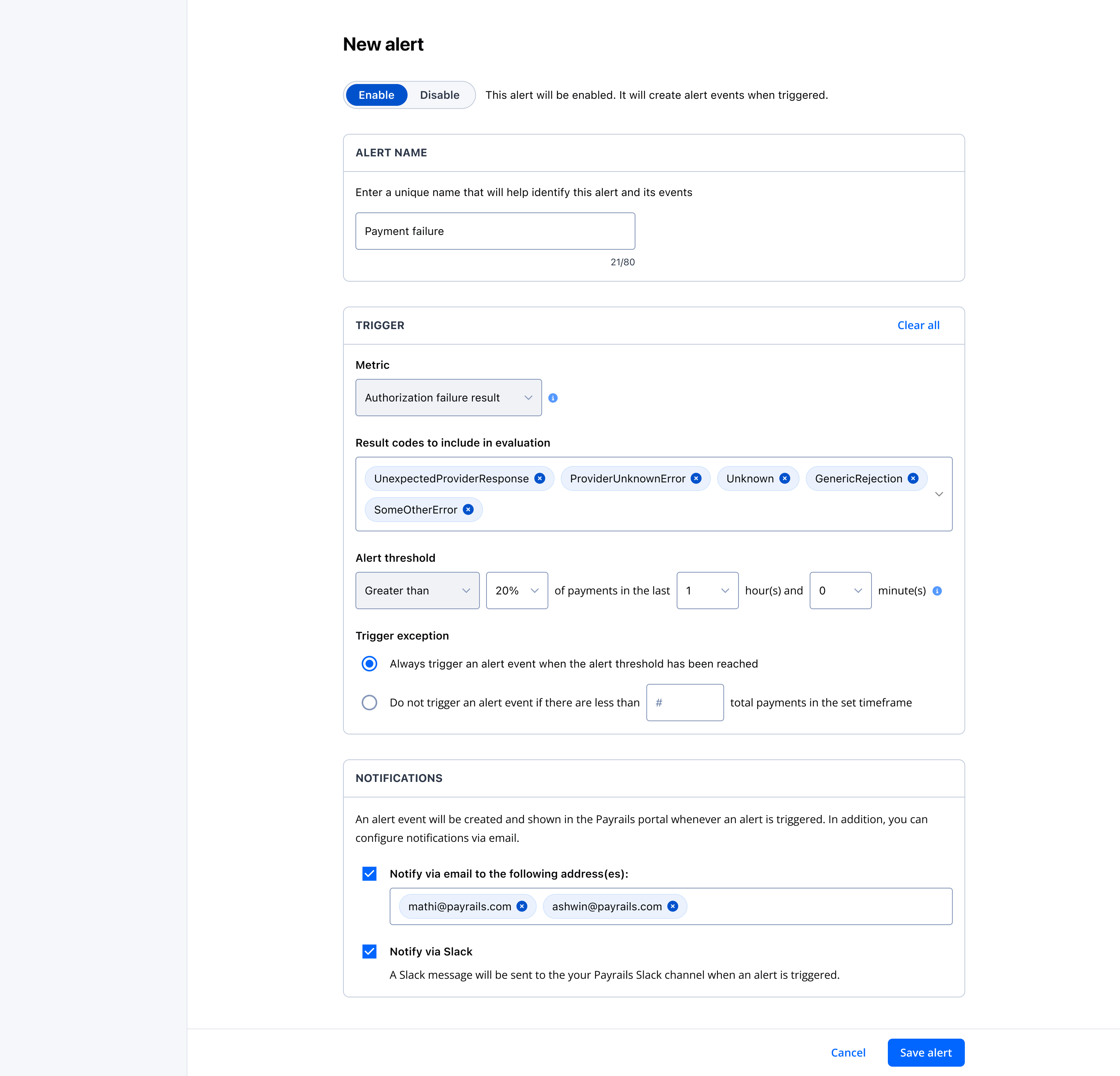
### 4. Fill in the Alert details
| Field | What to enter |
| - | - |
| **Alert Name** | A clear, descriptive title (e.g., *"Auth Rate drop — Card EU"*) |
| **Metric** | The KPI to monitor — e.g., Authorization rate |
| **Dimensions** | Optional filters to narrow the scope (provider, payment method, etc.) |
| **Threshold** | The trigger condition (e.g., *Auth Rate \< 85%*) |
| **Trigger** | When the rule is evaluated, plus any exception windows for low-traffic periods |
| **Notifications** | One or more email addresses to notify when the Alert fires |
| **Default status** | Enable or disable the Alert on save |
 ### 5. Save and enable
Save the Alert. If you enabled it, Payrails starts evaluating the rule on the next hourly cycle.
***
## Recommended starting point
If you're setting up your first Alert and unsure where to begin, use this **Standard Health Alert** as a baseline. It catches the most common revenue-impacting degradations with minimal tuning.
| Setting | Value |
| - | - |
| Metric | Authorisation Rate |
| Threshold | \< 85% |
| Trigger window | Rolling 1 hour |
| Dimensions | *(leave blank for account-wide)* |
| Notifications | Your payment ops distribution list |
From there, layer in more targeted Alerts as you learn which dimensions matter most to your business.
***
## Thresholds and trigger exceptions
Setting a threshold is **strongly recommended**. Without one, every small fluctuation becomes an alert — and your team starts ignoring them. A good threshold only fires when something is meaningfully wrong.
**Two controls to avoid noise:**
* **Minimum traffic threshold** — Only evaluate the rule when traffic is high enough to be statistically meaningful. This prevents false positives from a handful of transactions in the middle of the night.
* **Trigger exceptions** — Skip evaluation during known low-traffic windows (e.g., scheduled maintenance, off-hours for a regional business). Exceptions are defined as time ranges on the Alert configuration.
***
## Managing Alerts
Payrails gives you three views to stay on top of your Alert infrastructure:
### Alert List
The entry point — every Alert configuration in one place, with its enabled/disabled state, scope, and a quick summary of recent activity.
### Alert Details
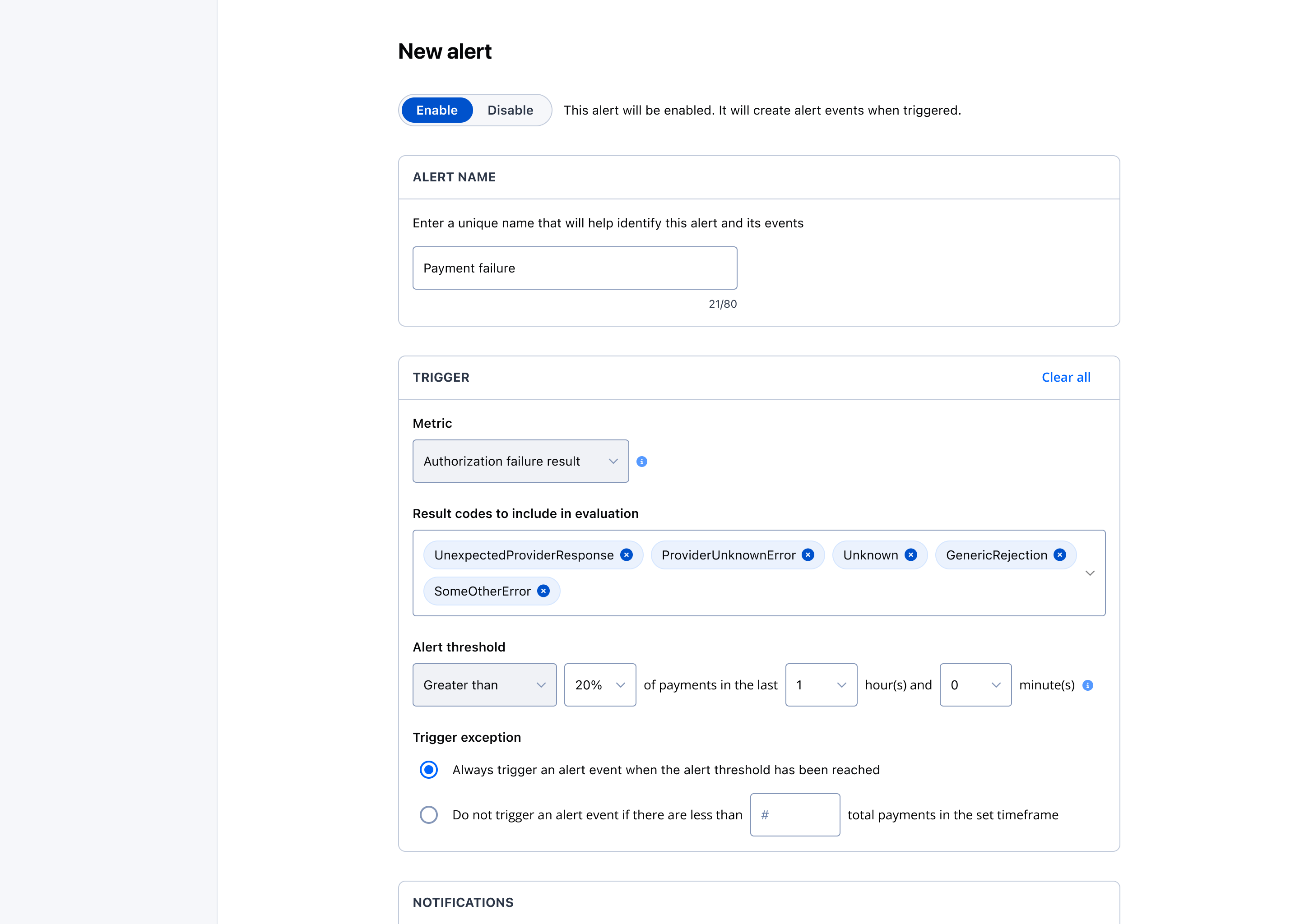
Click into any Alert to see its full configuration, edit fields, pause or re-enable it, or add/remove recipients.
### 5. Save and enable
Save the Alert. If you enabled it, Payrails starts evaluating the rule on the next hourly cycle.
***
## Recommended starting point
If you're setting up your first Alert and unsure where to begin, use this **Standard Health Alert** as a baseline. It catches the most common revenue-impacting degradations with minimal tuning.
| Setting | Value |
| - | - |
| Metric | Authorisation Rate |
| Threshold | \< 85% |
| Trigger window | Rolling 1 hour |
| Dimensions | *(leave blank for account-wide)* |
| Notifications | Your payment ops distribution list |
From there, layer in more targeted Alerts as you learn which dimensions matter most to your business.
***
## Thresholds and trigger exceptions
Setting a threshold is **strongly recommended**. Without one, every small fluctuation becomes an alert — and your team starts ignoring them. A good threshold only fires when something is meaningfully wrong.
**Two controls to avoid noise:**
* **Minimum traffic threshold** — Only evaluate the rule when traffic is high enough to be statistically meaningful. This prevents false positives from a handful of transactions in the middle of the night.
* **Trigger exceptions** — Skip evaluation during known low-traffic windows (e.g., scheduled maintenance, off-hours for a regional business). Exceptions are defined as time ranges on the Alert configuration.
***
## Managing Alerts
Payrails gives you three views to stay on top of your Alert infrastructure:
### Alert List
The entry point — every Alert configuration in one place, with its enabled/disabled state, scope, and a quick summary of recent activity.
### Alert Details
Click into any Alert to see its full configuration, edit fields, pause or re-enable it, or add/remove recipients.
 ### Alert Events
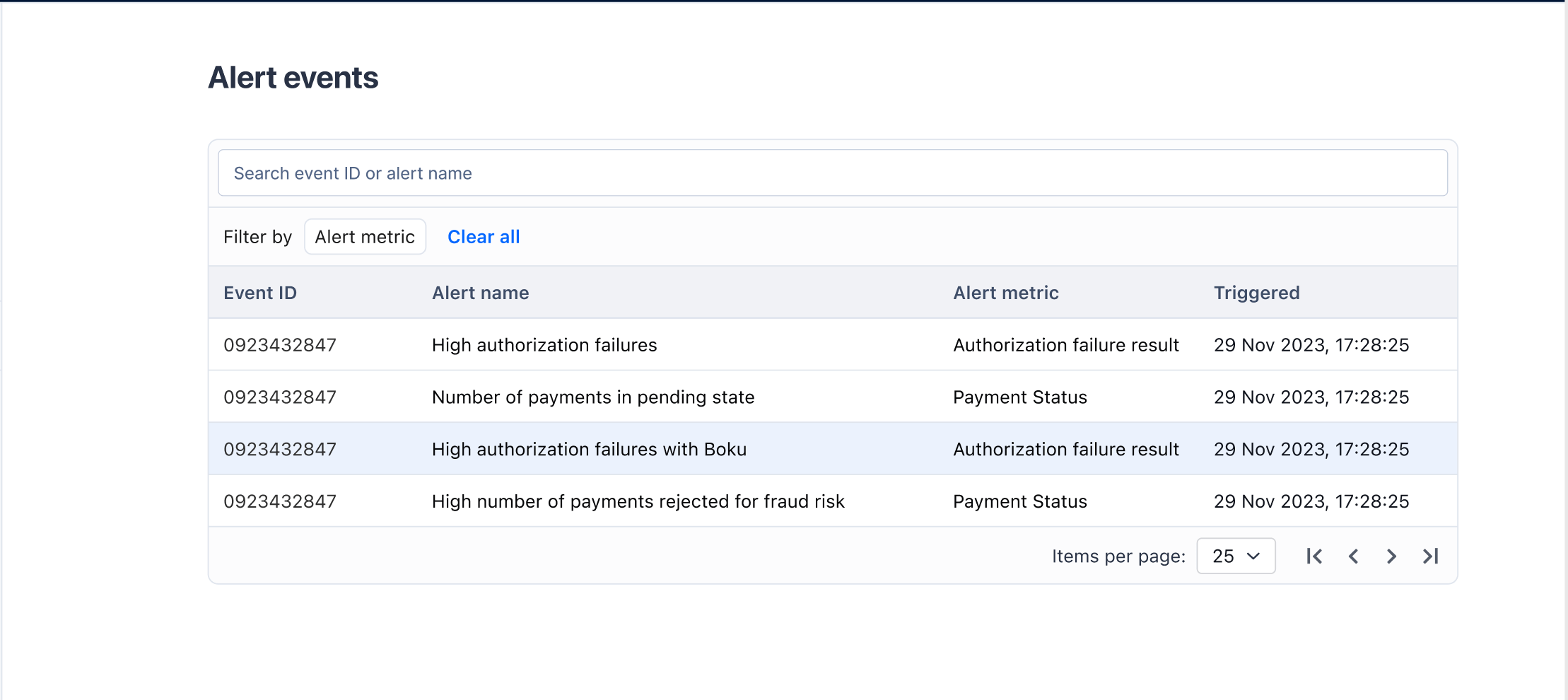
The historical log — every time an Alert fired, the Alert name, and its necessary details.
### Alert Events
The historical log — every time an Alert fired, the Alert name, and its necessary details.
 ***
## Best Practices
**1. Start simple, then specialise.** Begin with one account-wide Authorisation Rate alert. Once you see it in action, add targeted Alerts per payment method, country, or PSP.
**2. Set thresholds that reflect your normal.** An 85% Auth Rate floor makes sense for most card traffic, but APMs, BNPL, and high-risk geographies often operate at different baselines. Check your last 30 days before deciding.
**3. Use dimensions to reduce noise.** An account-wide alert can be masked by high-volume success in one region while another is failing. Dimension-scoped Alerts (e.g., *Card + US*) catch regional regressions that aggregate metrics miss.
**4. Route Alerts to the people who can act.** Add your payment ops distribution list — not individual mailboxes that may go unmonitored. Consider adding your Payrails contact for critical rules so we can help investigate.
**5. Document what each Alert means.** Give every Alert a descriptive name and, in your internal runbook, note the recommended first action when it fires. Future-you will thank present-you.
**6. Review and refine quarterly.** Traffic mixes change, PSPs get added, thresholds drift. A 15-minute review every quarter keeps the system trustworthy.
**7. Resolve events promptly.** Leaving events unresolved means you lose the signal the next time the same issue occurs.
***
## FAQ
Hourly. This cadence balances timely detection with evaluation cost.
Higher-frequency evaluation is on our roadmap.
It looks only at transactions where `IS_AUTHORIZED = 'FALSE'` — i.e., the
share of attempts that failed authorization. Non-authorization events are
excluded from the calculation.
The Alert will still save, but we strongly recommend always setting one.
Without a threshold, the rule can fire on minor fluctuations and cause alert
fatigue.
Today, email is the primary channel.
Yes — select **All Workspaces** when creating the Alert. Otherwise, scope it
to a single workspace.
No. Once an event is open it won't re-fire until you mark it as resolved.
***
## Next steps
* Set up your first Alert using the [Quick start](#quick-start-takes-about-a-minute) above
* Review the [Alert List](#alert-list), [Alert Details](#alert-details), and [Alert Events](#alert-events) views
* Reach out to your Payrails contact if you'd like help choosing the right metrics and thresholds for your traffic
## Related topics
- [Refund a Dispute Alert](/reference/refunddisputealert.md)
- [Action a Dispute Alert](/reference/actiondisputealert.md)
- [Get Dispute Alert by ID](/reference/getdisputealert.md)
***
## Best Practices
**1. Start simple, then specialise.** Begin with one account-wide Authorisation Rate alert. Once you see it in action, add targeted Alerts per payment method, country, or PSP.
**2. Set thresholds that reflect your normal.** An 85% Auth Rate floor makes sense for most card traffic, but APMs, BNPL, and high-risk geographies often operate at different baselines. Check your last 30 days before deciding.
**3. Use dimensions to reduce noise.** An account-wide alert can be masked by high-volume success in one region while another is failing. Dimension-scoped Alerts (e.g., *Card + US*) catch regional regressions that aggregate metrics miss.
**4. Route Alerts to the people who can act.** Add your payment ops distribution list — not individual mailboxes that may go unmonitored. Consider adding your Payrails contact for critical rules so we can help investigate.
**5. Document what each Alert means.** Give every Alert a descriptive name and, in your internal runbook, note the recommended first action when it fires. Future-you will thank present-you.
**6. Review and refine quarterly.** Traffic mixes change, PSPs get added, thresholds drift. A 15-minute review every quarter keeps the system trustworthy.
**7. Resolve events promptly.** Leaving events unresolved means you lose the signal the next time the same issue occurs.
***
## FAQ
Hourly. This cadence balances timely detection with evaluation cost.
Higher-frequency evaluation is on our roadmap.
It looks only at transactions where `IS_AUTHORIZED = 'FALSE'` — i.e., the
share of attempts that failed authorization. Non-authorization events are
excluded from the calculation.
The Alert will still save, but we strongly recommend always setting one.
Without a threshold, the rule can fire on minor fluctuations and cause alert
fatigue.
Today, email is the primary channel.
Yes — select **All Workspaces** when creating the Alert. Otherwise, scope it
to a single workspace.
No. Once an event is open it won't re-fire until you mark it as resolved.
***
## Next steps
* Set up your first Alert using the [Quick start](#quick-start-takes-about-a-minute) above
* Review the [Alert List](#alert-list), [Alert Details](#alert-details), and [Alert Events](#alert-events) views
* Reach out to your Payrails contact if you'd like help choosing the right metrics and thresholds for your traffic
## Related topics
- [Refund a Dispute Alert](/reference/refunddisputealert.md)
- [Action a Dispute Alert](/reference/actiondisputealert.md)
- [Get Dispute Alert by ID](/reference/getdisputealert.md)