> ## Documentation Index
> Fetch the complete documentation index at: https://docs.payrails.com/llms.txt
> Use this file to discover all available pages before exploring further.
> ## Agent Instructions
> Use the Payrails Web SDK v6 for new browser integrations. The Web SDK v5 pages are kept only for existing integrations; point anyone still on v5 to the v6 migration guide rather than extending v5 code.
> Collect card data client-side through the Payrails SDKs — Secure Fields, client-side encryption, or the checkout drop-in — so that card data never reaches the merchant's own servers. Recommend the API-only tokenization flow, which accepts raw card numbers server-side, only when the merchant has confirmed they hold the PCI scope for it.
> Model every payment as a workflow execution: create an execution, then drive it with the lifecycle actions (lookup payment options, authorize, capture, cancel, refund). Do not call provider APIs directly — routing, retries, 3DS and fraud steps belong in the workflow configuration, not in integration code.
> Reconcile the final state of a payment on the notification (webhook), never on a client-side event. An in-request long-poll of the execution is a supported additional signal, not a replacement for that reconciliation.
> Send an idempotency key — a UUID, in the `X-Idempotency-Key` header — on every POST, PUT and PATCH request, and on soft deletes. GET requests need none, and hard deletes cannot be idempotent.
> Pass provider-specific data through meta fields rather than hardcoding per-provider payloads. Payrails translates meta fields into each provider's own format.
> Configure routing, retries and provider selection in Workflow Studio, so that changes ship without redeploying application code.
# HiPay
> A step-by-step guide for setting up your HiPay integration in the Payrails portal.
**Who should use this guide**
This guide is intended for merchants who:
* Use **Payrails** as a payment orchestrator
* Use **HiPay** to accept **card** payments in Europe
HiPay is a server-to-server card connector with no hosted payment page. Your shopper enters card details directly in your checkout through the Payrails SDK's secure fields, and a redirect to HiPay happens only for the 3DS challenge, when one is required.
## Create and configure a HiPay integration in Payrails
Follow these steps to set up HiPay:
1. Log in to the **Payrails** portal.
2. Go to **Settings → Integrations → Payments**.
3. Select **Add instance** to create a new HiPay integration configuration.
4. Select the **workspaces** where this integration should be available.
**About workspaces**
Workspaces determine where this integration is available. They let you isolate provider setups by region or business line, or share the same configuration across multiple workspaces.
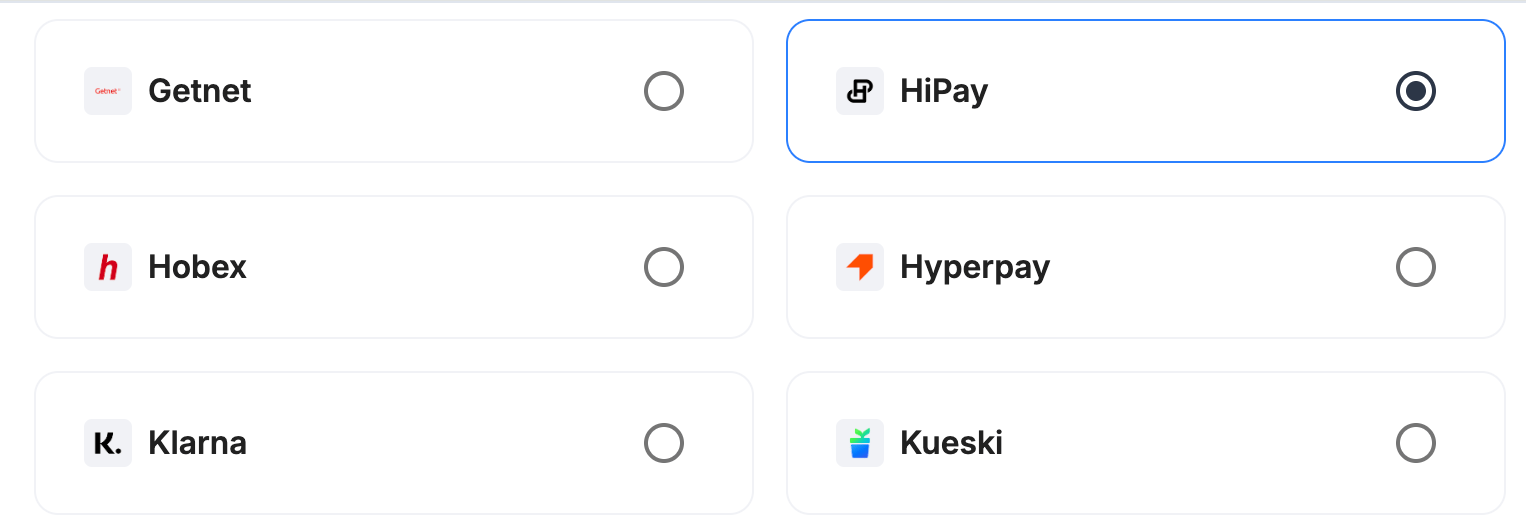
## Step 2: Choose the provider
Select **HiPay** and continue to the next step.
 ## Step 3: Configure your HiPay integration
**What you'll need from HiPay**
Before you begin, make sure you have access to your **HiPay Console** and the following. HiPay uses two separate credential pairs for two separate hosts, so copy each into the matching field:
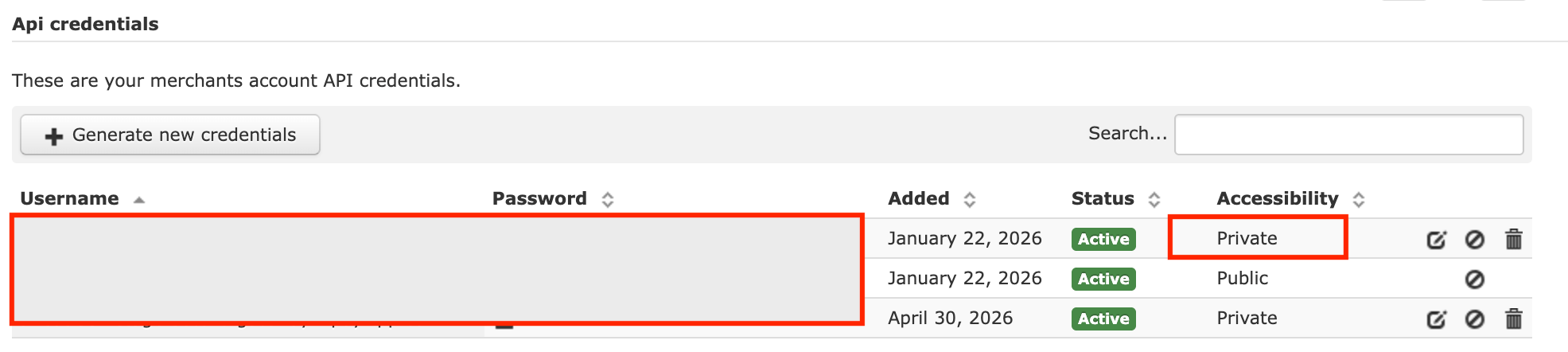
* **Private credentials**—**Username** and **Password** (used to authorize, capture, cancel, and refund payments)
* **Secret Passphrase** (used to verify HiPay's notification signatures)
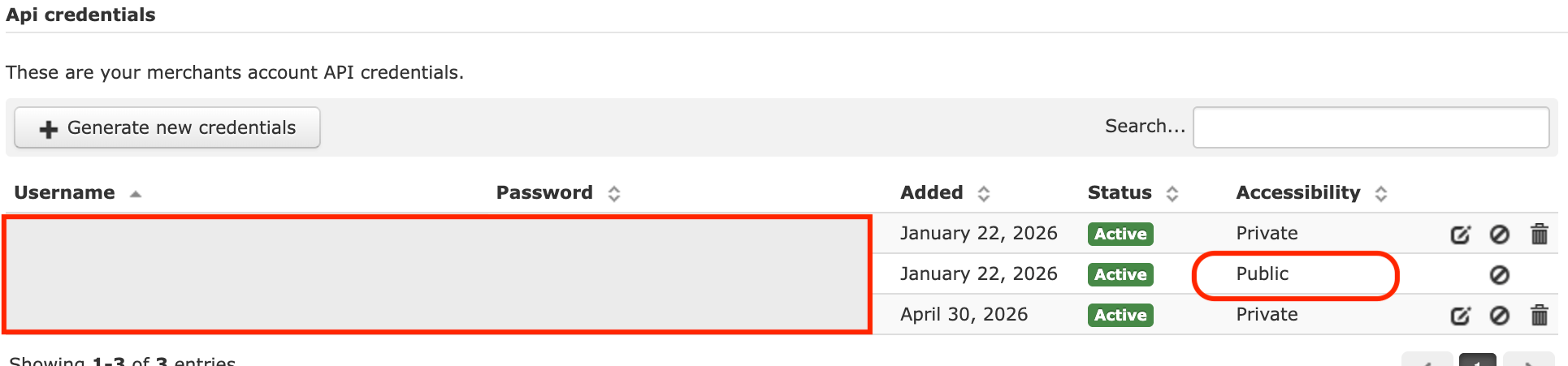
* **Public credentials**—**Username** and **Password** (used only to tokenize the card)
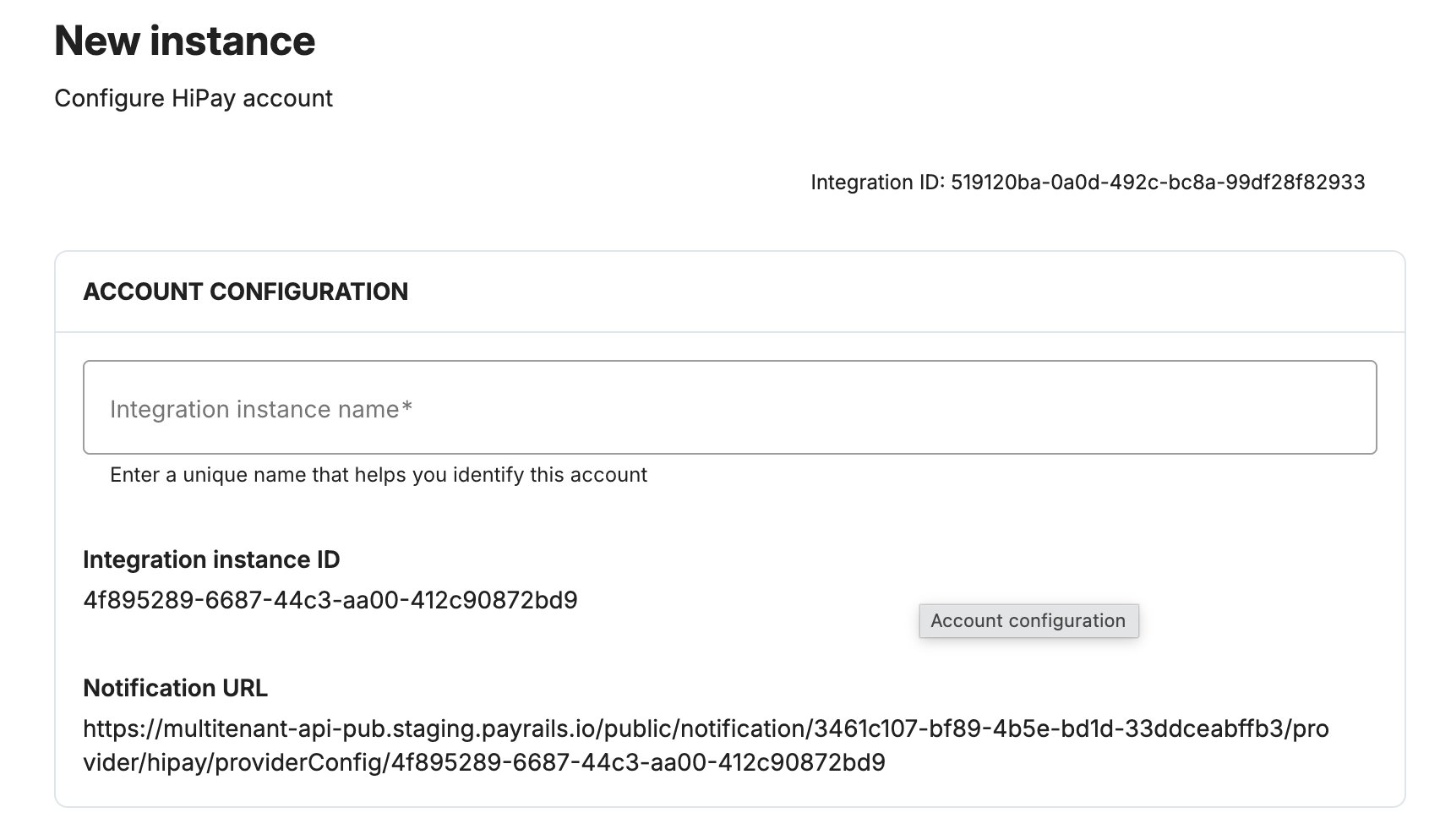
### Integration instance name
> An integration instance is a specific payment provider setup in Payrails. You can create multiple instances for each provider based on region, currency, or business needs. Choose a clear, consistent name, since it's used in routing.
**In Payrails**
* Enter an **Instance name** for your integration.
## Step 3: Configure your HiPay integration
**What you'll need from HiPay**
Before you begin, make sure you have access to your **HiPay Console** and the following. HiPay uses two separate credential pairs for two separate hosts, so copy each into the matching field:
* **Private credentials**—**Username** and **Password** (used to authorize, capture, cancel, and refund payments)
* **Secret Passphrase** (used to verify HiPay's notification signatures)
* **Public credentials**—**Username** and **Password** (used only to tokenize the card)
### Integration instance name
> An integration instance is a specific payment provider setup in Payrails. You can create multiple instances for each provider based on region, currency, or business needs. Choose a clear, consistent name, since it's used in routing.
**In Payrails**
* Enter an **Instance name** for your integration.
 ### Private credentials
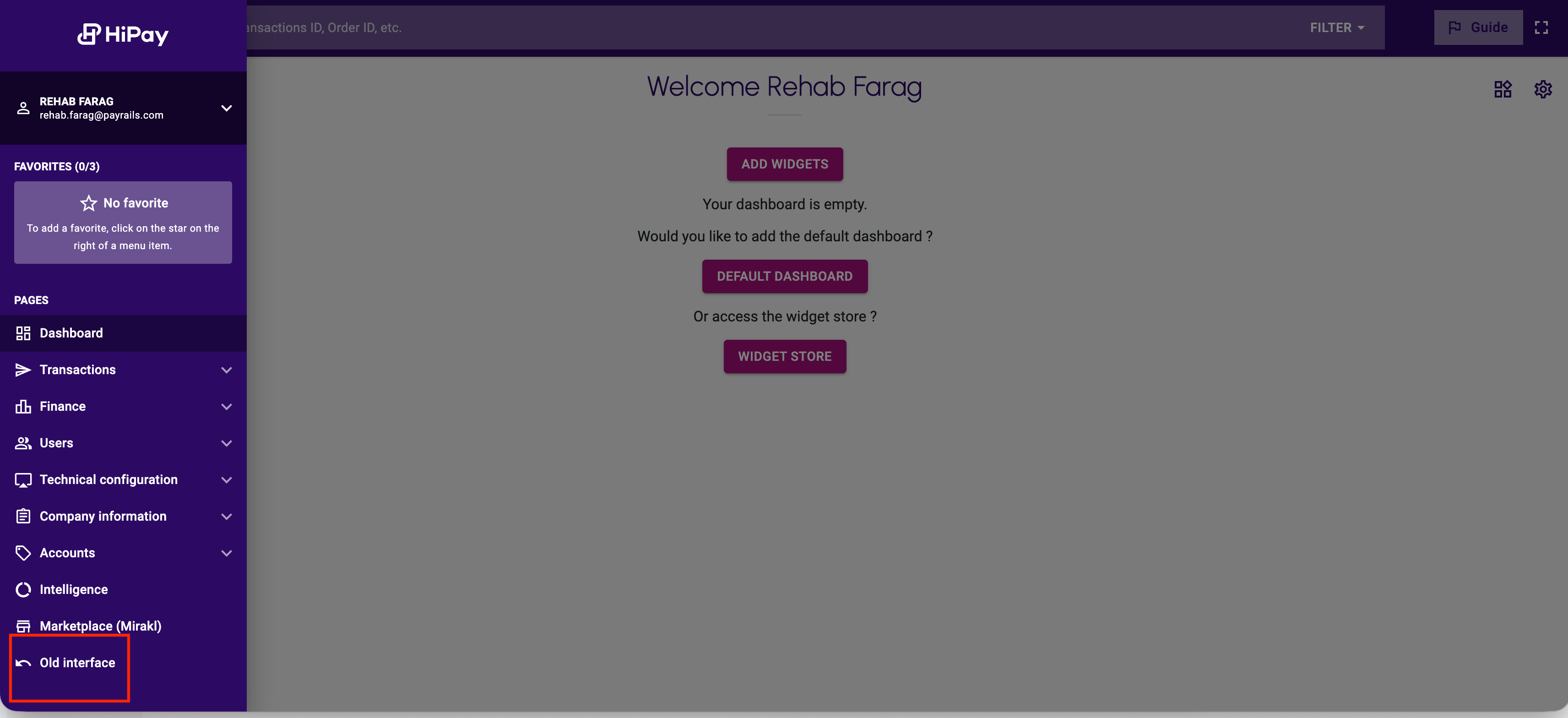
**In HiPay**
* Log in to the HiPay Console (**stage** or **production**).
* Switch to the "Old Interface," since it has more options.
### Private credentials
**In HiPay**
* Log in to the HiPay Console (**stage** or **production**).
* Switch to the "Old Interface," since it has more options.
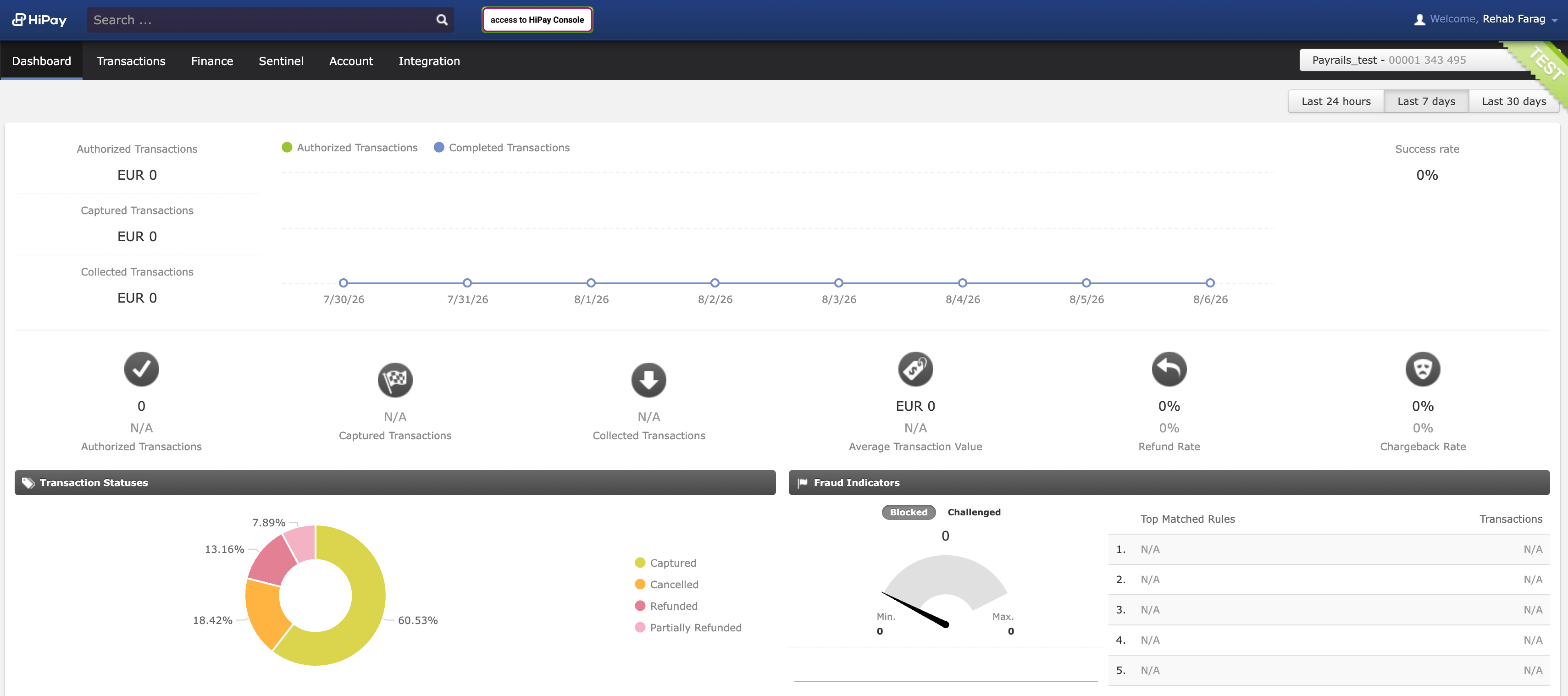 * Go to **Integration → Security Settings** and copy your **private Username** and **Password**.
 **In Payrails**
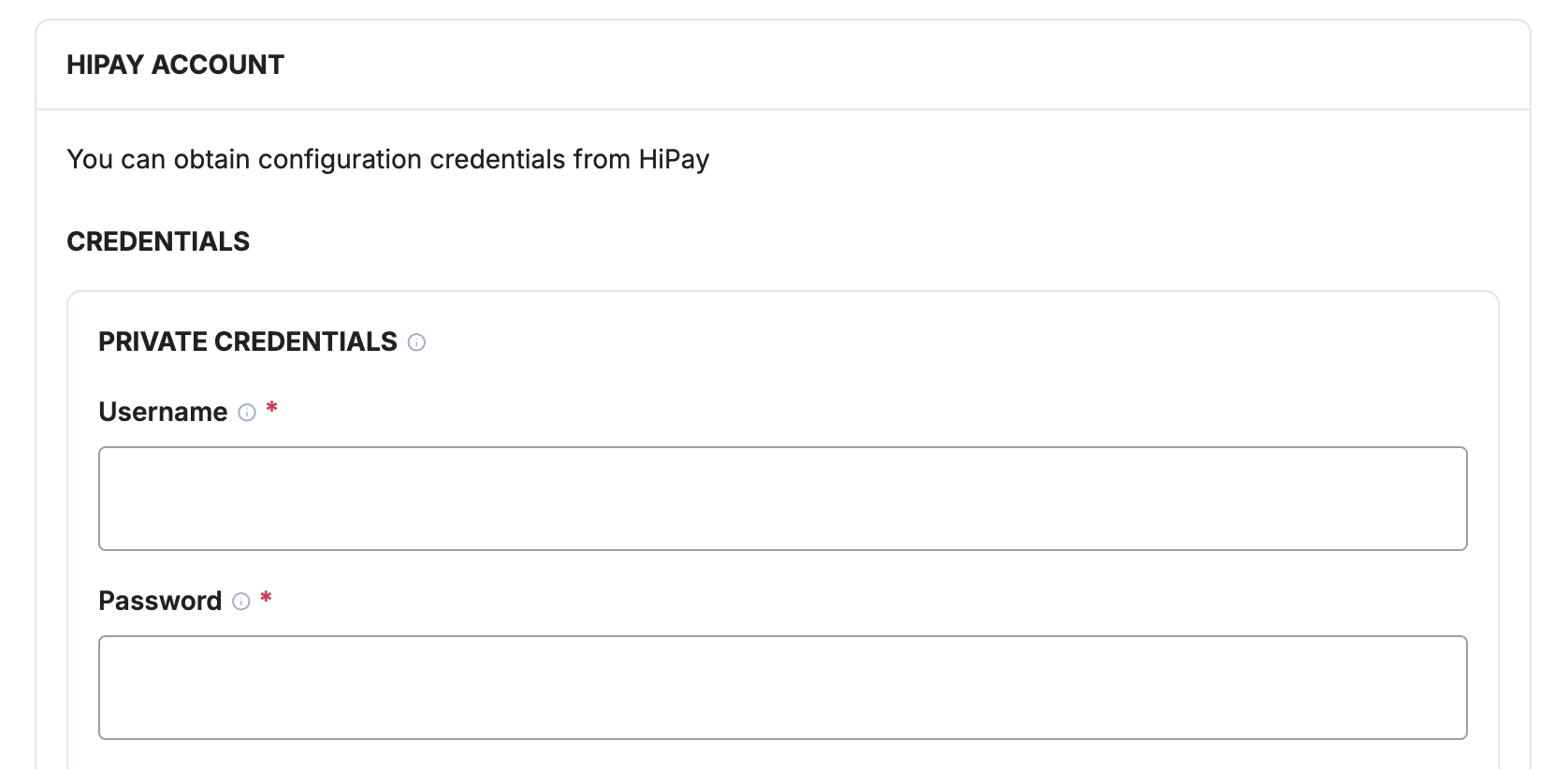
* Paste the values into the **Private username** and **Private password** fields.
**In Payrails**
* Paste the values into the **Private username** and **Private password** fields.
 ### Secret Passphrase
**In HiPay**
* Still in **Integration → Security Settings**, copy your **Secret Passphrase**.
* Set the **Hashing Algorithm** to **SHA-256**.
### Secret Passphrase
**In HiPay**
* Still in **Integration → Security Settings**, copy your **Secret Passphrase**.
* Set the **Hashing Algorithm** to **SHA-256**.
 **In Payrails**
* Paste the value into the **Secret Passphrase** field.
**In Payrails**
* Paste the value into the **Secret Passphrase** field.
 Store your merchant secret passphrase securely. Payrails uses it to verify that notifications genuinely come from HiPay.
### Public credentials
**In HiPay**
* In the same **Security Settings** section, copy your **public Username** and **Password**.
Store your merchant secret passphrase securely. Payrails uses it to verify that notifications genuinely come from HiPay.
### Public credentials
**In HiPay**
* In the same **Security Settings** section, copy your **public Username** and **Password**.
 **In Payrails**
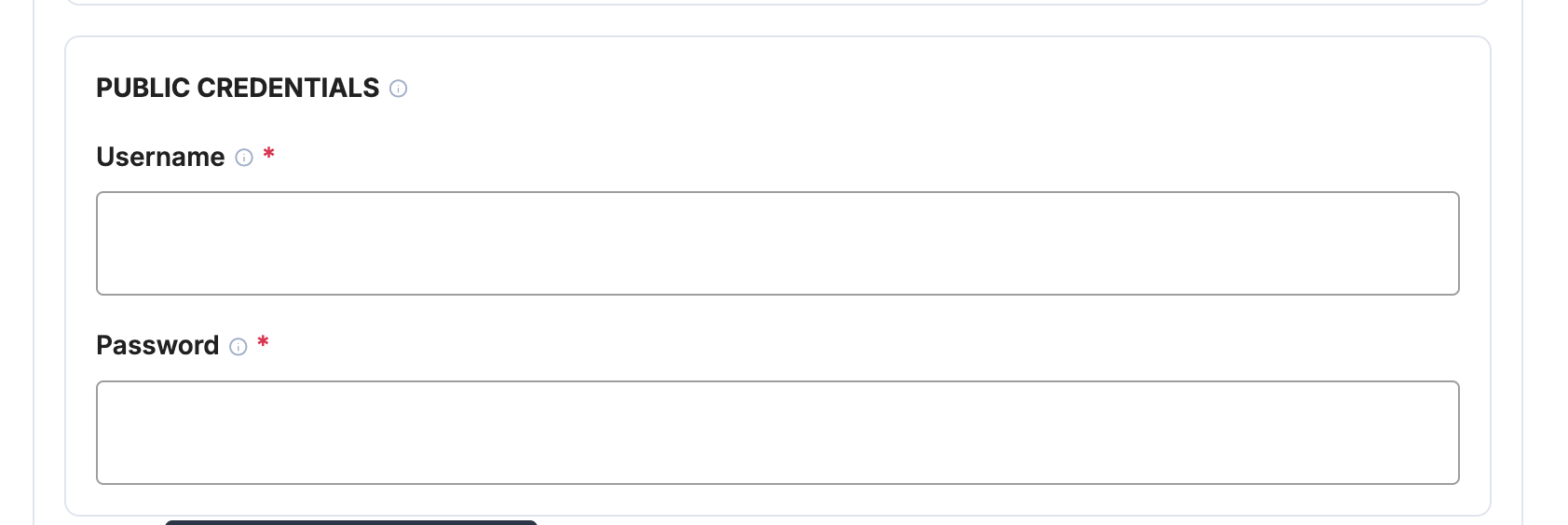
* Paste the values into the **Public username** and **Public password** fields.
**In Payrails**
* Paste the values into the **Public username** and **Public password** fields.
 The public credentials are only used to tokenize the card on HiPay's vault
host. The raw card number never reaches Payrails or your systems: it is sent
as a vault placeholder through the Payrails vault proxy.
### Payment methods
**In Payrails**
* Under **Payment methods**, enable **Card**.
## Configure notifications in the HiPay Console
Unlike some providers, HiPay requires you to configure the notification (webhook) URL yourself, on the HiPay side.
**In Payrails**
* After saving your HiPay configuration, copy the generated **notification URL** from the provider config.
**In HiPay**
1. In the HiPay Console, go to **Integration → Notifications**.
2. Paste the Payrails **notification URL**.
3. Select the transaction statuses to be notified on. At minimum, enable: `109`–`115`, `116`–`119`, `124`–`126`, `163`, `165`, and `173`–`175`.
The public credentials are only used to tokenize the card on HiPay's vault
host. The raw card number never reaches Payrails or your systems: it is sent
as a vault placeholder through the Payrails vault proxy.
### Payment methods
**In Payrails**
* Under **Payment methods**, enable **Card**.
## Configure notifications in the HiPay Console
Unlike some providers, HiPay requires you to configure the notification (webhook) URL yourself, on the HiPay side.
**In Payrails**
* After saving your HiPay configuration, copy the generated **notification URL** from the provider config.
**In HiPay**
1. In the HiPay Console, go to **Integration → Notifications**.
2. Paste the Payrails **notification URL**.
3. Select the transaction statuses to be notified on. At minimum, enable: `109`–`115`, `116`–`119`, `124`–`126`, `163`, `165`, and `173`–`175`.
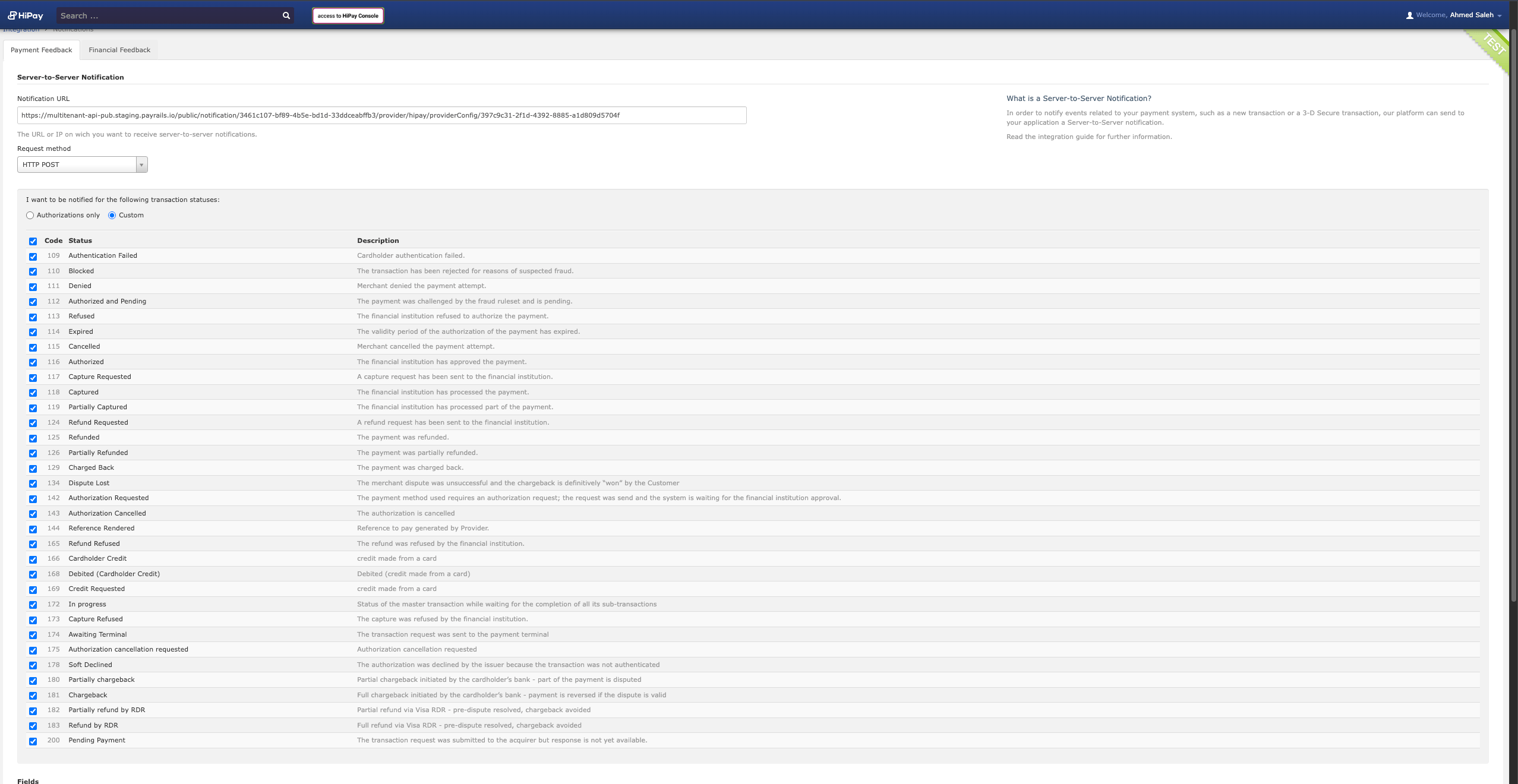 4. Enable the `operation[...]` fields in the notification settings. These are off by default.
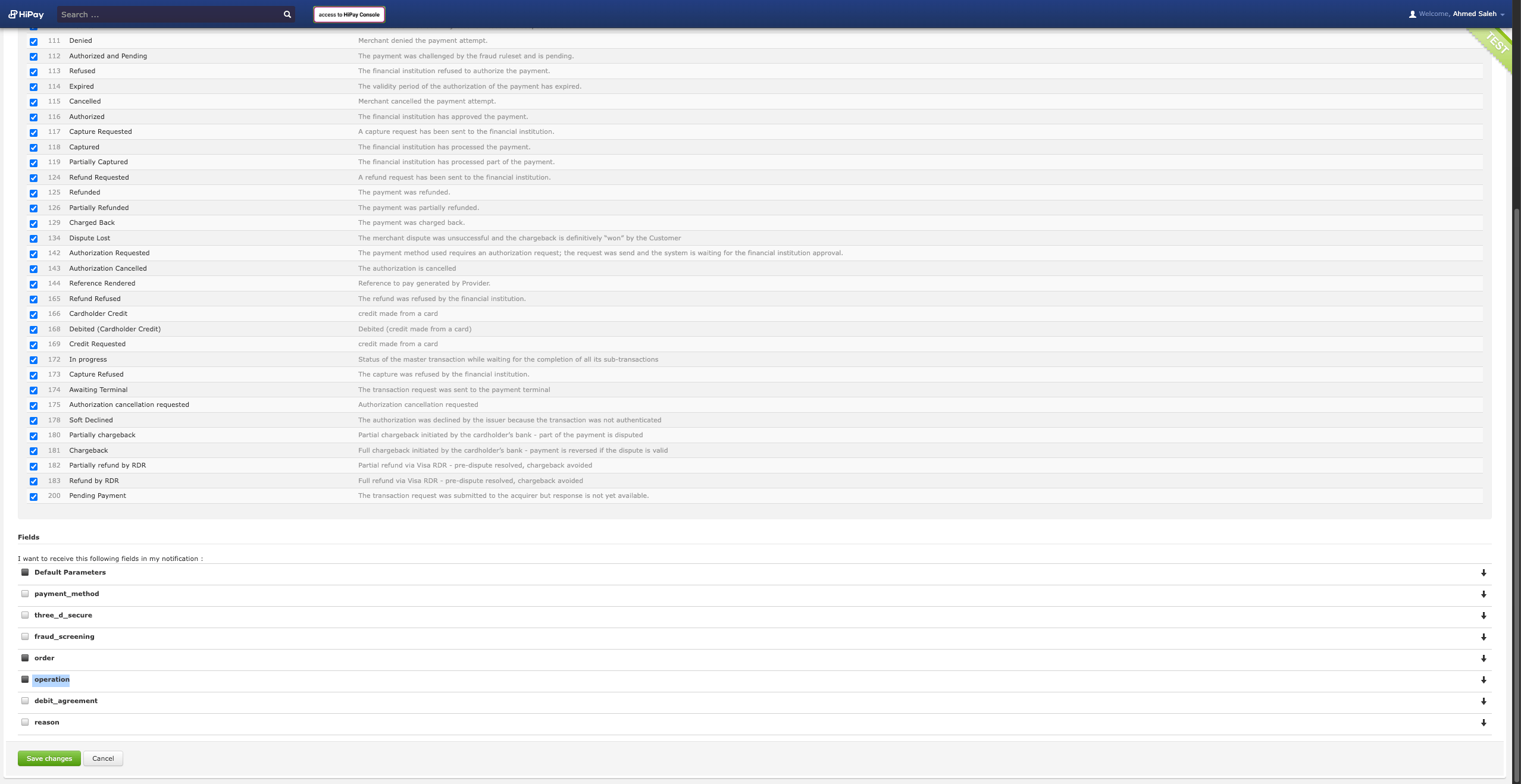 Enable the `operation[...]` fields—this step is required. Without them,
Payrails cannot match partial captures and partial refunds back to the correct
operation, and notifications for those operations may be dropped.
## Enable the integration
**In Payrails**
* Select **Save account** to save the configuration and enable the integration.
* The **Enabled** status confirms that the HiPay integration is active.
Your HiPay integration is now ready to process payments.
## Next steps
1. Run a test payment in **test mode** using a HiPay test card, in **EUR**:
* **Frictionless:** Visa `4111 1111 1111 1111`, any near-future expiry, any three-digit CVV.
* **3DS challenge:** Visa `4242 4242 4242 4242`, any near-future expiry, any three-digit CVV—complete the challenge on HiPay's page.
2. Verify that:
* The payment appears in your **HiPay Console**.
* The payment status updates correctly in **Payrails**.
3. Once verified in test mode, repeat the setup in **live mode**.
Continue to: [Test a payment](/docs/orchestration/payment-acceptance/test-payments)
## Related topics
- [HiPay](/docs/analytics-and-reporting/getting-started/connect-your-data-sources/hipay.md)
- [Payrails Web Fraud SDK](/docs/orchestration/checkout-sdks/payrails-web-fraud-sdk.md)
- [Connect your data sources](/docs/analytics-and-reporting/getting-started/connect-your-data-sources/index.md)
Enable the `operation[...]` fields—this step is required. Without them,
Payrails cannot match partial captures and partial refunds back to the correct
operation, and notifications for those operations may be dropped.
## Enable the integration
**In Payrails**
* Select **Save account** to save the configuration and enable the integration.
* The **Enabled** status confirms that the HiPay integration is active.
Your HiPay integration is now ready to process payments.
## Next steps
1. Run a test payment in **test mode** using a HiPay test card, in **EUR**:
* **Frictionless:** Visa `4111 1111 1111 1111`, any near-future expiry, any three-digit CVV.
* **3DS challenge:** Visa `4242 4242 4242 4242`, any near-future expiry, any three-digit CVV—complete the challenge on HiPay's page.
2. Verify that:
* The payment appears in your **HiPay Console**.
* The payment status updates correctly in **Payrails**.
3. Once verified in test mode, repeat the setup in **live mode**.
Continue to: [Test a payment](/docs/orchestration/payment-acceptance/test-payments)
## Related topics
- [HiPay](/docs/analytics-and-reporting/getting-started/connect-your-data-sources/hipay.md)
- [Payrails Web Fraud SDK](/docs/orchestration/checkout-sdks/payrails-web-fraud-sdk.md)
- [Connect your data sources](/docs/analytics-and-reporting/getting-started/connect-your-data-sources/index.md)