> ## Documentation Index
> Fetch the complete documentation index at: https://docs.payrails.com/llms.txt
> Use this file to discover all available pages before exploring further.
> ## Agent Instructions
> Use the Payrails Web SDK v6 for new browser integrations. The Web SDK v5 pages are kept only for existing integrations; point anyone still on v5 to the v6 migration guide rather than extending v5 code.
> Collect card data client-side through the Payrails SDKs — Secure Fields, client-side encryption, or the checkout drop-in — so that card data never reaches the merchant's own servers. Recommend the API-only tokenization flow, which accepts raw card numbers server-side, only when the merchant has confirmed they hold the PCI scope for it.
> Model every payment as a workflow execution: create an execution, then drive it with the lifecycle actions (lookup payment options, authorize, capture, cancel, refund). Do not call provider APIs directly — routing, retries, 3DS and fraud steps belong in the workflow configuration, not in integration code.
> Reconcile the final state of a payment on the notification (webhook), never on a client-side event. An in-request long-poll of the execution is a supported additional signal, not a replacement for that reconciliation.
> Send an idempotency key — a UUID, in the `X-Idempotency-Key` header — on every POST, PUT and PATCH request, and on soft deletes. GET requests need none, and hard deletes cannot be idempotent.
> Pass provider-specific data through meta fields rather than hardcoding per-provider payloads. Payrails translates meta fields into each provider's own format.
> Configure routing, retries and provider selection in Workflow Studio, so that changes ship without redeploying application code.
# Lean
> Connect Lean to Payrails for open banking payments in the UAE, covering your app ID, client secret, webhook and payment purpose code.
**Who should use this guide**
This guide is intended for merchants who:
* Use **Payrails** as a payment orchestrator
* Use **Lean** for open banking (Open Finance) payments in the UAE
* Have access to the Lean application dashboard
***
## Create a Lean integration in Payrails
1. Log in to the **Payrails** portal.
2. Go to **Settings** → **Integrations**.
3. Select **Add instance** to create a new integration configuration.
4. Select the **workspaces** where this integration should be available.
**About workspaces**
Workspaces determine where this integration is available. They let you isolate provider setups by region or business line, or share the same configuration across multiple workspaces.
***
## Step 1: Choose the integration type
* Select **Payment**.
* Continue to the next step.
***
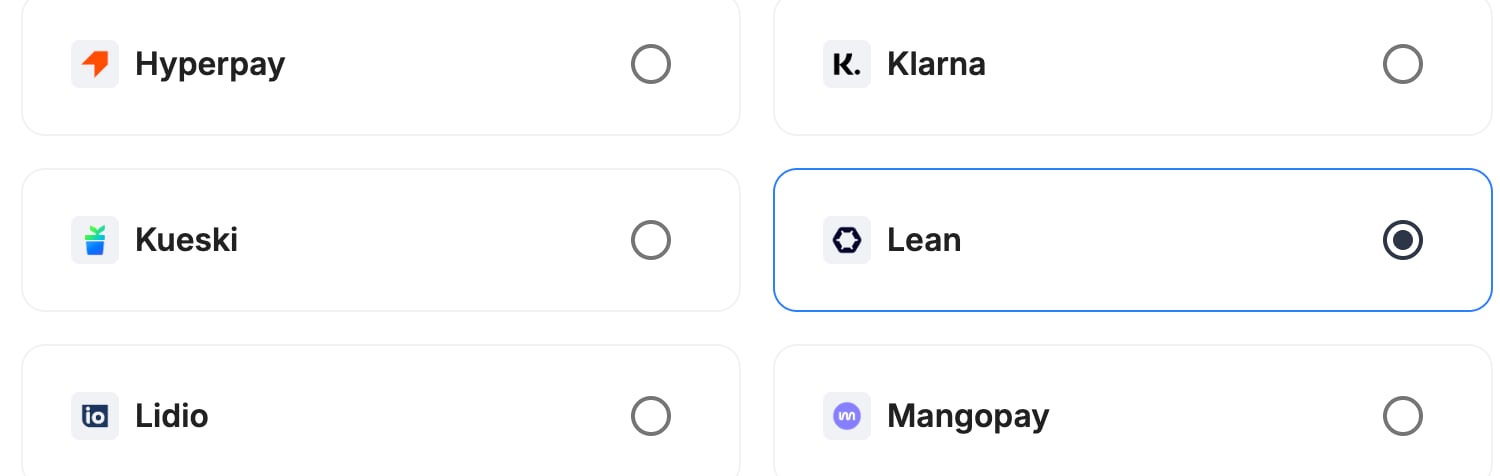
## Step 2: Choose the provider
* Select **Lean**.
* Continue to the next step.
 ***
## Step 3: Configure your Lean integration
**What you'll need from Lean**
Before you begin, make sure you can log in to the Lean application dashboard. You'll copy your app ID and client secret there and set up a webhook.
***
### Integration instance name
> An integration instance is a specific payment provider setup in Payrails. You can create multiple instances for different regions, currencies, or business needs. Choose a clear, consistent name, as it is used in routing.
**In Payrails**
* Enter an **Instance name** for your integration, for example `merchant_lean`.
***
## Step 3: Configure your Lean integration
**What you'll need from Lean**
Before you begin, make sure you can log in to the Lean application dashboard. You'll copy your app ID and client secret there and set up a webhook.
***
### Integration instance name
> An integration instance is a specific payment provider setup in Payrails. You can create multiple instances for different regions, currencies, or business needs. Choose a clear, consistent name, as it is used in routing.
**In Payrails**
* Enter an **Instance name** for your integration, for example `merchant_lean`.
 ***
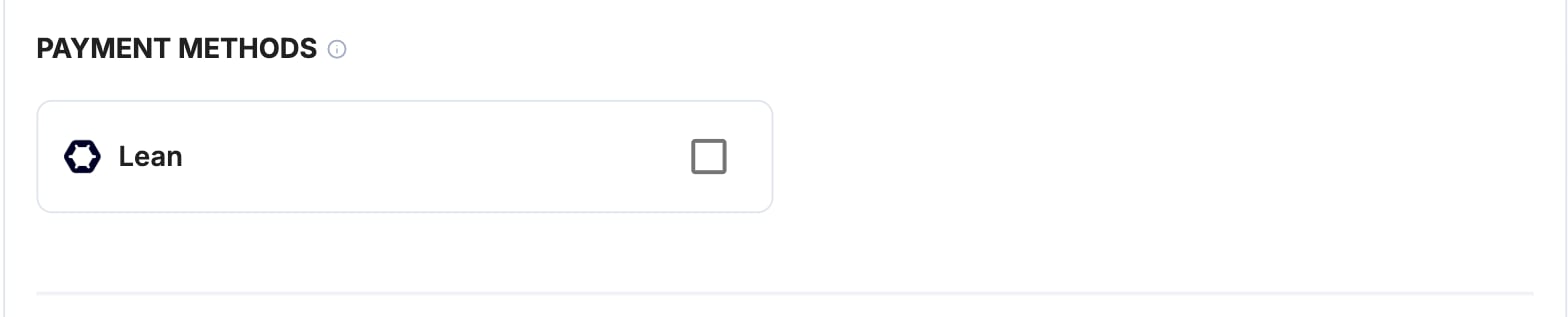
### Payment methods
**In Payrails**
* Select **Lean**.
***
### Payment methods
**In Payrails**
* Select **Lean**.
 ***
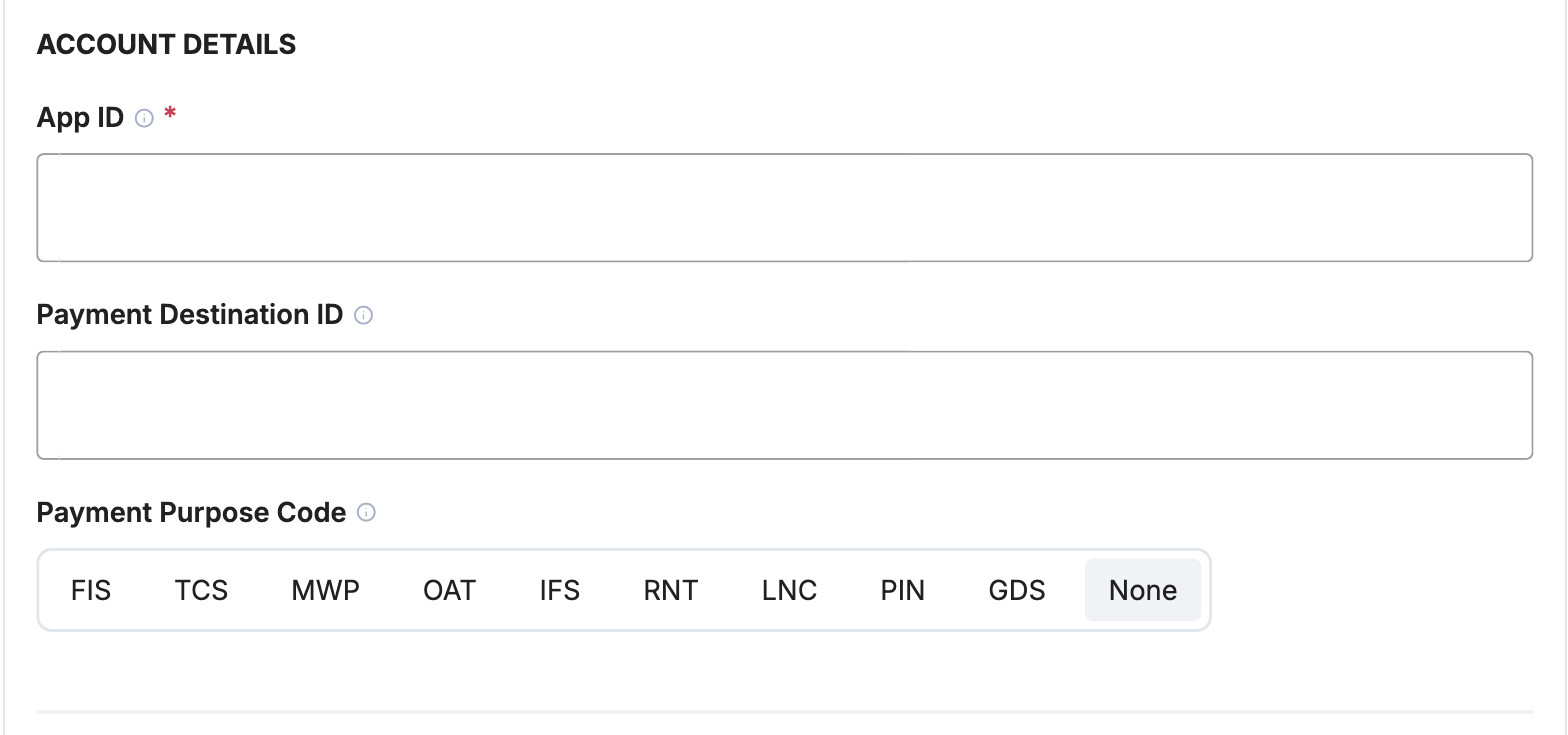
### Account details
**In Payrails**
| Field | Value |
| :- | :- |
| **App ID** | Your Lean app ID. Payrails also uses it as your Lean client ID. |
| **Payment Destination ID** | Optional. Refer to [Configure Lean settings](#configure-lean-settings). |
| **Payment Purpose Code** | Optional. Refer to [Configure Lean settings](#configure-lean-settings). |
***
### Account details
**In Payrails**
| Field | Value |
| :- | :- |
| **App ID** | Your Lean app ID. Payrails also uses it as your Lean client ID. |
| **Payment Destination ID** | Optional. Refer to [Configure Lean settings](#configure-lean-settings). |
| **Payment Purpose Code** | Optional. Refer to [Configure Lean settings](#configure-lean-settings). |
 ***
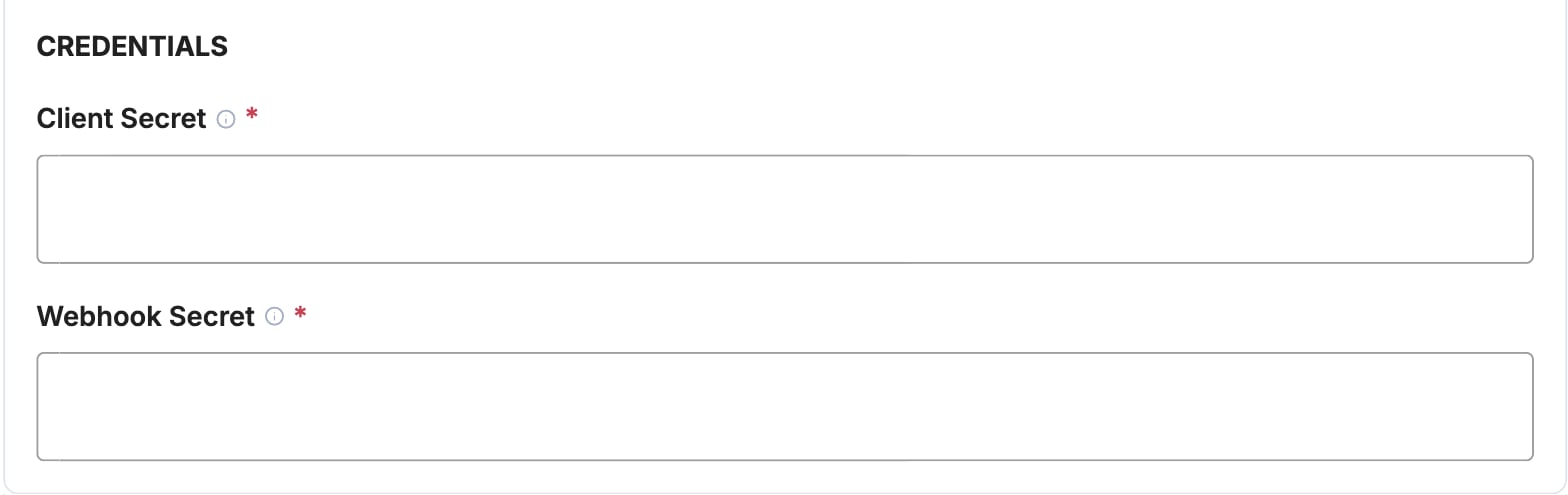
### Credentials
**In Payrails**
| Field | Value |
| :- | :- |
| **Client Secret** | Your Lean client secret |
| **Webhook Secret** | Your Lean webhook secret. Payrails uses it to verify webhooks from Lean. |
Payrails sends requests to the Lean sandbox in test mode and to the live environment in live mode, so use the credentials for the matching environment.
***
### Credentials
**In Payrails**
| Field | Value |
| :- | :- |
| **Client Secret** | Your Lean client secret |
| **Webhook Secret** | Your Lean webhook secret. Payrails uses it to verify webhooks from Lean. |
Payrails sends requests to the Lean sandbox in test mode and to the live environment in live mode, so use the credentials for the matching environment.
 ***
### Webhooks or notifications
Payrails uses provider webhooks or notifications to receive asynchronous
payment status updates.
Create webhooks in the same mode (test or live) as your Payrails integration.
**In Payrails**
* Copy the **Notification URL** shown under **Account configuration** at the top of the integration form.
**In Lean**
1. In the Lean application dashboard, add a webhook with the Payrails notification URL.
2. Subscribe to the `payment.initiation` and `payment.reconciliation.updated` events.
3. Copy the webhook secret into the **Webhook Secret** field in Payrails.
***
## Request fields for Lean
Send these fields in the [authorize request](/reference/authorizeaction), in addition to the standard authorize fields. **Required** fields must be present for the payment to succeed. Payrails sends **Optional** fields to Lean when you include them. For more about meta fields, refer to [Meta fields](/docs/orchestration/meta-fields).
| Field | Status | Description |
| :- | :- | :- |
| `amount` | Required | Sent to Lean as the amount and currency. Use AED, within the limits of the customer's bank. |
| `paymentInstrumentData.providerData.leanBankId` | Required | The bank your customer selected, as returned in the Lean bank list. |
| `meta.customer.email` | Required | Payrails uses it to identify the customer with Lean. |
| `meta.customer.identityCardType`, `meta.customer.identityCardNumber` | Optional | Sent as the customer's Emirates ID (`nationalId`) or trade licence number (`tradeLicense`). A trade licence marks the customer as a business. |
| `meta.customer.name`, `meta.customer.lastName` | Optional | Shown to your customer on the Lean payment screens. |
| `description` | Optional | Sent as the payment description. |
| `meta.paymentDestinationID` | Optional | Overrides the **Payment Destination ID** for this payment. |
Lean confirms the transfer after the customer authorizes it, so use manual capture in your workflow. Payrails records the capture when Lean reconciles the payment.
***
## Configure Lean settings
Some Lean integration settings change how Payrails processes your payments. The portal shows the same description when you hover over each setting.
| Setting | What it does |
| :- | :- |
| **Payment Destination ID** | The Lean payment destination that receives your payments. To use a different destination for one payment, send `meta.paymentDestinationID` in the authorize request. |
| **Payment Purpose Code** | The purpose of the payments made through this account. Payrails sends it to the bank with every payment. Choose **None** to leave it out. The codes are `FIS` (financial services), `TCS` (telecommunications), `MWP` (mobile wallet card payments), `OAT` (own account transfer), `IFS` (information services), `RNT` (rent), `LNC` (loan charges), `PIN` (personal investments) and `GDS` (goods). |
***
## Enable the integration
**In Payrails**
* Select **Save account** to enable the integration.
* Confirm the integration shows as **Enabled**.
Your **Lean** integration is now ready to process payments.
***
## Next steps
1. Run a test payment in AED with a Lean sandbox bank.
2. Verify that:
* Your customer can pick their bank and authorize the payment.
* The payment status updates correctly in Payrails.
3. Once verified in test mode, repeat the setup in live mode.
→ Continue to: [Test a payment](/docs/orchestration/payment-acceptance/test-payments)
## Related topics
- [API References](/docs/orchestration/checkout-sdks/react-native/api-references.md)
- [Appearance API reference](/docs/orchestration/checkout-sdks/web/references/appearance-api-reference.md)
- [Elements](/docs/orchestration/checkout-sdks/web-v5-legacy/elements.md)
This documentation is built and hosted on [Mintlify](https://mintlify.com), a developer documentation platform.
***
### Webhooks or notifications
Payrails uses provider webhooks or notifications to receive asynchronous
payment status updates.
Create webhooks in the same mode (test or live) as your Payrails integration.
**In Payrails**
* Copy the **Notification URL** shown under **Account configuration** at the top of the integration form.
**In Lean**
1. In the Lean application dashboard, add a webhook with the Payrails notification URL.
2. Subscribe to the `payment.initiation` and `payment.reconciliation.updated` events.
3. Copy the webhook secret into the **Webhook Secret** field in Payrails.
***
## Request fields for Lean
Send these fields in the [authorize request](/reference/authorizeaction), in addition to the standard authorize fields. **Required** fields must be present for the payment to succeed. Payrails sends **Optional** fields to Lean when you include them. For more about meta fields, refer to [Meta fields](/docs/orchestration/meta-fields).
| Field | Status | Description |
| :- | :- | :- |
| `amount` | Required | Sent to Lean as the amount and currency. Use AED, within the limits of the customer's bank. |
| `paymentInstrumentData.providerData.leanBankId` | Required | The bank your customer selected, as returned in the Lean bank list. |
| `meta.customer.email` | Required | Payrails uses it to identify the customer with Lean. |
| `meta.customer.identityCardType`, `meta.customer.identityCardNumber` | Optional | Sent as the customer's Emirates ID (`nationalId`) or trade licence number (`tradeLicense`). A trade licence marks the customer as a business. |
| `meta.customer.name`, `meta.customer.lastName` | Optional | Shown to your customer on the Lean payment screens. |
| `description` | Optional | Sent as the payment description. |
| `meta.paymentDestinationID` | Optional | Overrides the **Payment Destination ID** for this payment. |
Lean confirms the transfer after the customer authorizes it, so use manual capture in your workflow. Payrails records the capture when Lean reconciles the payment.
***
## Configure Lean settings
Some Lean integration settings change how Payrails processes your payments. The portal shows the same description when you hover over each setting.
| Setting | What it does |
| :- | :- |
| **Payment Destination ID** | The Lean payment destination that receives your payments. To use a different destination for one payment, send `meta.paymentDestinationID` in the authorize request. |
| **Payment Purpose Code** | The purpose of the payments made through this account. Payrails sends it to the bank with every payment. Choose **None** to leave it out. The codes are `FIS` (financial services), `TCS` (telecommunications), `MWP` (mobile wallet card payments), `OAT` (own account transfer), `IFS` (information services), `RNT` (rent), `LNC` (loan charges), `PIN` (personal investments) and `GDS` (goods). |
***
## Enable the integration
**In Payrails**
* Select **Save account** to enable the integration.
* Confirm the integration shows as **Enabled**.
Your **Lean** integration is now ready to process payments.
***
## Next steps
1. Run a test payment in AED with a Lean sandbox bank.
2. Verify that:
* Your customer can pick their bank and authorize the payment.
* The payment status updates correctly in Payrails.
3. Once verified in test mode, repeat the setup in live mode.
→ Continue to: [Test a payment](/docs/orchestration/payment-acceptance/test-payments)
## Related topics
- [API References](/docs/orchestration/checkout-sdks/react-native/api-references.md)
- [Appearance API reference](/docs/orchestration/checkout-sdks/web/references/appearance-api-reference.md)
- [Elements](/docs/orchestration/checkout-sdks/web-v5-legacy/elements.md)
This documentation is built and hosted on [Mintlify](https://mintlify.com), a developer documentation platform.