> ## Documentation Index
> Fetch the complete documentation index at: https://docs.payrails.com/llms.txt
> Use this file to discover all available pages before exploring further.
> ## Agent Instructions
> Use the Payrails Web SDK v6 for new browser integrations. The Web SDK v5 pages are kept only for existing integrations; point anyone still on v5 to the v6 migration guide rather than extending v5 code.
> Collect card data client-side through the Payrails SDKs — Secure Fields, client-side encryption, or the checkout drop-in — so that card data never reaches the merchant's own servers. Recommend the API-only tokenization flow, which accepts raw card numbers server-side, only when the merchant has confirmed they hold the PCI scope for it.
> Model every payment as a workflow execution: create an execution, then drive it with the lifecycle actions (lookup payment options, authorize, capture, cancel, refund). Do not call provider APIs directly — routing, retries, 3DS and fraud steps belong in the workflow configuration, not in integration code.
> Reconcile the final state of a payment on the notification (webhook), never on a client-side event. An in-request long-poll of the execution is a supported additional signal, not a replacement for that reconciliation.
> Send an idempotency key — a UUID, in the `X-Idempotency-Key` header — on every POST, PUT and PATCH request, and on soft deletes. GET requests need none, and hard deletes cannot be idempotent.
> Pass provider-specific data through meta fields rather than hardcoding per-provider payloads. Payrails translates meta fields into each provider's own format.
> Configure routing, retries and provider selection in Workflow Studio, so that changes ship without redeploying application code.
# PayJustNow
> Connect PayJustNow to Payrails to offer buy now, pay later in South Africa, covering your merchant account ID, signing key and webhooks.
**Who should use this guide**
This guide is intended for merchants who:
* Use **Payrails** as a payment orchestrator
* Use **PayJustNow** to offer [buy now, pay later](/docs/orchestration/payment-methods/payjustnow) in South Africa
* Have an active PayJustNow merchant account
***
## Create a PayJustNow integration in Payrails
1. Log in to the **Payrails** portal.
2. Go to **Settings** → **Integrations**.
3. Select **Add instance** to create a new integration configuration.
4. Select the **workspaces** where this integration should be available.
**About workspaces**
Workspaces determine where this integration is available. They let you isolate provider setups by region or business line, or share the same configuration across multiple workspaces.
***
## Step 1: Choose the integration type
* Select **Payment**.
* Continue to the next step.
***
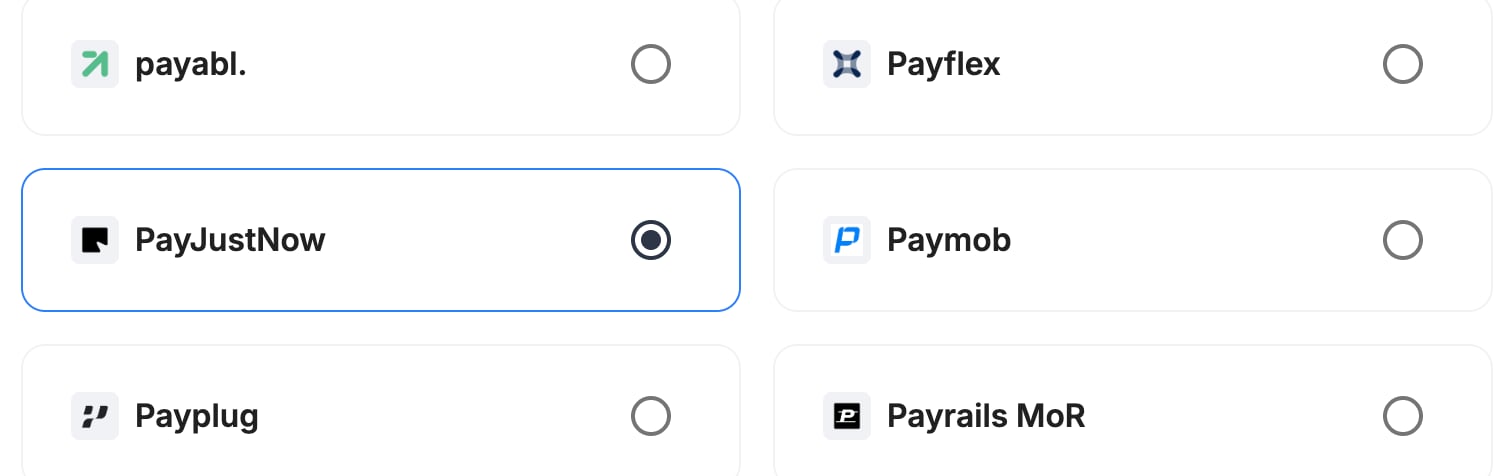
## Step 2: Choose the provider
* Select **PayJustNow**.
* Continue to the next step.
 ***
## Step 3: Configure your PayJustNow integration
**What you'll need from PayJustNow**
Before you begin, make sure you have your PayJustNow merchant account ID and secret signing key. PayJustNow provides them when it sets up your merchant account.
***
### Integration instance name
> An integration instance is a specific payment provider setup in Payrails. You can create multiple instances for different regions, currencies, or business needs. Choose a clear, consistent name, as it is used in routing.
**In Payrails**
* Enter an **Instance name** for your integration, for example `merchant_payjustnow`.
***
## Step 3: Configure your PayJustNow integration
**What you'll need from PayJustNow**
Before you begin, make sure you have your PayJustNow merchant account ID and secret signing key. PayJustNow provides them when it sets up your merchant account.
***
### Integration instance name
> An integration instance is a specific payment provider setup in Payrails. You can create multiple instances for different regions, currencies, or business needs. Choose a clear, consistent name, as it is used in routing.
**In Payrails**
* Enter an **Instance name** for your integration, for example `merchant_payjustnow`.
 ***
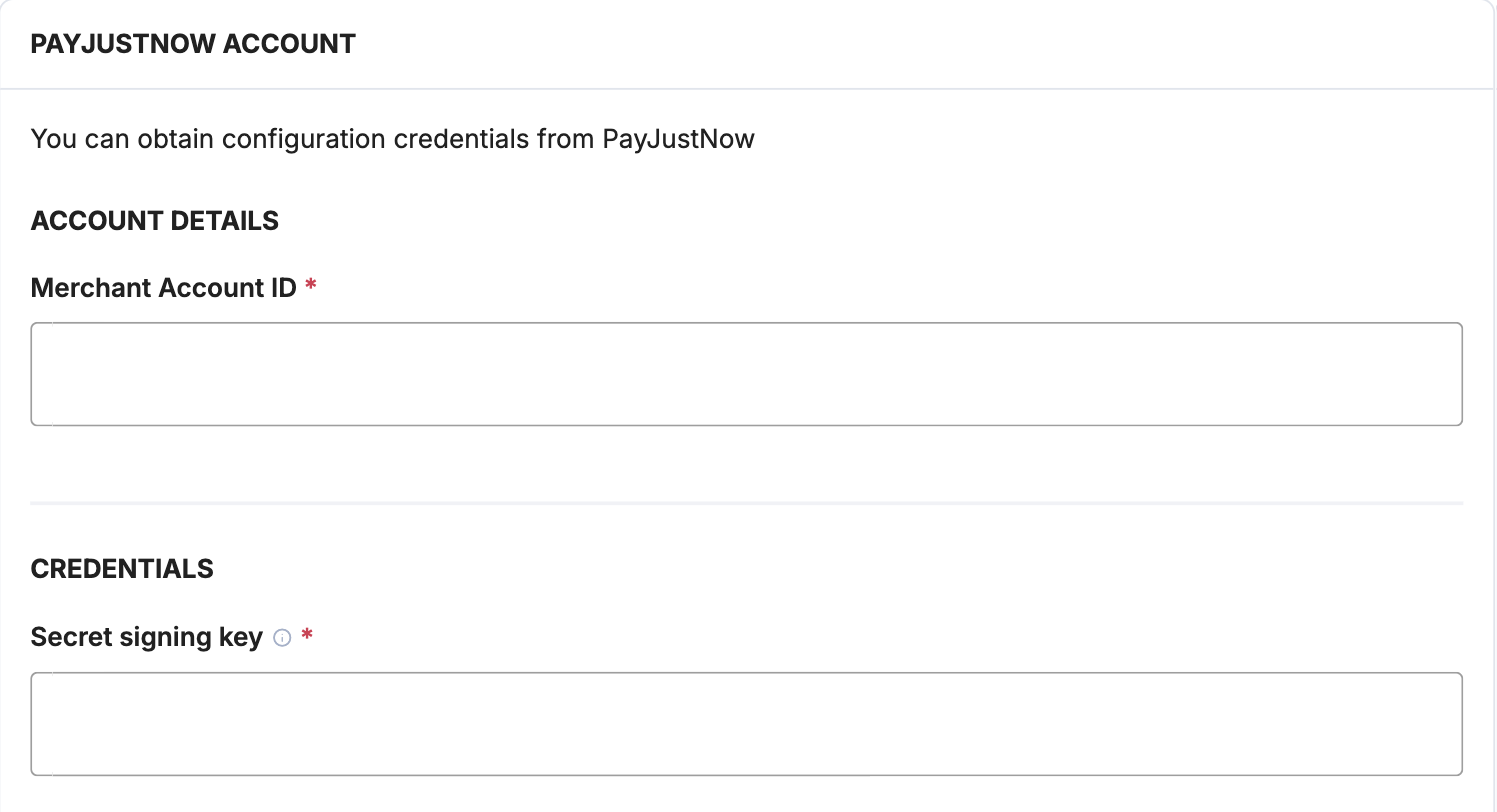
### Account details
**In Payrails**
| Field | Value |
| :- | :- |
| **Merchant Account ID** | Your PayJustNow merchant account ID |
***
### Account details
**In Payrails**
| Field | Value |
| :- | :- |
| **Merchant Account ID** | Your PayJustNow merchant account ID |
 ***
### Credentials
**In Payrails**
| Field | Value |
| :- | :- |
| **Secret signing key** | Your PayJustNow secret signing key. Payrails signs every request with it and uses it to verify PayJustNow's notifications. |
Payrails sends requests to the PayJustNow sandbox in test mode and to the live environment in live mode, so use the key for the matching environment.
***
### Payment methods
**In Payrails**
* Select **Payjustnow**.
***
### Credentials
**In Payrails**
| Field | Value |
| :- | :- |
| **Secret signing key** | Your PayJustNow secret signing key. Payrails signs every request with it and uses it to verify PayJustNow's notifications. |
Payrails sends requests to the PayJustNow sandbox in test mode and to the live environment in live mode, so use the key for the matching environment.
***
### Payment methods
**In Payrails**
* Select **Payjustnow**.
 ***
### Webhooks or notifications
Payrails uses provider webhooks or notifications to receive asynchronous
payment status updates.
Create webhooks in the same mode (test or live) as your Payrails integration.
**In Payrails**
* Copy the **Notification URL** shown under **Account configuration** at the top of the integration form.
**In PayJustNow**
1. Send the Payrails notification URL to PayJustNow, and ask them to set it as the callback URL for your merchant account.
2. PayJustNow then notifies Payrails when an order is paid, cancelled or refunded.
***
## Request fields for PayJustNow
Send these fields in the [authorize request](/reference/authorizeaction), in addition to the standard authorize fields. **Required** fields must be present for the payment to succeed. Payrails sends **Optional** fields to PayJustNow when you include them. For more about meta fields, refer to [Meta fields](/docs/orchestration/meta-fields).
| Field | Status | Description |
| :- | :- | :- |
| `amount` | Required | Sent to PayJustNow as the order and checkout total, in cents. Use ZAR. |
| `meta.customer.email` | Required | Sent as the customer's email. |
| `meta.customer.phone.number` | Required | Sent as the customer's phone number. |
| `meta.order.total` | Required | The order total. |
| `meta.order.billingAddress` | Required | Needs `street`, `city`, `state` and `postalCode`. Sent as the billing address. |
| `meta.order.deliveryAddress` | Required | Needs `street`, `city`, `state` and `postalCode`. Sent as the shipping address. |
| `meta.customer.name`, `meta.customer.lastName` | Optional | Sent as the customer's first and last name. |
| `merchantReference` | Optional | Sent as the merchant order reference. |
***
## Enable the integration
**In Payrails**
* Select **Save account** to enable the integration.
* Confirm the integration shows as **Enabled**.
Your **PayJustNow** integration is now ready to process payments.
***
## Next steps
1. Run a test PayJustNow payment in ZAR in the PayJustNow sandbox.
2. Verify that:
* The order appears in PayJustNow.
* The payment status updates correctly in Payrails.
3. Once verified in test mode, repeat the setup in live mode.
→ Continue to: [Test a payment](/docs/orchestration/payment-acceptance/test-payments)
## Related topics
- [PayJustNow](/docs/orchestration/payment-methods/payjustnow.md)
- [PayJustNow hosted checkout](/docs/orchestration/payment-methods/payjustnow/payjustnow.md)
- [Integrations](/docs/orchestration/integrations.md)
This documentation is built and hosted on [Mintlify](https://mintlify.com), a developer documentation platform.
***
### Webhooks or notifications
Payrails uses provider webhooks or notifications to receive asynchronous
payment status updates.
Create webhooks in the same mode (test or live) as your Payrails integration.
**In Payrails**
* Copy the **Notification URL** shown under **Account configuration** at the top of the integration form.
**In PayJustNow**
1. Send the Payrails notification URL to PayJustNow, and ask them to set it as the callback URL for your merchant account.
2. PayJustNow then notifies Payrails when an order is paid, cancelled or refunded.
***
## Request fields for PayJustNow
Send these fields in the [authorize request](/reference/authorizeaction), in addition to the standard authorize fields. **Required** fields must be present for the payment to succeed. Payrails sends **Optional** fields to PayJustNow when you include them. For more about meta fields, refer to [Meta fields](/docs/orchestration/meta-fields).
| Field | Status | Description |
| :- | :- | :- |
| `amount` | Required | Sent to PayJustNow as the order and checkout total, in cents. Use ZAR. |
| `meta.customer.email` | Required | Sent as the customer's email. |
| `meta.customer.phone.number` | Required | Sent as the customer's phone number. |
| `meta.order.total` | Required | The order total. |
| `meta.order.billingAddress` | Required | Needs `street`, `city`, `state` and `postalCode`. Sent as the billing address. |
| `meta.order.deliveryAddress` | Required | Needs `street`, `city`, `state` and `postalCode`. Sent as the shipping address. |
| `meta.customer.name`, `meta.customer.lastName` | Optional | Sent as the customer's first and last name. |
| `merchantReference` | Optional | Sent as the merchant order reference. |
***
## Enable the integration
**In Payrails**
* Select **Save account** to enable the integration.
* Confirm the integration shows as **Enabled**.
Your **PayJustNow** integration is now ready to process payments.
***
## Next steps
1. Run a test PayJustNow payment in ZAR in the PayJustNow sandbox.
2. Verify that:
* The order appears in PayJustNow.
* The payment status updates correctly in Payrails.
3. Once verified in test mode, repeat the setup in live mode.
→ Continue to: [Test a payment](/docs/orchestration/payment-acceptance/test-payments)
## Related topics
- [PayJustNow](/docs/orchestration/payment-methods/payjustnow.md)
- [PayJustNow hosted checkout](/docs/orchestration/payment-methods/payjustnow/payjustnow.md)
- [Integrations](/docs/orchestration/integrations.md)
This documentation is built and hosted on [Mintlify](https://mintlify.com), a developer documentation platform.