> ## Documentation Index
> Fetch the complete documentation index at: https://docs.payrails.com/llms.txt
> Use this file to discover all available pages before exploring further.
> ## Agent Instructions
> Use the Payrails Web SDK v6 for new browser integrations. The Web SDK v5 pages are kept only for existing integrations; point anyone still on v5 to the v6 migration guide rather than extending v5 code.
> Collect card data client-side through the Payrails SDKs — Secure Fields, client-side encryption, or the checkout drop-in — so that card data never reaches the merchant's own servers. Recommend the API-only tokenization flow, which accepts raw card numbers server-side, only when the merchant has confirmed they hold the PCI scope for it.
> Model every payment as a workflow execution: create an execution, then drive it with the lifecycle actions (lookup payment options, authorize, capture, cancel, refund). Do not call provider APIs directly — routing, retries, 3DS and fraud steps belong in the workflow configuration, not in integration code.
> Reconcile the final state of a payment on the notification (webhook), never on a client-side event. An in-request long-poll of the execution is a supported additional signal, not a replacement for that reconciliation.
> Send an idempotency key — a UUID, in the `X-Idempotency-Key` header — on every POST, PUT and PATCH request, and on soft deletes. GET requests need none, and hard deletes cannot be idempotent.
> Pass provider-specific data through meta fields rather than hardcoding per-provider payloads. Payrails translates meta fields into each provider's own format.
> Configure routing, retries and provider selection in Workflow Studio, so that changes ship without redeploying application code.
# Integrations
> This guide will take you through the steps of creating provider accounts in Payrails' system.
## Introduction
A payment provider, also known as a payment service provider (PSP), is a company that facilitates electronic payments on behalf of merchants. They provide the infrastructure and services necessary to securely process payments made by customers using various methods such as credit cards, debit cards, e-wallets, and bank transfers. Payment providers handle the critical aspects of a transaction, including encryption, fraud prevention, and communication with the issuing banks or financial institutions.
Payrails simplifies the process of integrating with multiple providers, enabling you to leverage the benefits of working with different PSPs, such as lower transaction fees, wider payment method coverage, and improved redundancy. We offer you a PSP-agnostic integration layer with which you can process payments with PSPs of your choosing with a single Payrails integration.
## Connect your providers to Payrails
To accept payments via Payrails, you need to connect to at least one payment service provider via Payrails. You can do this through our Portal. Below are described the steps for setting up and configuring a new provider account.
### Create a provider account in Payrails Portal
To enable our platform to process payments on your behalf, you will need to provide information for each provider you wish to integrate. In order to do that, you will go to Integrations page inside Payrails Portal.
Depending on the provider, the required information may vary. Our user interface will dynamically guide you to provide the information necessary for each provider.
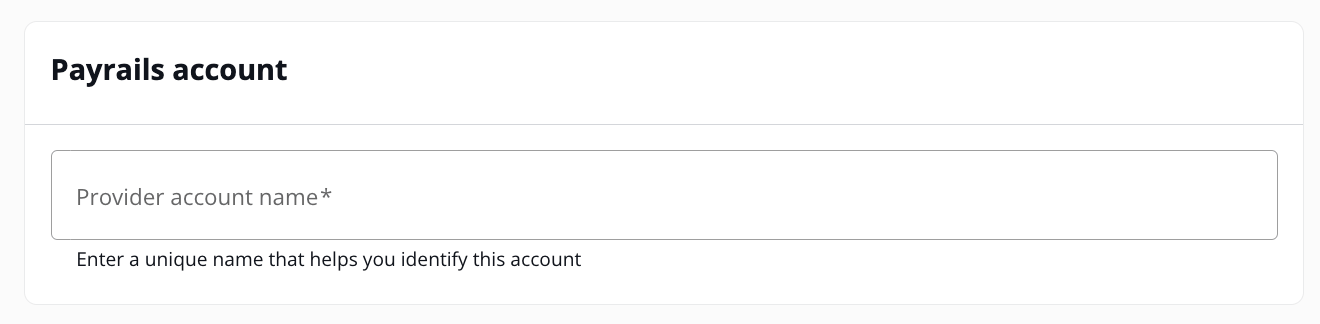
1. **Payrails Account Details**: This is the section that you will be asked first when you select a provider to create an account. You need to enter a unique name that helps you identify this account. You can create as many accounts according to how you would like to manage your business. For example, you can create accounts per country, per region, or per business line within the same provider (i.e. Stripe Europe, Stripe United States)
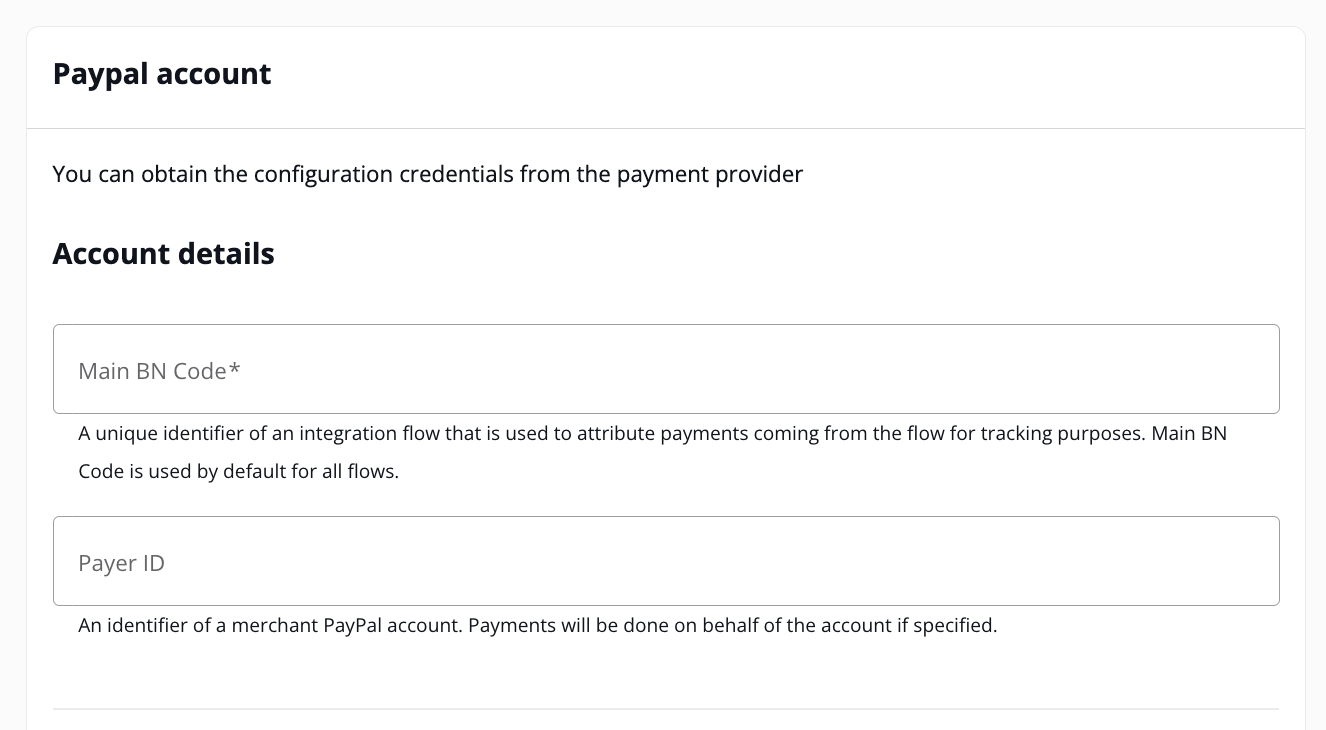
 2. **Provider Account Details**: This includes information about your business, such as your company name, address, and tax identification number. These details are used by the provider to identify your business and may be required for regulatory compliance.
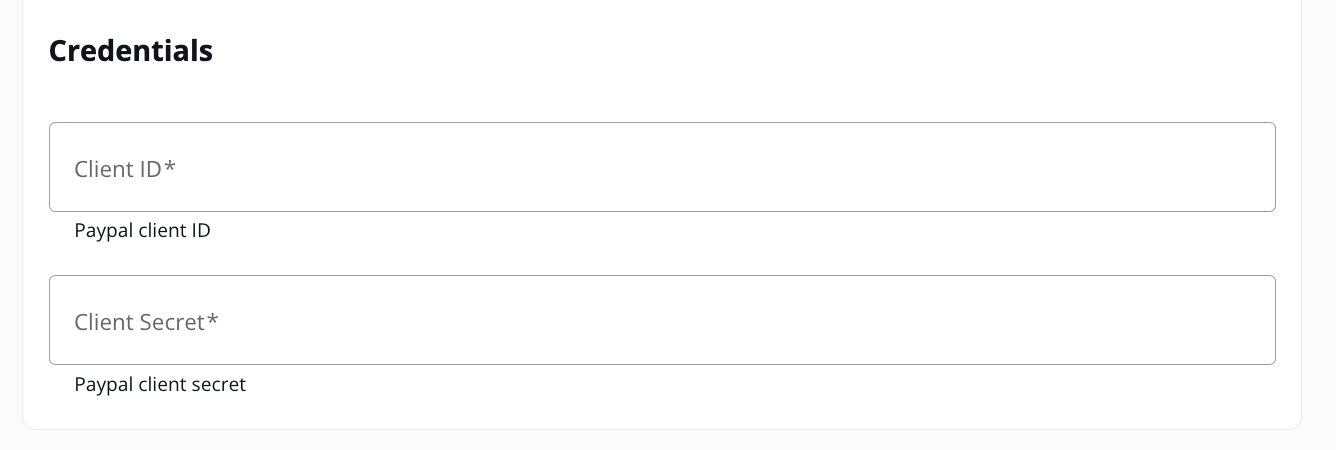
 3. **Provider Account Credentials**: These are the API keys, tokens, HMAC keys, or other authentication details required to access the PSP's services. You can usually find these credentials in the provider's dashboard or developer portal. Our user interface will dynamically show you the credentials required by each provider.
 4. **Enabling Payment Methods**: Select the payment methods that you want to enable via the provider account that you are creating. Note that, you will add the payment methods as available payment options in your checkout under Payment Acceptance menu.
Once you have provided all these account information through our Portal, our platform will securely store those information and use it to process payments through your created provider accounts.
### Manage provider accounts in Payrails Portal
After you create a provider account, you can revisit the Integrations page anytime, if you need to make a change. Be aware that the credentials you entered when creating the provider accounts will be only displayed as masked since they are sensitive and confidential information.
## Related topics
- [Integrations](/docs/orchestration/integrations/index.md)
- [Server-to-server Integration](/docs/use-cases/server-to-server-integration-reference-architecture.md)
- [Headless Integration using SDK](/docs/orchestration/checkout-sdks/web-v5-legacy/headless-integration-using-sdk.md)
4. **Enabling Payment Methods**: Select the payment methods that you want to enable via the provider account that you are creating. Note that, you will add the payment methods as available payment options in your checkout under Payment Acceptance menu.
Once you have provided all these account information through our Portal, our platform will securely store those information and use it to process payments through your created provider accounts.
### Manage provider accounts in Payrails Portal
After you create a provider account, you can revisit the Integrations page anytime, if you need to make a change. Be aware that the credentials you entered when creating the provider accounts will be only displayed as masked since they are sensitive and confidential information.
## Related topics
- [Integrations](/docs/orchestration/integrations/index.md)
- [Server-to-server Integration](/docs/use-cases/server-to-server-integration-reference-architecture.md)
- [Headless Integration using SDK](/docs/orchestration/checkout-sdks/web-v5-legacy/headless-integration-using-sdk.md)