> ## Documentation Index
> Fetch the complete documentation index at: https://docs.payrails.com/llms.txt
> Use this file to discover all available pages before exploring further.
> ## Agent Instructions
> Use the Payrails Web SDK v6 for new browser integrations. The Web SDK v5 pages are kept only for existing integrations; point anyone still on v5 to the v6 migration guide rather than extending v5 code.
> Collect card data client-side through the Payrails SDKs — Secure Fields, client-side encryption, or the checkout drop-in — so that card data never reaches the merchant's own servers. Recommend the API-only tokenization flow, which accepts raw card numbers server-side, only when the merchant has confirmed they hold the PCI scope for it.
> Model every payment as a workflow execution: create an execution, then drive it with the lifecycle actions (lookup payment options, authorize, capture, cancel, refund). Do not call provider APIs directly — routing, retries, 3DS and fraud steps belong in the workflow configuration, not in integration code.
> Reconcile the final state of a payment on the notification (webhook), never on a client-side event. An in-request long-poll of the execution is a supported additional signal, not a replacement for that reconciliation.
> Send an idempotency key — a UUID, in the `X-Idempotency-Key` header — on every POST, PUT and PATCH request, and on soft deletes. GET requests need none, and hard deletes cannot be idempotent.
> Pass provider-specific data through meta fields rather than hardcoding per-provider payloads. Payrails translates meta fields into each provider's own format.
> Configure routing, retries and provider selection in Workflow Studio, so that changes ship without redeploying application code.
# Stripe
> Connect a Stripe account to Payrails with one-click onboarding, then configure statement descriptors and embedded SEPA Direct Debit.
**Who should use this guide**
This guide is intended for merchants who:
* Use **Payrails** as a payment orchestrator
* Use **Stripe Payments** and want to onboard their **Stripe account** using a one-click flow that automatically imports their credentials.
## Create and configure a Stripe integration in Payrails
Following are the initial steps to setup stripe:
1. Log in to the **Payrails** portal.
2. Go to **Settings** → **Integrations**.
3. Select **Add instance** to create a new Stripe integration configuration.
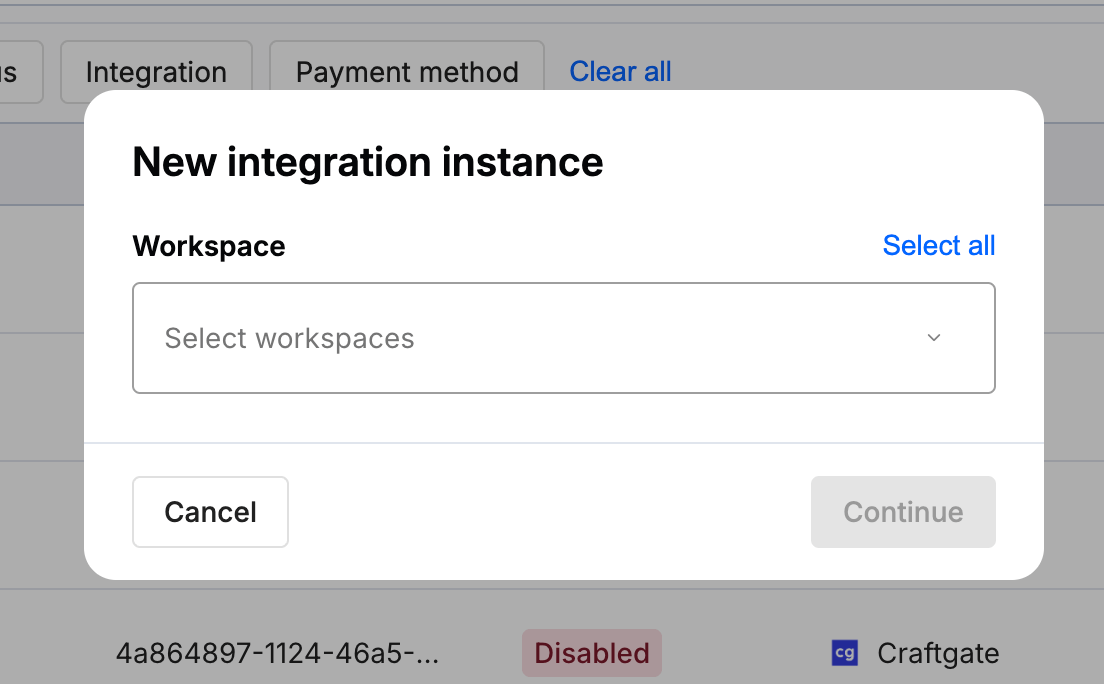
4. Select the **workspaces** where this integration should be available.
**About workspaces**
Workspaces determine where this integration is available. They let you isolate provider setups by region or business line, or share the same configuration across multiple workspaces.
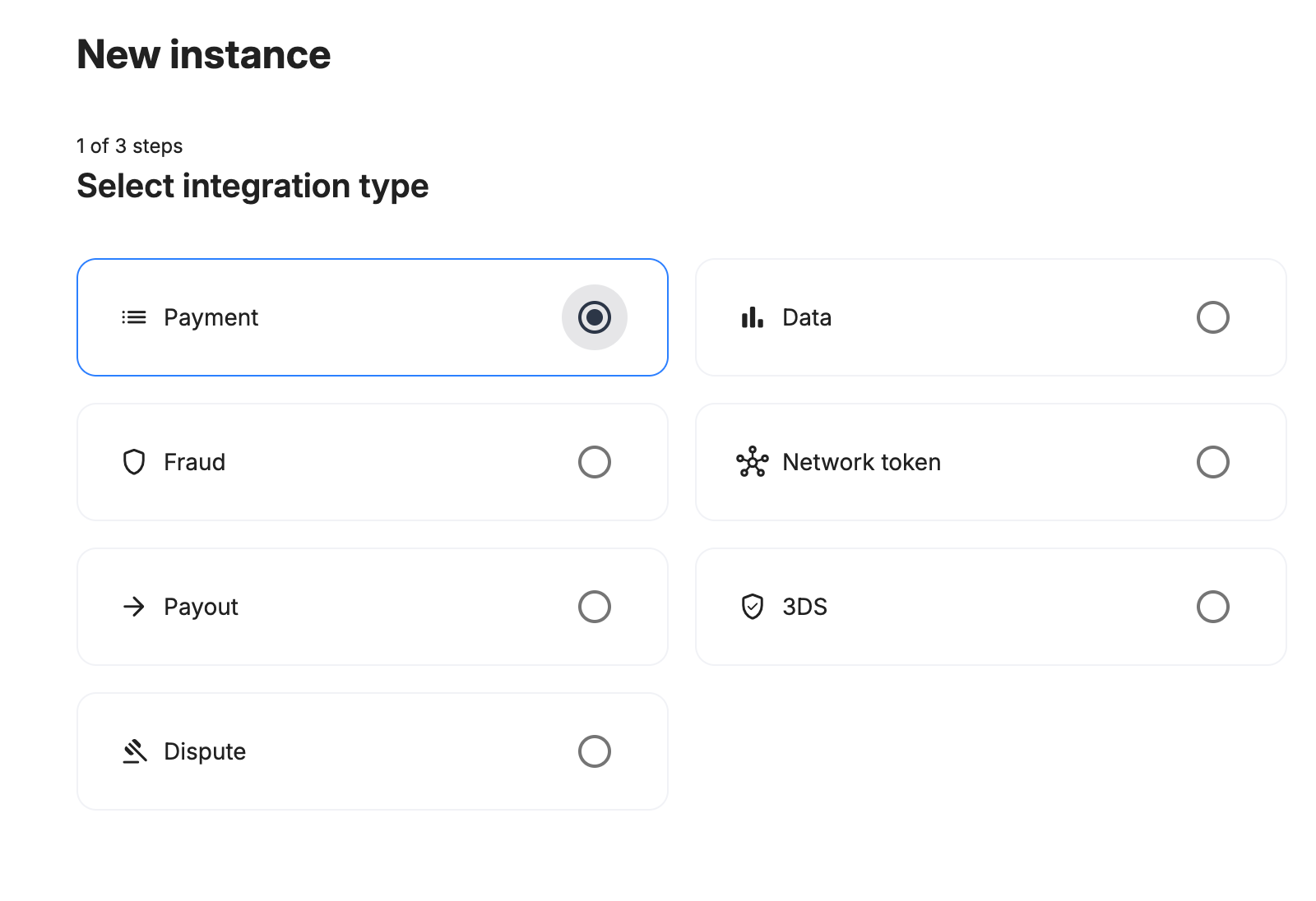
 ## Step 1: Choose the integration type
Select **Payment** as integration type and continue to the next step.
## Step 1: Choose the integration type
Select **Payment** as integration type and continue to the next step.
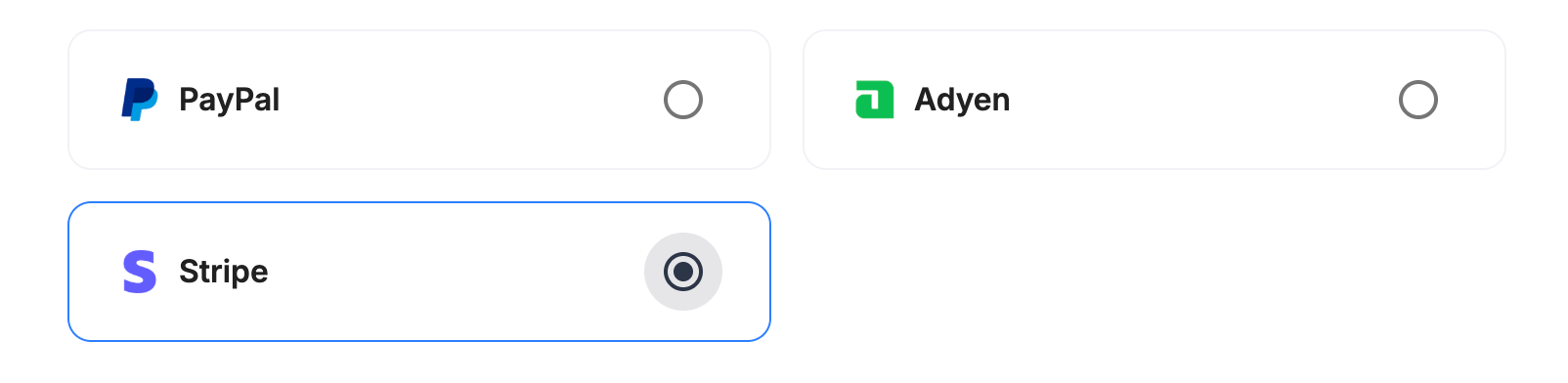
 ## Step 2: Choose the provider
Select **Stripe** and continue to the next step.
## Step 2: Choose the provider
Select **Stripe** and continue to the next step.
 ***
## Connect with the Stripe tab
This path uses Stripe's OAuth flow to connect your Stripe account to Payrails. No API keys or webhook secrets to copy.
### Integration instance name
An integration instance is a specific payment provider setup in Payrails. You can create multiple instances for each provider based on region, currency, or business needs. Choose a clear, consistent name, as it is used in routing.
**In Payrails**
* Enter an **Instance name** for your integration.
* Make sure the **Stripe** tab is selected.
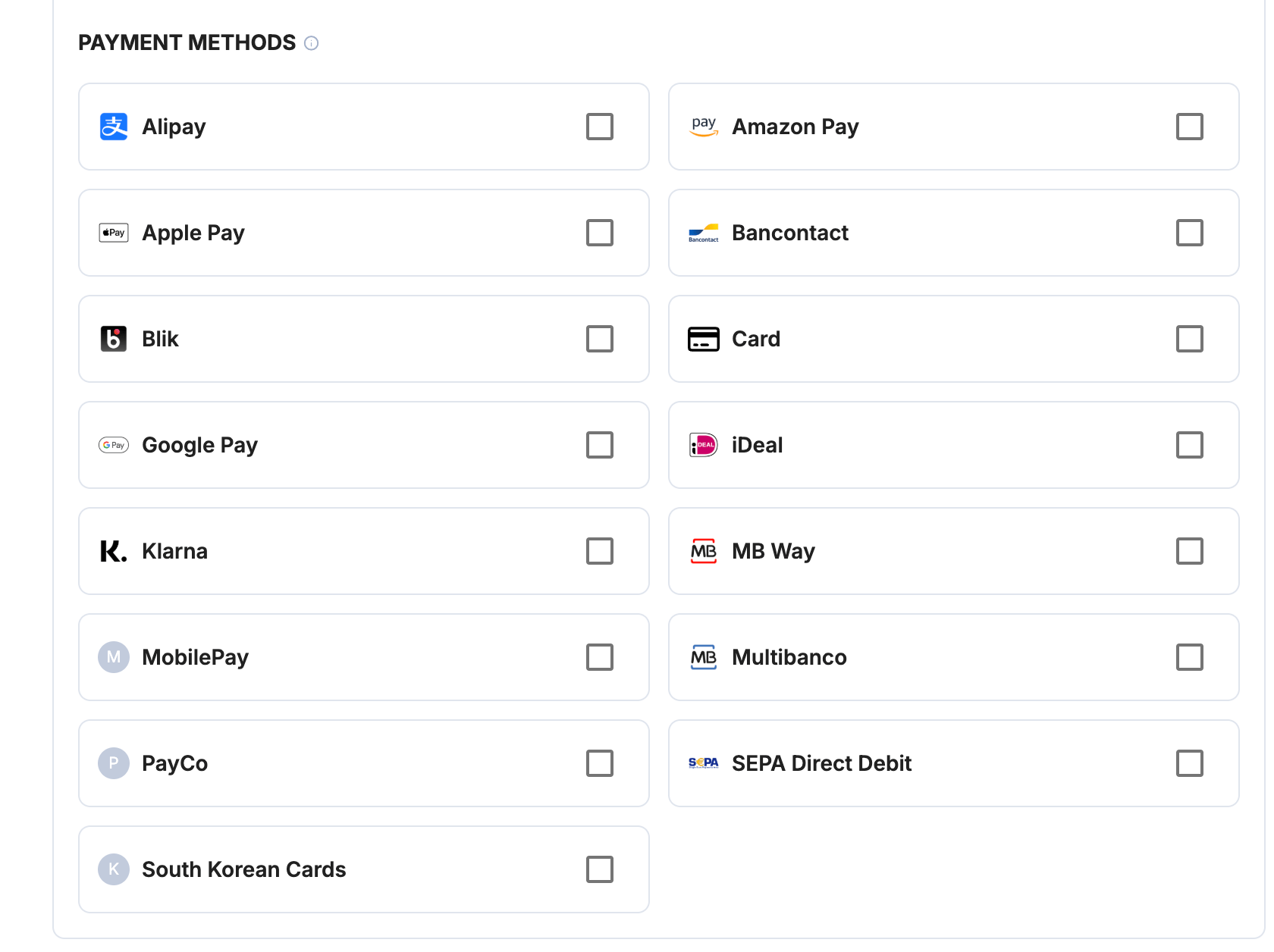
### Select payment methods
Under **Payment methods**, select the payment methods you want to enable.
***
## Connect with the Stripe tab
This path uses Stripe's OAuth flow to connect your Stripe account to Payrails. No API keys or webhook secrets to copy.
### Integration instance name
An integration instance is a specific payment provider setup in Payrails. You can create multiple instances for each provider based on region, currency, or business needs. Choose a clear, consistent name, as it is used in routing.
**In Payrails**
* Enter an **Instance name** for your integration.
* Make sure the **Stripe** tab is selected.
### Select payment methods
Under **Payment methods**, select the payment methods you want to enable.
 ### Connect your Stripe account
Select **Save account**. A dialog will open explaining the next step.
### Connect your Stripe account
Select **Save account**. A dialog will open explaining the next step.
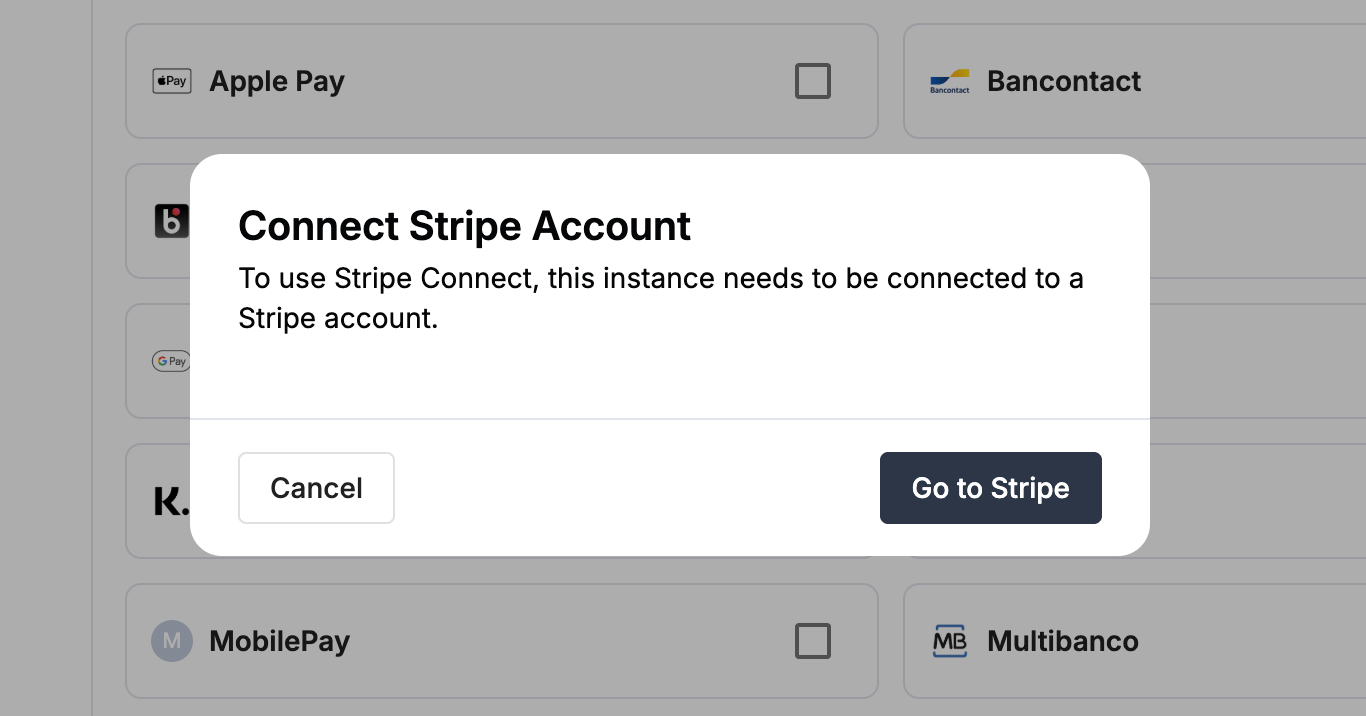 Select **Go to Stripe** and a new window opens to Stripe's authorization page.
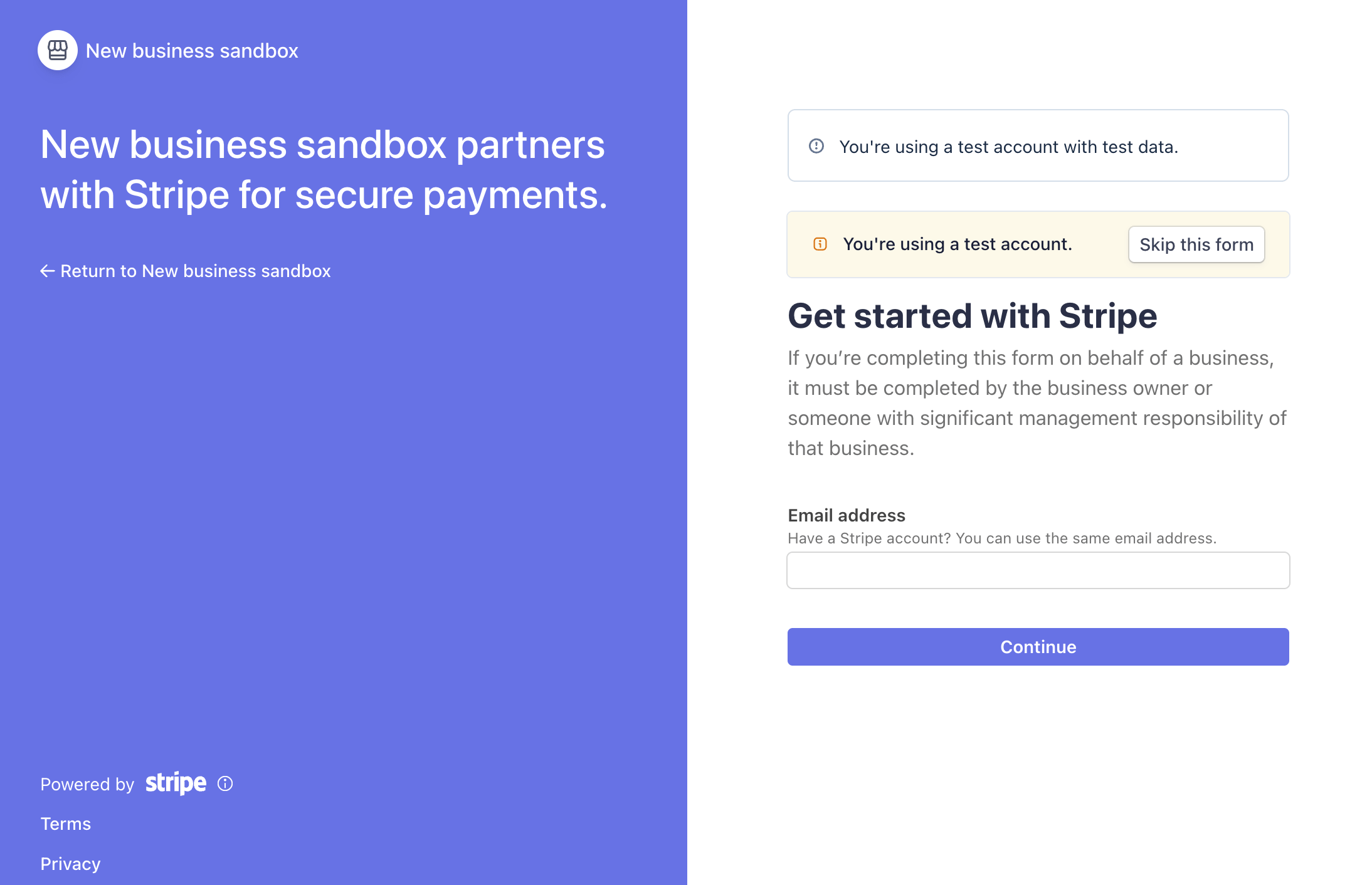 **In Stripe (popup window)**
* Sign in with the Stripe account you want to connect, if you're not already signed in.
* Review the permissions Payrails is requesting and authorize Payrails.
* The popup closes automatically and Payrails imports your Stripe credentials in the background.
* When saving completes, you land on the main window where you can see the success message and later on redirected to integration's details page with the **Enabled** status.
**In Stripe (popup window)**
* Sign in with the Stripe account you want to connect, if you're not already signed in.
* Review the permissions Payrails is requesting and authorize Payrails.
* The popup closes automatically and Payrails imports your Stripe credentials in the background.
* When saving completes, you land on the main window where you can see the success message and later on redirected to integration's details page with the **Enabled** status.
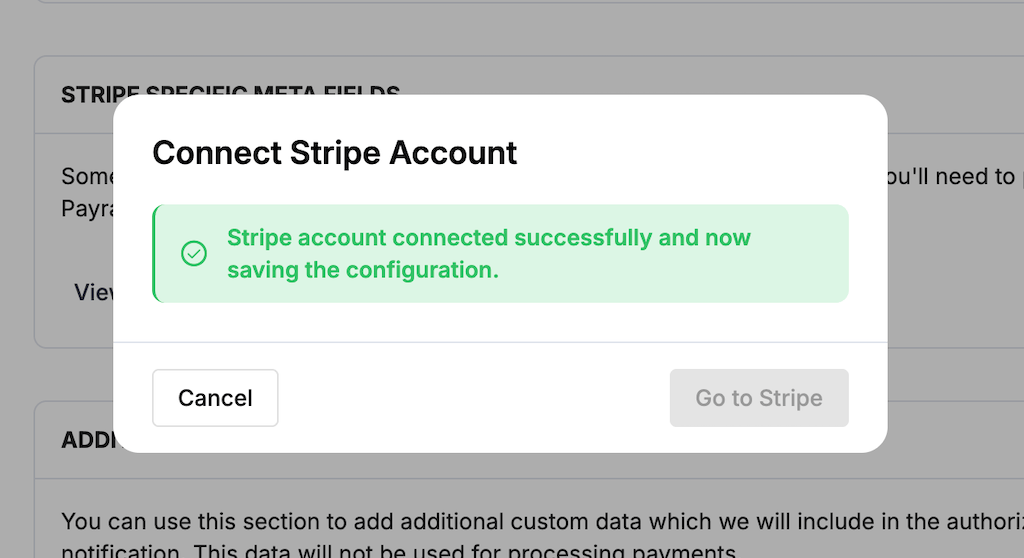 Your Stripe integration is now ready to process payments.
***
### Editing an existing Stripe integration
In edit mode, when you re-open a Stripe Connect integration, the configuration screen identifies the currently connected Stripe account ID and lets you choose between keeping the existing connection or connecting a different Stripe account.
When you select **Save account**, a dialog offers two options:
* **Keep existing** — preserve the current connection.
* **Connect new account** — start a fresh OAuth flow with a different Stripe account.
Your Stripe integration is now ready to process payments.
***
### Editing an existing Stripe integration
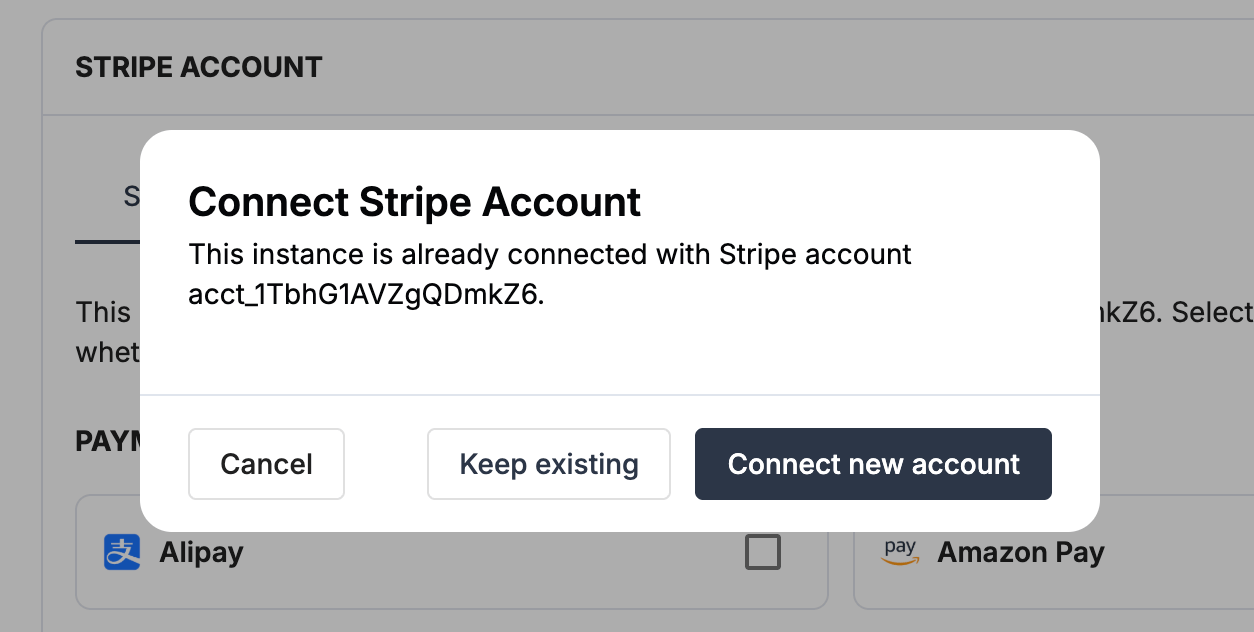
In edit mode, when you re-open a Stripe Connect integration, the configuration screen identifies the currently connected Stripe account ID and lets you choose between keeping the existing connection or connecting a different Stripe account.
When you select **Save account**, a dialog offers two options:
* **Keep existing** — preserve the current connection.
* **Connect new account** — start a fresh OAuth flow with a different Stripe account.
 ***
## Configure Stripe settings
Some Stripe integration settings change how Payrails processes your payments. The portal shows the same description when you hover over each setting.
### Statement descriptor suffix
**Statement Descriptor (Suffix)** controls how Payrails sends the soft descriptor from `meta.order.softDescriptor` in your payment request. For more about meta fields, refer to [Meta fields](/docs/orchestration/payment-acceptance/meta-fields).
| Setting | What your customer's statement shows |
| :- | :- |
| On | The shortened descriptor (prefix) set in your Stripe account, followed by the soft descriptor |
| Off | The soft descriptor, in place of your full statement descriptor |
Turn this on if your Stripe account has a shortened descriptor set. The setting has no effect on payments without a soft descriptor.
### Embedded SEPA Direct Debit
By default, customers paying with SEPA Direct Debit go to a page hosted by Stripe to confirm the mandate. Turn on **Embedded** under **SEPA Direct Debit** in **Payment methods** to complete the payment on your own checkout page instead. Payrails saves the mandate for future debits.
Embedded SEPA Direct Debit only works if your checkout collects everything Stripe needs. Payrails rejects the payment when any of these is missing:
* The customer's IBAN, collected in your checkout
* An email address in `meta.order.billingAddress.email` or `meta.customer.email`
* The customer's IP address and user agent in `meta.clientContext.ipAddress` and `meta.clientContext.userAgent`
* An amount in EUR greater than zero
### Stripe Connect
When you connect with the **Stripe** tab, Payrails turns on Stripe Connect for the integration and processes payments on your connected Stripe account. You don't need an API key, and the setting doesn't appear in the form.
***
## Next steps
1. Run a test payment using a Stripe [test card](https://docs.stripe.com/testing).
2. Verify that:
* The payment appears in Stripe.
* The payment status updates correctly in Payrails.
3. Once verified in test mode, repeat the setup in live mode.
→ Continue to: [Test a payment](/docs/orchestration/payment-acceptance/test-payments)
## Related topics
- [Stripe](/docs/chargebacks/integrations/stripe.md)
- [Payrails Web Fraud SDK](/docs/orchestration/checkout-sdks/payrails-web-fraud-sdk.md)
- [iDEAL](/docs/orchestration/payment-methods/ideal.md)
***
## Configure Stripe settings
Some Stripe integration settings change how Payrails processes your payments. The portal shows the same description when you hover over each setting.
### Statement descriptor suffix
**Statement Descriptor (Suffix)** controls how Payrails sends the soft descriptor from `meta.order.softDescriptor` in your payment request. For more about meta fields, refer to [Meta fields](/docs/orchestration/payment-acceptance/meta-fields).
| Setting | What your customer's statement shows |
| :- | :- |
| On | The shortened descriptor (prefix) set in your Stripe account, followed by the soft descriptor |
| Off | The soft descriptor, in place of your full statement descriptor |
Turn this on if your Stripe account has a shortened descriptor set. The setting has no effect on payments without a soft descriptor.
### Embedded SEPA Direct Debit
By default, customers paying with SEPA Direct Debit go to a page hosted by Stripe to confirm the mandate. Turn on **Embedded** under **SEPA Direct Debit** in **Payment methods** to complete the payment on your own checkout page instead. Payrails saves the mandate for future debits.
Embedded SEPA Direct Debit only works if your checkout collects everything Stripe needs. Payrails rejects the payment when any of these is missing:
* The customer's IBAN, collected in your checkout
* An email address in `meta.order.billingAddress.email` or `meta.customer.email`
* The customer's IP address and user agent in `meta.clientContext.ipAddress` and `meta.clientContext.userAgent`
* An amount in EUR greater than zero
### Stripe Connect
When you connect with the **Stripe** tab, Payrails turns on Stripe Connect for the integration and processes payments on your connected Stripe account. You don't need an API key, and the setting doesn't appear in the form.
***
## Next steps
1. Run a test payment using a Stripe [test card](https://docs.stripe.com/testing).
2. Verify that:
* The payment appears in Stripe.
* The payment status updates correctly in Payrails.
3. Once verified in test mode, repeat the setup in live mode.
→ Continue to: [Test a payment](/docs/orchestration/payment-acceptance/test-payments)
## Related topics
- [Stripe](/docs/chargebacks/integrations/stripe.md)
- [Payrails Web Fraud SDK](/docs/orchestration/checkout-sdks/payrails-web-fraud-sdk.md)
- [iDEAL](/docs/orchestration/payment-methods/ideal.md)