> ## Documentation Index
> Fetch the complete documentation index at: https://docs.payrails.com/llms.txt
> Use this file to discover all available pages before exploring further.
> ## Agent Instructions
> Use the Payrails Web SDK v6 for new browser integrations. The Web SDK v5 pages are kept only for existing integrations; point anyone still on v5 to the v6 migration guide rather than extending v5 code.
> Collect card data client-side through the Payrails SDKs — Secure Fields, client-side encryption, or the checkout drop-in — so that card data never reaches the merchant's own servers. Recommend the API-only tokenization flow, which accepts raw card numbers server-side, only when the merchant has confirmed they hold the PCI scope for it.
> Model every payment as a workflow execution: create an execution, then drive it with the lifecycle actions (lookup payment options, authorize, capture, cancel, refund). Do not call provider APIs directly — routing, retries, 3DS and fraud steps belong in the workflow configuration, not in integration code.
> Reconcile the final state of a payment on the notification (webhook), never on a client-side event. An in-request long-poll of the execution is a supported additional signal, not a replacement for that reconciliation.
> Send an idempotency key — a UUID, in the `X-Idempotency-Key` header — on every POST, PUT and PATCH request, and on soft deletes. GET requests need none, and hard deletes cannot be idempotent.
> Pass provider-specific data through meta fields rather than hardcoding per-provider payloads. Payrails translates meta fields into each provider's own format.
> Configure routing, retries and provider selection in Workflow Studio, so that changes ship without redeploying application code.
# Cancel a payment
> Cancel a payment with one call: Payrails voids an uncaptured authorization, or refunds the amount after a capture.
## Introduction
With the cancel action, you can let Payrails handle the cancellation of payments without needing to validate whether it has been captured. This action will do one of the following:
* Void the authorized amount if the payment is not yet captured
* Refund the amount that was captured
You can cancel a payment via the **API** or the **Payrails Portal**.
This action cannot be executed on partial amounts. For those cases, you can send a partial amount request for [capture](/docs/orchestration/payment-acceptance/capture-a-payment) or [refund](/docs/orchestration/payment-acceptance/refund-a-payment) actions.
## Requirements
* The payment you want to cancel must be authorized or captured
* Have [notifications](/docs/orchestration/payment-acceptance/receive-notifications) set up if you wish to receive them for cancellation results
## Cancel a payment via API
### 1. Get the execution ID
To cancel a payment, you’ll need the ID of the execution for the payment. You can find the ID:
* In the authorization notification for the payment, with the key `execution.id`
* In the Payrails Portal on the payment’s Payment Details page under **Reference details**, accessed by searching for the payment in the Payments section
### 2. Make a POST request
Make a request to the [Cancel a payment](/reference/cancelaction) endpoint, where `executionId` is the ID from the previous step.
### 3. Receive the cancellation response
If the cancellation was successfully requested, you’ll find the following in the response:
* `actionId`: The unique identifier for this cancellation execution
For the complete response schema, refer to the [Cancel a payment](/reference/cancelaction) API reference.
### 4. Wait for the cancellation notification
Successfully requested payment cancellations will be processed asynchronously. If you have [notifications](/docs/orchestration/payment-acceptance/receive-notifications) set up, you’ll receive a notification once the processing is complete, informing you whether the cancellation was a success or failure.
Example notification for a successful cancellation:
```json theme={null}
{
"action": "cancel",
"actionId": "0ff84291-24c8-4165-b0b9-9ad3d419d7ed",
"amount": {
"currency": "EUR",
"value": "24.00"
},
"execution": {
"holderReference": "customer123",
"holderId": "9d113e2a-35a0-40e1-828b-35a18ac35b41",
"id": "f8c36786-008d-4352-a0cf-b799955dbfc2",
"merchantReference": "order_3573894940903",
"workflowCode": "payment-acceptance"
},
"paymentComposition": [
{
"operationType": "Cancel",
"amount": {
"currency": "EUR",
"value": "24.00"
},
"integrationType": "api",
"operationResult": "Success",
"operationProviderReference": "provider-reference-example",
"providerId": "5eb08624-ecce-4cbc-9a8a-61d484172815",
"providerConfigId": "1e308624-e5ce-4cvc-9a8a-61d482172817",
"paymentId": "c9e1a8ea-a0de-42bd-bcfd-46d3f437b5fe",
"paymentInstrumentId": "a4a7ed2d-bdcc-46a3-a9f2-701b5d7924b0",
"storeInstrument": true,
"paymentMethodCode": "card",
"success": true,
"paymentInstrument": {
"tokens": [
{
"type": "psp",
"reference": "provider-token",
"meta": {
"holderReference": "provider-customer-reference"
}
}
]
}
}
],
"success": true
}
```
Example notification for a failed cancellation:
```json theme={null}
{
"action": "cancel",
"actionId": "e1822606-987e-49ac-a24b-e27c7f97a0d3",
"amount": {
"currency": "EUR",
"value": "0.00"
},
"errors": [
{
"detail": "Cannot cancel a canceled execution",
"id": "3dc44fbc-2ade-4e19-9eac-ca54e698ab7d",
"title": "action.not-allowed"
}
],
"execution": {
"holderReference": "customer123",
"holderId": "9d113e2a-35a0-40e1-828b-35a18ac35b41",
"id": "f8c36786-008d-4352-a0cf-b799955dbfc2",
"merchantReference": "order_3573894940903",
"workflowCode": "payment-acceptance"
},
"success": false
```
Note that a cancellation will not be possible in all cases, for example if the execution has already been canceled or refunded. In such cases, refer to `detail` in the `errors` object for an explanation of why the action failed. Below are the most common reasons:
| Error detail | Description |
| :- | :- |
| `Cannot cancel a canceled execution` | The execution has already been canceled. |
| `Cannot cancel a fully refunded execution` | The authorized amount has already been fully-refunded and can no longer be canceled. |
### 5. Fetch the execution status
In addition to waiting for a capture notification, you can fetch the status of an execution at any time via the [Get an execution by ID](/reference/getexecution) endpoint, where `executionId` is the ID from step 1 above.
## Cancel a payment via the Portal
### 1. Search for the payment
Click on Payments in the Payrails Portal sidebar, and search for the payment you want to cancel using any of the following:
* Execution ID
* Merchant reference
* Payrails payment ID
* PSP reference
### 2. Review the Payment Details page
On the Payments page, click on the payment to access its details and the actions that can be taken.
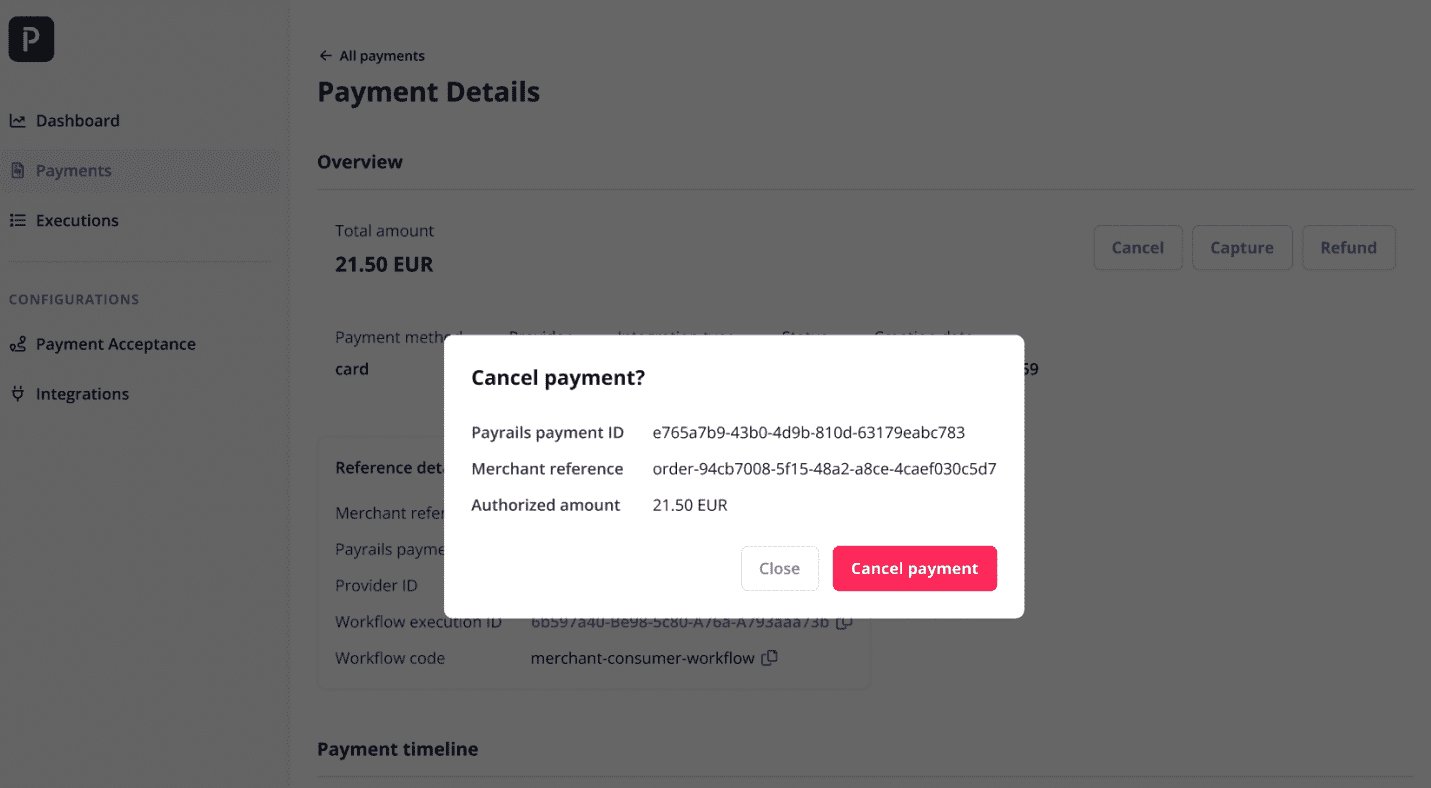
### 3. Cancel the payment
Cancel the payment by clicking on "Cancel" at the top right of the page.
 ### 4. Review payment status
You can review the status of the payment by returning to its Payment Details page at any time.
You will also receive a [notification](/docs/orchestration/payment-acceptance/receive-notifications) on your backend when performing this action on the Portal.
## Related topics
- [Cancel a payment](/reference/cancelaction.md)
- [Triggers](/docs/orchestration/workflow-studio/triggers.md)
- [Actions](/docs/orchestration/workflow-studio/actions.md)
### 4. Review payment status
You can review the status of the payment by returning to its Payment Details page at any time.
You will also receive a [notification](/docs/orchestration/payment-acceptance/receive-notifications) on your backend when performing this action on the Portal.
## Related topics
- [Cancel a payment](/reference/cancelaction.md)
- [Triggers](/docs/orchestration/workflow-studio/triggers.md)
- [Actions](/docs/orchestration/workflow-studio/actions.md)