> ## Documentation Index
> Fetch the complete documentation index at: https://docs.payrails.com/llms.txt
> Use this file to discover all available pages before exploring further.
> ## Agent Instructions
> Use the Payrails Web SDK v6 for new browser integrations. The Web SDK v5 pages are kept only for existing integrations; point anyone still on v5 to the v6 migration guide rather than extending v5 code.
> Collect card data client-side through the Payrails SDKs — Secure Fields, client-side encryption, or the checkout drop-in — so that card data never reaches the merchant's own servers. Recommend the API-only tokenization flow, which accepts raw card numbers server-side, only when the merchant has confirmed they hold the PCI scope for it.
> Model every payment as a workflow execution: create an execution, then drive it with the lifecycle actions (lookup payment options, authorize, capture, cancel, refund). Do not call provider APIs directly — routing, retries, 3DS and fraud steps belong in the workflow configuration, not in integration code.
> Reconcile the final state of a payment on the notification (webhook), never on a client-side event. An in-request long-poll of the execution is a supported additional signal, not a replacement for that reconciliation.
> Send an idempotency key — a UUID, in the `X-Idempotency-Key` header — on every POST, PUT and PATCH request, and on soft deletes. GET requests need none, and hard deletes cannot be idempotent.
> Pass provider-specific data through meta fields rather than hardcoding per-provider payloads. Payrails translates meta fields into each provider's own format.
> Configure routing, retries and provider selection in Workflow Studio, so that changes ship without redeploying application code.
# Refund a payment
> Refund a captured payment in full or in part through the Payrails API or the Portal, including several partial refunds on the same payment.
## Introduction
With Payrails, you can refund payments to customers either in part or in full, via the API or the Payrails Portal. You can perform multiple partial refunds on a payment, as long as their sum doesn’t exceed the captured amount.
## Requirements
* The payment you want to refund must have been captured or have a capture in progress
* Have [notifications](/docs/orchestration/payment-acceptance/receive-notifications) set up if you wish to receive them for refund results
## Refund a payment via API
### 1. Get the execution ID
To refund a payment, you’ll need the ID of the execution. You can find the ID:
* In the capture notification for the payment, with the key `execution.id`
* In the Payrails Portal on the payment’s Payment Details page under `Reference details`, accessed by searching for the payment in the Payments section
### 2. Make a POST request
Make a `POST` request to the [Refund a payment](/reference/refundaction) endpoint, where `executionId` is the ID from the previous step.
In your request, include:
* `amount.value`: The decimal amount of the major currency unit, in any precision
* `amount.currency`: ISO 3-letter currency code
For example:
```json theme={null}
{
"amount": {
"value": "12.50",
"currency": "EUR"
}
}
```
### 3. Receive the refund response
If the refund was successfully requested, you’ll find the following in the response:
* `actionId`: The unique identifier for this refund execution
* `links`: Links to the next possible actions that can be taken
For the complete response schema, refer to the [Refund a payment](/reference/refundaction) API reference.
### 4. Wait for refund notification
Successfully requested payment refunds will be processed asynchronously. If you have [notifications](/docs/orchestration/payment-acceptance/receive-notifications) set up, you’ll receive a notification once the processing is complete, informing you whether the refund was a success or failure.
Example notification for a successful refund:
```json theme={null}
{
"action": "refund",
"actionId": "9b413f20-f361-4ff3-8267-637251eb88b4",
"amount": {
"currency": "EUR",
"value": "24.00"
},
"execution": {
"holderReference": "customer123",
"holderId": "9d113e2a-35a0-40e1-828b-35a18ac35b41",
"id": "f8c36786-008d-4352-a0cf-b799955dbfc2",
"merchantReference": "order_3573894940903",
"workflowCode": "payment-acceptance"
},
"paymentComposition": [
{
"operationType": "Refund",
"amount": {
"currency": "EUR",
"value": "24.00"
},
"integrationType": "api",
"operationResult": "Success",
"operationProviderReference": "provider-reference-example",
"providerId": "5eb08624-ecce-4cbc-9a8a-61d484172815",
"providerConfigId": "1e308624-e5ce-4cvc-9a8a-61d482172817",
"paymentId": "c9e1a8ea-a0de-42bd-bcfd-46d3f437b5fe",
"paymentInstrumentId": "a4a7ed2d-bdcc-46a3-a9f2-701b5d7924b0",
"storeInstrument": true,
"paymentMethodCode": "card",
"success": true,
"paymentInstrument": {
"tokens": [
{
"type": "psp",
"reference": "provider-token",
"meta": {
"holderReference": "provider-customer-reference"
}
}
]
}
}
],
"success": true
}
```
Example notification for a failed refund:
```json theme={null}
{
"action": "refund",
"actionId": "e1822606-987e-49ac-a24b-e27c7f97a0d3",
"amount": {
"currency": "EUR",
"value": "0.00"
},
"errors": [
{
"detail": "Cannot refund a refunded execution",
"id": "3dc44fbc-2ade-4e19-9eac-ca54e698ab7d",
"title": "action.not-allowed"
}
],
"execution": {
"holderReference": "customer123",
"holderId": "9d113e2a-35a0-40e1-828b-35a18ac35b41",
"id": "f8c36786-008d-4352-a0cf-b799955dbfc2",
"merchantReference": "order_3573894940903",
"workflowCode": "payment-acceptance"
},
"success": false
}
```
Note that a refund will not be possible in all cases, for example if the captured amount is zero or negative, or already fully refunded. In such cases, refer to `detail` in the `errors` object for an explanation of why the action failed. Below are the most common reasons:
| Error detail | Description |
| :- | :- |
| `Cannot refund zero amount` | The captured amount of the payment is equal to zero and no refund is applicable. |
| `Cannot refund negative amount` | The amount of the payment related to the execution is negative and can not be refunded. |
| `Cannot refund not authorized execution` | No payment for the execution has been authorized and no refund is applicable. |
| `Refund is not supported for multiple payments` | There are multiple payments for the execution and they can not all be refunded. |
| `Cannot refund a workflow without a payment` | There is no payment related to the execution for which the refund request was made. |
| `Cannot refund a refunded execution` | The payment for the relevant execution has already been fully refunded. |
### 5. Fetch the execution status
In addition to waiting for a refund notification, you can fetch the status of an execution at any time via the [Get an execution by ID](/reference/getexecution) endpoint, where `executionId` is the ID from step 1 above.
## Refund a payment via the Portal
### 1. Search for the payment
Click on Payments in the Payrails Portal sidebar, and search for the payment you want to refund using any of the following:
* Execution ID
* Merchant reference
* Payrails payment ID
* PSP reference
### 2. Review the Payment Details page
On the Payments page, click on the payment to access its details and the actions that can be taken.
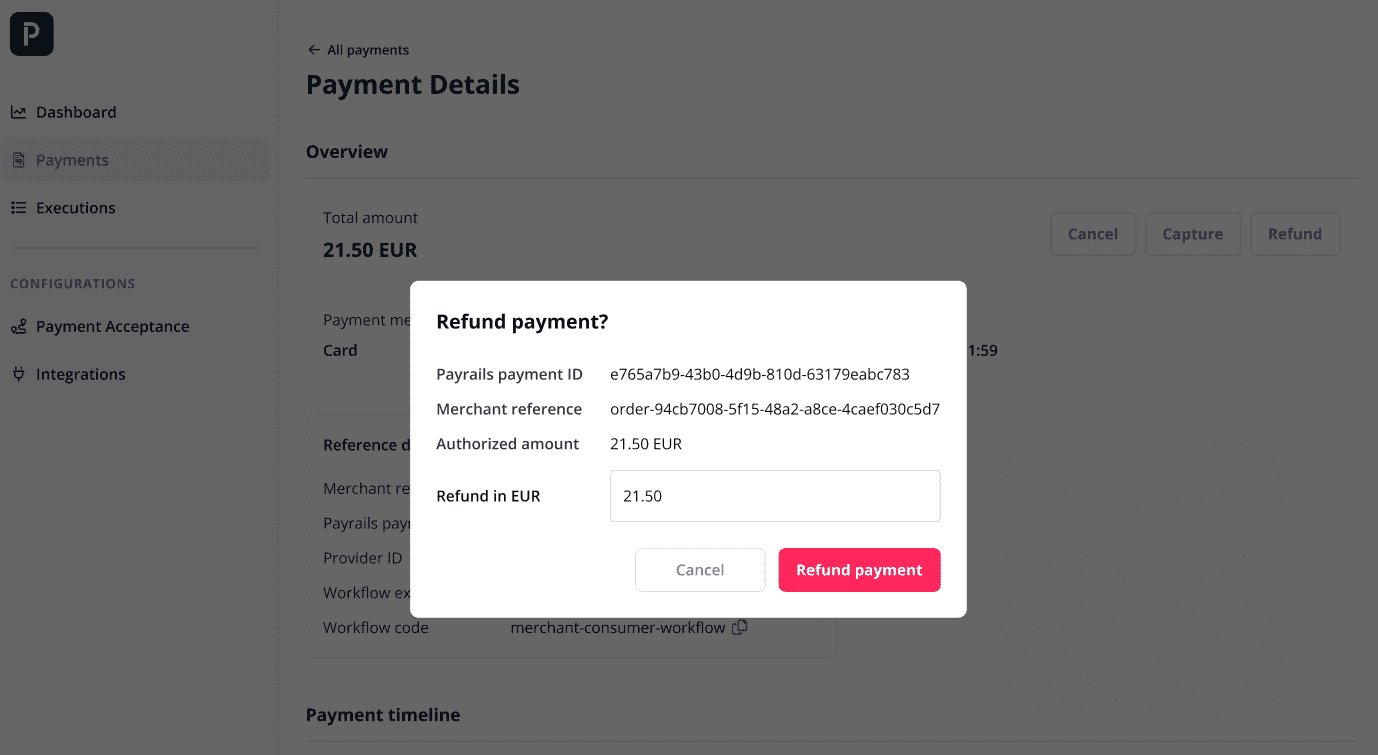
### 3. Refund the payment
Refund the payment by clicking on "Refund" at the top right of the page.
The refund amount will be pre-filled with the captured amount for the payment. Make a full refund by proceeding with this amount, or change it to a smaller amount for a partial refund.
 ### 4. Review payment status
You can review the status of the payment by returning to its Payment Details page at any time.
### 5. Receive refund notification
If you have [notifications](/docs/orchestration/payment-acceptance/receive-notifications) set up, you’ll also receive a notification once your refund has been processed, informing you whether it was a success or failure.
## Related topics
- [Refund a payment](/reference/refundaction.md)
- [2C2P](/docs/orchestration/integrations/2c2p.md)
- [HiPay](/docs/orchestration/integrations/hipay.md)
### 4. Review payment status
You can review the status of the payment by returning to its Payment Details page at any time.
### 5. Receive refund notification
If you have [notifications](/docs/orchestration/payment-acceptance/receive-notifications) set up, you’ll also receive a notification once your refund has been processed, informing you whether it was a success or failure.
## Related topics
- [Refund a payment](/reference/refundaction.md)
- [2C2P](/docs/orchestration/integrations/2c2p.md)
- [HiPay](/docs/orchestration/integrations/hipay.md)