

client/init and authorize endpoints, the same web SDK, and the
same notification contract.
This page gets you to a first MoR payment. It covers the order data you add to
your client session, the drop-in that renders the
checkout surface, and the limits of the current beta.
What changes
MoR is not a new integration model, a new SDK, or a new set of endpoints. It is the same client-session-then-authorize flow, running on a workspace that Payrails configures to act as merchant of record. These stay the same:- The endpoints:
POST /merchant/client/initandPOST /merchant/workflows/{workflowCode}/executions/{executionId}/authorize. - The
@payrails/web-sdkpackage,Payrails.init(), anddropin().mount(). - The notification contract, so your existing success and failure consumers keep working.
Before you start
- An MoR workspace, provisioned by your Payrails onboarding contact.
- A completed and cleared KYB and KYC submission.
- A signed MoR agreement.
- The
@payrails/web-sdkpackage on its latest version. - At least one active product in your product catalog. Payrails reviews every product before you can sell it. See Create your products.
Create your products
On MoR, every line in an order points to a product in your product catalog. The product tells Payrails what you sell, so Payrails can tax it, describe it on the invoice, and screen it before the first sale. Create and manage products in the Payrails Portal.- Open the Portal and select Merchant of record > Products.
- Create a product and fill in three steps:
- Product: the buyer-facing name and description, the product category (the tax code), the product URL, and optionally the image, terms, and refund conditions URLs, an invoice brand, and your own external reference.
- Pricing: the pricing model, the price range, and the currency.
- Compliance: four yes/no screening questions, and additional notes.
- Submit the product. It starts as Pending review.
- Wait for Payrails to review it. The status changes to Active when Payrails approves it, or Rejected when it needs changes.
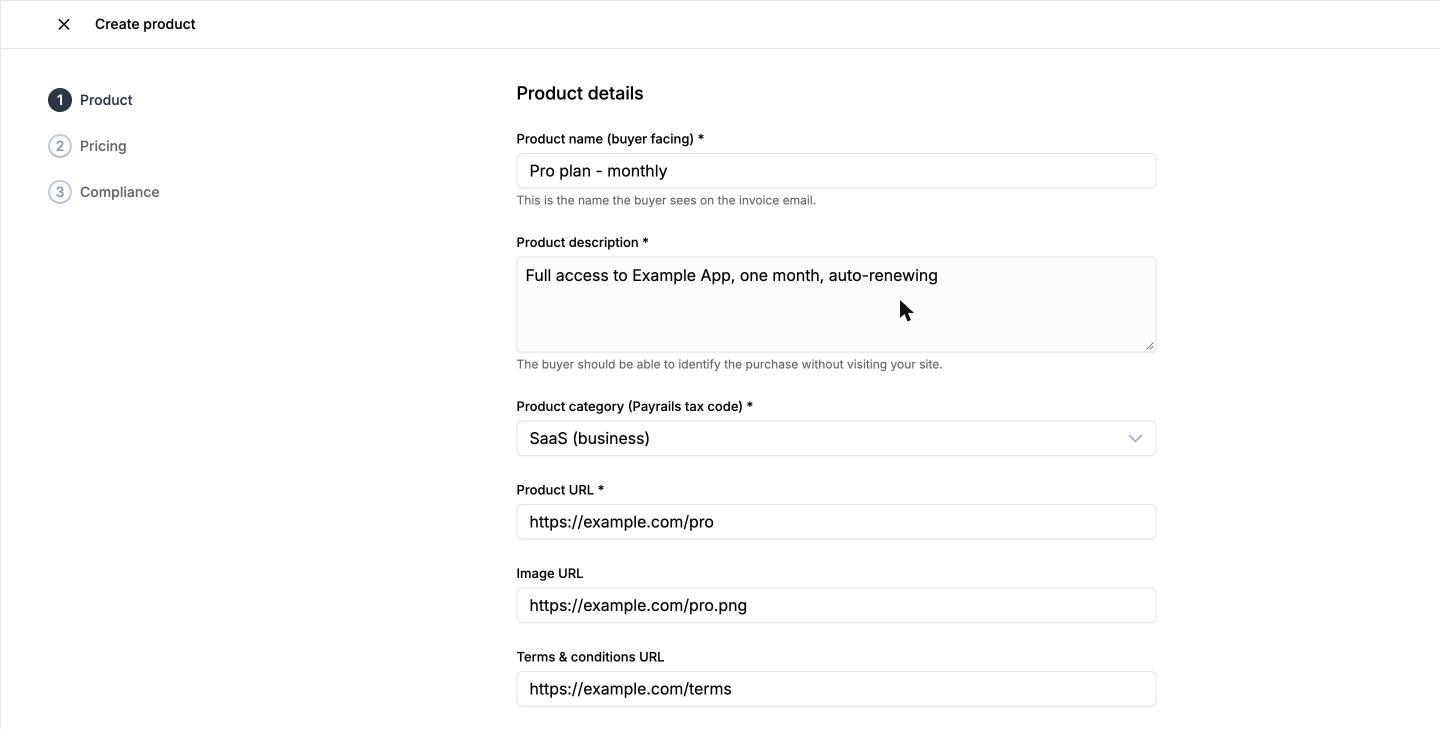
Step 1: Product
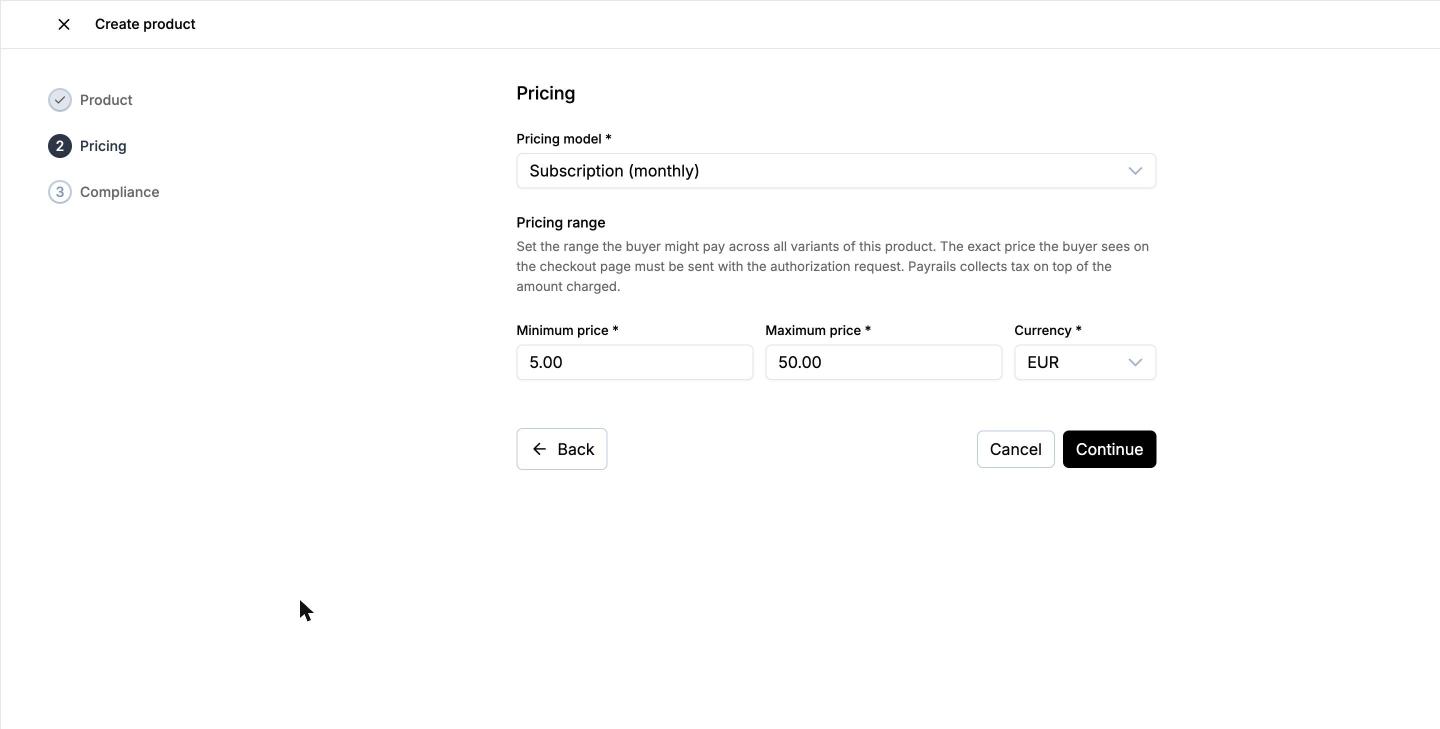
Step 2: Pricing
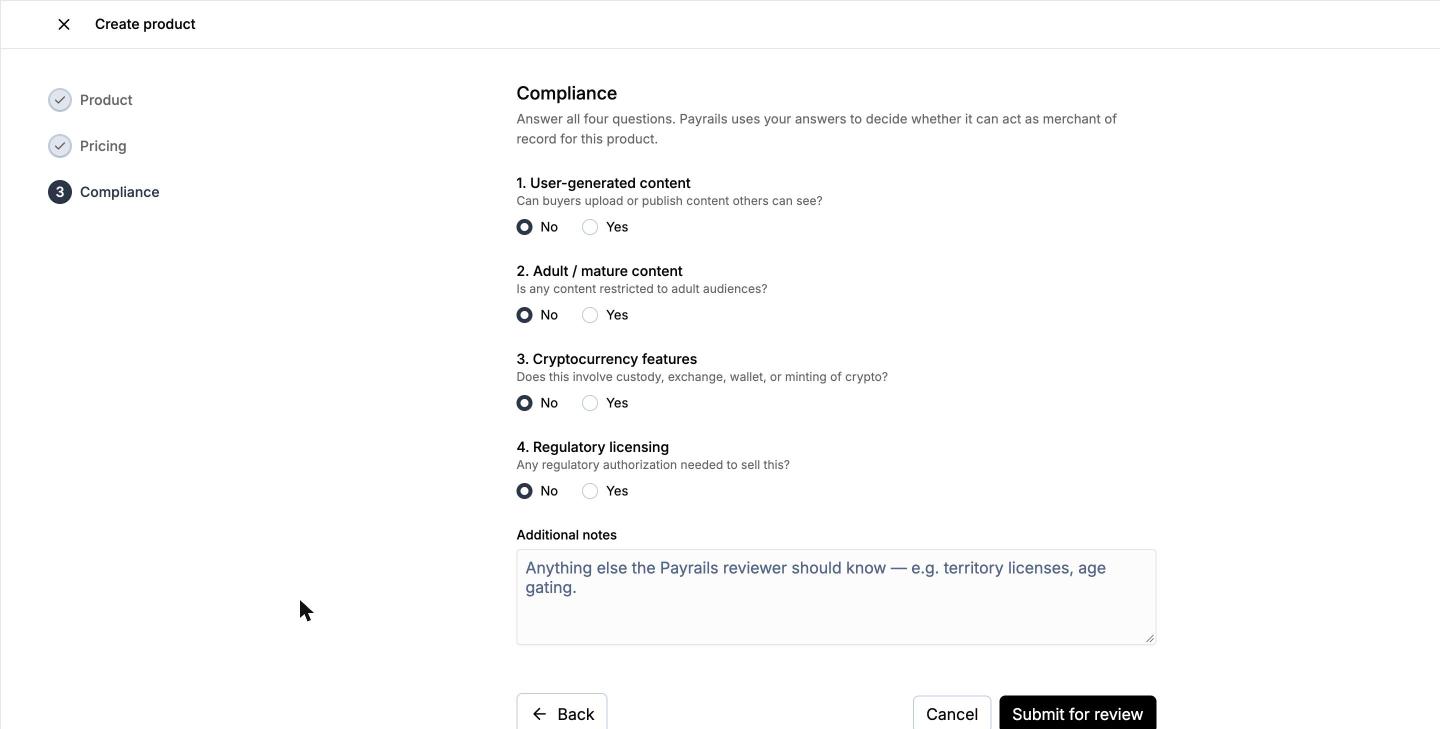
Step 3: Compliance
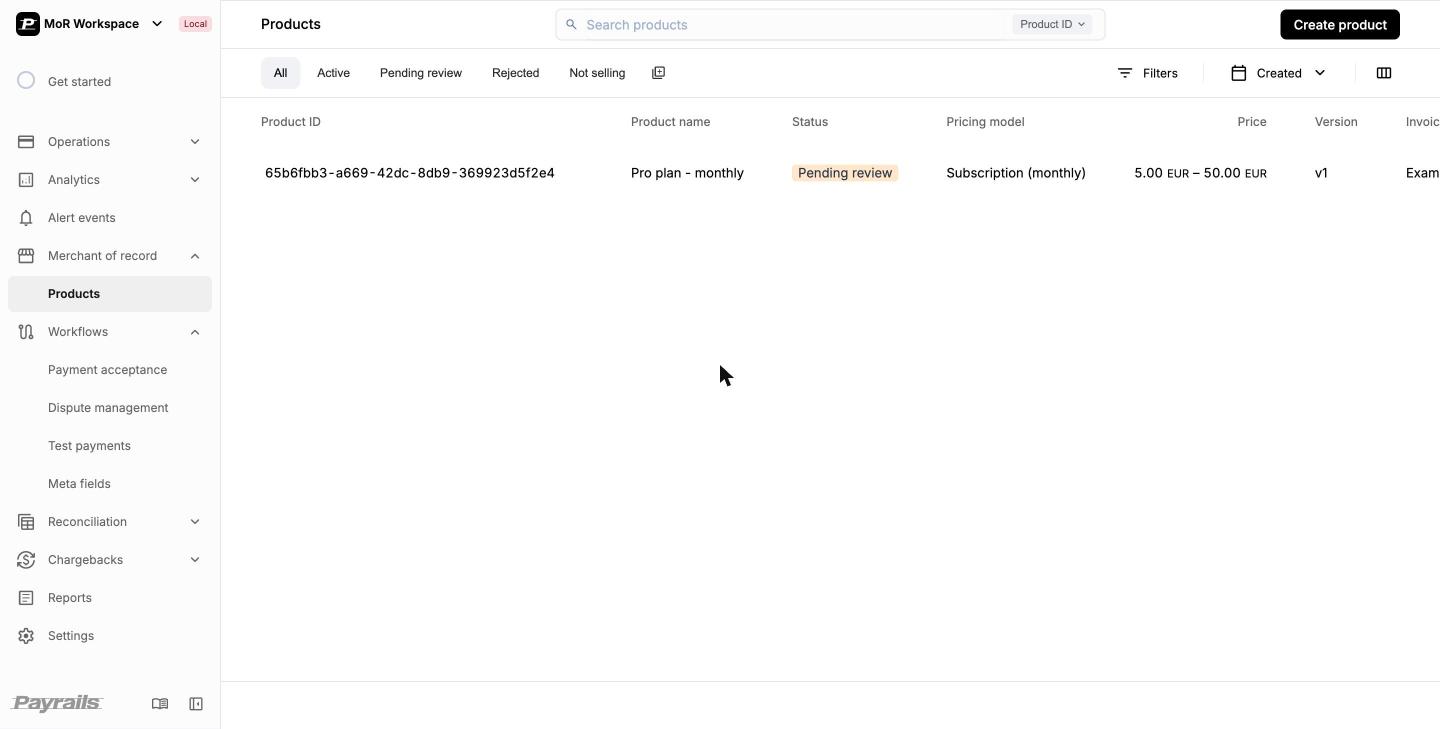
The Products list. A new product starts as Pending review.
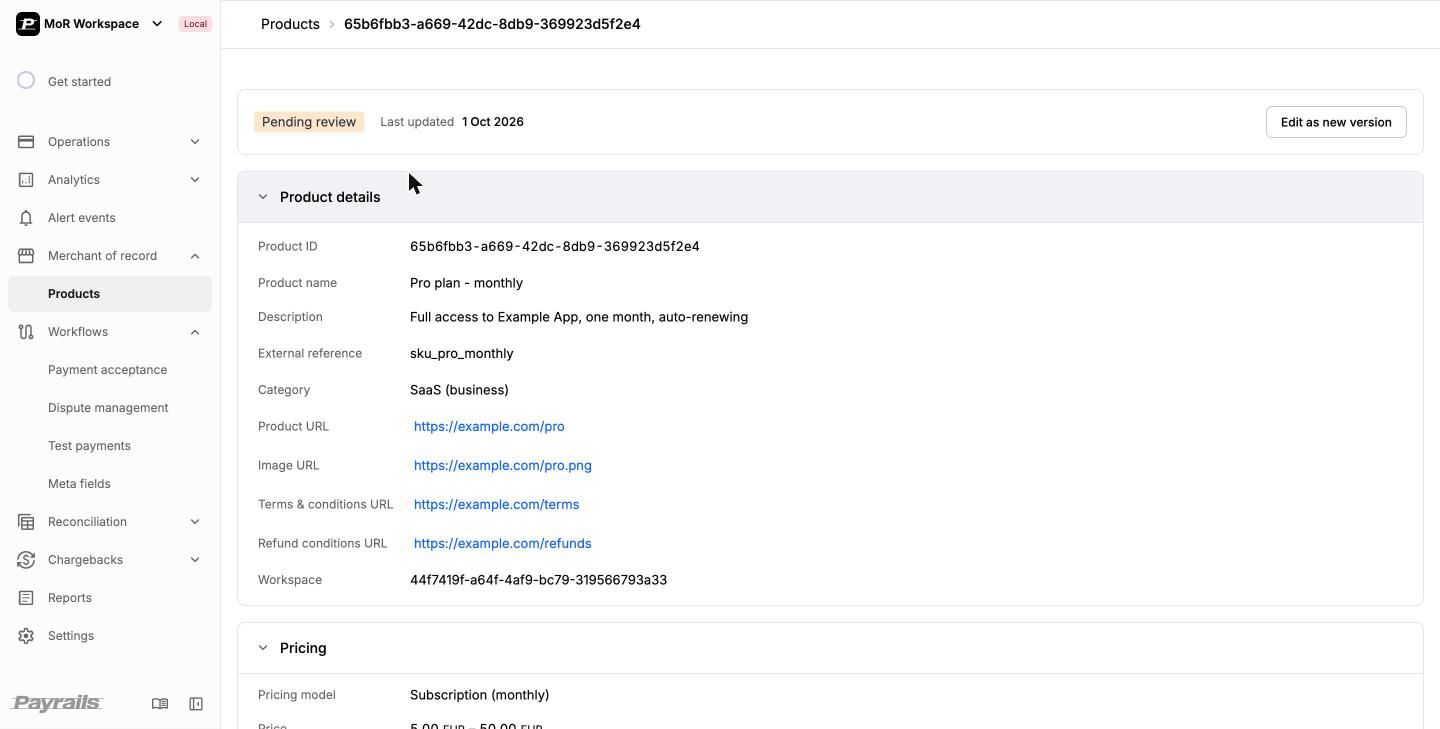
The product details page, with the Product ID.
Product fields
A product has no fixed price. One product covers every variant you sell, such as
several plan sizes, so set the range to span them all.
Change a product
You can’t edit a product after you submit it. To change one, open it and select Edit as new version. The new version goes through review as well. Each active version works independently, so several versions of one product can be sold at the same time. Send theversion you want in each order line. A new
version only becomes usable once it’s active.
Skip manual review in the test environment
In the test environment, Payrails can review a product automatically, so you can test the flow end to end without waiting for approval. End the product description with one of these markers:
The markers have no effect in the live environment.
Create the client session
CallPOST /merchant/client/init from your backend, as you do today. Send a
Bearer token carrying the sdk:read:config scope, and an x-idempotency-key
header holding a UUID—Payrails rejects the call without it. The MoR-specific
additions sit inside meta.order.
- Checkout
- Express Checkout
Use normal checkout when the customer must explicitly provide their billing address during the payment.
- The customer must provide a complete billing address before they can pay.
- You can provide the full or partial billing address in the request. Payrails pre-populates it for the customer in the address form.
Order fields
The API enforces very little. Send the rest anyway: it drives the tax calculation and the invoice, which is what matters in practice.
Don’t send
name, description, taxCode, or links on a line that has a
product.id. Payrails takes them from the product, and rejects the call if a value
you send differs from it.
Two details that catch people out:
- Put the house number in
street. The tax provider readsstreetverbatim as the first address line.doorNumberonly pre-fills the second line of the drop-in’s billing form. - The drop-in pre-fills its email field from
billingAddress.email, while the invoice contact comes frommeta.customer.email. Send both.
Mount the drop-in
Pass theclient/init response to the SDK unmodified. Reading the response is
fine; changing it is not, and neither is depending on its internal shape. The
SDK decodes it and renders the tax breakdown, billing form, and terms for you.
Payrails.init() is asynchronous—it loads the SDK bundle and its styles from
the Payrails CDN, so await it. Allow https://assets.payrails.io in your
Content-Security-Policy under script-src, style-src, and frame-src, since
v6 renders the card form inside a Payrails-hosted iframe.
These samples target the current major version of the web SDK. On v5 the import
was a default export, the package shipped a payrails-styles.css you imported
yourself, and callbacks went in an events bag on dropin(). All three are
gone—refer to the v6 migration guide if you are
upgrading.
On a recurring plan, prefer alwaysStoreInstrument: true over the save-card
checkbox. The mandate is part of the purchase, and the terms block in the
drop-in carries the customer’s consent.
What the drop-in adds on MoR
On an MoR workspace the drop-in renders components that a standard orchestration checkout does not have:- A billing address form, once per checkout, pre-filled from the address in your
client/initcall. - A tax breakdown and a terms block, inside each payment method. The tax breakdown lists the tax lines, each with an amount and a percentage. It does not show a subtotal or a grand total.
morAppearance option on the payment method.
Pre-filling billingAddress is the better path where you already collect the
address: the form renders populated, the customer takes no extra step, and the
tax calculation uses an address you have already validated. Where you do not
collect it, leave the fields out and the customer completes the form in the
drop-in.
Handle the payment result
Subscribe to payment outcomes on the SDK instance. The same events fire for every payment method in the session.Tax and the amount you charge
Payrails calculates the tax and produces the amount charged to the card. The amount in yourclient/init call is treated differently depending on the tax behavior provided in the request.
To provide the tax behavior send one of the allowed options in the meta.order.taxBehavior field in the client request.
To show a customer the tax-inclusive total before they pay—after they change
their billing address, for example—call
POST /merchant/workflows/{workflowCode}/executions/{executionId}/priceBreakdown
with the address, amount, and line items. Reference products in the lines the same way as in client/init. It returns baseAmount, taxAmount,
totalAmount, and the tax lines.
Read the charged total from the notification and store it against your order if
your support or accounting tooling needs it. Do not reconstruct it.
If you run your own billing or subscription system alongside MoR, disable its
customer invoice emails. Payrails is the seller of record and needs to be the
only party emailing the customer about a charge. Two parties emailing about one
payment confuses cardholders, and confused cardholders raise chargebacks.
Merchant-initiated payments (MIT) and subscription payments
For an MIT, such as a subscription renewal, Payrails needs the billing address, the customer’s name, and their email to calculate tax and generate the invoice. It can happen that customer changed email, last name or moved to another apartment or even another city since last payment. Payrails saves the billing address shared by the customer during their first payment and will use it for future MIT payments. If there are no changes in the customers address you are not required to pass anything in the billing address other then the country code. To change the billing address, name, or email for an MIT, first update the instrument with the new data:client/init.
Current limitations
- A product has to belong to the workspace you call
client/initfor. - The drop-in is the supported integration. Elements, secure fields, and the native mobile SDKs are not available on MoR.
- Only the United States is supported.
- Payrails refunds the full payment amount. Partial refunds are not supported.