

Requirements
- Web SDK version 6.7.0 or later.
- An integration with the card form or the drop-in. Secure Fields integrations don’t collect the tax ID.
- Tax ID collection and BIN lookup enabled for your account. Contact your Payrails account manager and list the issuer countries you need.
How the field works
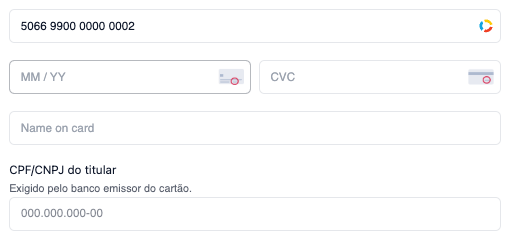
You don’t add the tax ID field to your page. Once Payrails enables tax ID collection for your account, the card form handles it in these steps:- The shopper types the card number, and the SDK looks up the card’s issuer country.
- If the issuer country is one of your enabled countries, the card form shows the tax ID field.
- If the cardholder name field isn’t shown already, the card form adds it.
- The shopper types the tax ID. The field formats it as they type and shows an error on blur if the document isn’t valid.
- The shopper can’t click the payment button until the tax ID is valid. On click, the SDK sends the tax ID with the authorization request.
Supported countries and documents
The supported countries depend on your web SDK version. Version 6.7.0 supports these documents:
The shopper can type the document with or without separators, and the field adds them automatically. The SDK validates the format of every document, and the check digit of CPF, CNPJ, CUIT, and RUT.
If your account enables a country that your SDK version doesn’t support, the card form doesn’t show the field for that country and logs a warning to the browser console. Upgrade the web SDK to collect tax IDs for that country.
Customize the field text
By default, the field text is in Portuguese for Brazilian cards and in Spanish for cards from Argentina, Chile, and Mexico. To replace it, pass these keys intranslations.labels:
Each value replaces the default for every country, so write text that fits all the countries you enable.
- Card form
- Drop-in
Style the field
Style the field with thetaxId slot of the card form’s appearance. It accepts the same rules as the rest of the card form. The field uses the shared class names .payrails-label, .payrails-text, .payrails-input and .payrails-error, and the input carries the --empty, --dirty, --valid and --invalid state modifiers.
- Card form
- Drop-in
Read the tax ID
The card form’schange event includes the tax ID as taxId, without separators. taxId updates as the shopper types, so check isValid before you use it. When the card doesn’t require a tax ID, taxId is an empty string.
change. With the drop-in, subscribe to taxIdChanged instead. Its value is the tax ID without separators, and isValid reports whether the document is valid.
What the SDK sends
The SDK sends the tax ID without separators in the authorization request, astaxId inside the card’s paymentInstrumentData. When the card doesn’t require a tax ID, the request has no taxId field.
Save the tax ID with the instrument
To reuse the tax ID in later payments with the stored card, Payrails must save it with the instrument. This applies to both customer-initiated card-on-file payments and merchant-initiated transactions (MITs).Newly created workflow configurations already save the tax ID: their template includes the mapping below. Existing workflow configurations may not have it. Make sure the inputs of the Create or get instrument action include this mapping: