

Who should use this guideThis guide is intended for merchants who:
- Use Payrails as a chargeback
- Use Checkout.com Disputes
Create and configure a Checkout.com integration in Payrails
- Log in to the Payrails portal.
- Go to Settings → Integrations.
- Select Add instance to create a new Checkout.com integration configuration.
- Select the Workspaces where this integration should be available.
About WorkspacesWorkspaces determine where this integration is available. They let you isolate provider setups by region or business line, or share the same configuration across multiple Workspaces.
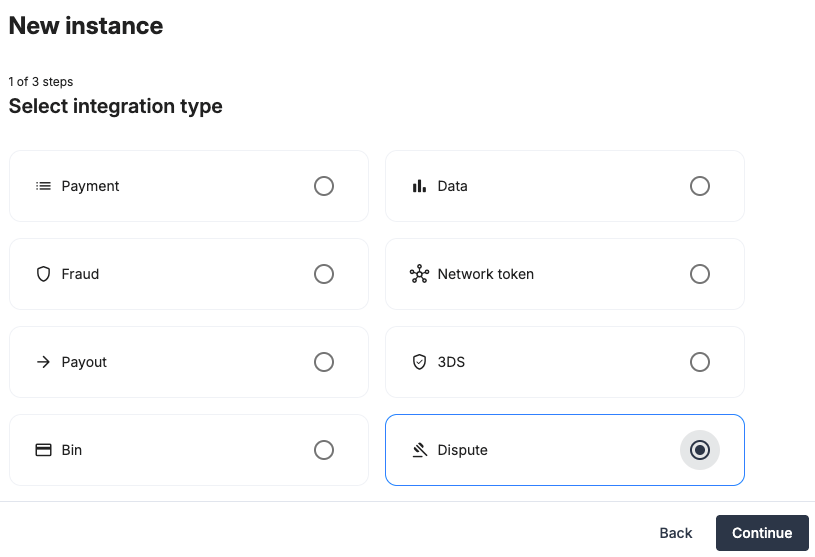
Step 1: Choose the integration type
- Select Dispute.
- Continue to the next step.
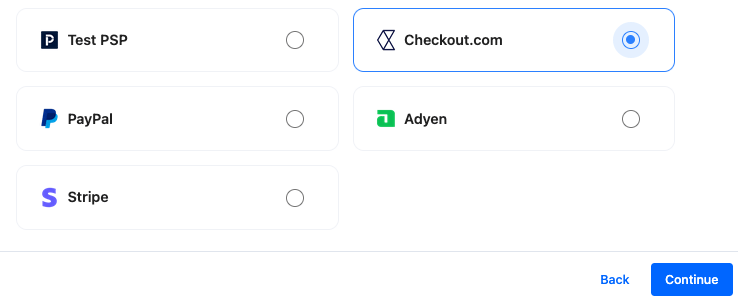
Step 2: Choose the provider
- Select Checkout.com.
- Continue to the next step.
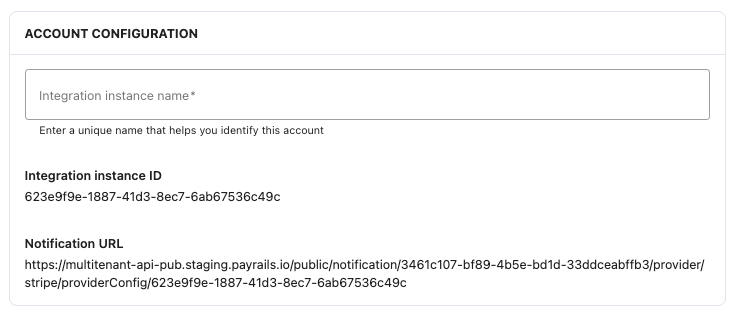
Step 3: Configure your Checkout.com integration
Integration instance name
In Payrails- Enter an Instance name for your integration.
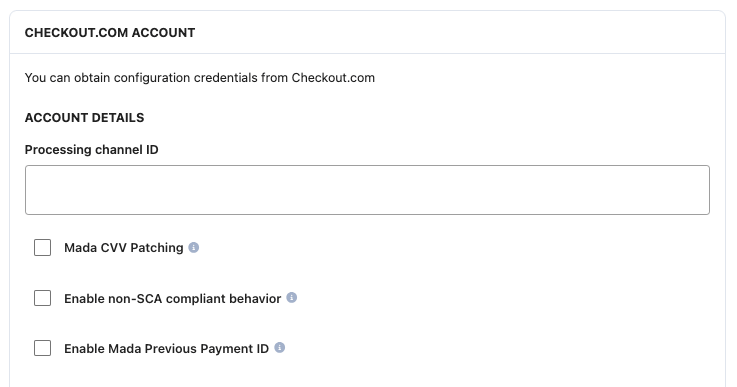
Account details
In Checkout.com- Sign in to the Checkout.com Dashboard.
- Locate your Processing Channel ID in the account or processing channel settings.
- Copy the Processing Channel ID (
pc_XXXX).
- Paste the value into the Processing Channel ID field.
API credentials
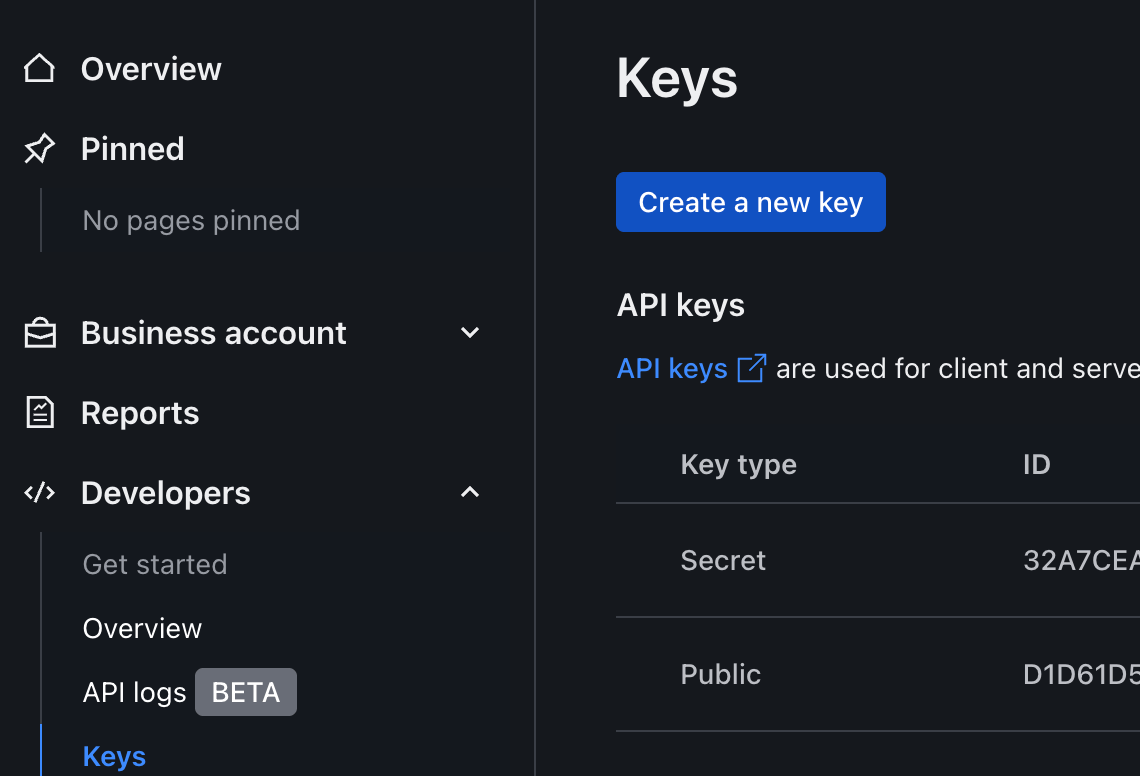
- Go to Developers.
- Select Create new key.
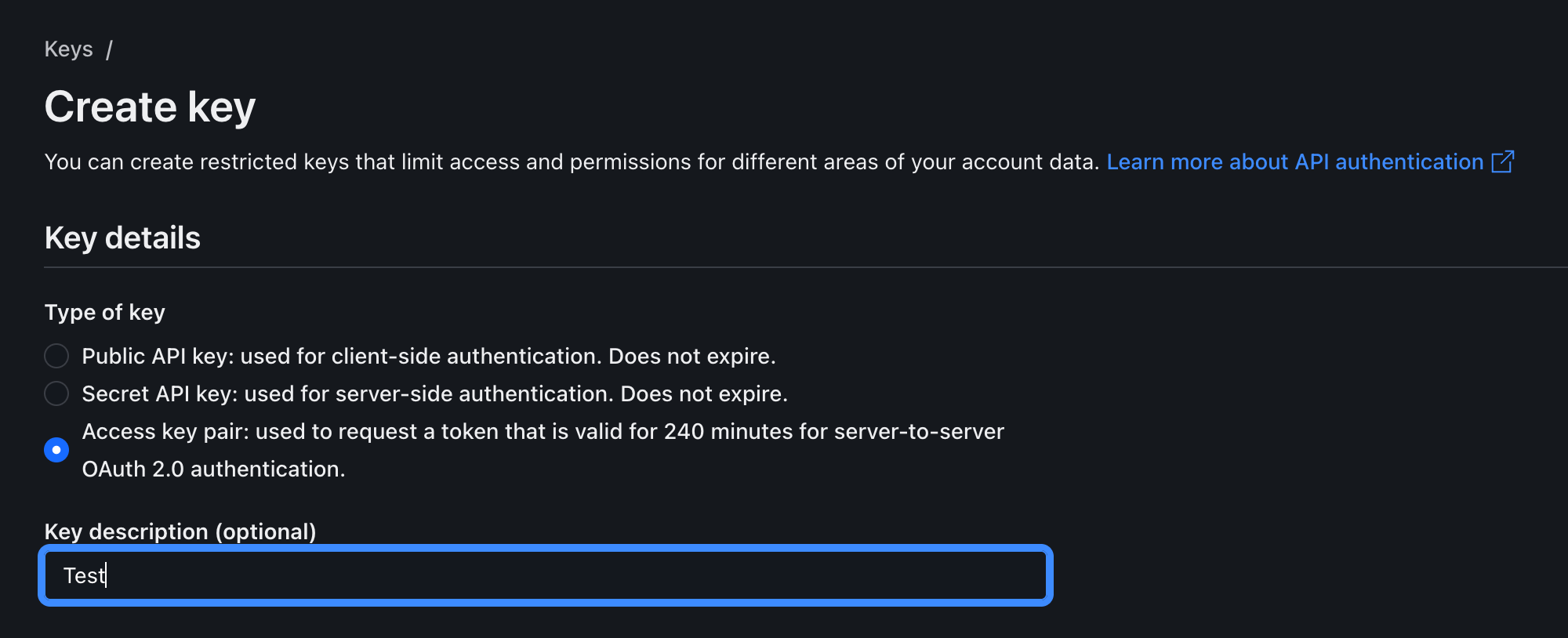
- In Key details, select Access key pair.
- Add a Description to help identify the key.
-
Under Scopes → Customise → Custom scopes, enable:
-
disputes:accept -
disputes:provide-evidence -
disputes:view -
files -
gateway -
payments:search -
issuing:disputes-read -
issuing:disputes-write -
issuing:transactions-read -
issuing:transactions-write
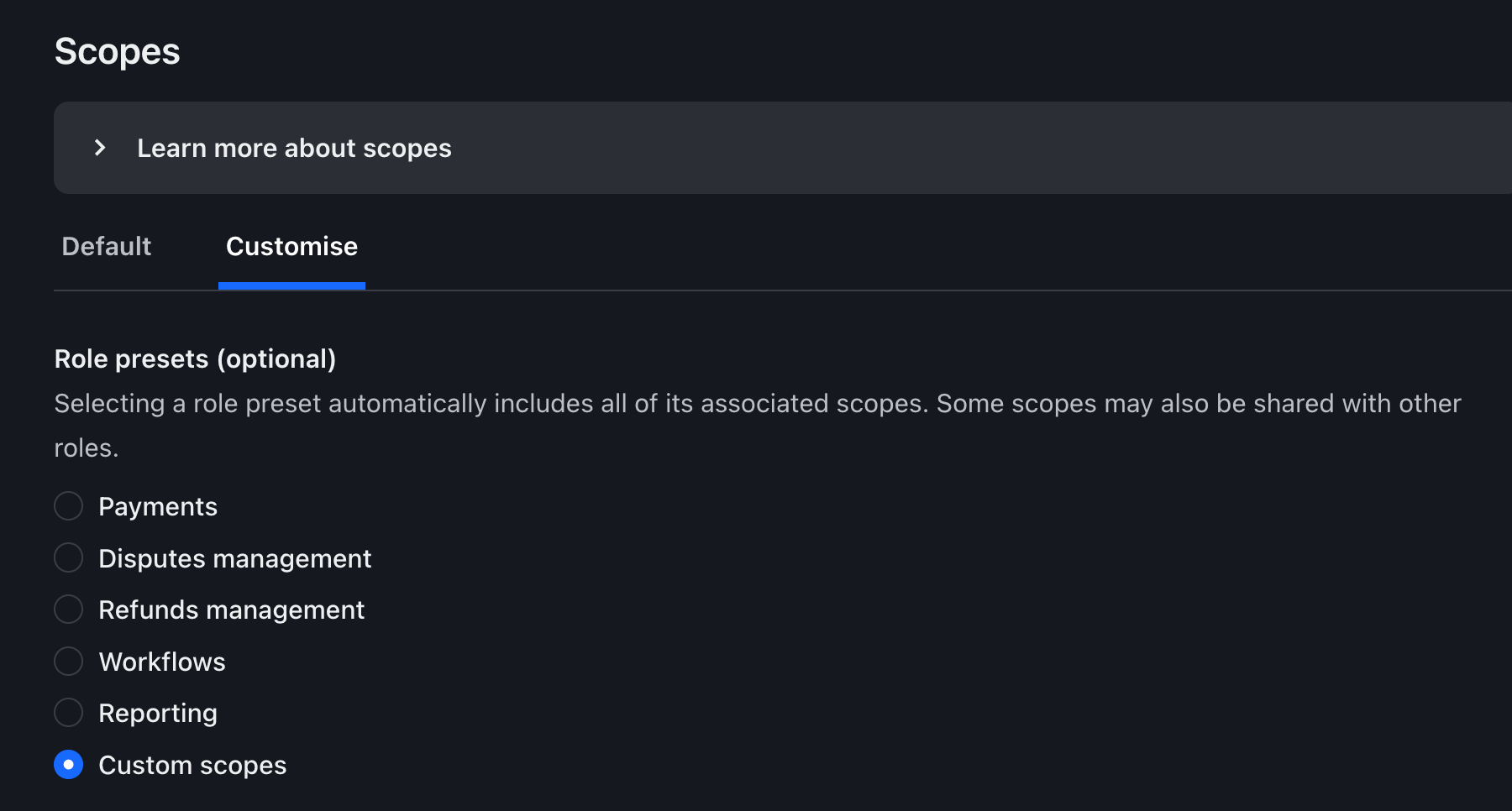
-
- Select Allow any processing channel (or restrict if required).
-
If needed, locate your Processing Channel ID here (
pc_XXX). - Select Create new key.
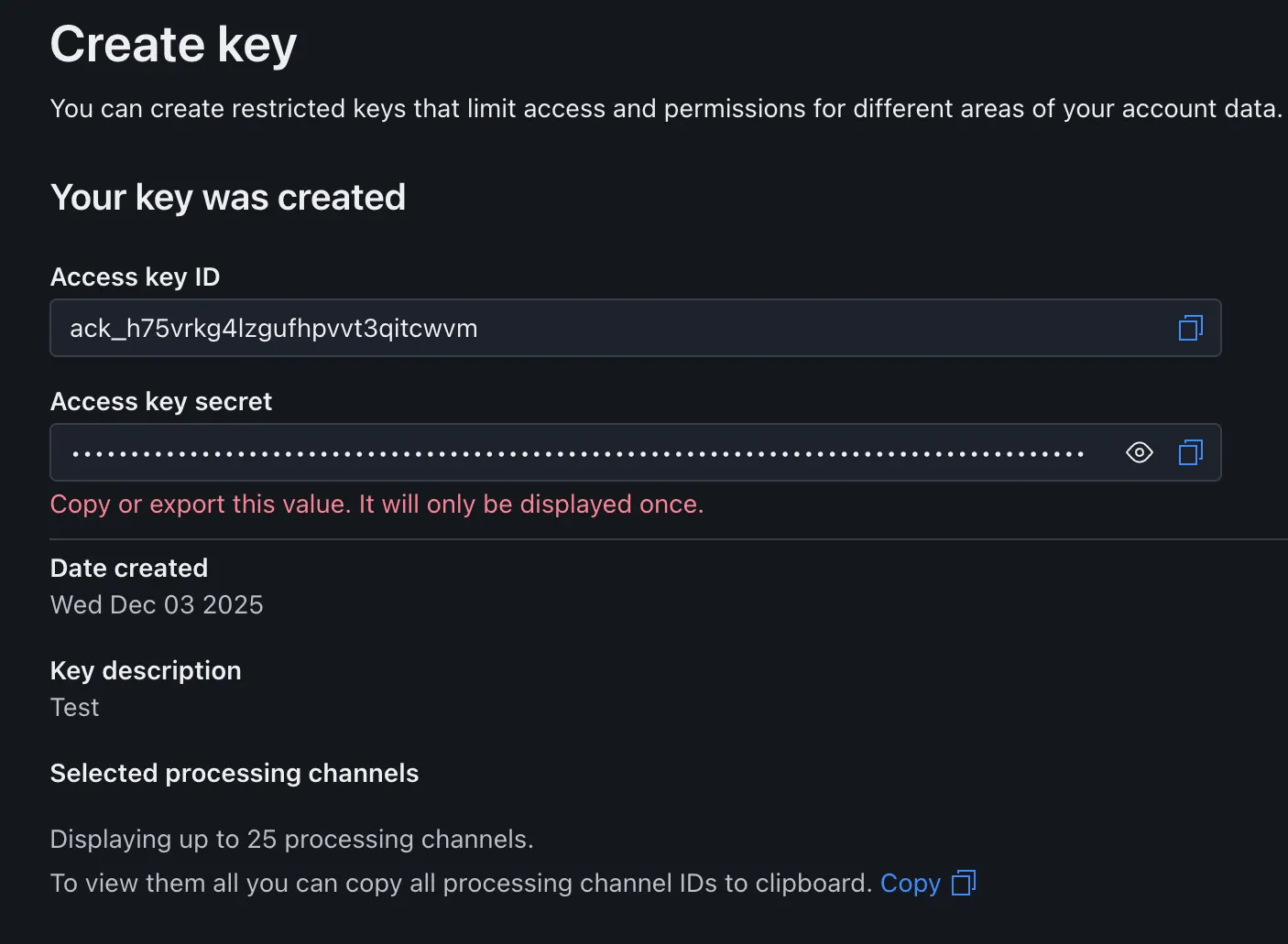
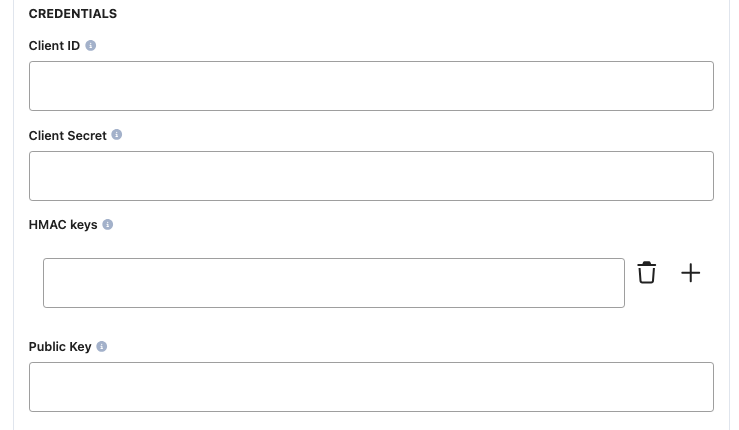
- Copy the Access Key ID and Access Key Secret.
- Paste the credentials into the corresponding fields.
Webhooks (notifications)
In Checkout.com- Go to Developers → Webhooks.
- Select New webhook.
- Enter a name for the webhook.
-
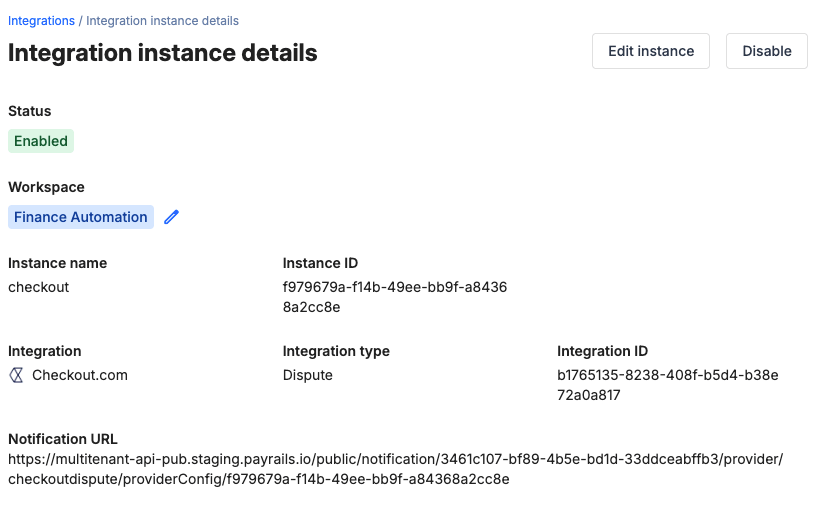
Paste the Notification URL from Payrails.
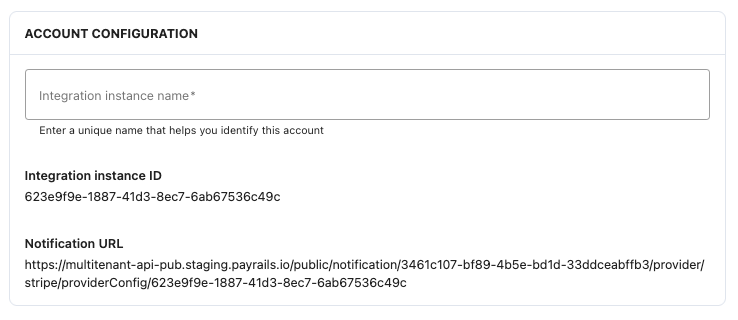
- Generate a Signature key.
-
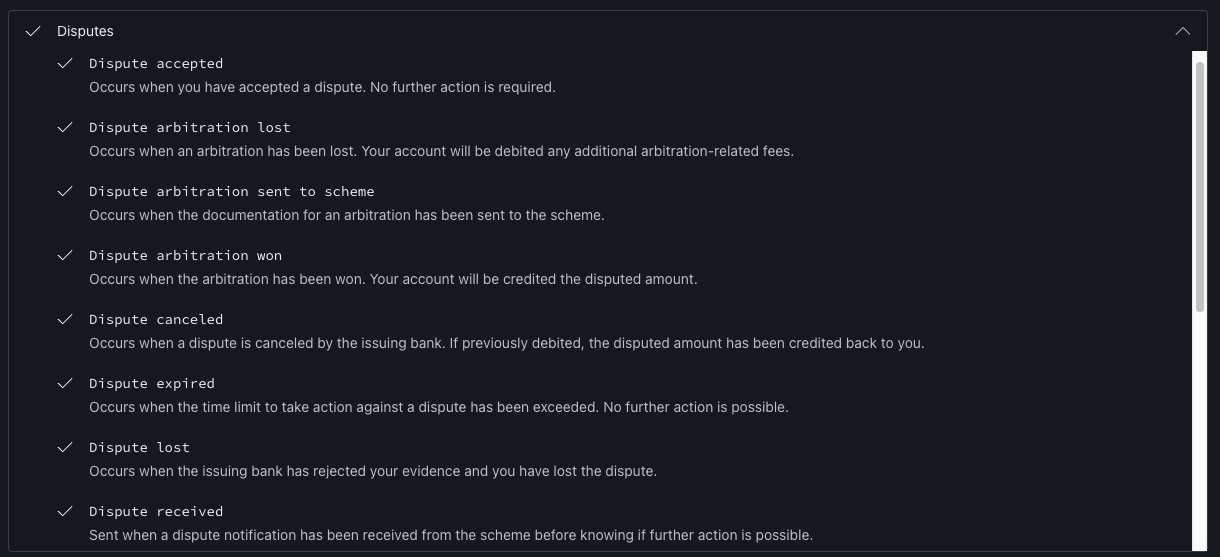
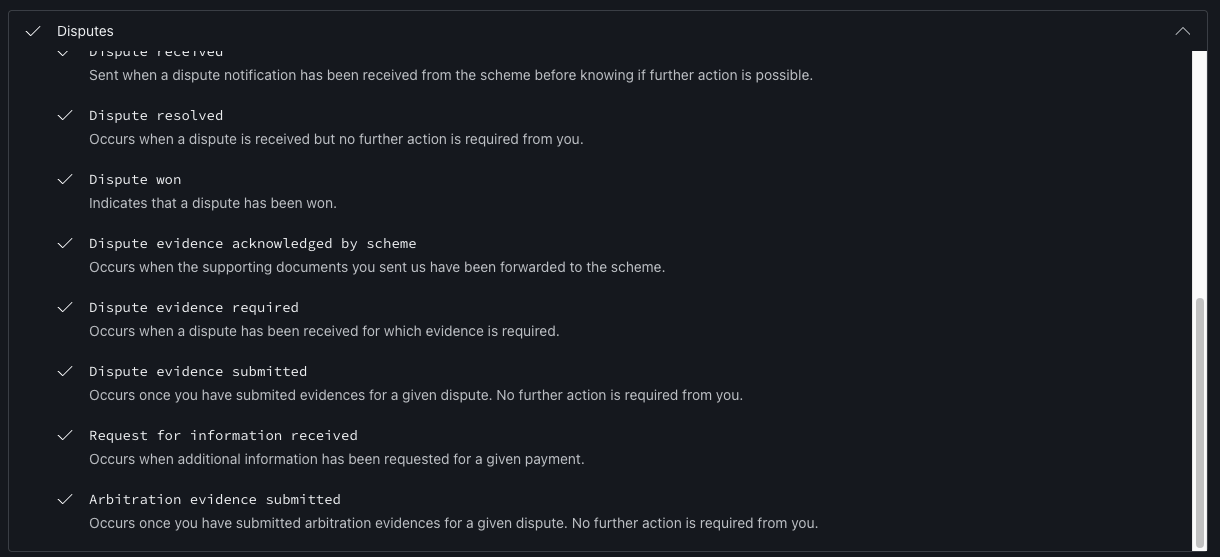
Select:
- Save the webhook.
- Paste the Signature key into the HMAC key field.
Enable the integration
In Payrails- Select Save account to enable the integration.
Next steps
- Run a test payment triggering a chargeback using a supported Checkout.com test card.
- Verify that:
- The dispute appears in Checkout.com.
- The chargeback status updates correctly in Payrails.
- Once verified in test mode, repeat the setup in live mode.