Introduction
By default, payments are automatically captured after authorization, without any delay. Alternatively, you can set a capture delay or manually capture a payment via the API or the Payrails Portal.Requirements
- The payment you want to capture must be authorized
- Have notifications set up if you wish to receive them for capture results
Capture a payment via API
1. Get the execution ID
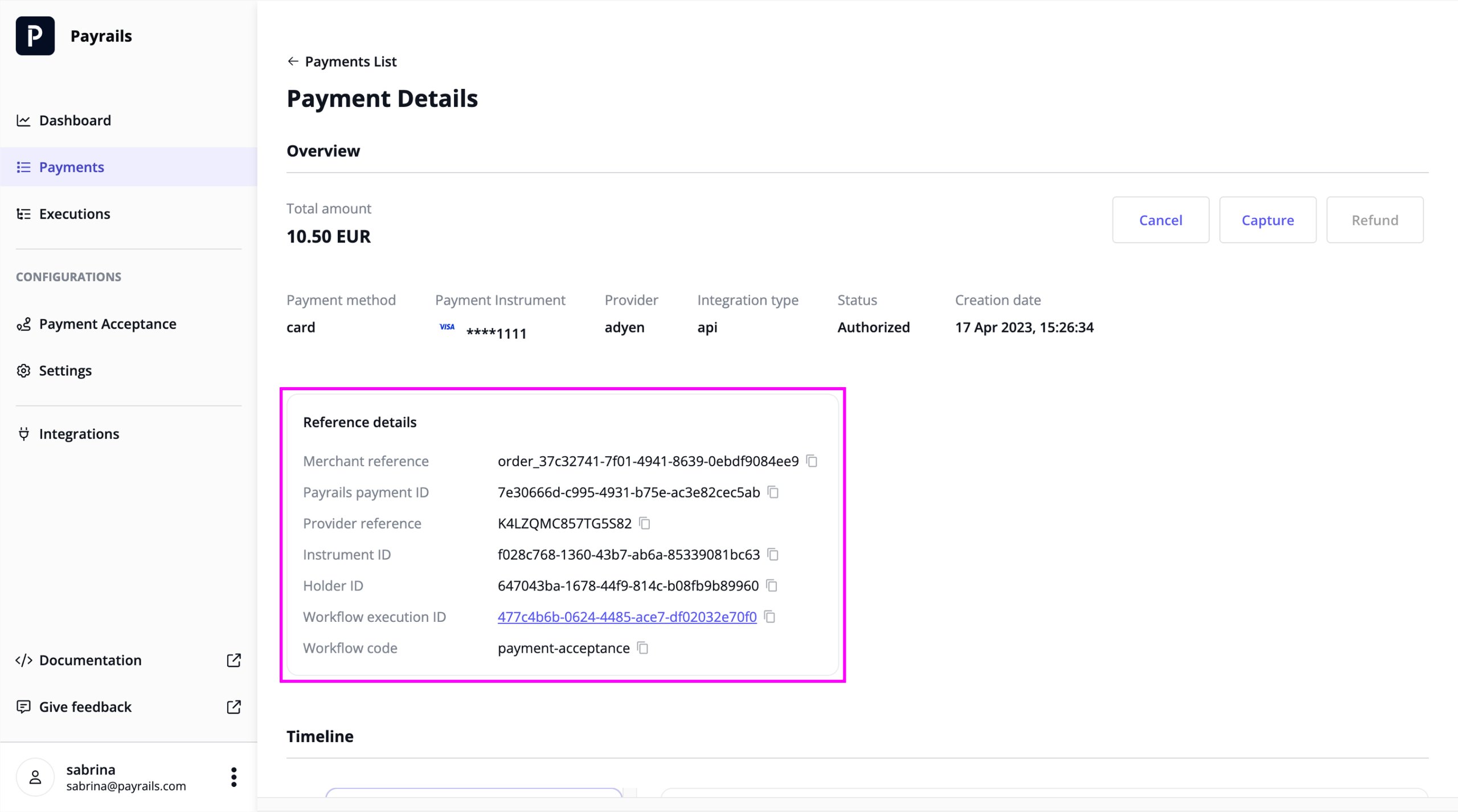
To capture a payment, you’ll need the ID of the execution. You can find the ID:- In the authorization notification for the payment, with the key
execution.id - In the Payrails Portal on the payment’s Payment Details page under
Reference details, accessed by searching for the payment in the Payments section
2. Make a POST request
Make aPOST request to the Capture a payment endpoint, where executionId is the ID from the previous step.
In your request, include:
amount.value: The decimal amount of the major currency unit, in any precisionamount.currency: ISO 3-letter currency code
3. Receive the capture response
If the capture was successfully requested, you’ll find the following in the response:actionId: The unique identifier for this capture executionlinks: Links to the next possible actions that can be taken
4. Wait for the capture notification
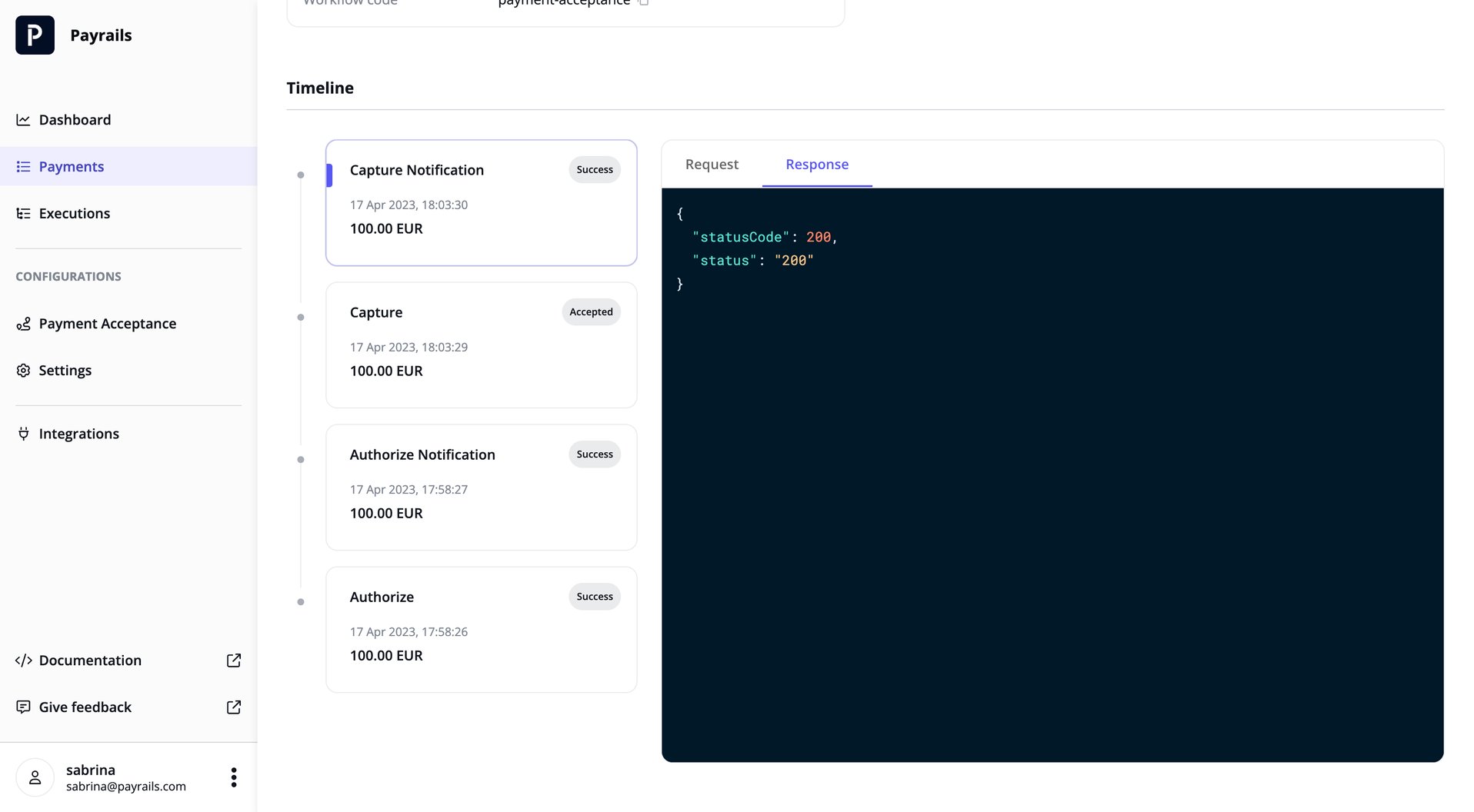
Successfully requested payment captures will be processed asynchronously. If you have notifications set up, you’ll receive a notification once the processing is complete, informing you whether the capture was a success or failure. Example notification for a successful capture:Note that a capture will not be possible in all cases, for example if there is no authorized amount for a given execution, or if the payment is already captured. In such cases, refer to
detail in the errors object for an explanation of why the action failed. Below are the most common reasons:5. Fetch the execution status
In addition to waiting for a capture notification, you can fetch the status of an execution at any time via the Get an execution by ID endpoint, whereexecutionId is the ID from step 1 above.
Capture a payment via the Portal
1. Search for the payment
Click on Payments in the Payrails Portal sidebar, and search for the payment you want to capture using any of the following:- Execution ID
- Merchant reference
- Payrails payment ID
- PSP reference
2. Review the Payment Details page
On the Payments page, click on the payment to access its details and the actions that can be taken.3. Capture the payment
Capture the payment by clicking on “Capture” at the top right of the page. The capture amount will be pre-filled with the authorized amount for the payment. Make a full capture by proceeding with this amount, or change it to a smaller amount for a partial capture.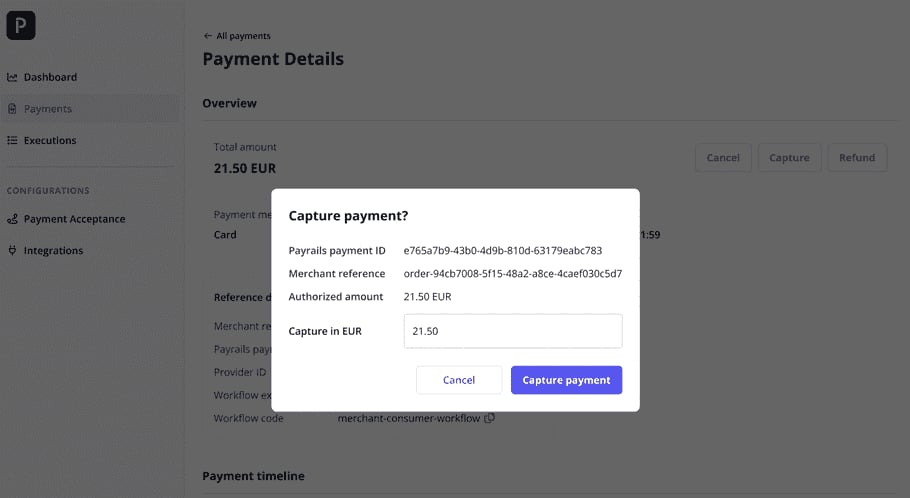
4. Review payment status
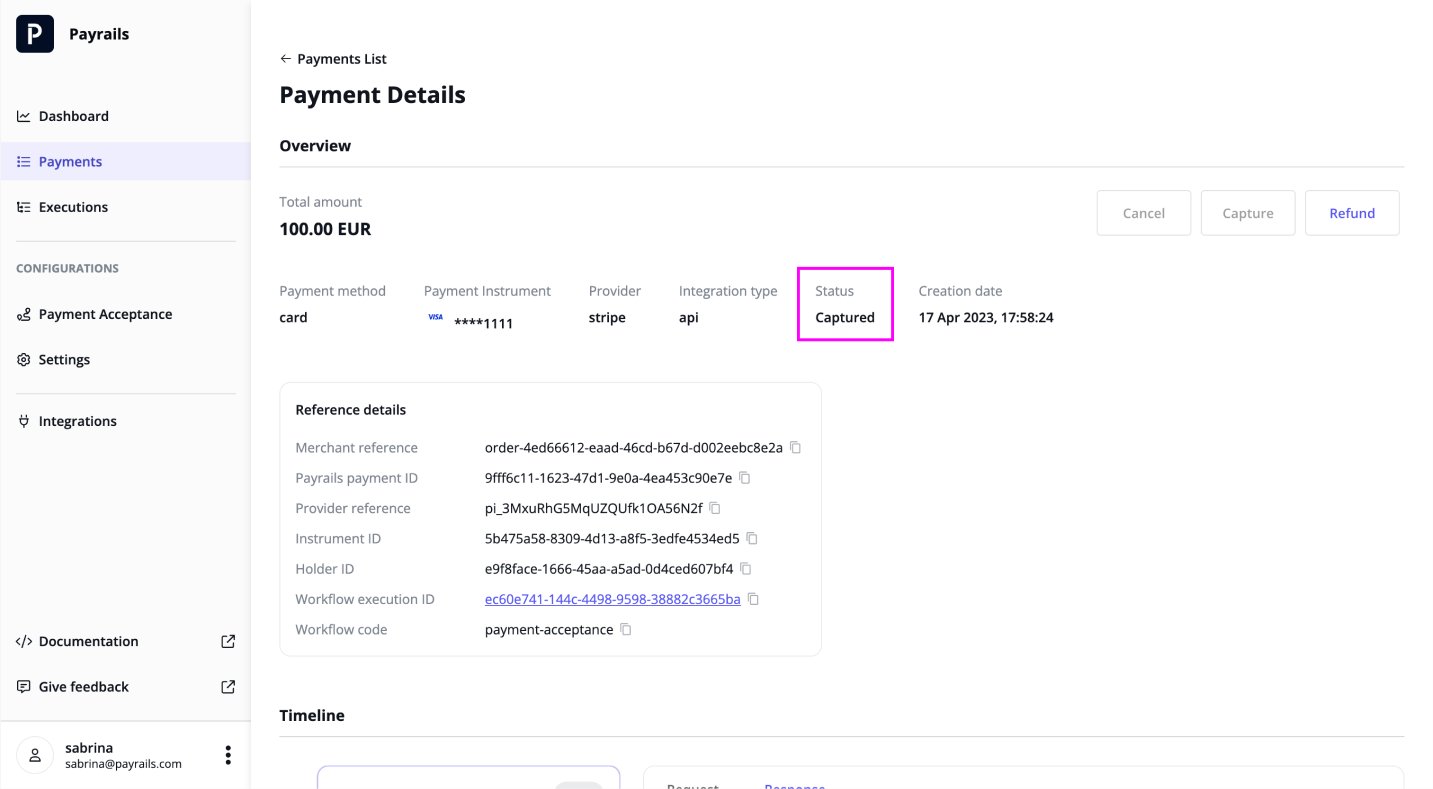
You can review the status of the payment by returning to its Payment Details page at any time.