

Comparison operators
Comparison operators evaluate a single field against a target value. These are the operators you select when adding a rule to a branch.IN vs. IS ONE OF
Both IN and IS ONE OF check whether a value matches one of several options. The difference is in how you provide the list:- IN — You enter a comma-separated set of values directly in the rule.
- IS ONE OF — You select from a predefined list of known values for that field (for example, a list of supported card brands or currencies).
Logical operators
Logical operators control how multiple rules within a branch are combined.AND
When rules are combined with AND, all rules in the group must be true for the branch to match. Example: To match high-value EUR transactions, combine two rules with AND:- Amount
>1000AND - Currency =
EUR
OR
When rules are combined with OR, the branch matches if at least one rule in the group is true. Example: To match transactions from any Nordic country, combine rules with OR:- Country =
SEOR - Country =
NOOR - Country =
DKOR - Country =
FI
NOT
The NOT operator negates an individual rule. When NOT is enabled on a rule, the rule matches when its comparison is not true. Example: Amount NOT >1000 matches transactions where the amount is 1000 or less.
You can combine NOT with any comparison operator. Enable it using the NOT toggle on the rule row in the settings panel.
Building advanced rule groups
You can combine logical and comparison operators to create sophisticated branching logic:- Add multiple rules to a branch to test several fields at once.
- Choose AND or OR between rules using the logic toggle.
- Enable NOT on individual rules to negate specific comparisons.
- Card brand IS ONE OF
Visa, Mastercard - Country IN
DE, FR, NL, BE, AT - Amount
>=500
Choosing the right operator
Money fields
Condition rules support special fields displayed as currency-linked in Workflow Studio. For example: Amount (currency-linked). A currency-linked field holds a money amount as a{value, currency} object. Rules that reference it express an amount in a currency-agnostic way.
To evaluate the rule, the rule engine converts both the execution’s actual amount and the rule’s amount to a common base currency at the current exchange rate. It then compares the two converted values to pick the matching branch.
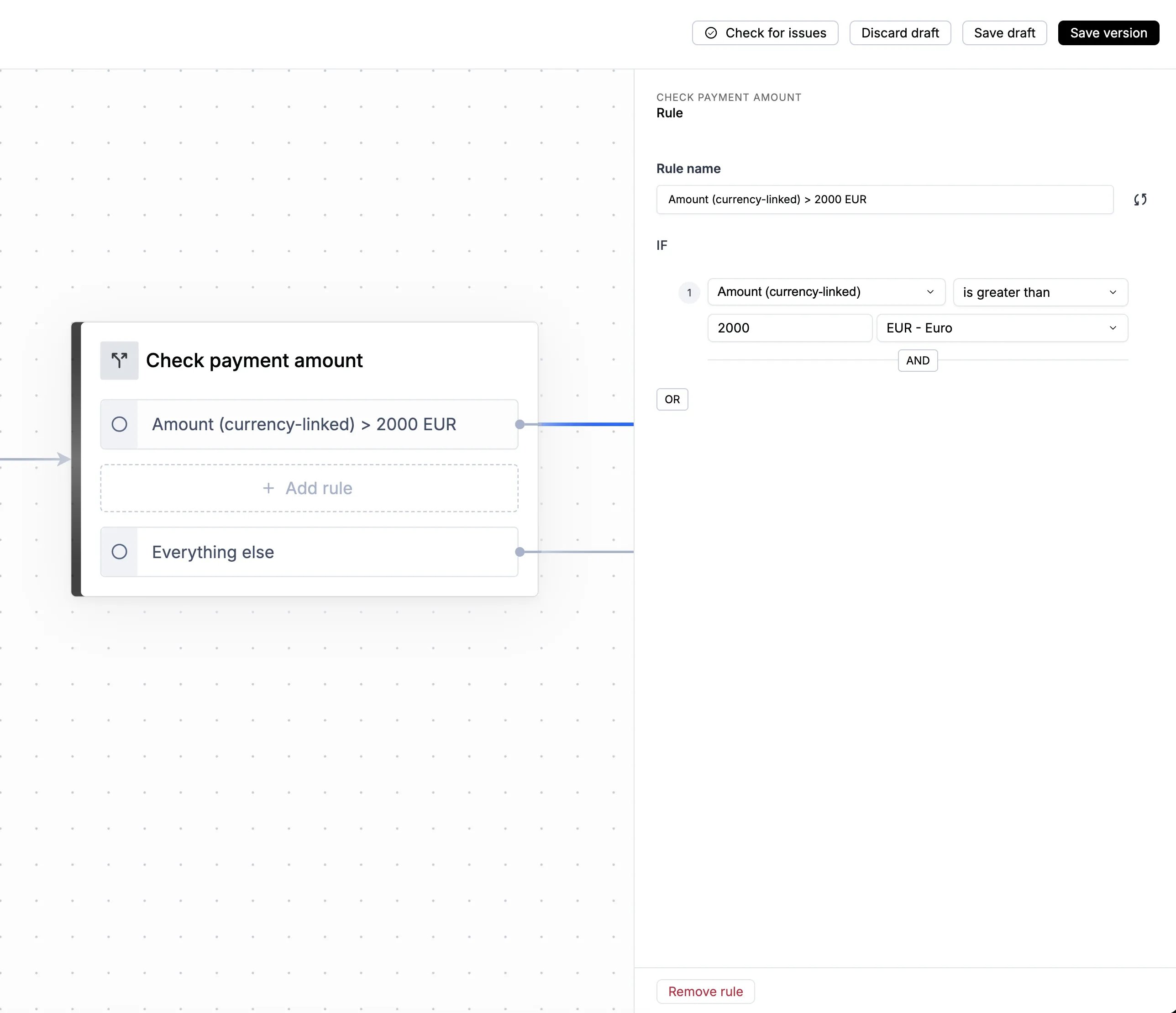
Currency-linked fields support only the
>, >=, <, and <= operators. They don’t support the = operator, because a converted execution
amount rarely matches a converted rule amount exactly.Combine rules with AND to match a range.
For example, Amount (currency-linked) >= 100 EUR AND Amount (currency-linked) < 500 EUR matches amounts between the equivalent of 100 and 500 EUR.