


Who should use this guideThis guide is intended for merchants who:
- Use Payrails as a payment orchestrator
- Use Solidgate to accept cards, Apple Pay or Google Pay
- Have access to the Solidgate Hub with a channel for each environment
Create a Solidgate integration in Payrails
- Log in to the Payrails portal.
- Go to Settings → Integrations.
- Select Add instance to create a new integration configuration.
- Select the workspaces where this integration should be available.
About workspacesWorkspaces determine where this integration is available. They let you isolate provider setups by region or business line, or share the same configuration across multiple workspaces.
Step 1: Choose the integration type
- Select Payment.
- Continue to the next step.
Step 2: Choose the provider
- Select Solidgate.
- Continue to the next step.
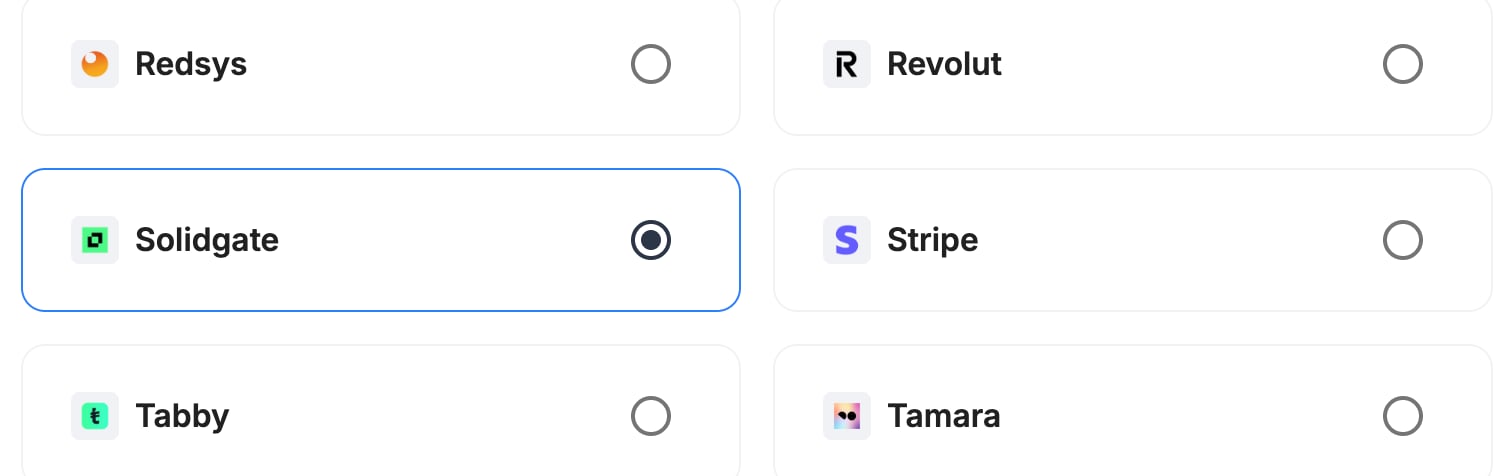
Step 3: Configure your Solidgate integration
Integration instance name
An integration instance is a specific payment provider setup in Payrails. You can create multiple instances for different regions, currencies, or business needs. Choose a clear, consistent name, as it is used in routing.In Payrails
- Enter an Instance name for your integration, for example
merchant_solidgate.

Payment methods
In Payrails- Select Card, Apple Pay, Google Pay or any combination.
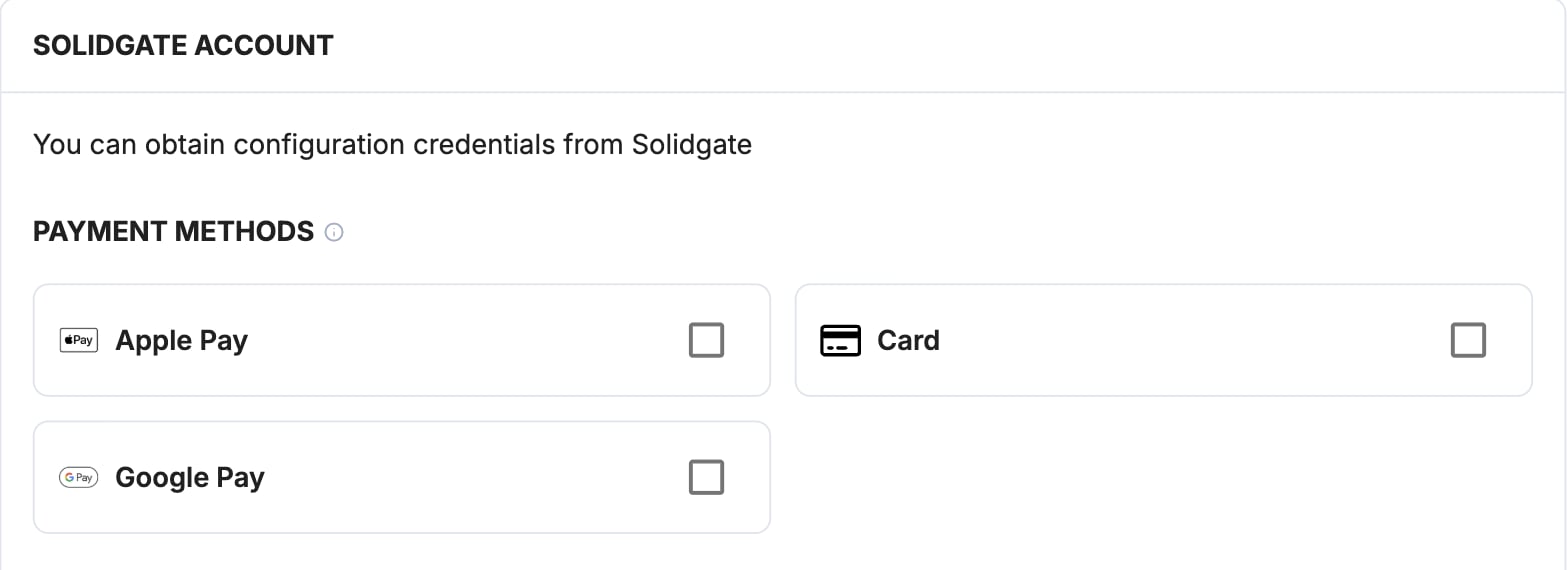
Credentials
In Solidgate- In the Solidgate Hub, go to Developers → Channels.
- Open the channel for your environment. Use a test channel for test mode and a live channel for live mode.
- Under API Keys, copy the Public and Secret keys.
- Under Webhook Keys, copy the Public and Secret keys.
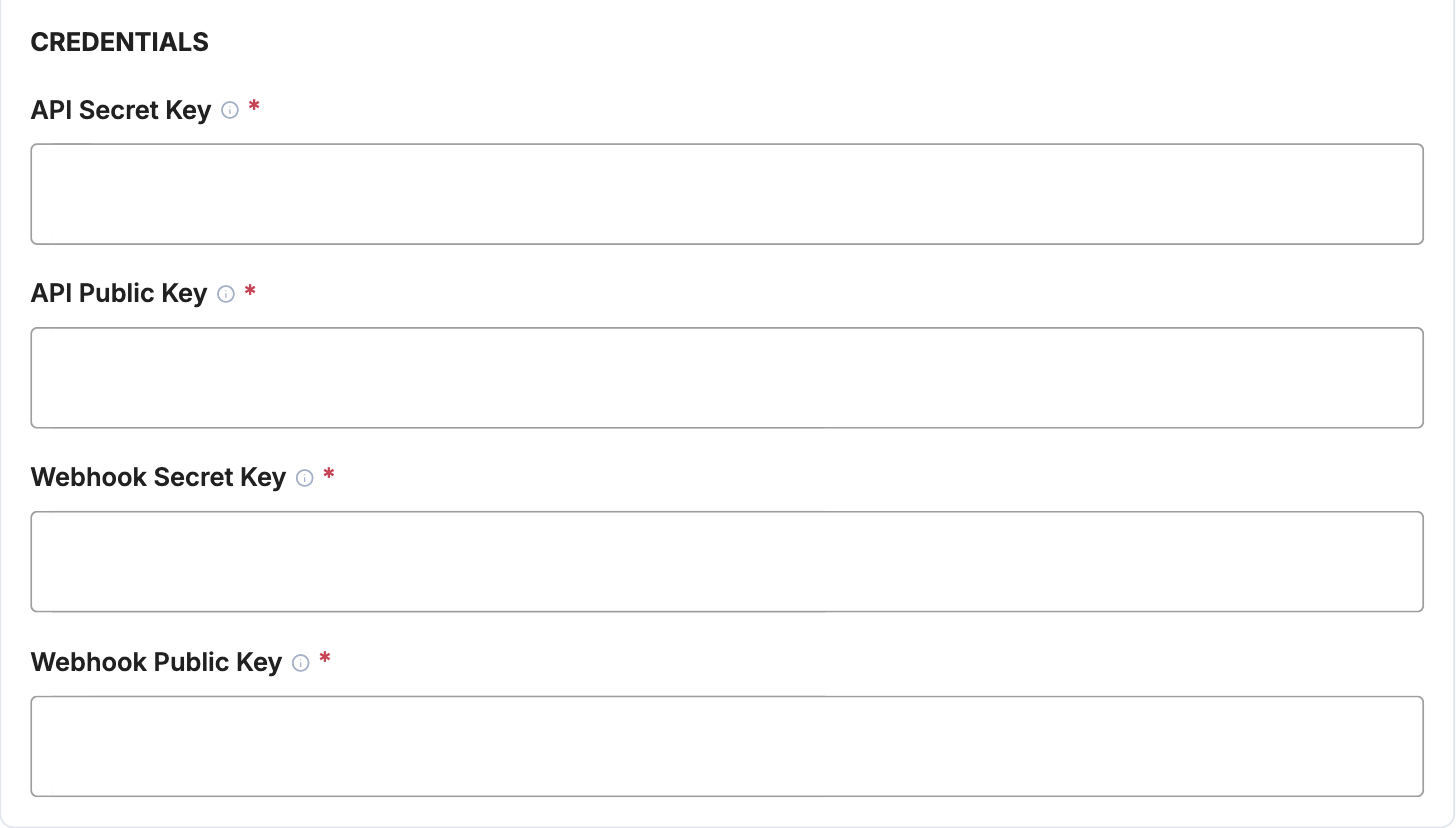
Webhooks or notifications
Payrails uses provider webhooks or notifications to receive asynchronous
payment status updates.
- Copy the Notification URL shown under Account configuration at the top of the integration form.
- Open the same channel in the Solidgate Hub.
- Add the Payrails notification URL as the channel’s webhook URL for order and transaction status updates.
- Save the changes.
Request fields for Solidgate
Send these fields in the authorize request for card payments, in addition to the standard authorize fields. Required fields must be present for the payment to succeed. Payrails sends Optional fields to Solidgate when you include them. For more about meta fields, refer to Meta fields.Enable the integration
In Payrails- Select Save account to enable the integration.
- Confirm the integration shows as Enabled.
Next steps
- Run a test payment using a Solidgate test card.
- Verify that:
- The payment appears in the Solidgate Hub.
- The payment status updates correctly in Payrails.
- Once verified in test mode, repeat the setup with your live channel.