

Who should use this guideThis guide is intended for merchants who:
- Use Payrails as a payment orchestrator
- Use 2C2P to accept payments across South-East Asia
- Want to accept card payments (and VietQR in Vietnam) through 2C2P’s hosted payment page
Create and configure a 2C2P integration in Payrails
Following are the initial steps to set up 2C2P:- Log in to the Payrails portal.
- Go to Settings → Integrations → Payments.
- Select Add instance to create a new 2C2P integration configuration.
- Select the workspaces where this integration should be available.
About workspacesWorkspaces determine where this integration is available. They let you isolate provider setups by region or business line, or share the same configuration across multiple workspaces.
Step 2: Choose the provider
Select 2C2P and continue to the next step.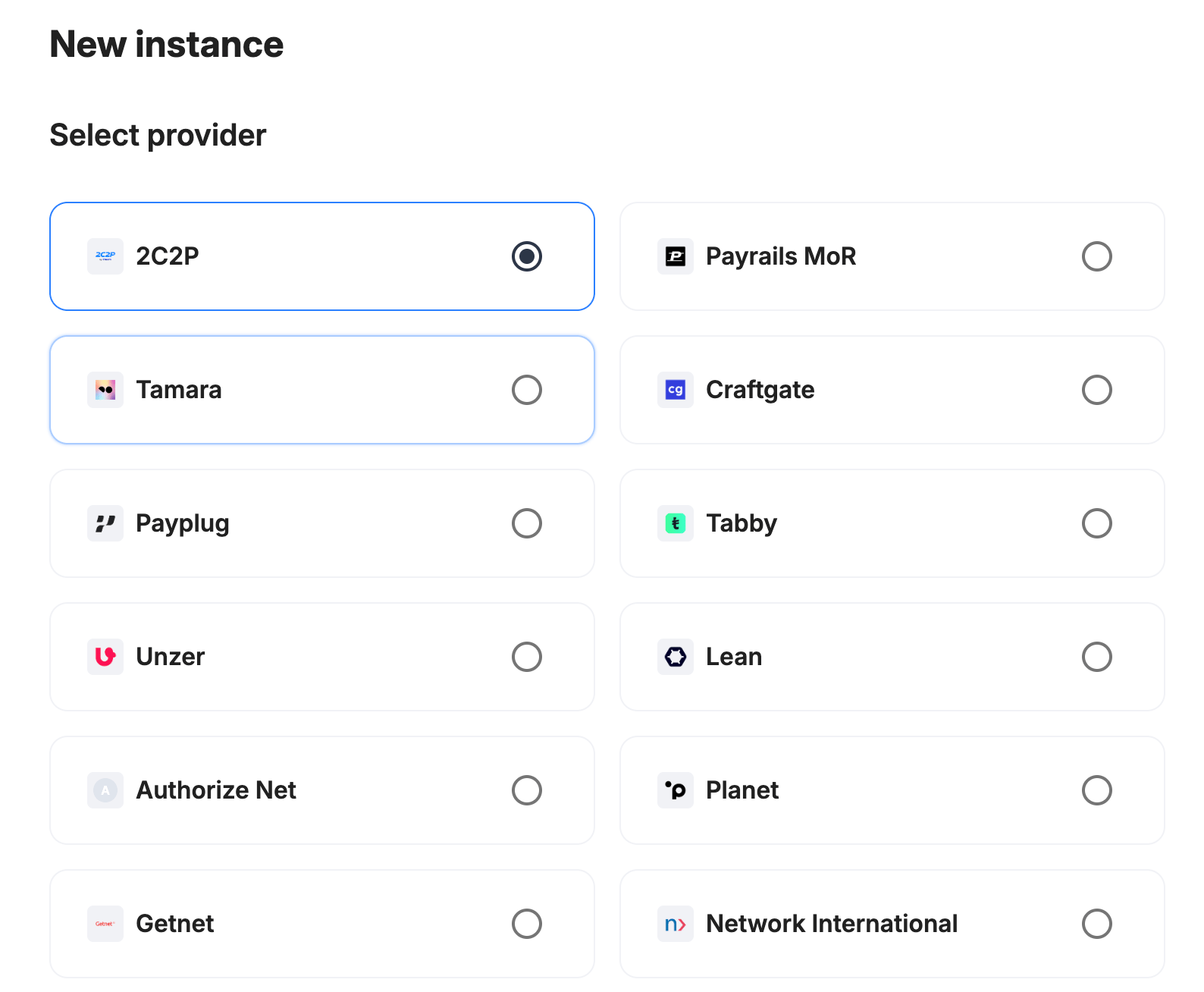
Step 3: Configure your 2C2P integration
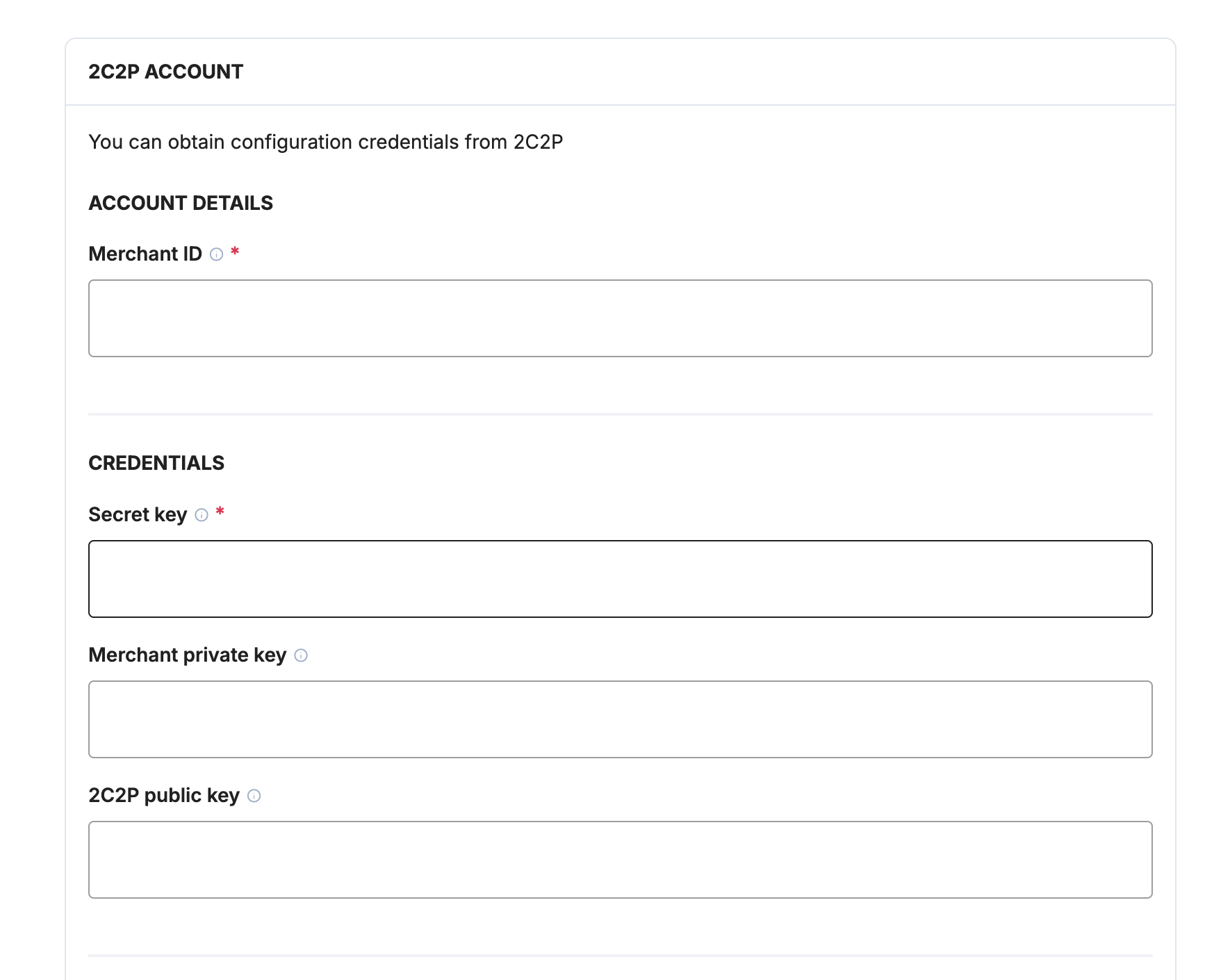
Integration instance name
An integration instance is a specific payment provider setup in Payrails. You can create multiple instances for each provider based on region, currency, or business needs. Choose a clear, consistent name, as it is used in routing.In Payrails
- Enter an Instance name for your integration.
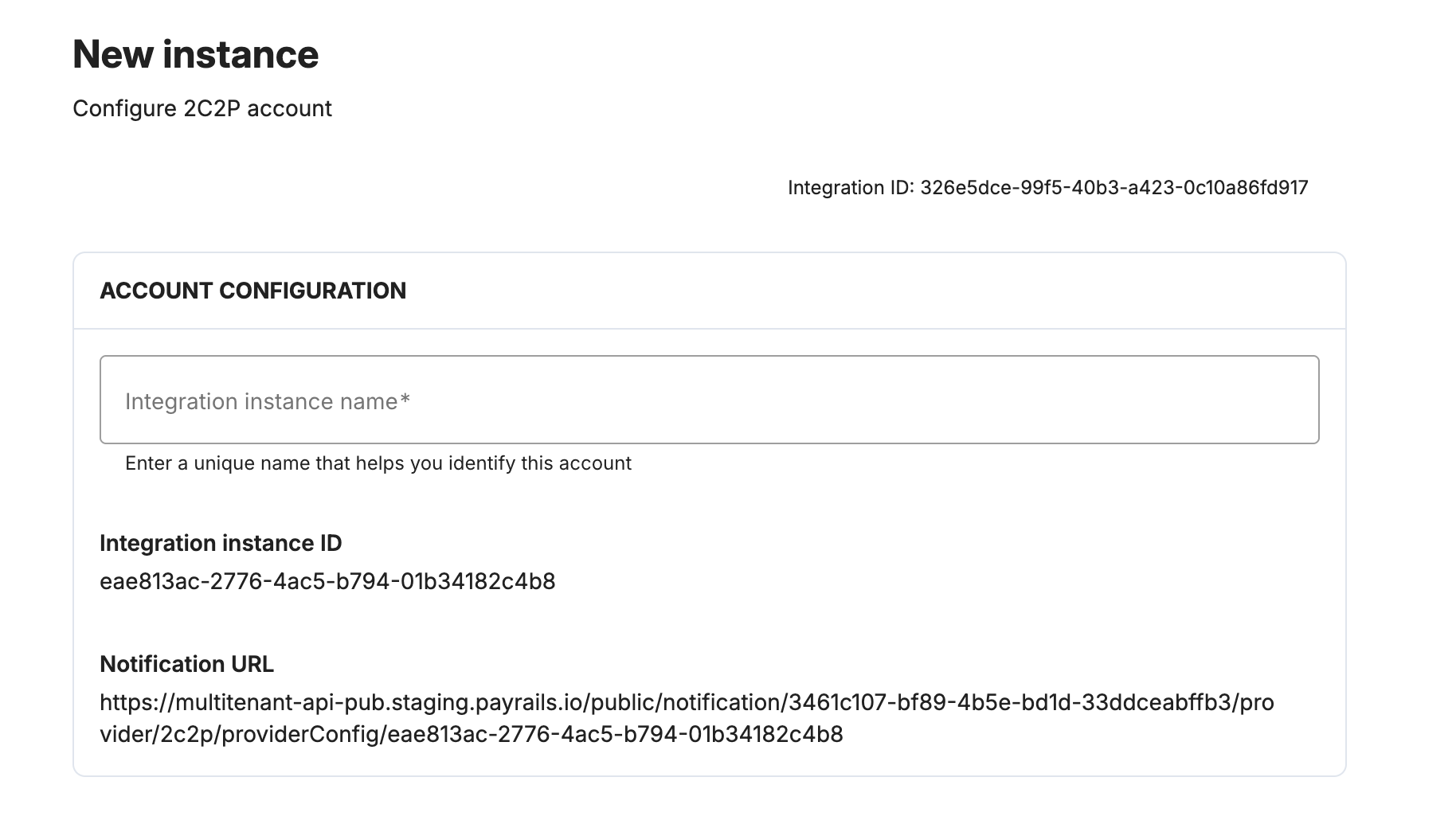
Merchant ID
In 2C2P- In your 2C2P Merchant Portal, locate and copy your Merchant ID.
- Paste the value into the Merchant ID field.
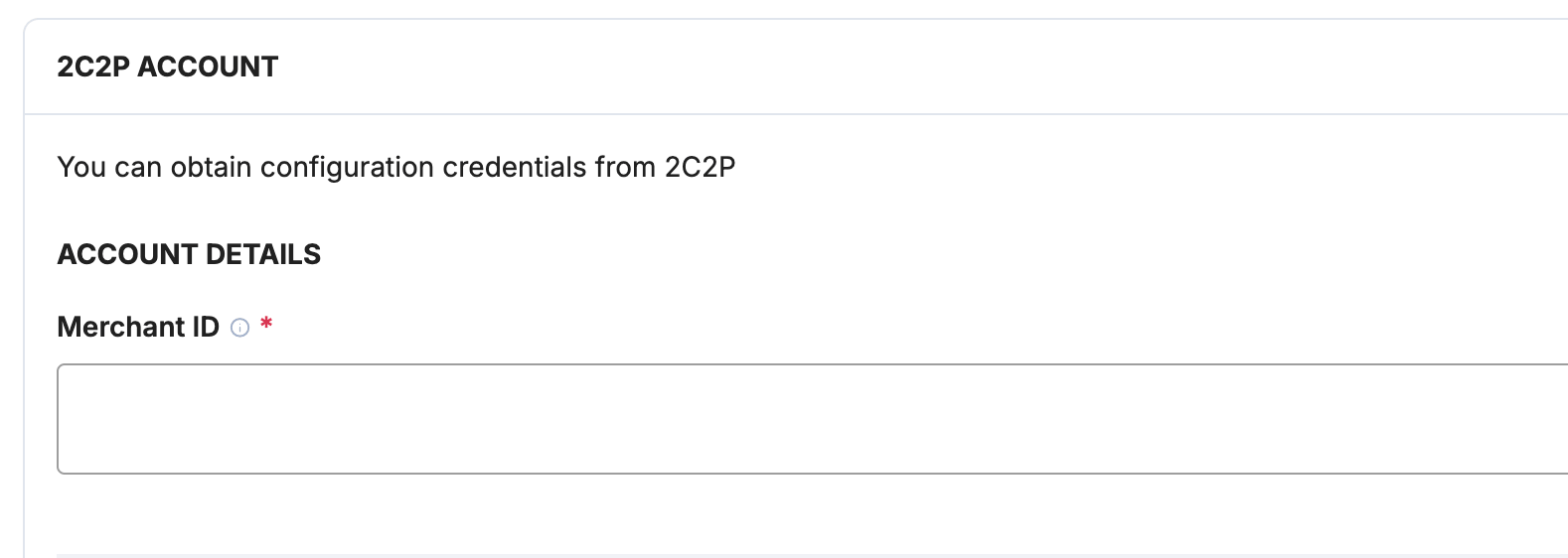
Secret key
In 2C2P- In your 2C2P Merchant Portal, open your API / developer settings and copy the Secret key.
- Paste the value into the Secret key field.
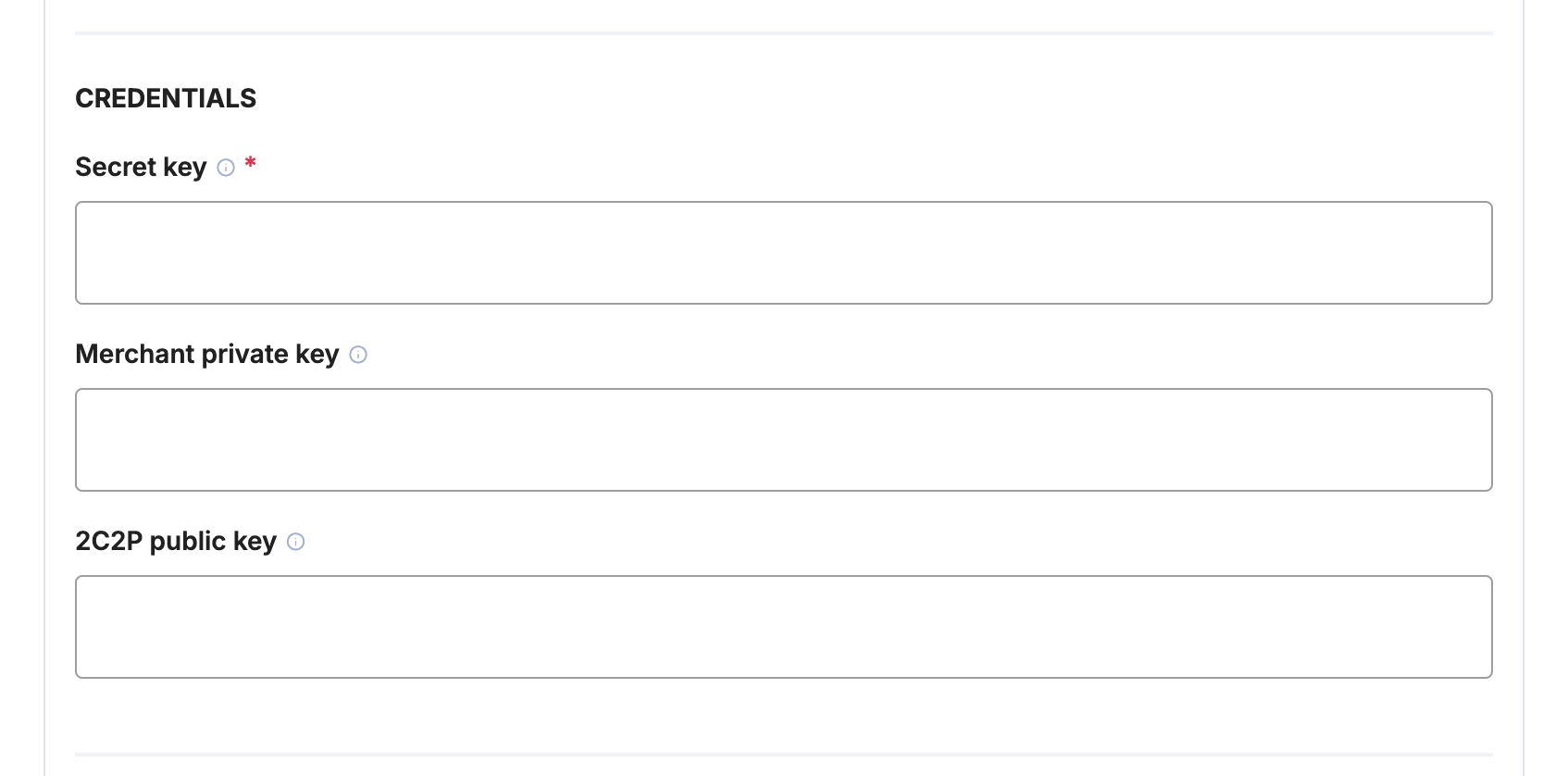
Merchant private key & 2C2P public key (for capture, void & refund)
These credentials are only required to capture, void or
refund payments through Payrails. Authorization and the hosted payment page
work without them — you can add them later. (Capture, void and refund use
2C2P’s encrypted maintenance API, which requires this key exchange.)
- Generate an RSA key pair for your merchant account.
- Upload your public key / certificate to the 2C2P Merchant Portal and set it as the default key.
- Download 2C2P’s public key from the portal (the key used for encrypted requests).
- Paste your merchant private key (PEM) into the Merchant private key field.
- Paste 2C2P’s public key (PEM) into the 2C2P public key field.
Payment methods
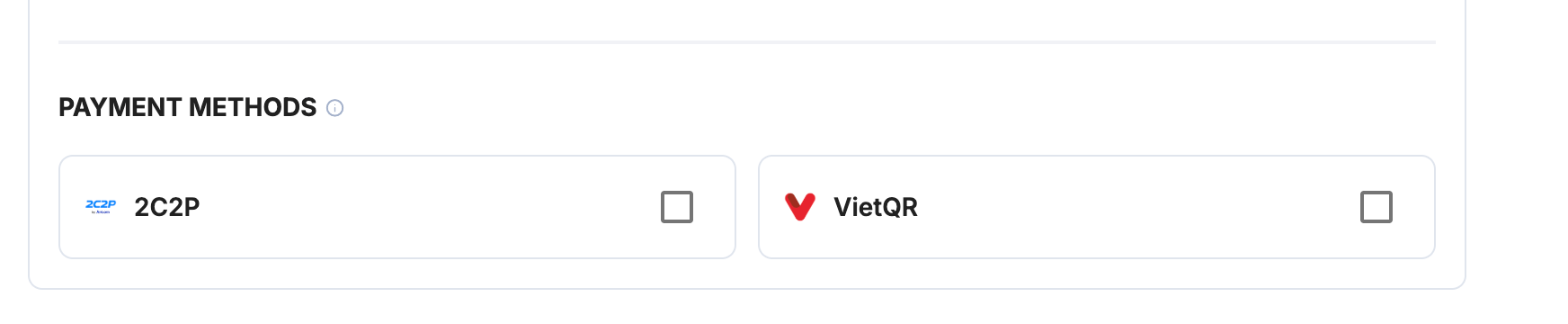
In Payrails- Under Payment methods, select the methods you want to enable for this integration: 2C2P (cards) and/or VietQR (Vietnam).
NotificationsPayrails sends the notification (webhook) URL to 2C2P
automatically with every payment, so there is no separate webhook to
configure in the 2C2P portal.
Request fields for 2C2P
Send these fields in the authorize request for card payments, in addition to the standard authorize fields. Required fields must be present for the payment to succeed. Payrails sends Optional fields to 2C2P when you include them. For more about meta fields, refer to Meta fields.Enable the integration
In Payrails- Select Save account to save the configuration and enable the integration.
- The Enabled status confirms that the 2C2P integration is active.
Next steps
- Run a test payment in test mode using a 2C2P test card (for example, Visa
4111 1111 1111 1111, any future expiry date, CVV123; complete the challenge on 2C2P’s hosted page with OTP123456). Use a supported currency such as THB or VND. - Verify that:
- The payment appears in your 2C2P Merchant Portal.
- The payment status updates correctly in Payrails.
- Once verified in test mode, repeat the setup in live mode.