

Who should use this guideThis guide is intended for merchants who:
- Use Payrails as a payment orchestrator
- Use Amazon Payment Service (APS) for payments
- Are approved to process raw card data
Create and configure an Amazon Payment Service integration in Payrails
- Log in to the Payrails portal.
- Go to Settings → Integrations.
- Select Add instance to create a new integration configuration.
- Select the workspaces where this integration should be available.
About workspacesWorkspaces determine where this integration can be used. They allow you to isolate provider setups by region or business line, or share a single configuration across multiple environments.
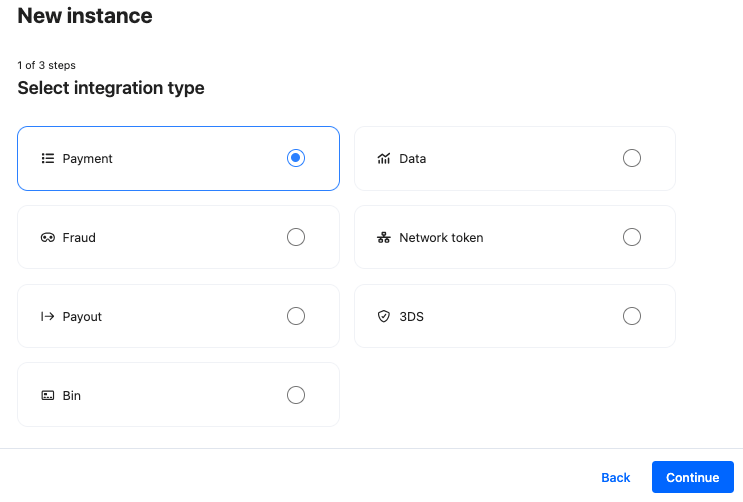
Step 1: Choose the integration type
- Select Payment and continue to the next step.
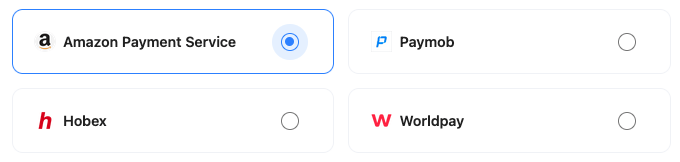
Step 2: Choose the provider
- Select Amazon Payment Service and continue to the next step.
Step 3: Configure your Amazon Payment Service integration
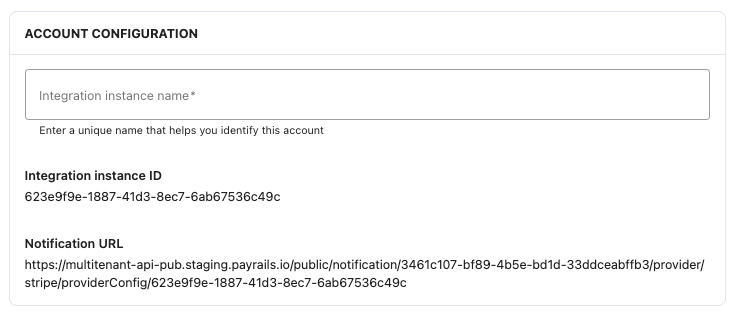
Integration instance name
An integration instance is a specific payment provider setup in Payrails. You can create multiple instances for each provider based on region, currency, or business needs. Choose a clear, consistent name, as it is used in routing.In Payrails
- Enter a clear and descriptive Instance name.
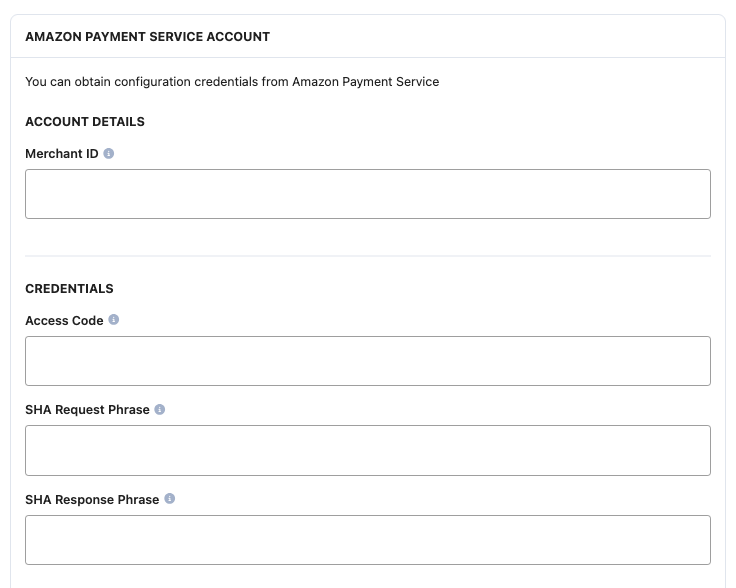
Account details
In Amazon- Sign in to the Amazon Payment Service (APS) merchant dashboard.
- Navigate to Merchant management → Integration settings → Security settings.
- Copy the Merchant identifier.
- Paste the Merchant identifier into the Merchant ID field.
Credentials
In Amazon- On Security settings, copy the Access code value.
- Paste the value into the Access code field.
- Select SHA256.
- Copy the SHA Request phrase and SHA Response phrase.
- Paste the values into the corresponding SHA Request phrase and SHA Response phrase fields.
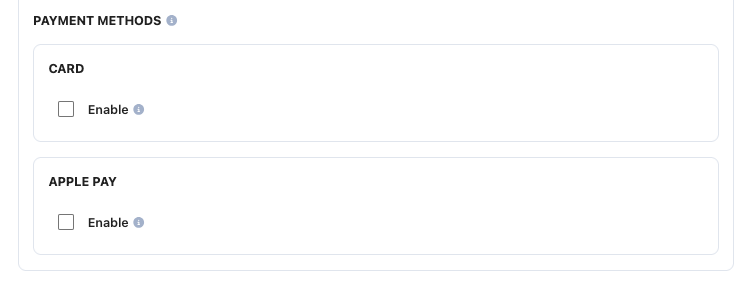
Payment methods
In Payrails- Select the payment methods that should be enabled.
Webhook (Direct Transaction Feedback)
In Amazon- Navigate to Merchant management → Integration settings → Technical settings.
- Select Trusted channel.
Alternatively, you may be asked to select your activated integration and choose Hosted Checkout, Custom Integration, or Mobile SDK.In Payrails
- Copy the Notification URL.
- Paste the Payrails Notification URL into the Direct Transaction Feedback URL field.
- Choose Yes for the Downgrade CVV 3DS option.
- Select Save changes.
Request fields for Amazon Payment Service
Send these fields in the authorize request for card payments, in addition to the standard authorize fields. Required fields must be present for the payment to succeed. Payrails sends Optional fields to Amazon Payment Service when you include them. For more about meta fields, refer to Meta fields.Configure Amazon Payment Service settings
Some Amazon Payment Service integration settings change how Payrails processes your payments. The portal shows the same description when you hover over each setting. You find them under Account details.CIT CVV Patching
Turn on CIT CVV Patching if you collect the CVV again when a customer pays with a saved card. Payrails then adds that CVV to the customer-initiated card payment it sends with the stored Amazon Payment Service token. Without a newly collected CVV, or for Apple Pay, the setting has no effect.Enable the integration
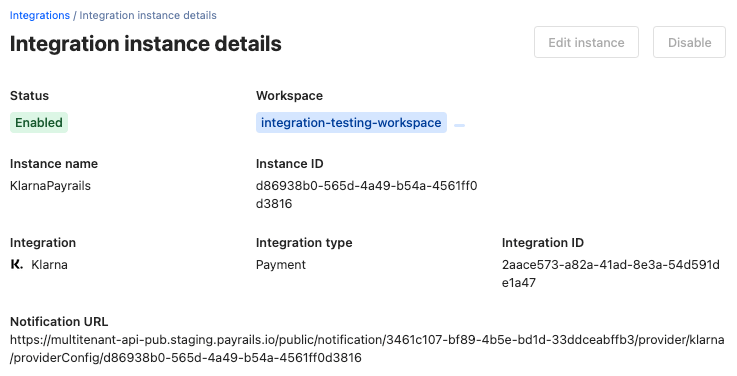
In Payrails- Select Save account to enable the integration.
Next steps
- Run a test payment using an Amazon Payment Service test card.
- Verify that:
- The payment appears in Amazon Payment Service.
- The payment status updates correctly in Payrails.
- Once verified in test mode, repeat the setup in live mode.