


Who should use this guideThis guide is intended for merchants who:
- Use Payrails as a payment orchestrator
- Use PayU India for cards or UPI in India
- Have an active PayU India merchant account
Create a PayU India integration in Payrails
- Log in to the Payrails portal.
- Go to Settings → Integrations.
- Select New integration.
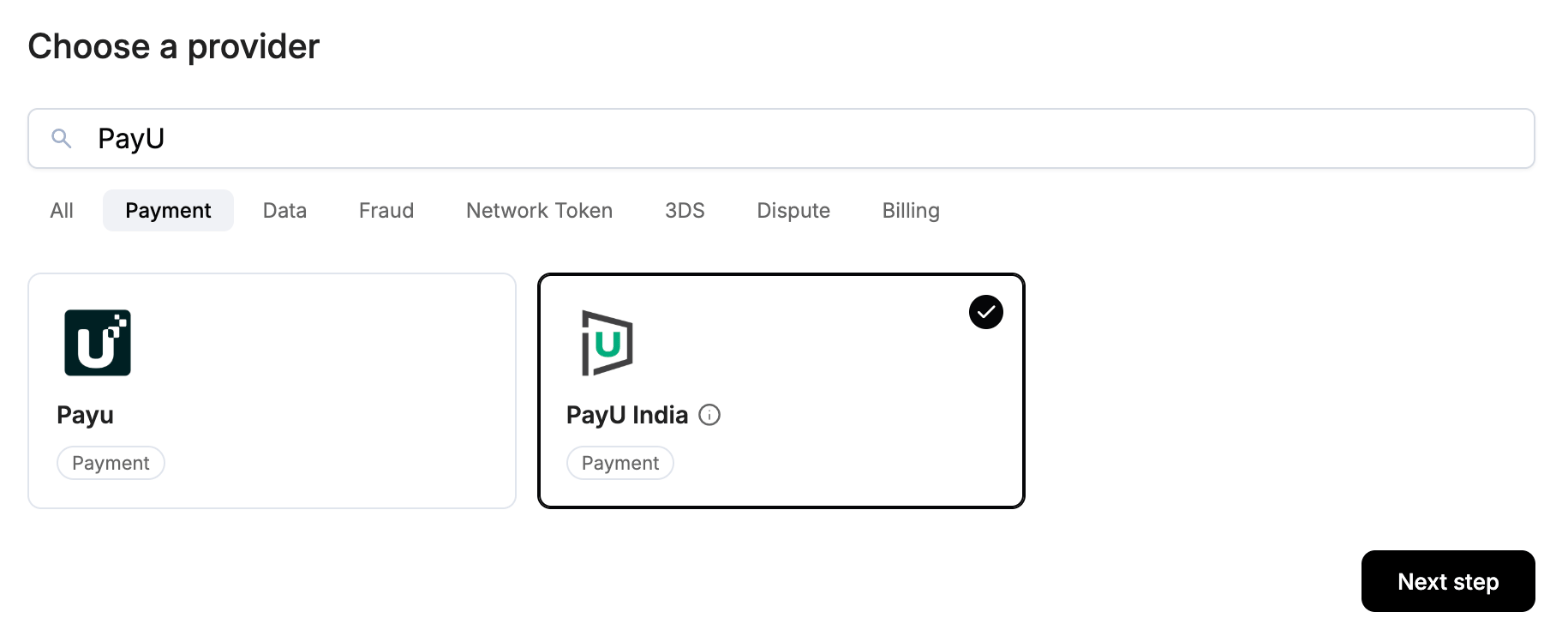
Step 1: Choose the provider
- Search for PayU India and select it.
- Select Next step.
Step 2: Enter basic information
In Payrails- Integration type: keep Payment selected.
- Integration name: enter a clear, consistent name, for example
merchant_payuindia. Routing uses this name, so include the region or environment when you run more than one PayU India integration. - Workspaces: select the workspaces where this integration should be available.
- Select Next step.
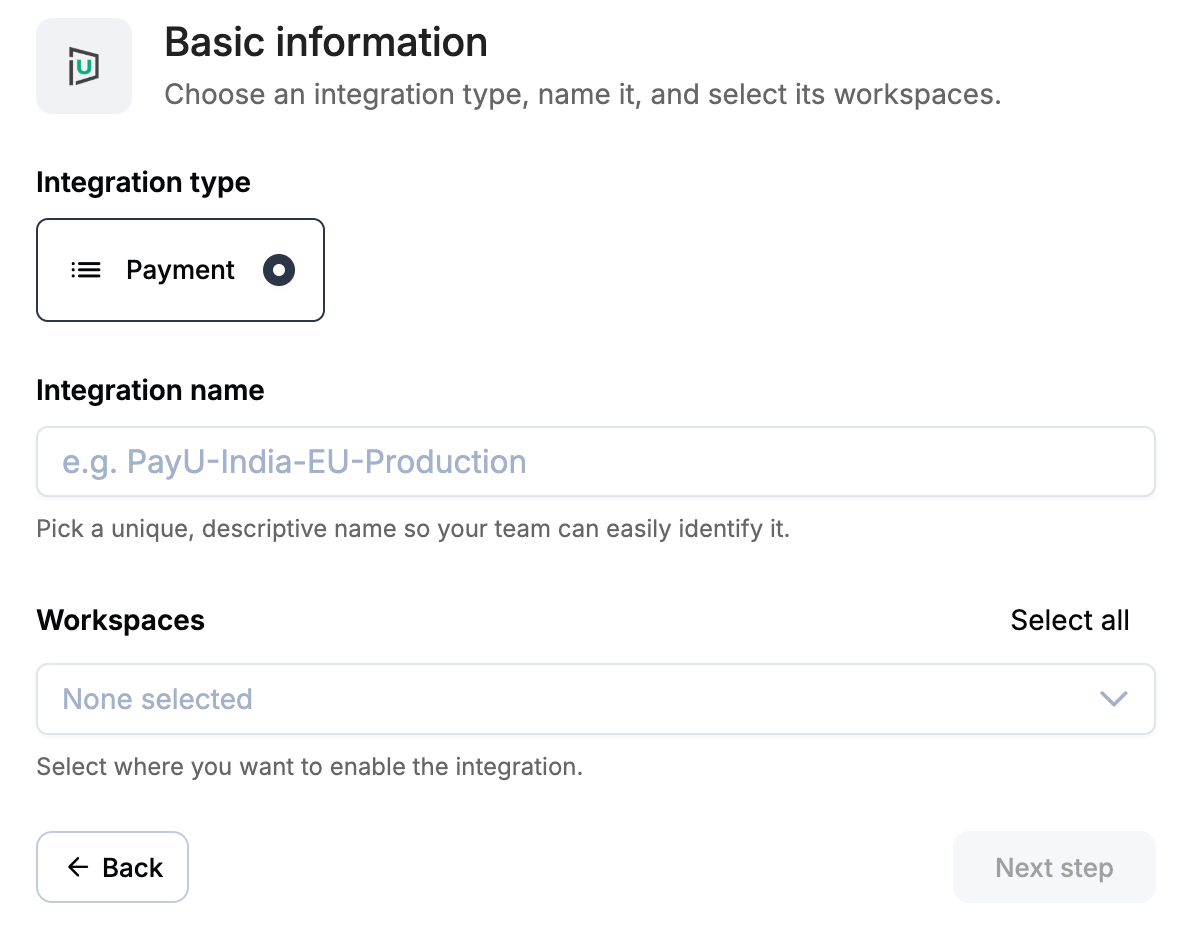
About workspacesWorkspaces determine where this integration is available. They let you isolate provider setups by region or business line, or share the same configuration across multiple workspaces.
Step 3: Enter account information
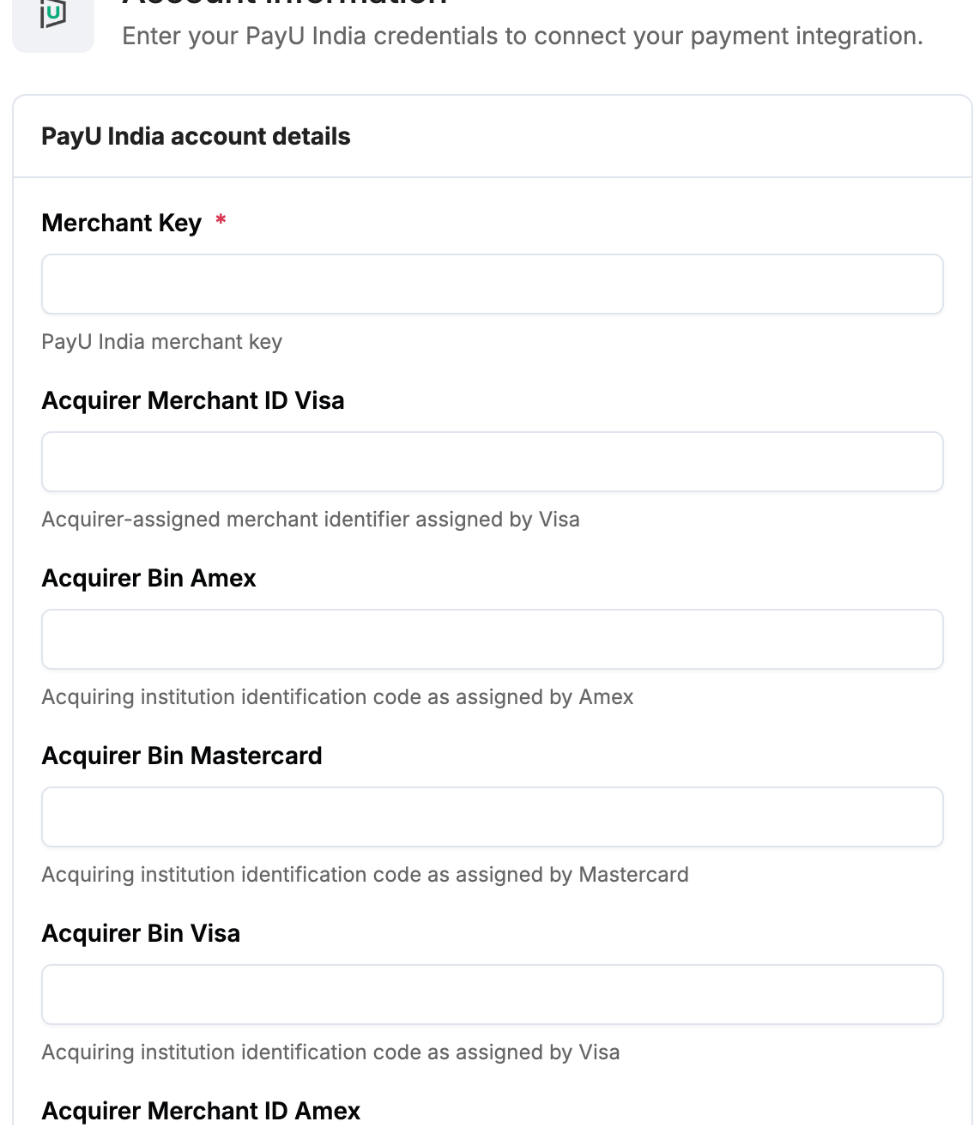
PayU India account details
In Payrails
Fill in the acquirer merchant IDs and BINs when you use external 3DS, with Payrails authenticating cards before they reach PayU India. Your acquiring bank provides them.
API credentials
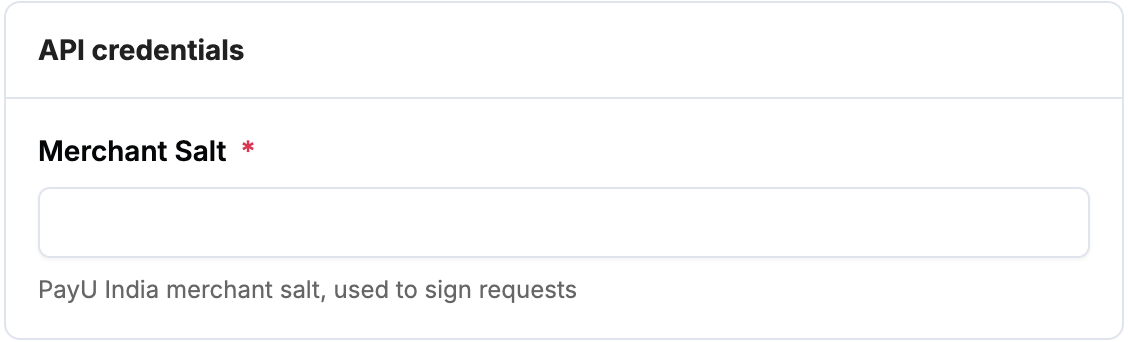
In Payrails
Payrails sends requests to the PayU India test environment in test mode and to the live environment in live mode, so use the merchant key and salt for the matching environment.
Payment methods
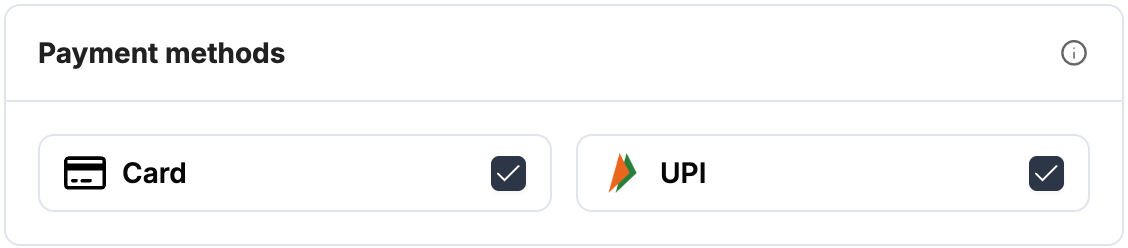
In Payrails- Select the payment methods to enable for this integration: Card, UPI or both.
Webhooks or notifications
Payrails uses provider webhooks or notifications to receive asynchronous
payment status updates.
- Copy the Notification URL from the Webhook section.
- Log in to the PayU dashboard.
- Go to Developers → Webhooks and select Create Webhook.
- Create a webhook of type payments for the successful event, with the Payrails notification URL.
- Create a second payments webhook for the failed event, with the same URL.

Additional data
In Payrails- Optional. Select Add field to add key-value pairs that Payrails includes in the authorization webhook notification. Payrails doesn’t use them to process PayU India payments.
Request fields for PayU India
Send these fields in the authorize request for card payments, in addition to the standard authorize fields. Required fields must be present for the payment to succeed. Payrails sends Optional fields to PayU India when you include them. For more about meta fields, refer to Meta fields.How PayU India handles cards
- PayU India authenticates every card payment with 3D Secure. The response includes the redirect to the PayU India authentication page, where the customer enters the OTP from their bank.
- When the authorize request carries complete external 3DS data, with the ECI and CAVV, Payrails sends it to PayU India, and PayU India skips its own challenge.
- PayU India supports instant and manual capture. With manual capture, you can capture the full amount or a lower amount once.
- You can cancel an authorized payment, and refund a captured payment in full or in part.
- PayU India completes captures, cancellations and refunds in the background. Payrails checks the status with PayU India until it gets a final result, then updates the payment. A refund can take up to 22 days to complete.
Save cards and recurring payments
Save a card
SetstoreInstrument to true and send holderReference on the first payment. Payrails saves the PayU India card token as a payment instrument. For later customer-initiated payments, authorize with the saved paymentInstrumentId.
Register a recurring payment
PayU India runs recurring payments on a standing instruction that the customer approves with 3D Secure on the first payment. To register one, send the first payment with:
When the customer completes 3D Secure, Payrails saves the card and the standing instruction on the payment instrument.
Charge a recurring payment
A recurring charge has two steps: PayU India notifies the customer of the upcoming debit, then you confirm the charge.- Call authorize a payment with the saved
paymentInstrumentId,meta.order.processingTypeset toSubscriptionorUnscheduledCardOnFile, andmeta.customer.emailandmeta.customer.phone.number. Use instant capture. - Payrails checks with PayU India that the standing instruction is still active, then asks PayU India to send the pre-debit notification to the customer. The payment stays pending, and the response asks you to confirm it. It includes
earliestConfirmAt, the earliest time you can confirm. - On or after
earliestConfirmAt, call confirm a payment on the same execution. Payrails sends the debit to PayU India and the payment is captured.
earliestConfirmAt is 48 hours after the notification, or the debit date if that’s later. To set the debit date, send meta.subscription.scheduledDate. Without it, the debit date is 48 hours from the request.
Payrails checks the status with PayU India before it sends the debit, so confirming twice never charges the customer twice. A confirm before earliestConfirmAt is rejected, and you can send it again later.
Recurring charge results
Enable the integration
In Payrails- Select Enable integration.
- Confirm the integration shows as Enabled.
Next steps
- Run a test payment in the PayU India test environment.
- Verify that:
- The payment appears in the PayU dashboard.
- The payment status updates correctly in Payrails.
- Once verified in test mode, repeat the setup in live mode.