
Klarna
A step-by-step guide for setting up your Klarna payments integration in the Payrails portal.
Who should use this guideThis guide is intended for merchants who:
- Use Payrails as a payment orchestrator
- Use Klarna for payments
- Are approved to process raw card data
We use a server-to-server integration with Klarna, so your account must be enabled to process raw card data. If this isn’t enabled, payments won’t work in production. Please contact your Klarna account manager or support team to activate it.
Create and configure a Klarna integration in Payrails
- Log in to the Payrails portal.
- Go to Settings → Integrations.
- Select Add instance to create a new integration configuration.
- Select the Workspaces where this integration should be available.
About Workspaces
Workspaces determine where this integration can be used. They allow you to isolate provider setups by region or business line, or share a single configuration across multiple environments.
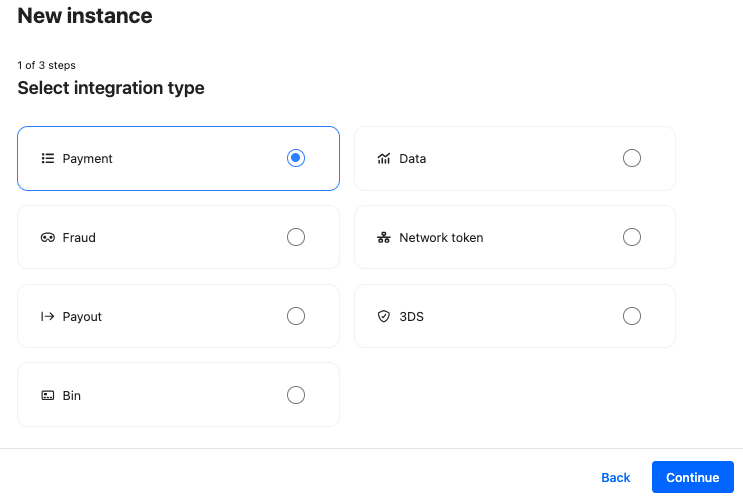
Step 1: Choose the integration type
- Select Payment and continue to the next step.
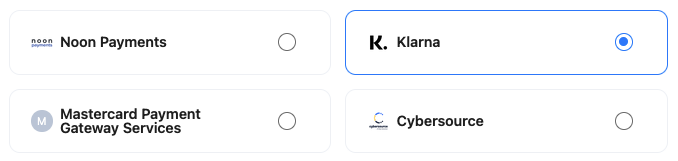
Step 2: Choose the provider
- Select Klarna and continue to the next step.
Step 3: Configure your Klarna integration
What you’ll need from KlarnaBefore you begin, make sure you have access to:
- Klarna API username
- Klarna API password
Log in to your Klarna Merchant Portal to complete this step..
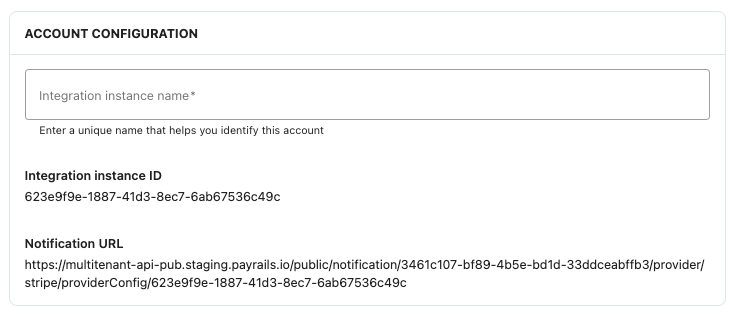
Integration instance name
An integration instance is a specific payment provider setup in Payrails. You can create multiple instances for each provider based on region, currency, or business needs. Choose a clear, consistent name, as it is used in routing.
In Payrails
- Enter a clear and descriptive Instance name.
Payment methods
In Payrails
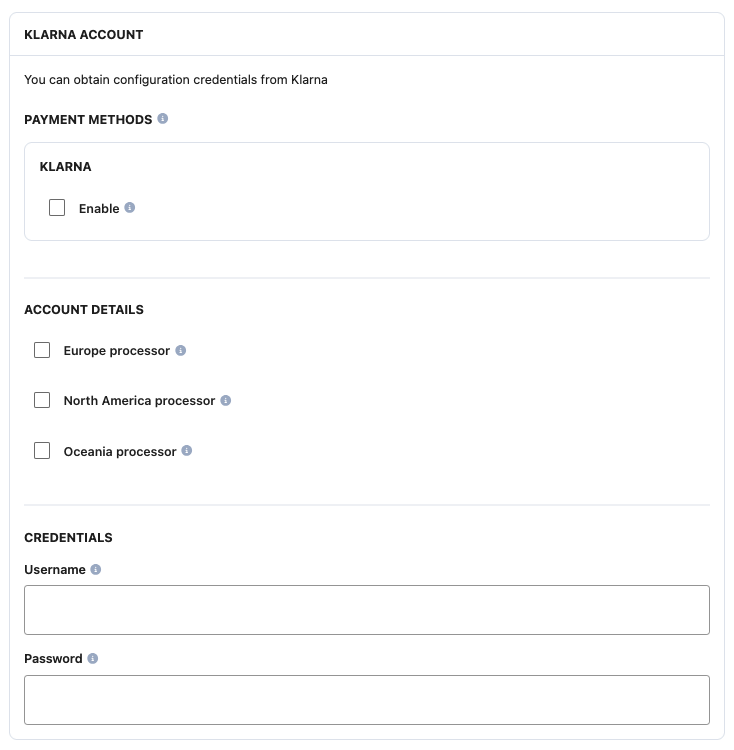
- Select the Klarna payment method to enable it.
Account details (region-specific processors)
Klarna payment offerings vary by region due to consumer preferences and regulatory requirements:
- Europe: Pay in 30 days, Slice it (installments), Pay Now (Sofort / bank transfer), and Direct Debit
Common markets include Germany, Sweden, and Austria.- North America (US / Canada): Pay in 4 (interest-free installments) and Financing
- Oceania (Australia / New Zealand): Primarily Pay in 4, with limited Pay in 30 days support
In Payrails
- Select the Klarna payment processors you want to use:
- Europe
- North America
- Oceania
Only select regions where your Klarna merchant account is approved.
Credentials
Klarna API credentials are sensitive. Store them securely and use separate credentials for test and live environments.
In Klarna
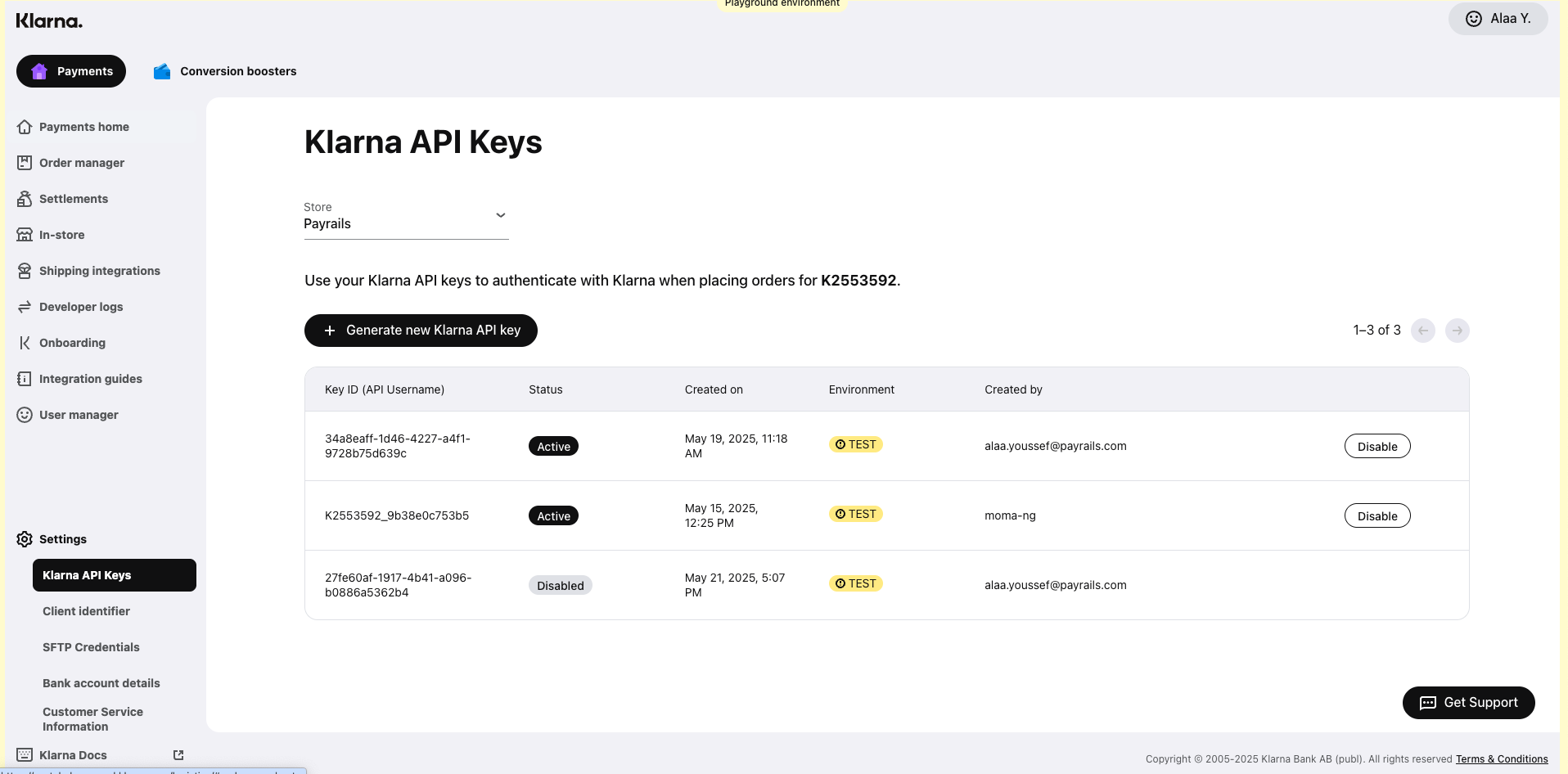
- Log in to the Klarna merchant portal.
- Navigate to Settings → Klarna API keys.
- Select Generate new Klarna API key.
- Save the generated API username and API password securely.
In Payrails
- Enter the Klarna API username and API password into the corresponding Username and Password fields.
Enable the integration
In Payrails
- Select Save account to enable the integration.
The Enabled status confirms that the Klarna integration is active and available for routing.
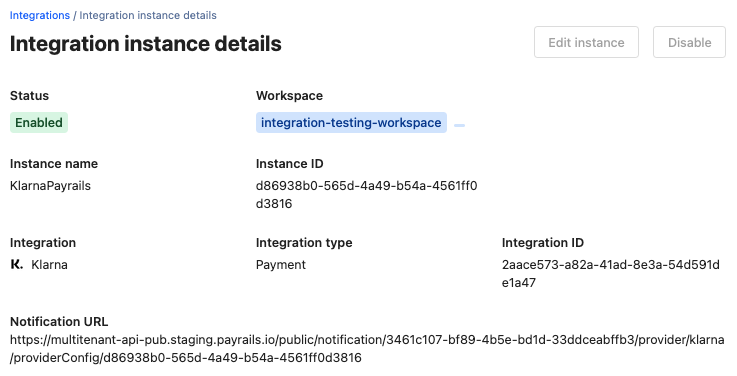
Your Klarna integration is now ready to process payments in the selected environment.
Next steps
- Run a test payment using a Klarna test card.
- Verify that:
- The payment appears in Klarna.
- The payment status updates correctly in Payrails.
- Once verified in test mode, repeat the setup in live mode.
→ Continue to: Test a payment
Updated 7 months ago