
Stripe
A step-by-step guide for setting up your Stripe payments integration in the Payrails portal.
Who should use this guideThis guide is intended for merchants who:
- Use Payrails as a payment orchestrator
- Use Stripe Payments and want to onboard their Stripe account using a one-click flow that automatically imports their credentials.
Create and configure a Stripe integration in Payrails
Following are the initial steps to setup stripe:
- Log in to the Payrails portal.
- Go to Settings → Integrations.
- Select Add instance to create a new Stripe integration configuration.
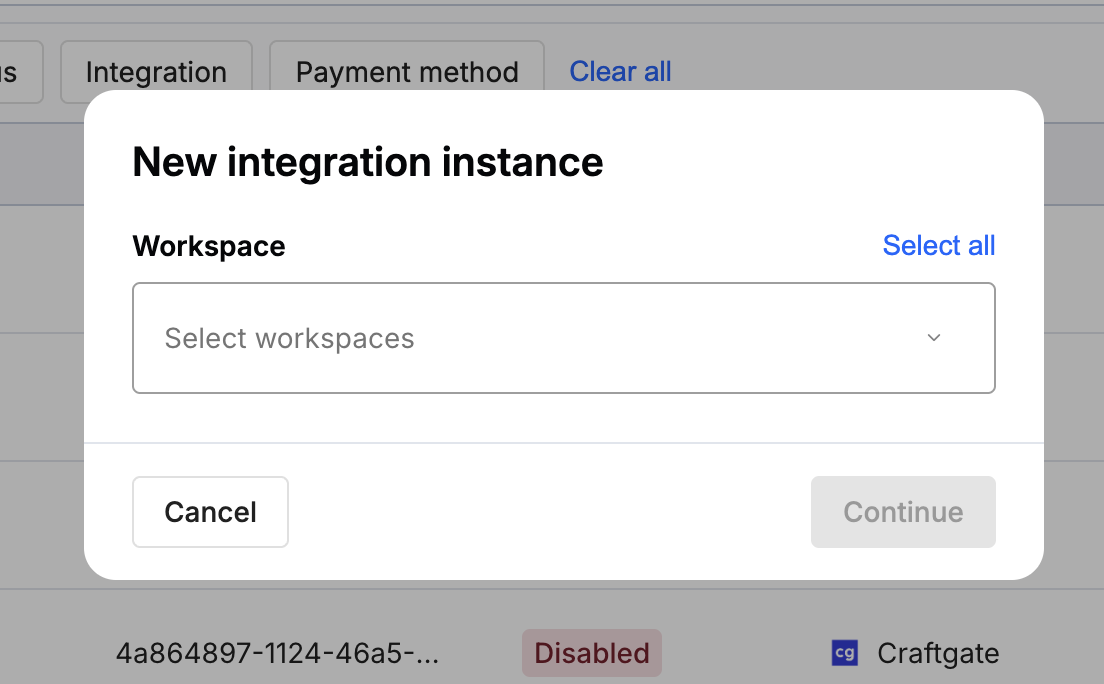
- Select the workspaces where this integration should be available.
About workspaces
Workspaces determine where this integration is available. They let you isolate provider setups by region or business line, or share the same configuration across multiple workspaces.
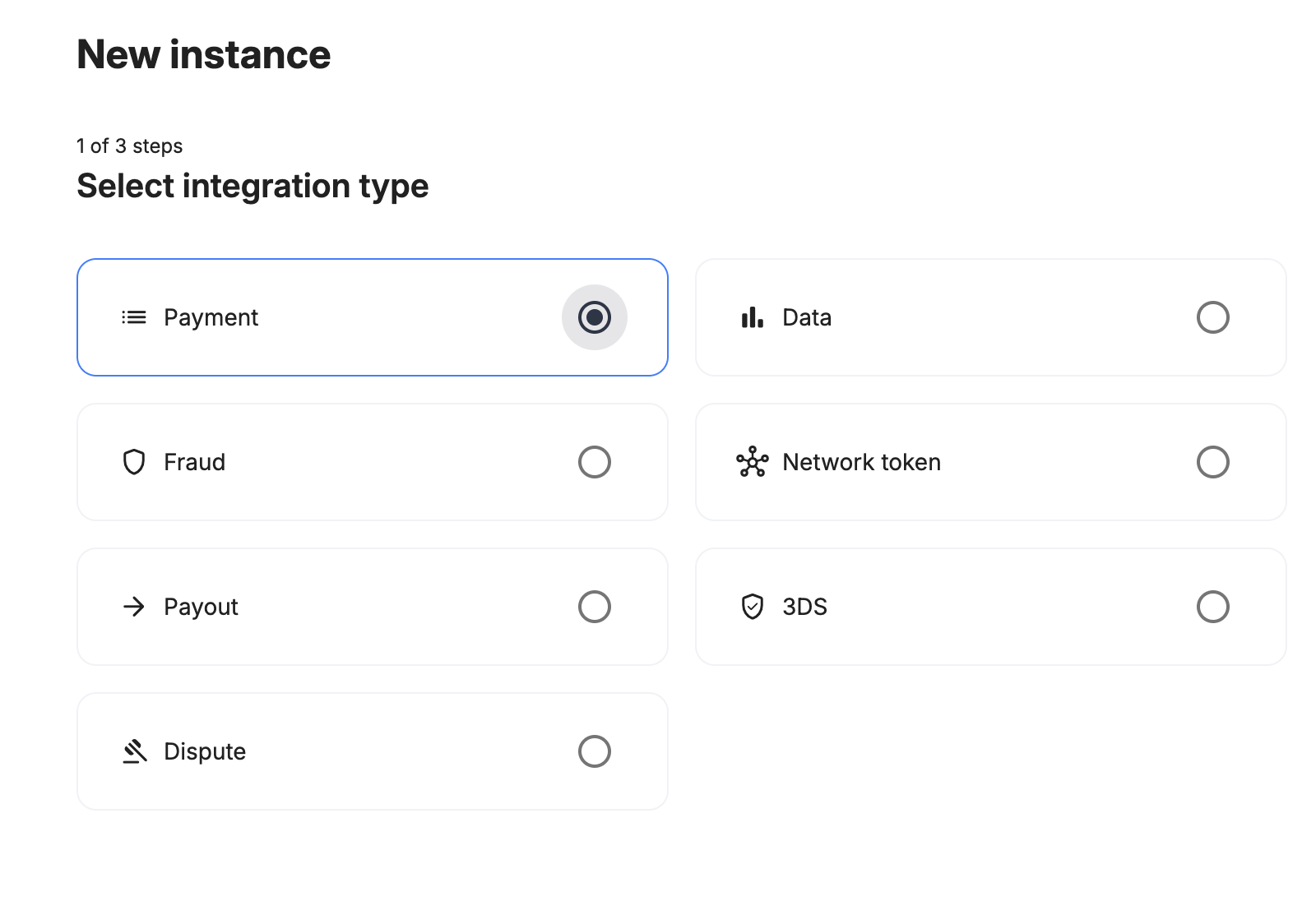
Step 1: Choose the integration type
Select Payment as integration type and continue to the next step.
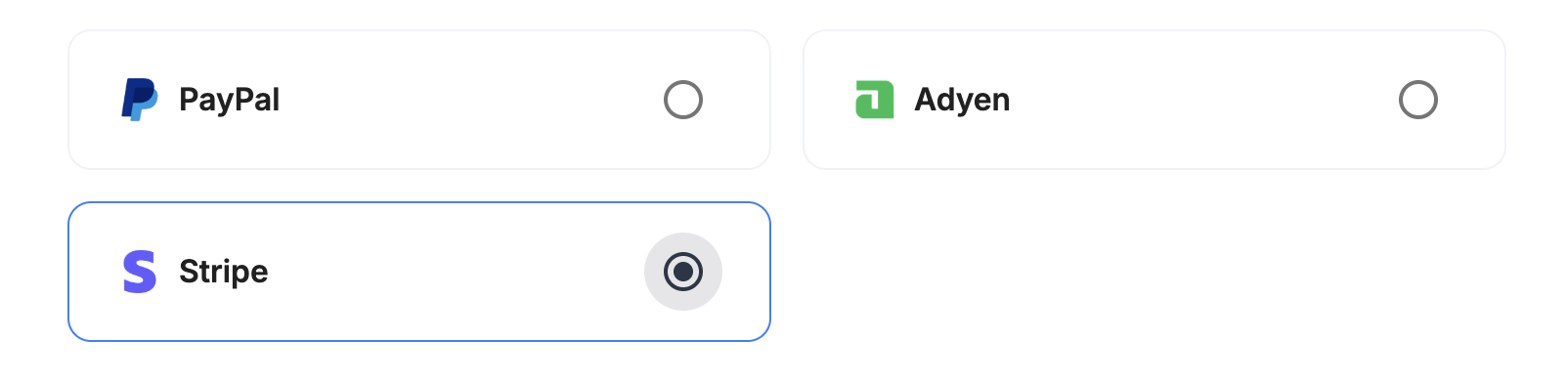
Step 2: Choose the provider
Select Stripe and continue to the next step.
Step 3: Configure your Stripe integration
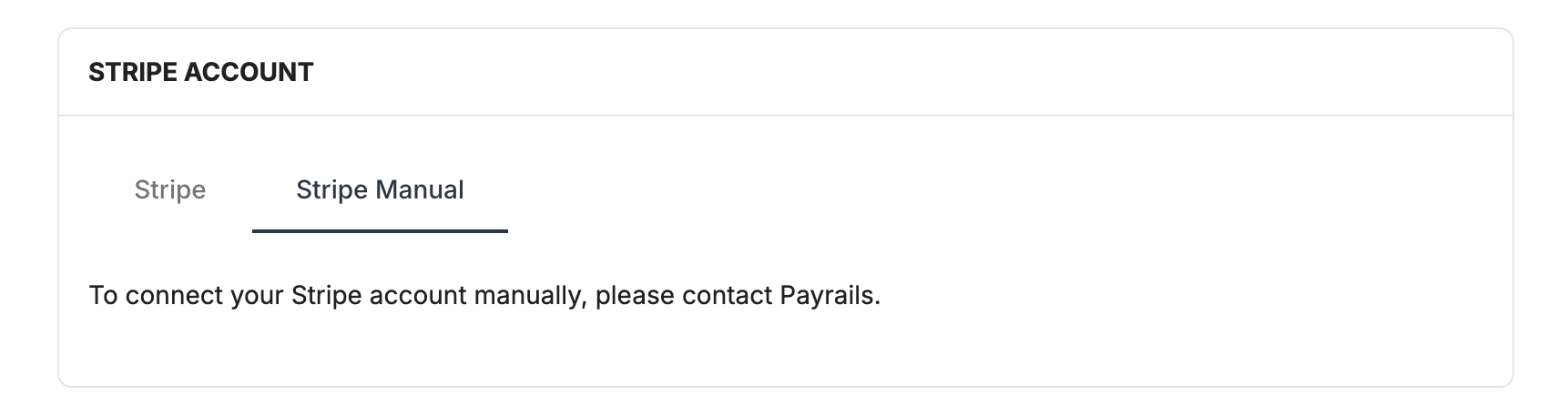
When the configuration screen opens, you'll see two tabs at the top of the Account configuration section.
- Stripe — Payrails imports your credentials in one click. This option will be selected by default.
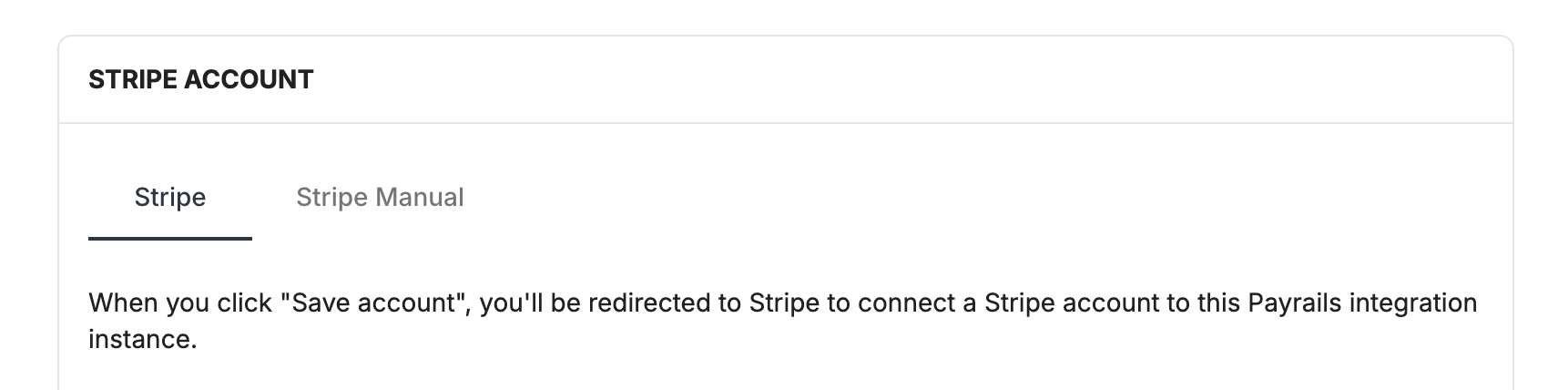
- Stripe Manual — enter credentials manually. Contact Payrails to set this up.
Stripe
This path uses Stripe's OAuth flow to connect your Stripe account to Payrails. No API keys or webhook secrets to copy.
Integration instance name
An integration instance is a specific payment provider setup in Payrails. You can create multiple instances for each provider based on region, currency, or business needs. Choose a clear, consistent name, as it is used in routing.
In Payrails
- Enter an Instance name for your integration.
- Make sure the Stripe tab is selected.
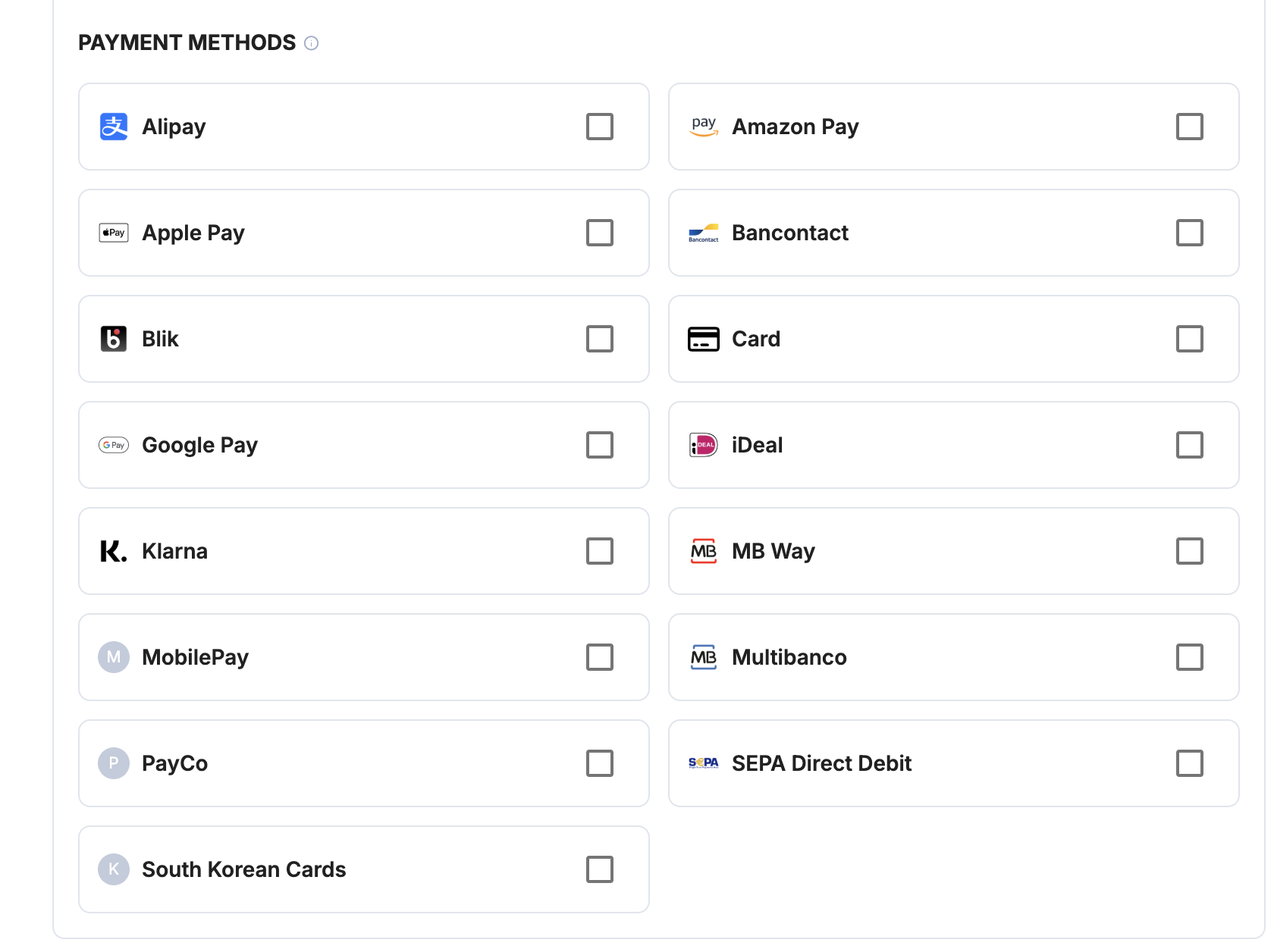
Select payment methods
Under Payment methods, select the payment methods you want to enable.
Connect your Stripe account
Select Save account. A dialog will open explaining the next step.
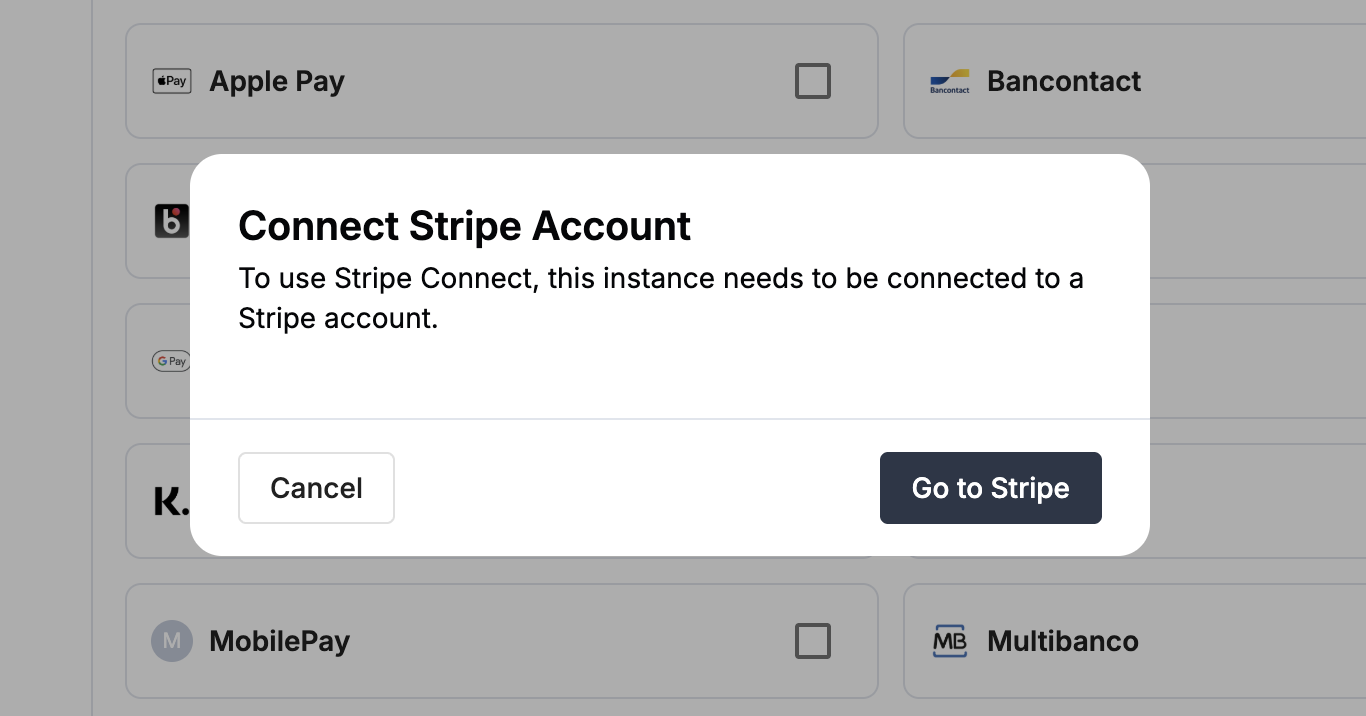
Select Go to Stripe and a new window opens to Stripe's authorization page.
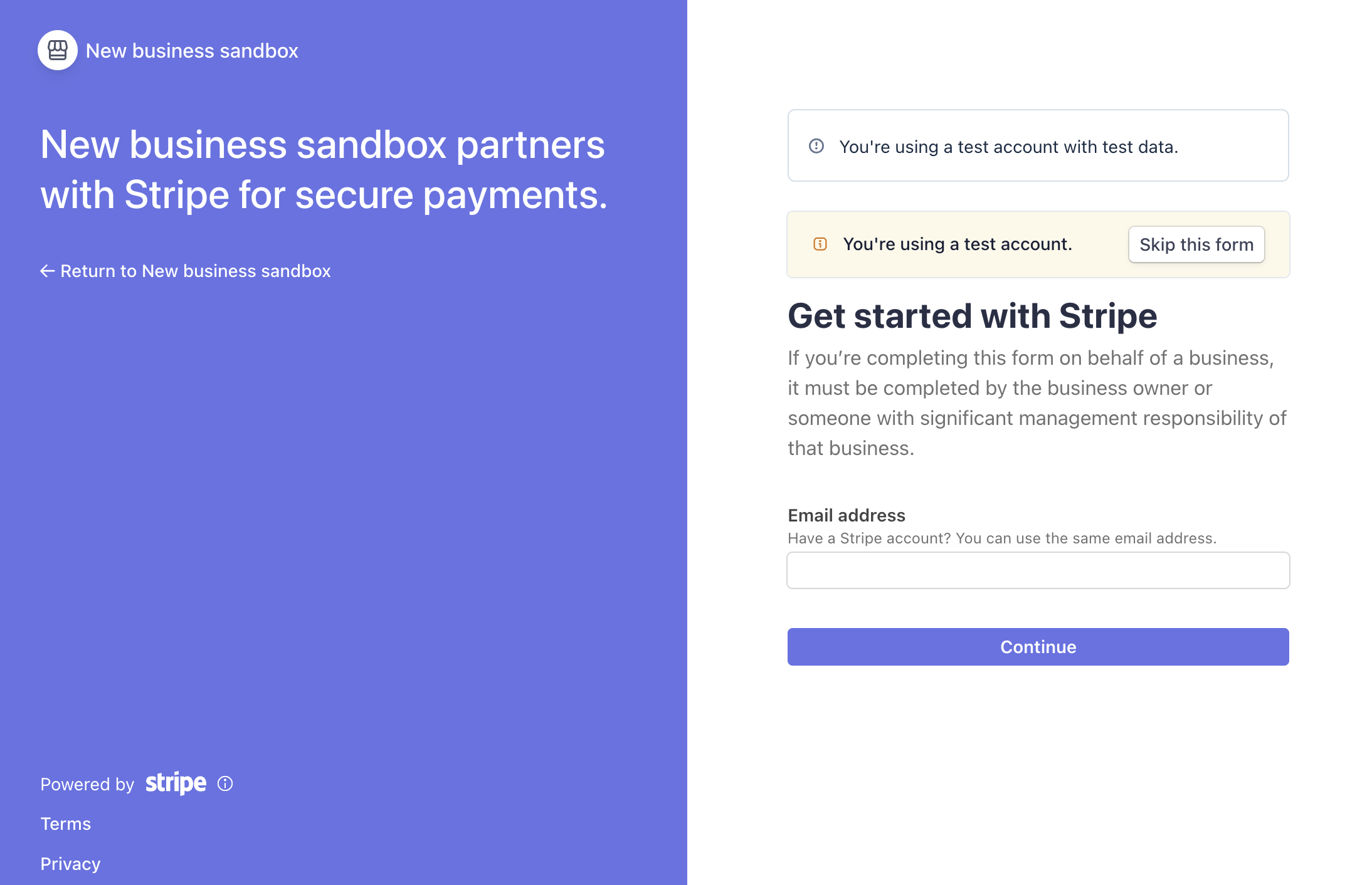
In Stripe (popup window)
- Sign in with the Stripe account you want to connect, if you're not already signed in.
- Review the permissions Payrails is requesting and authorize Payrails.
- The popup closes automatically and Payrails imports your Stripe credentials in the background.
- When saving completes, you land on the main window where you can see the success message and later on redirected to integration's details page with the Enabled status.
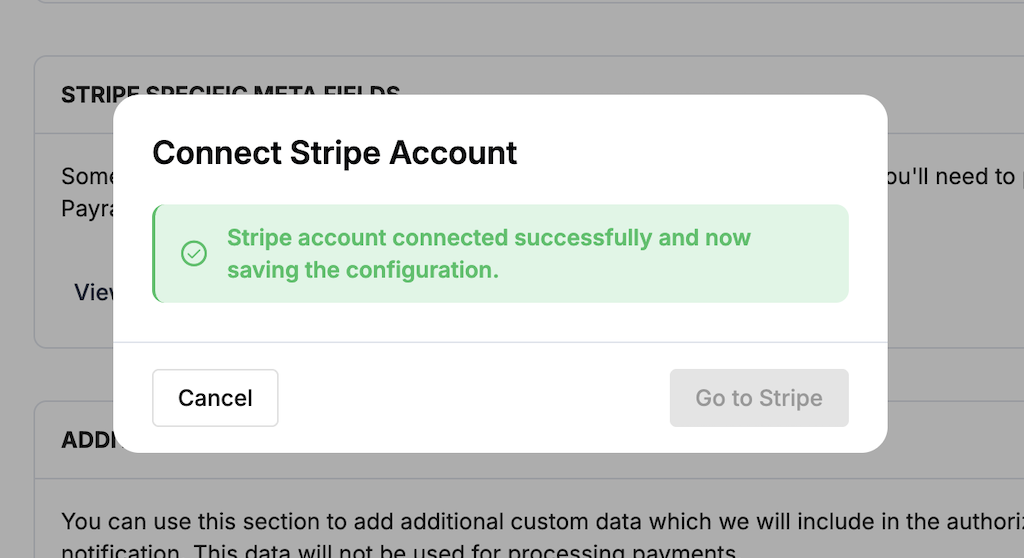
Your Stripe integration is now ready to process payments.
Editing an existing Stripe integration
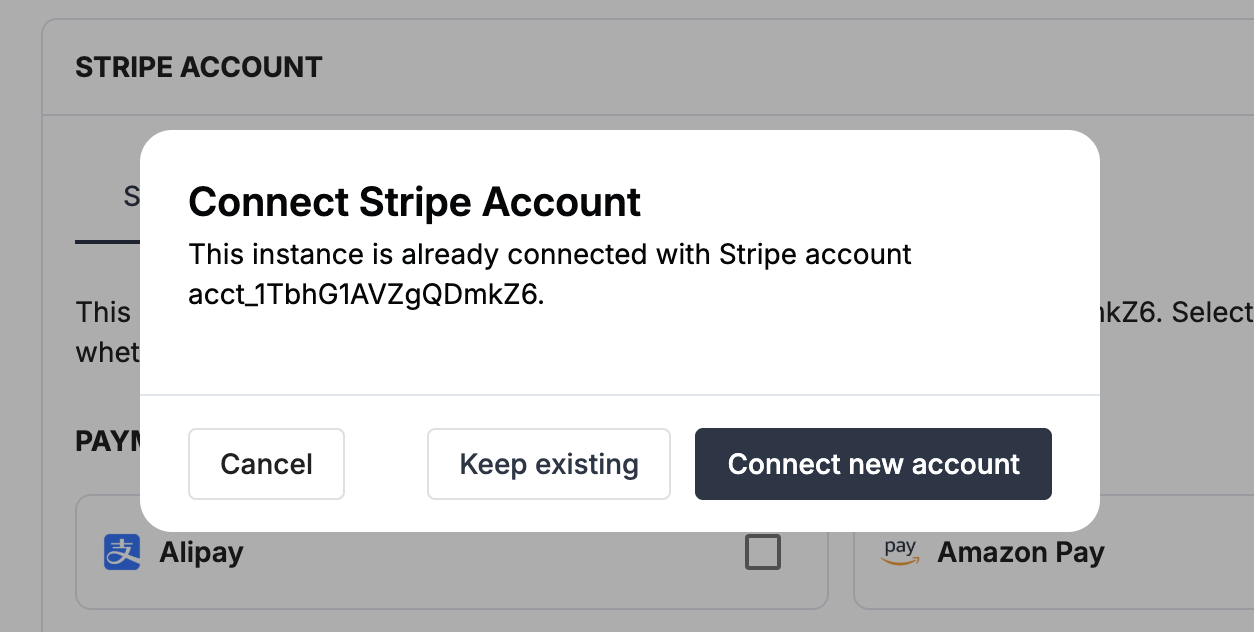
In edit mode, when you re-open a Stripe Connect integration, the configuration screen identifies the currently connected Stripe account ID and lets you choose between keeping the existing connection or connecting a different Stripe account.
When you select Save account, a dialog offers two options:
- Keep existing — preserve the current connection.
- Connect new account — start a fresh OAuth flow with a different Stripe account.
Next steps
- Run a test payment using a Stripe test card.
- Verify that:
- The payment appears in Stripe.
- The payment status updates correctly in Payrails.
- Once verified in test mode, repeat the setup in live mode.
→ Continue to: Test a payment
Updated about 2 months ago