
API Credentials
Overview
When starting to work with Payrails, one of the first steps is obtaining your API credentials for your account to authenticate Payrails APIs. Authentication ensures that only authorized users or systems can access the API, helping protect sensitive data, prevent misuse, and maintain the integrity of services.
API credentials are created and managed in the Payrails Portal. The Client ID and Client Secret are the credentials you use to start interacting with the Payrails API in both staging and production environments. Credentials are scoped per environment and can be created at the organization level or for a specific workspace to match your operational model.
Use these credentials from your backend services to request an access token, and then call Payrails APIs with that token.
Prerequisites
- Admin or Developer role in the Payrails Portal to access the API credentials page. See roles and permissions for details.
- Decision on scope: organization‑level or a specific workspace.
- A secrets manager available to store the
Client Secretsecurely.
Configuration steps
Follow these steps to create credentials in the Portal.
-
Log in to the Payrails Portal.
-
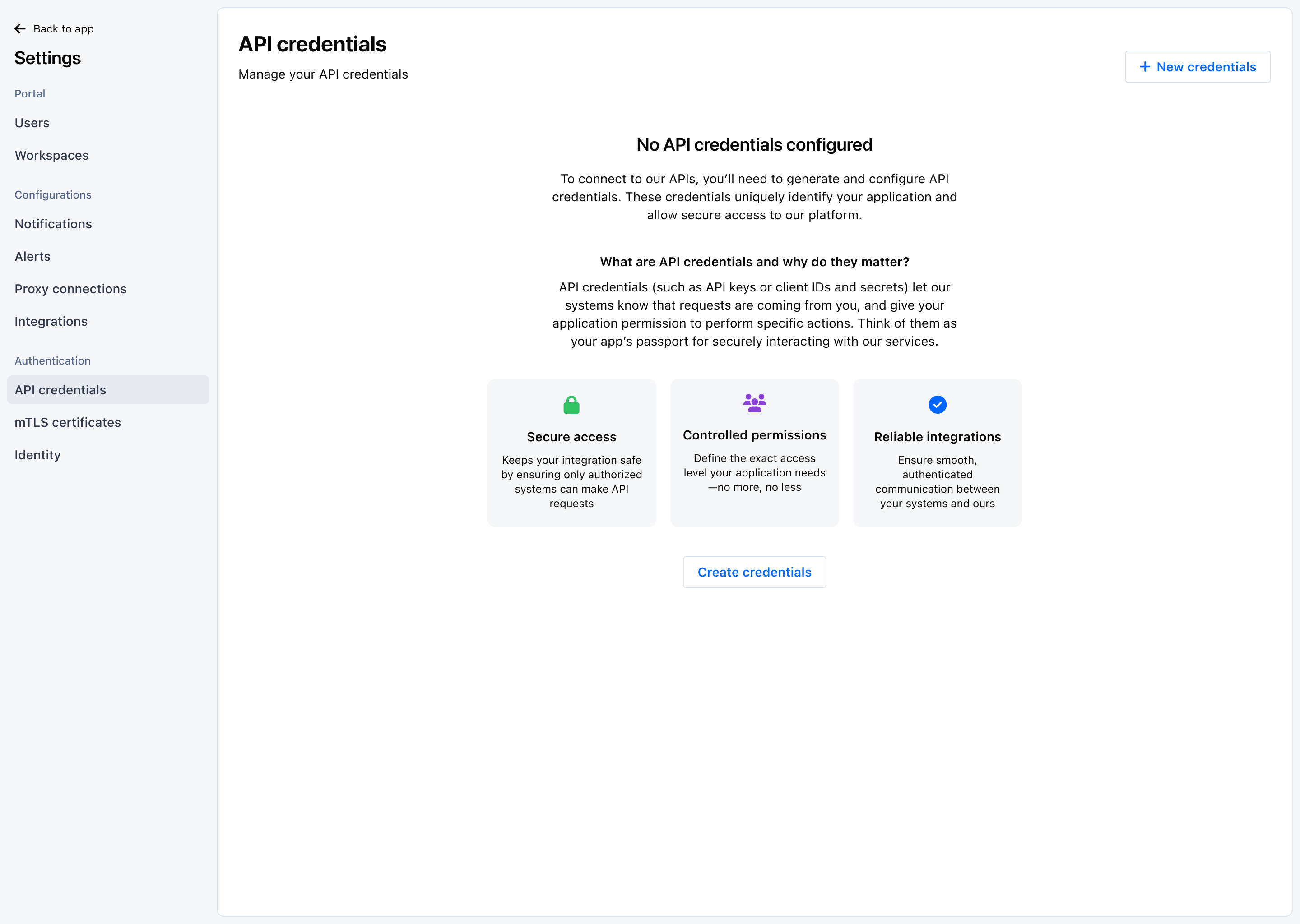
Navigate to
Settings → API credentials. -
Select Create credentials.
-
Name the credential:
- Name (required): Use a descriptive label (for example, “Checkout backend — staging”).
- Description (optional): Add operational context (owner, system, rotation policy).
-
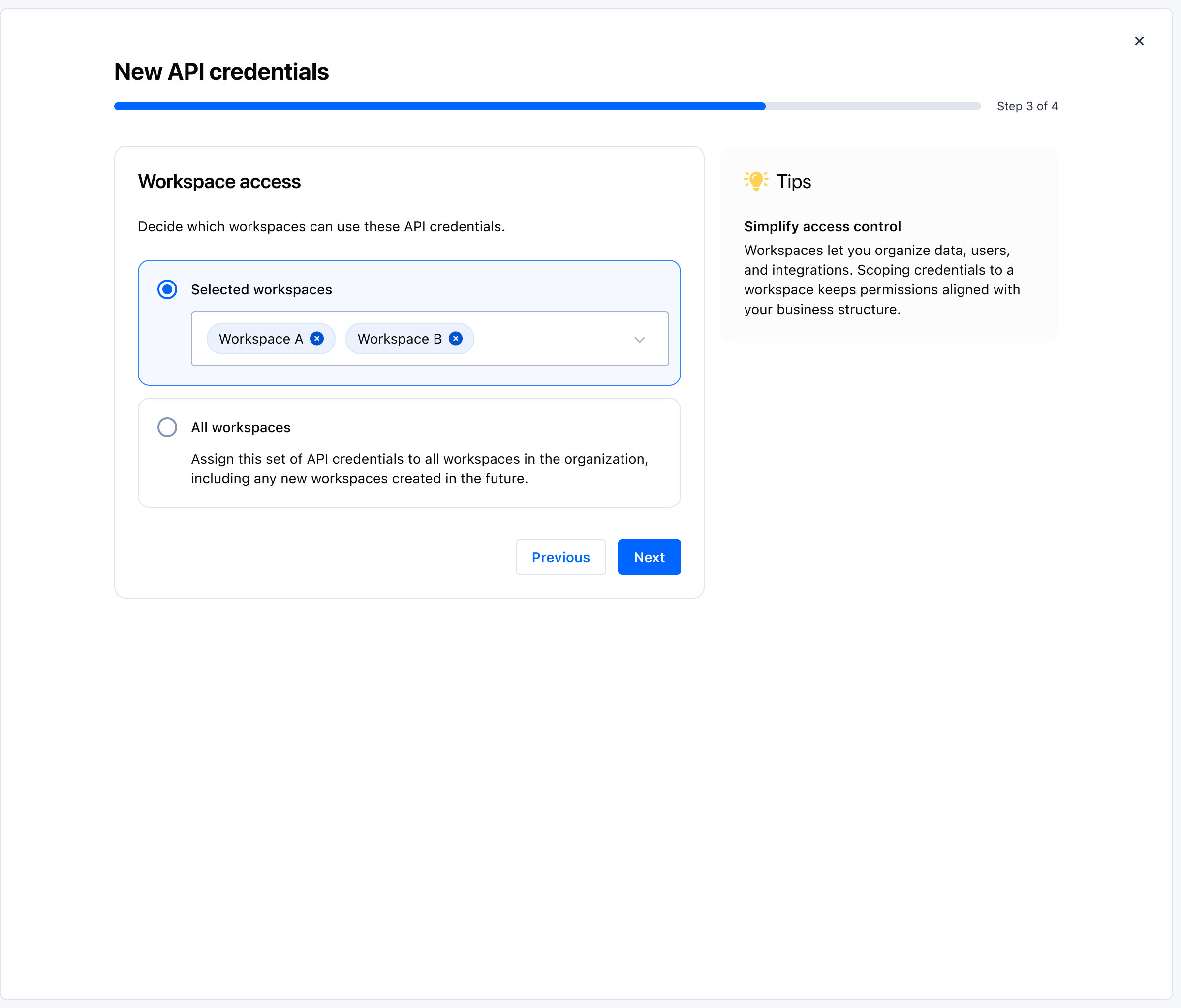
Choose scope:
- Organization — credential is valid for the entire organization.
- Workspace — credential is limited to a selected workspace. Choose the workspace from the selector.
- Apply least‑privilege. Grant only what the system needs.
-
Create the credential. The portal shows the
Client IDand theClient Secret.
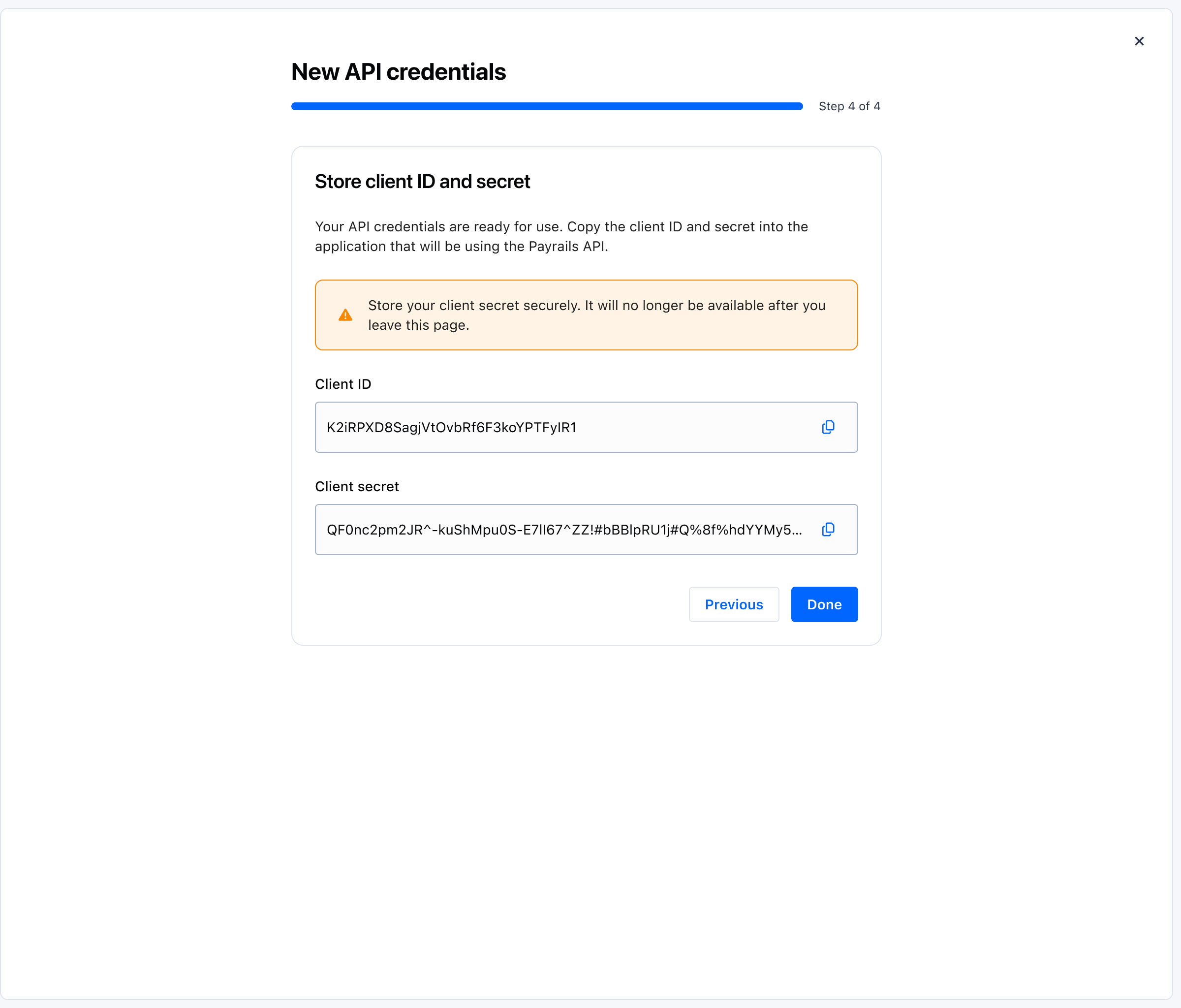
- Copy both values and store the secret in your secrets manager. The secret is displayed once during creation.
- Use these credentials in your system to request an access token to call Payrails APIs.
Rotate and revoke
Rotating your client secret improves security and supports compliance.
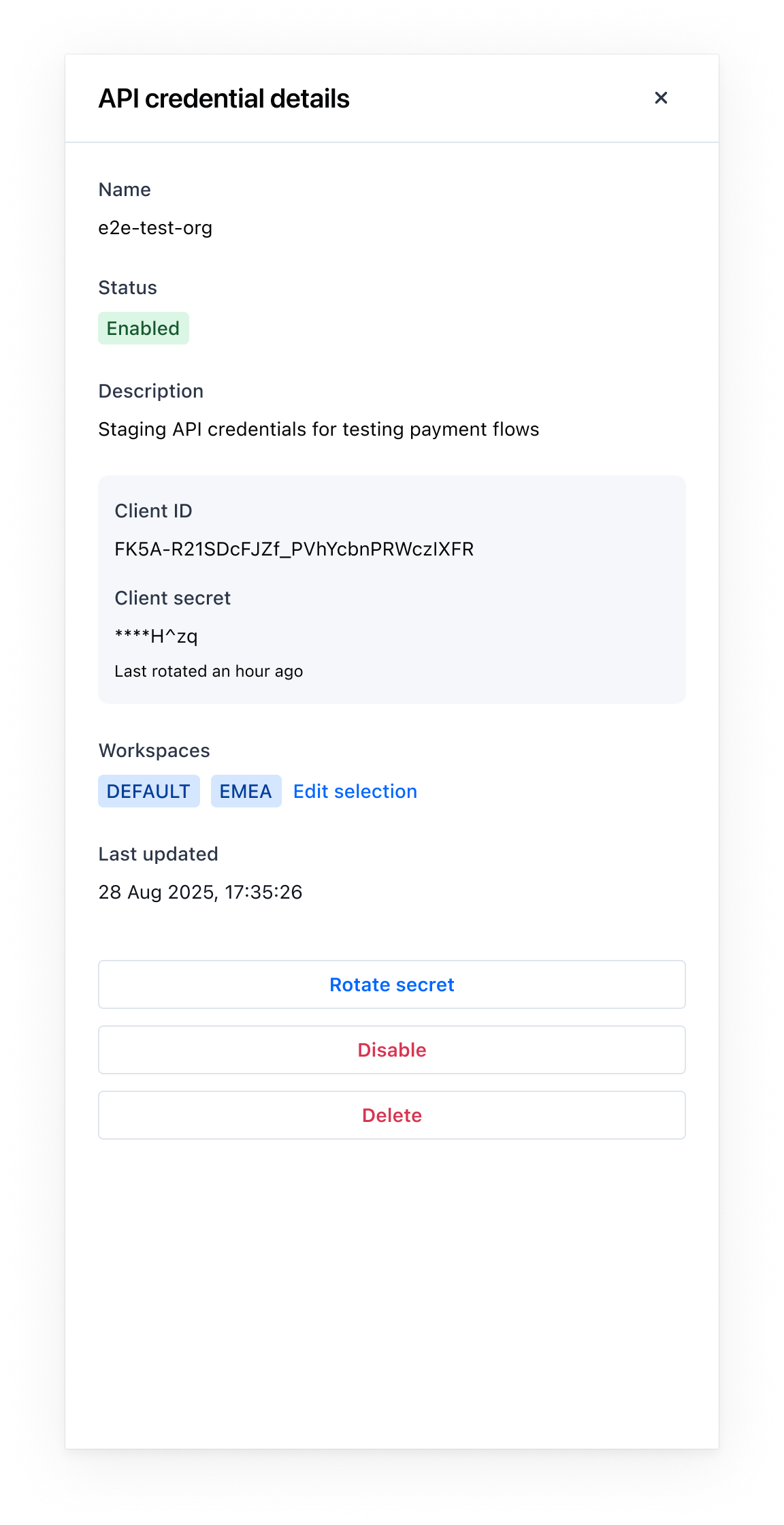
- Navigate to
Settings → API Credentials. - Select the API credential for which you want to rotate the secret.
- Click on "Rotate Secret" and follow instructions.
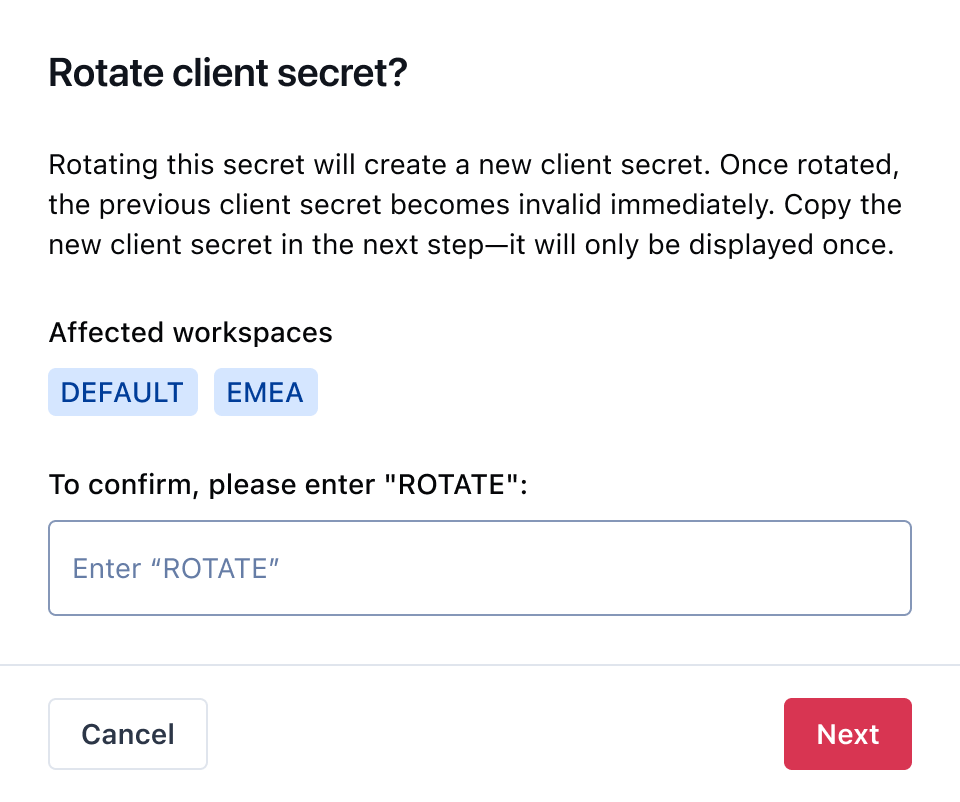
- Copy the new
Client Secretand update your services to use it for token requests. - After rotation, the previous Client Secret becomes invalid immediately.
Notes
- You can have multiple
Client IDs(and their secrets) active at the same time. Use this to ensure uninterrupted access during migrations. - Revoke a credential if it’s no longer needed or suspected to be compromised. Revocation is immediate and irreversible.
FAQs and edge cases
-
Who can manage API credentials?
Admin and Developer roles. -
Can I create multiple credentials per environment?
Yes. Create separate API Credentials for systems or deployments to isolate risk and simplify rotation. -
Can I use multiple
Client IDsat the same time?
Yes. MultipleClient IDsand secrets can be active concurrently to ensure uninterrupted access during changes. -
Are credentials shared across environments?
No. Create separate credentials for Staging and Production. -
Can I see a secret again after creation or rotation?
No. Copy it during creation or rotation and store it in a secrets manager. -
How long does an access token last?
One hour. Request a new token after expiry. There is no upper limit for generating access tokens.
Updated 8 months ago