
Amex
A step-by-step guide for setting up your American Express (Direct) payments integration in the Payrails portal.
Who should use this guideThis guide is intended for merchants who:
- Use Payrails as a payment orchestrator
- Use Amex Payments
- Are approved to process raw card data
We use a server-to-server integration with Amex, so your account must be enabled to process raw card data. If this isn’t enabled, payments won’t work in production. Please contact your Amex account manager or support team to activate it.
If you accept American Express through another PSP (for example Adyen or Checkout.com), no special setup is required — Amex is supported by default as part of that provider's card schemes. This guide covers Amex Direct only.
Create and Configure an American Express Integration in Payrails
- Log in to the Payrails portal
- Go to Settings → Integrations
- Select Add instance to create a new American Express integration configuration
- Select the Workspaces where this integration should be available
About Workspaces
Workspaces determine where this integration is available. They let you isolate provider setups by region or business line, or share the same configuration across multiple Workspaces.
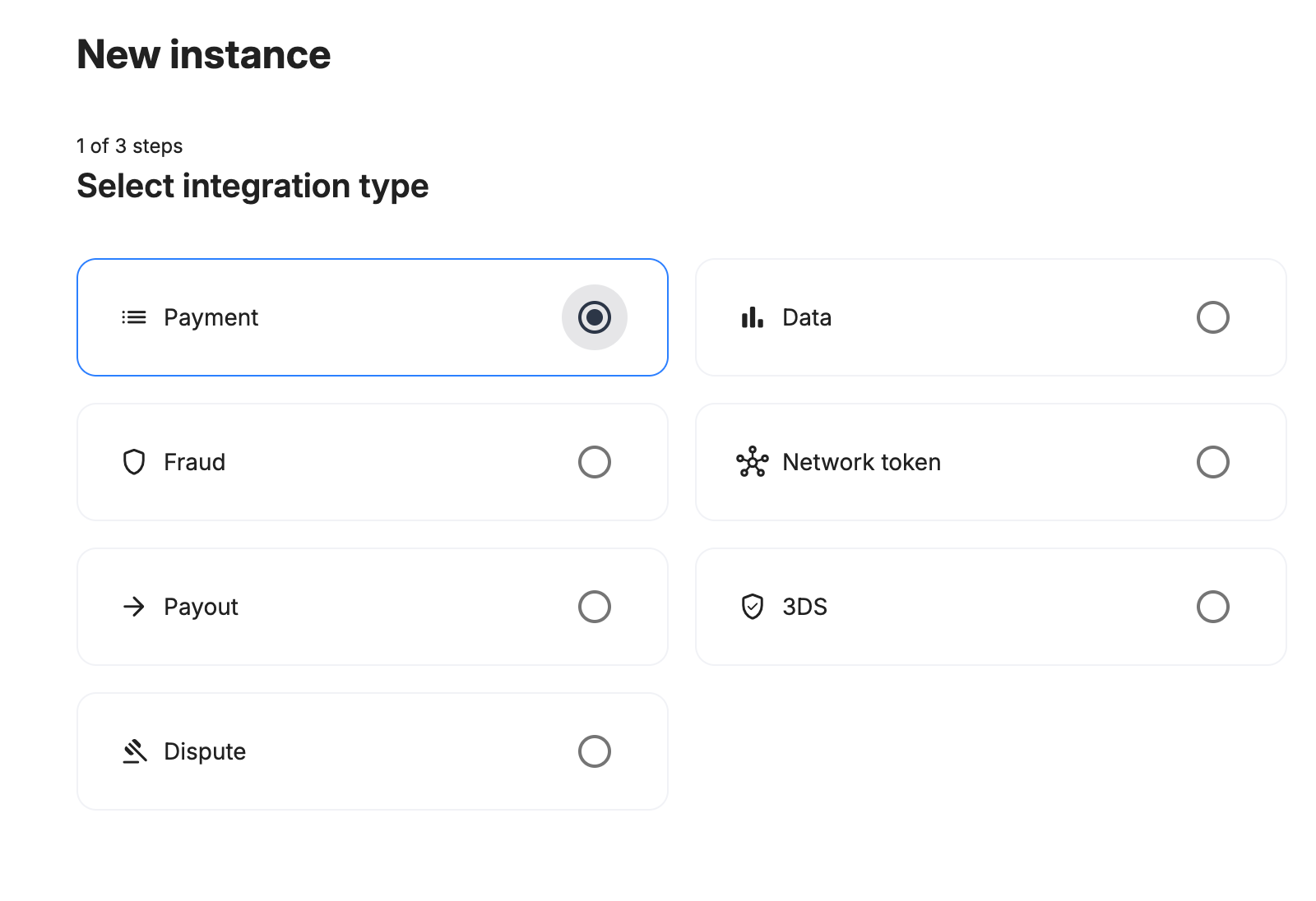
Step 1: Choose the Integration Type
- Select Payment and continue to the next step
Step 2: Choose the Provider
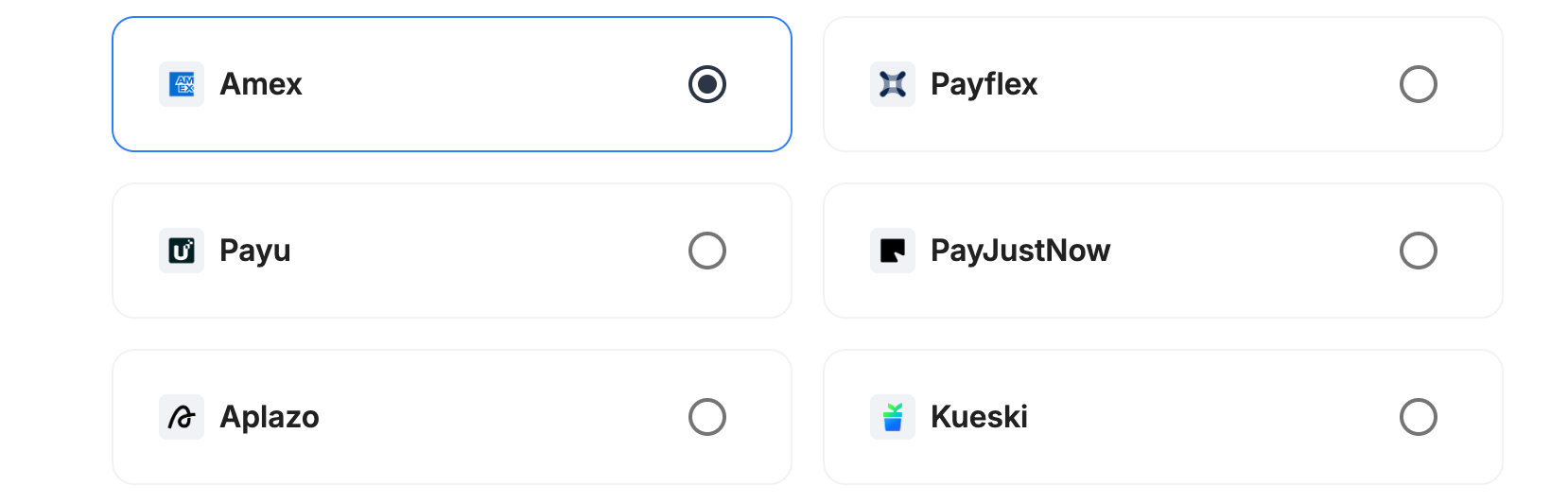
- Select Amex and continue to the next step
Step 3: Configure Your American Express Integration
What You'll Need from American ExpressAmerican Express provides your affiliation configuration values directly. Because Payrails is already certified as a gateway to American Express, there is no API key, client secret, or bearer token — the credentials are the merchant and terminal identifiers below.
Before beginning, ensure you have:
- Merchant ID (SE number)
- Merchant Category Code (MCC)
- Acquirer Country Code
- Merchant Terminal ID
- Submitter Code
- Your card acceptor (business) name and address details
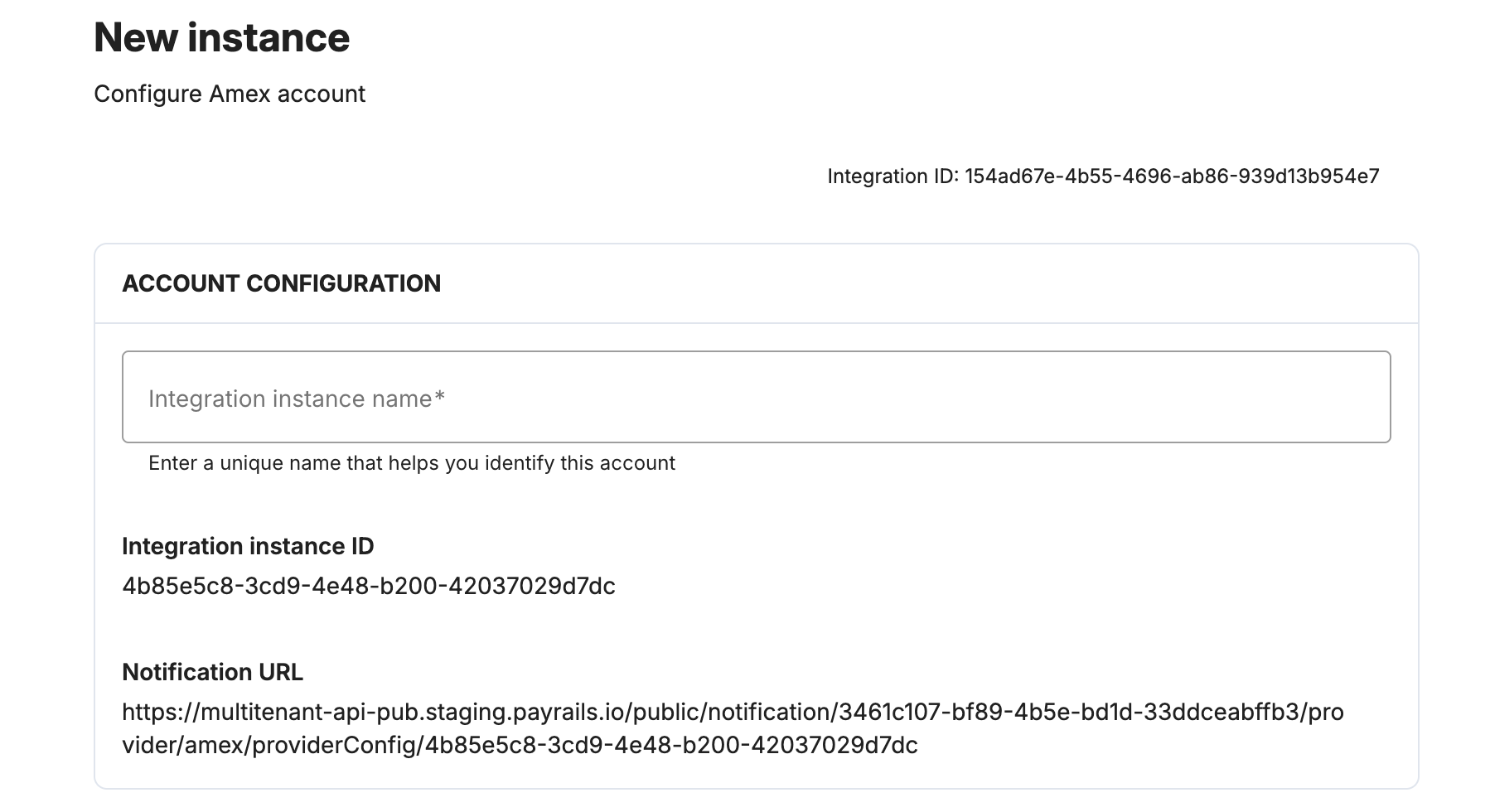
Integration Instance Name
An integration instance is a specific payment provider setup in Payrails. Multiple instances can be created per provider based on region, currency, or business needs (for example, one per entity or region). Choose a clear, consistent name for routing purposes.
In Payrails:
- Enter an Instance name for your integration
Account Details
In Payrails:
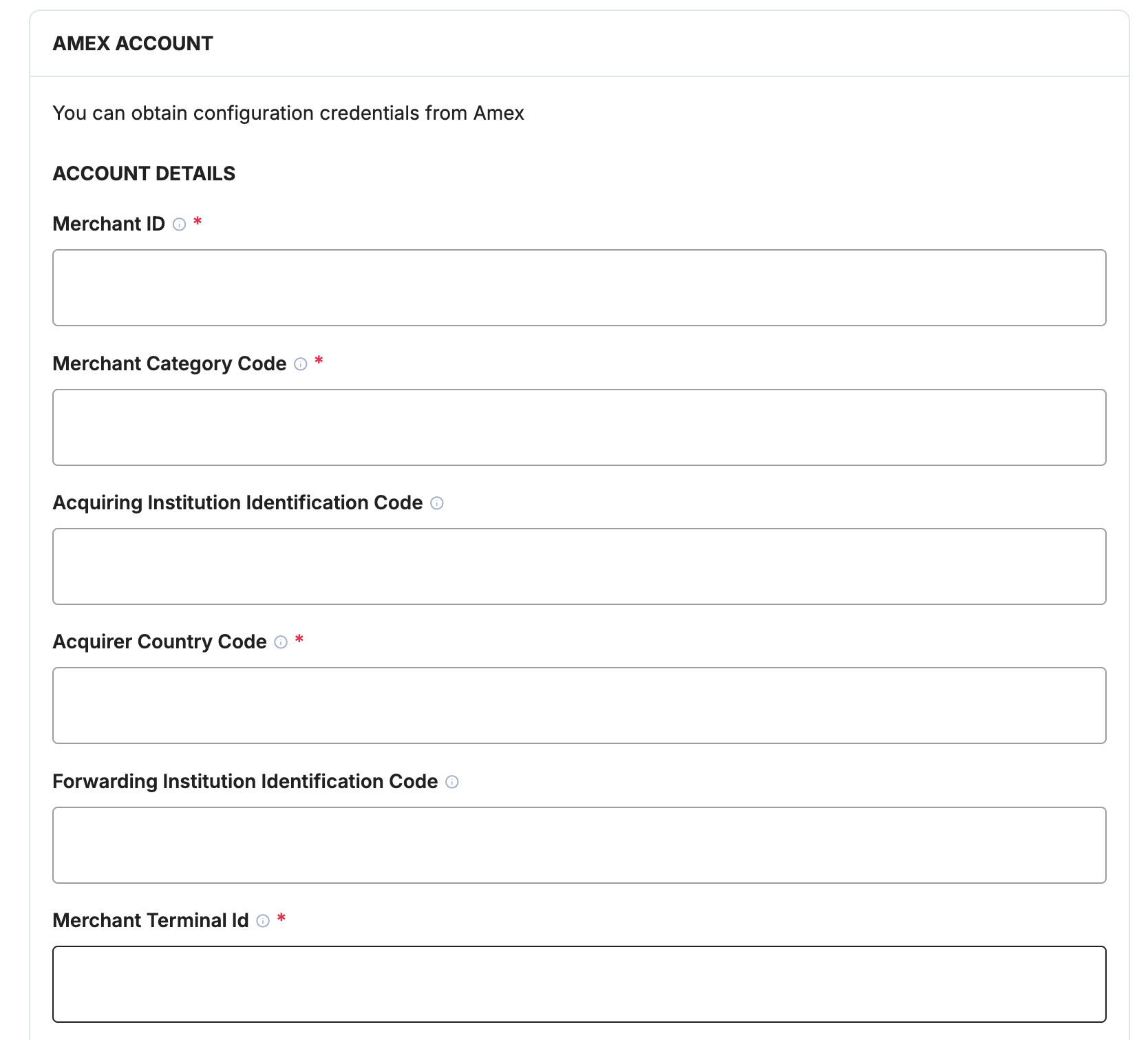
- Enter the following values, provided by American Express:
| Field | Required | Description |
|---|---|---|
| Merchant ID | Required | Merchant ID (SE number) provided by American Express |
| Merchant Category Code | Required | Amex-specific MCC for the merchant (minimum 4 digits) |
| Acquiring Institution Identification Code | Optional | Acquiring institution for the merchant, provided by American Express |
| Acquirer Country Code | Required | 3-digit ISO numeric code for the acquirer / merchant country |
| Forwarding Institution Identification Code | Optional | Forwarding institution for the merchant, provided by American Express |
| Merchant Terminal ID | Required | Terminal identifier for the e-commerce point of sale |
| Contact Info | Required | Merchant's telephone number, email, or web (URL) address (max 40 characters) |
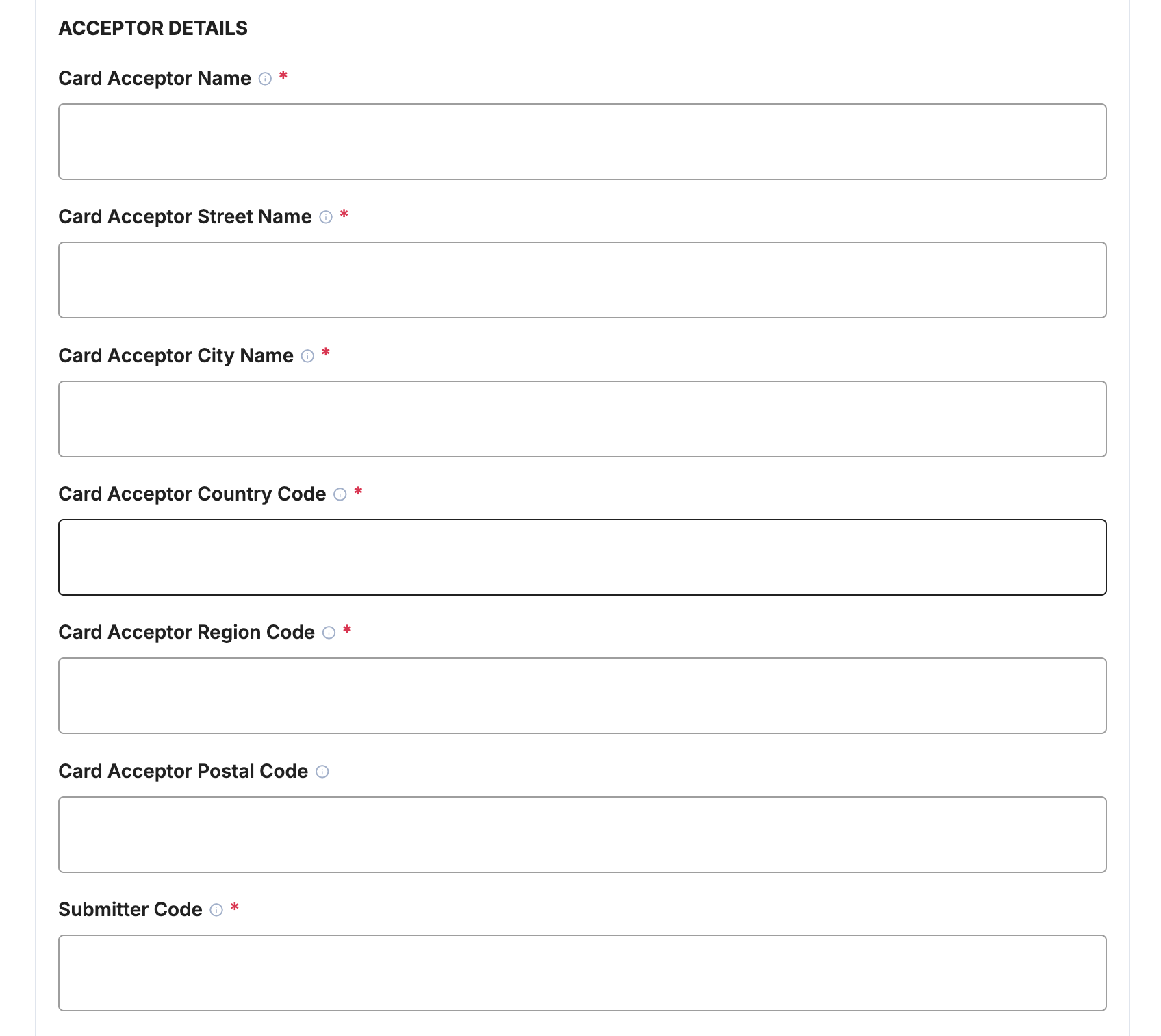
Acceptor Details
In Payrails:
- Enter the card acceptor (business) details that appear on the cardholder's statement:
| Field | Required | Description |
|---|---|---|
| Card Acceptor Name | Required | Alphanumeric, upper case. Becomes part of the descriptive bill on the cardholder's statement |
| Card Acceptor Street Name | Required | Street address of the card acceptor |
| Card Acceptor City Name | Required | Associated with the SE number for the market |
| Card Acceptor Country Code | Required | Must correspond to the Country code (see the American Express Global Codes & Information Guide) |
| Card Acceptor Region Code | Required | Must correspond to the Region code (see the American Express Global Codes & Information Guide) |
| Card Acceptor Postal Code | Optional | Associated with the SE number for the market |
| Submitter Code | Required | Provided by American Express; used to capture payments |
Payment Methods
In Payrails:
- Select Card to enable American Express card payments for this integration
Enable the Integration
In Payrails:
- Select Save account to enable the integration
The Enabled status indicates that the American Express integration is active. Your American Express integration is now ready to process payments.
Next Steps
- Run a test payment using a supported American Express test card
- Verify that:
- The payment appears in your American Express reporting
- The payment status updates correctly in Payrails
- Once verified in test mode, repeat the setup in live mode
Updated about 3 hours ago