
dLocal
A step-by-step guide for setting up your dLocal payments integration in the Payrails portal.
Who should use this guideThis guide is intended for merchants who:
- Use Payrails as a payment orchestrator
- Use dLocal Payments for payment processing
- Have an active dLocal account with API access enabled
If these requirements are not met, payments may fail in production.
Create a dLocal integration in Payrails
- Log in to the Payrails portal.
- Go to Settings → Integrations.
- Select Add instance to create a new integration configuration.
- Select the workspaces where this integration should be available.
About workspaces Workspaces determine where this integration is available. They let you isolate provider setups by region or business line, or share the same configuration across multiple workspaces.
Step 1: Choose the integration type
- Select Payment.
- Continue to the next step.
Step 2: Choose the provider
- Select dLocal.
- Continue to the next step.
Step 3: Configure your dLocal integration
What you’ll need from dLocalBefore you begin, make sure you have access to:
- API credentials (keys, certificates, or secrets)
- Webhook or notification signing secret (if applicable)
You'll need to log in to the dLocal dashboard to complete this step.
Integration instance name
An integration instance is a specific payment provider setup in Payrails. You can create multiple instances for different regions, currencies, or business needs. Choose a clear, consistent name, as it is used in routing.
In Payrails
- Enter an Instance name for your integration.
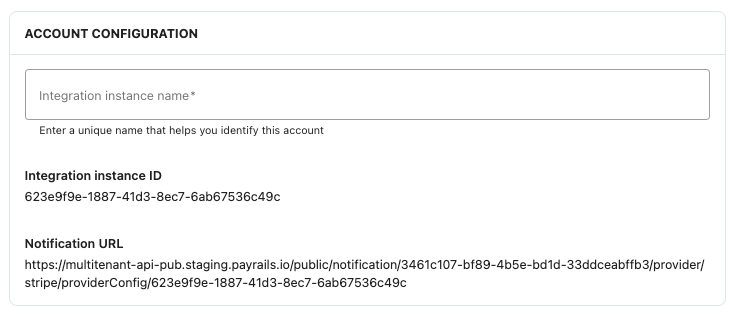
- Use a name that is easy to remember, especially for routing purposes
- Example:
merchant_dlocal(or another descriptive name)
API credentials
Use restricted or scoped credentials where possible to limit access and reduce risk.
In dLocal
-
Log in to the dLocal dashboard
-
Enable Test Mode at the top of the page when working in staging (this switches the environment to staging)
-
Go to Developers
-
Click Integration
-
Create a new pair of API keys by selecting Create new
-
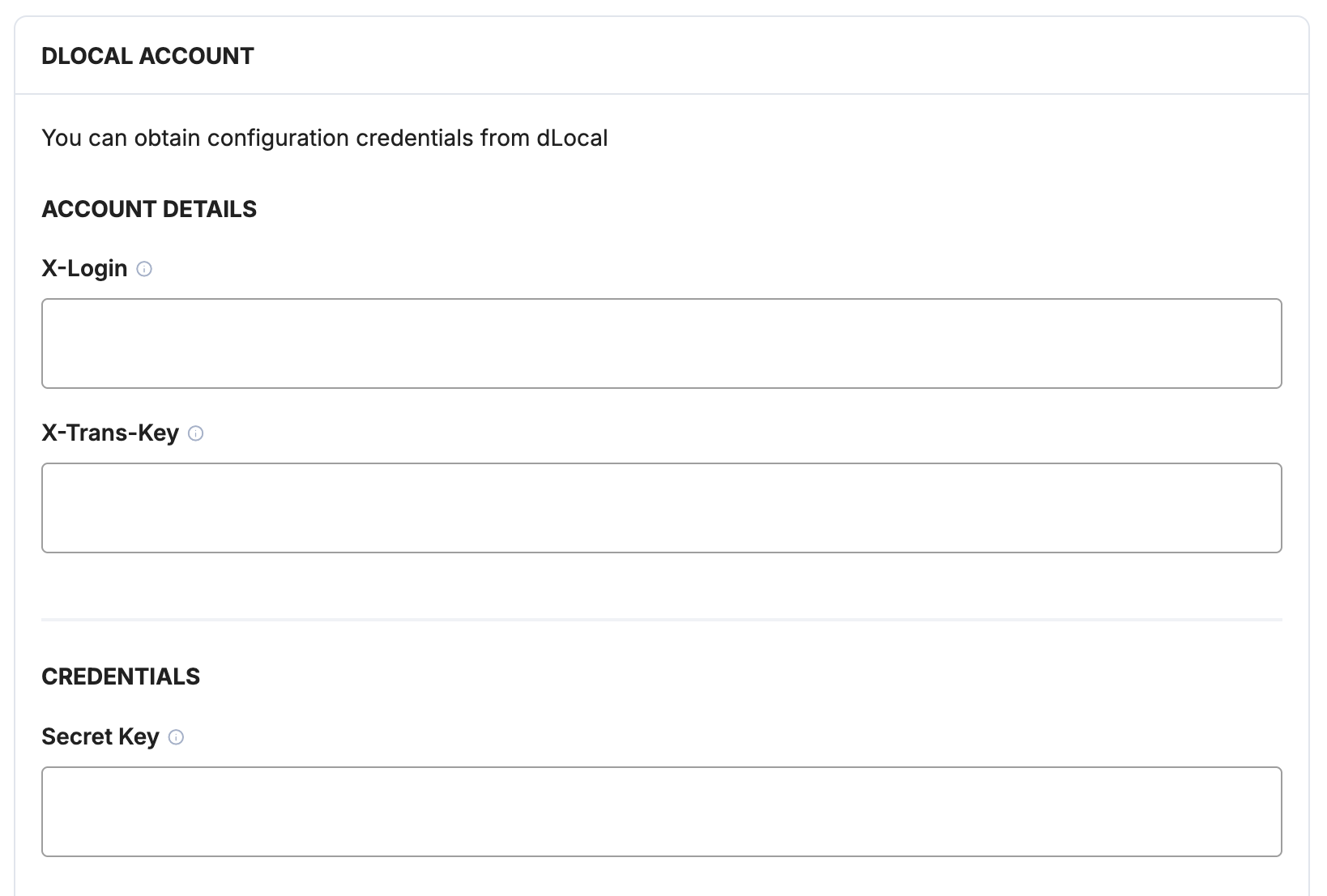
Copy the following parameters:
X-LoginX-Trans-KeySecret Key
In Payrails
- Paste the three parameters into the respective fields
Webhooks or notifications
Payrails uses provider webhooks or notifications to receive asynchronous payment status updates.
Create webhooks in the same mode (test or live) as your Payrails integration.
In Payrails
- Copy the notification URL.
In dLocal
-
Go to Integration → Endpoint
-
Paste the Payrails notification URL into:
- Payins notification URL
- Refunds
-
Click Save changes
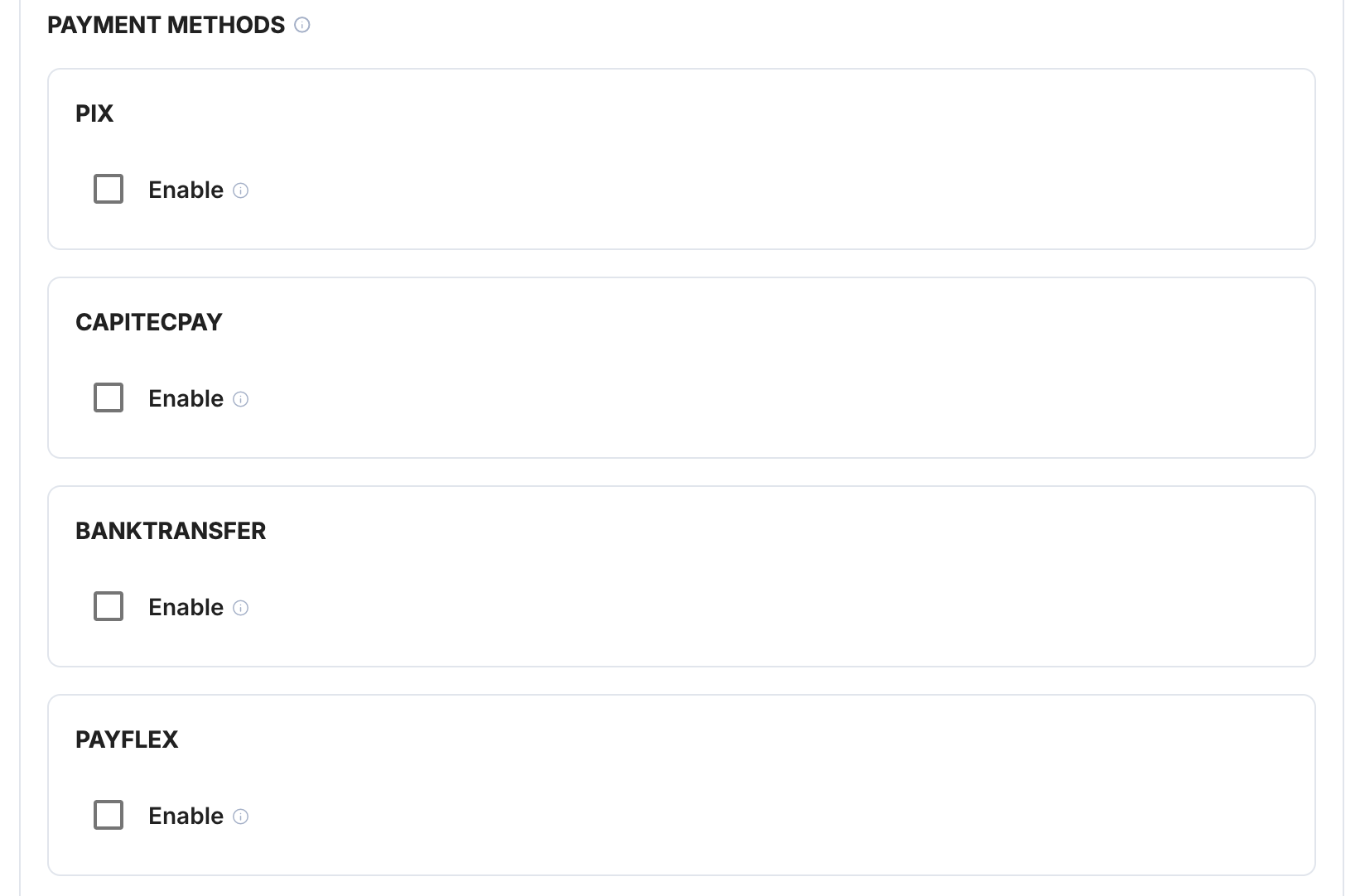
Payment methods
In Payrails
- Select the payment methods that should be enabled for this integration.
Enable the integration
In Payrails
- Save the configuration to enable the integration.
- Confirm the integration shows as Enabled.
Your dLocal integration is now ready to process payments in test mode.
The dLocal production environment requires IP whitelisting. Contact the Payrails team to obtain the list of IP addresses that must be allowlisted in dLocal before going live.
Next steps
-
Run a test payment using a dLocal test card.
-
Verify that:
- The payment appears in dLocal.
- The payment status updates correctly in Payrails.
-
Once verified in test mode, repeat the setup in live mode.
→ Continue to: Test a payment
Updated 5 months ago