
HiPay
A step-by-step guide for setting up your HiPay integration in the Payrails portal.
Who should use this guideThis guide is intended for merchants who:
- Use Payrails as a payment orchestrator
- Use HiPay to accept card payments in Europe
HiPay is a server-to-server card connector — there is no hosted payment page. Your shopper enters their card details directly in your checkout (via the Payrails SDK's secure fields), and is only redirected to HiPay for the 3DS challenge, when one is required.
Create and configure a HiPay integration in Payrails
Following are the initial steps to set up HiPay:
- Log in to the Payrails portal.
- Go to Settings → Integrations → Payments.
- Select Add instance to create a new HiPay integration configuration.
- Select the workspaces where this integration should be available.
About workspaces
Workspaces determine where this integration is available. They let you isolate provider setups by region or business line, or share the same configuration across multiple workspaces.
Step 2: Choose the provider
Select HiPay and continue to the next step.
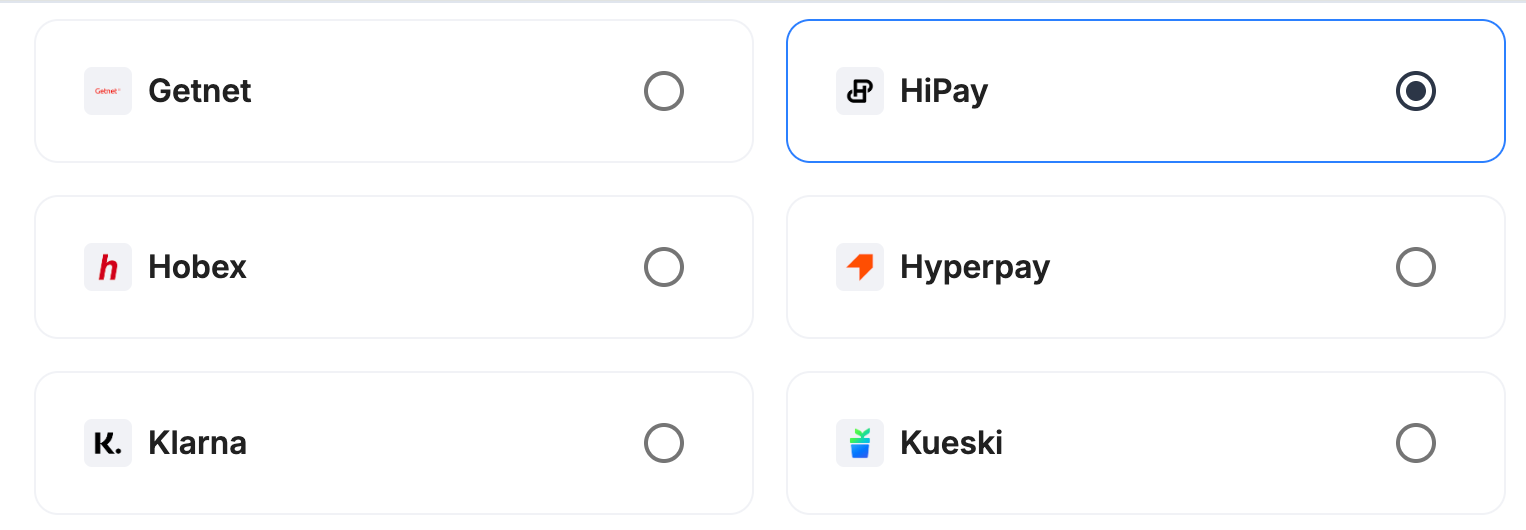
Step 3: Configure your HiPay integration
What you'll need from HiPayBefore you begin, make sure you have access to your HiPay Console and the following. HiPay uses two separate credential pairs for two separate hosts, so make sure you copy each into the matching field:
- Private credentials — Username and Password (used to authorize, capture, cancel, and refund payments)
- Secret Passphrase (used to verify HiPay's notification signatures)
- Public credentials — Username and Password (used only to tokenize the card)
Integration instance name
An integration instance is a specific payment provider setup in Payrails. You can create multiple instances for each provider based on region, currency, or business needs. Choose a clear, consistent name, as it is used in routing.
In Payrails
- Enter an Instance name for your integration.
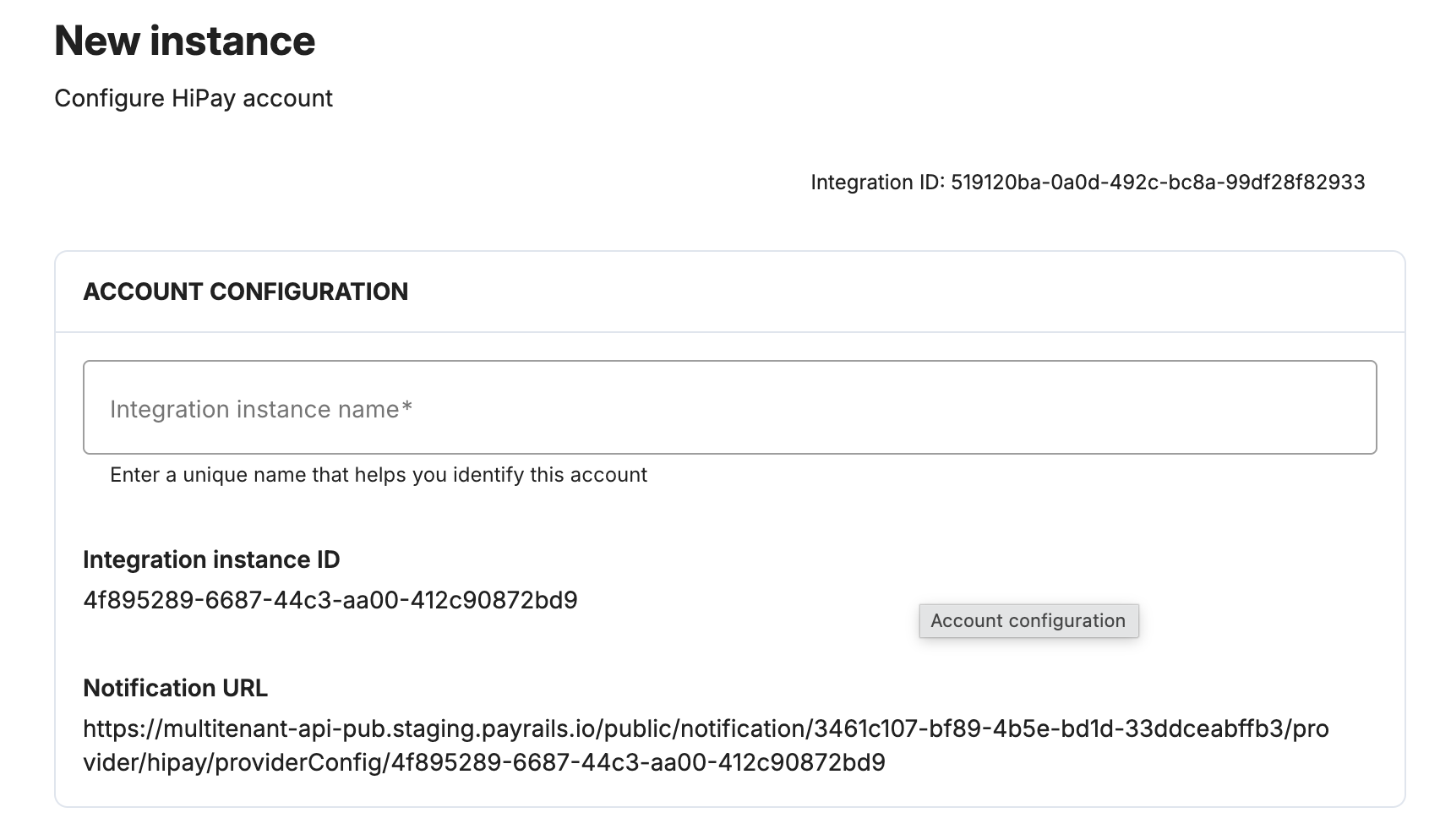
Private credentials
In HiPay
- Log in to the HiPay Console (stage or production).
- Make sure you switch to the "Old Interface" as it has more options.
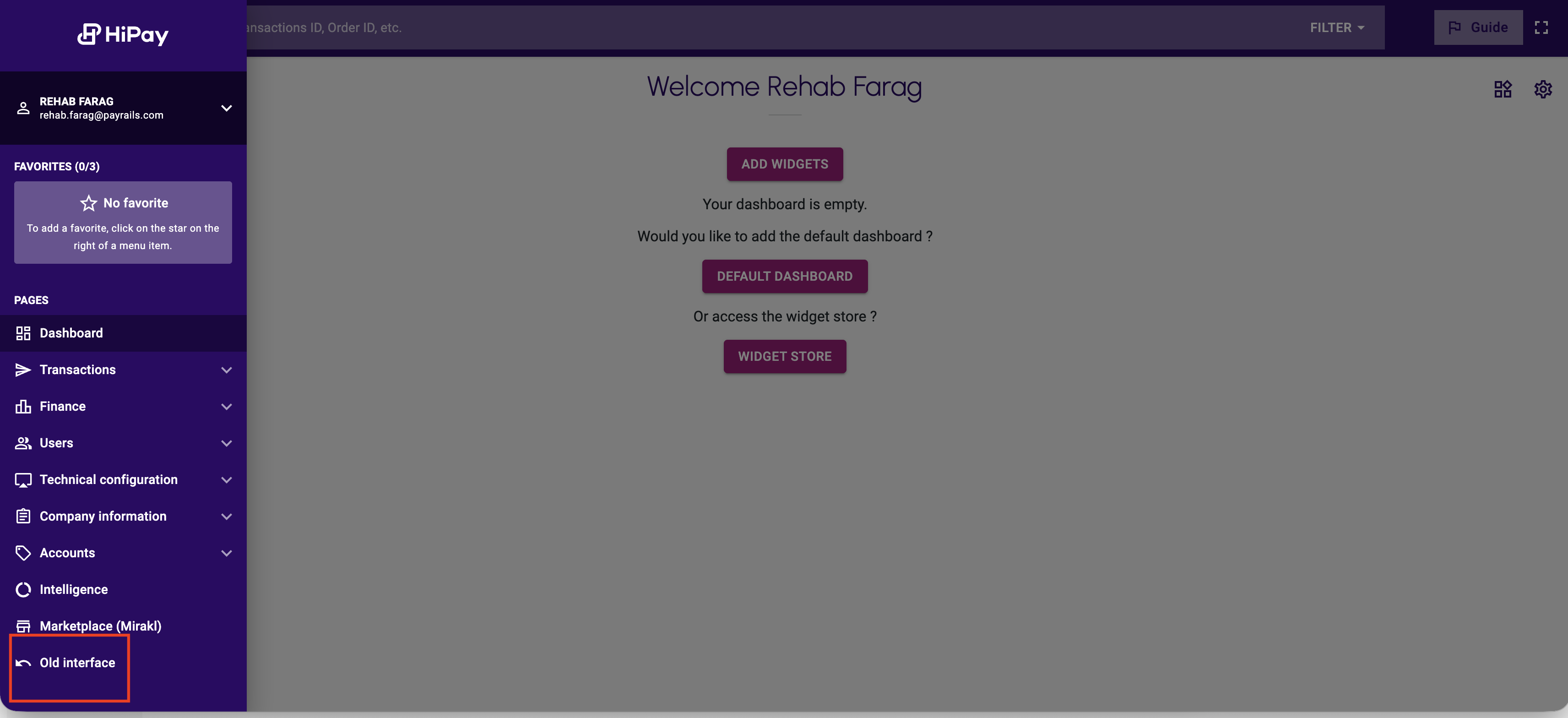
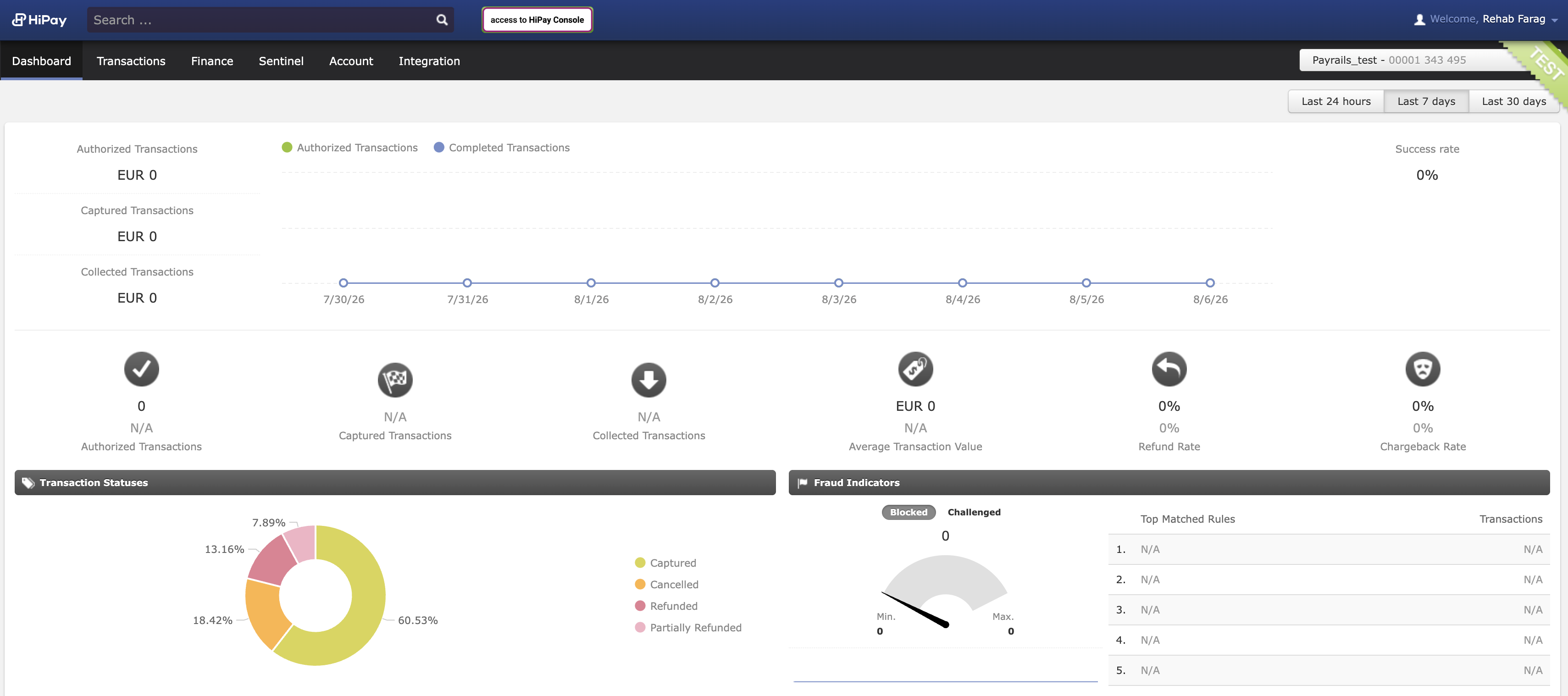
- Go to Integration → Security Settings and copy your private Username and Password.
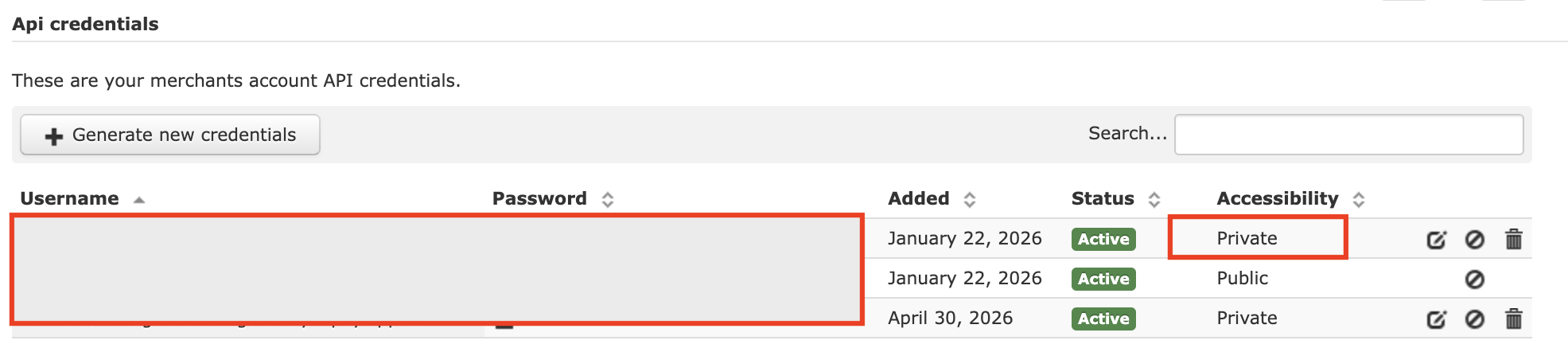
In Payrails
- Paste the values into the Private username and Private password fields.
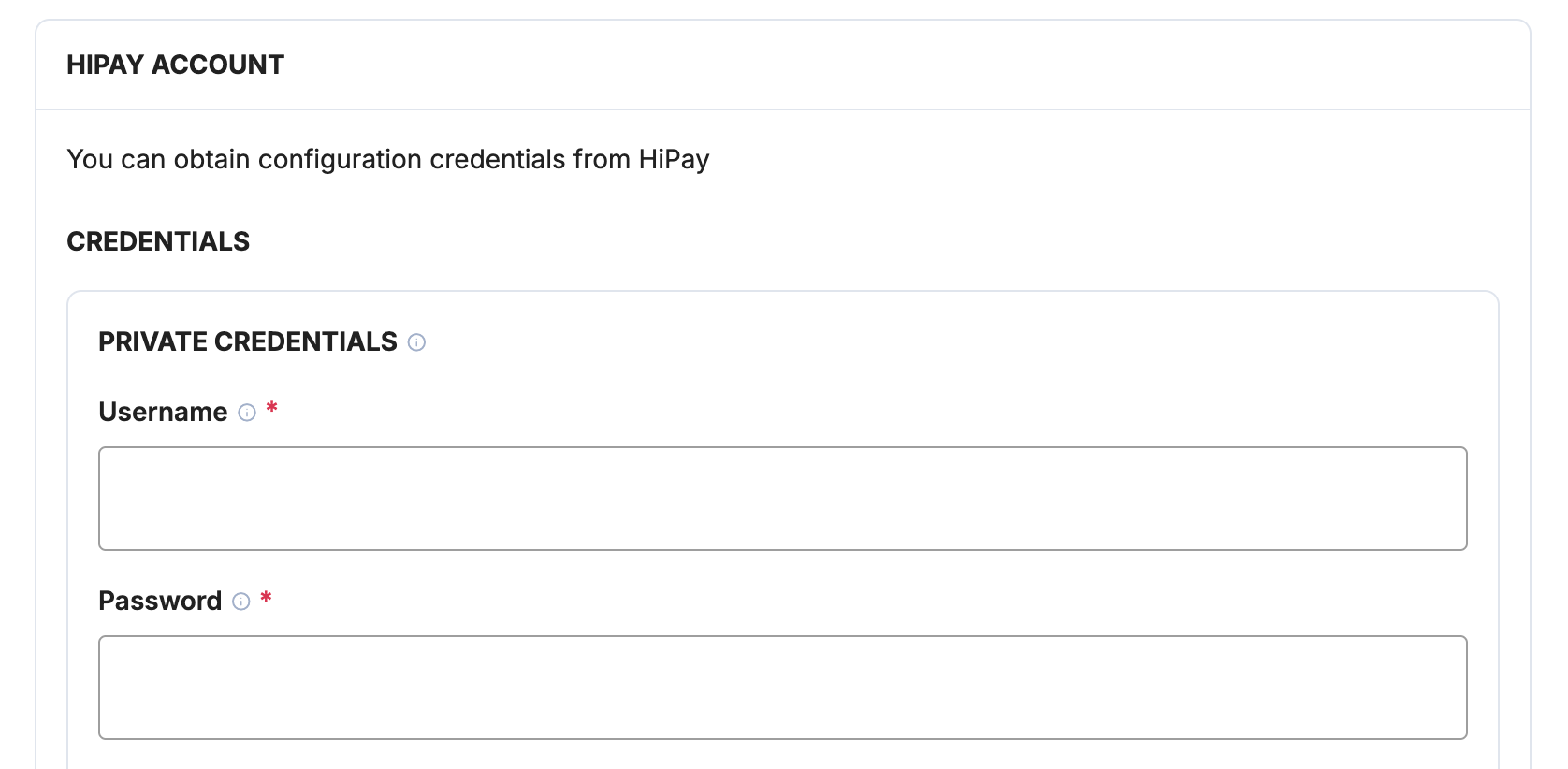
Secret Passphrase
In HiPay
- Still in Integration → Security Settings, copy your Secret Passphrase.
- Set the Hashing Algorithm to SHA-256.

In Payrails
- Paste the value into the Secret Passphrase field.

Use your merchant secret passphrase and store it securely. It is used to verify that notifications genuinely come from HiPay.
Public credentials
In HiPay
- In the same Security Settings section, copy your public Username and Password.
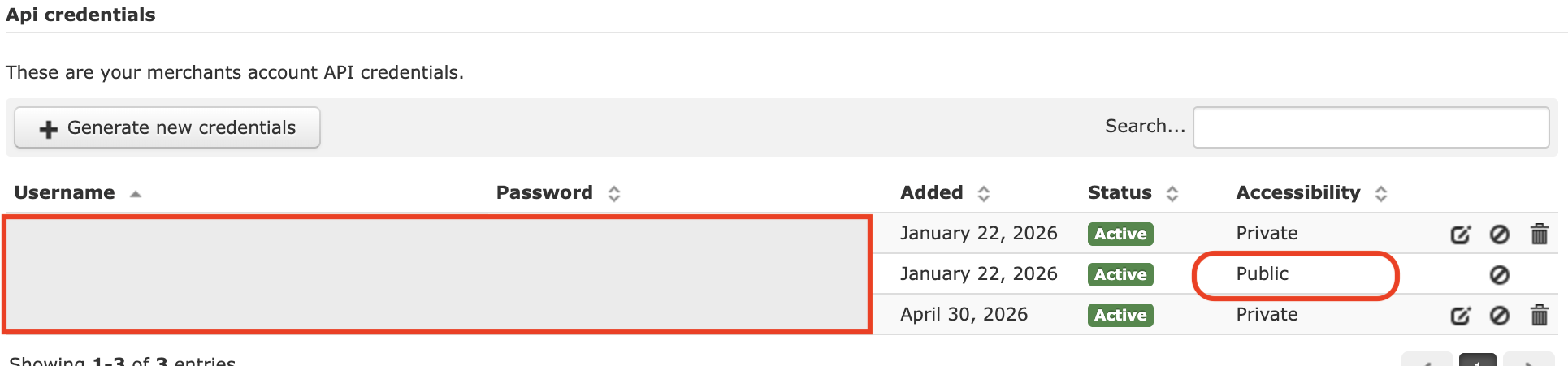
In Payrails
- Paste the values into the Public username and Public password fields.
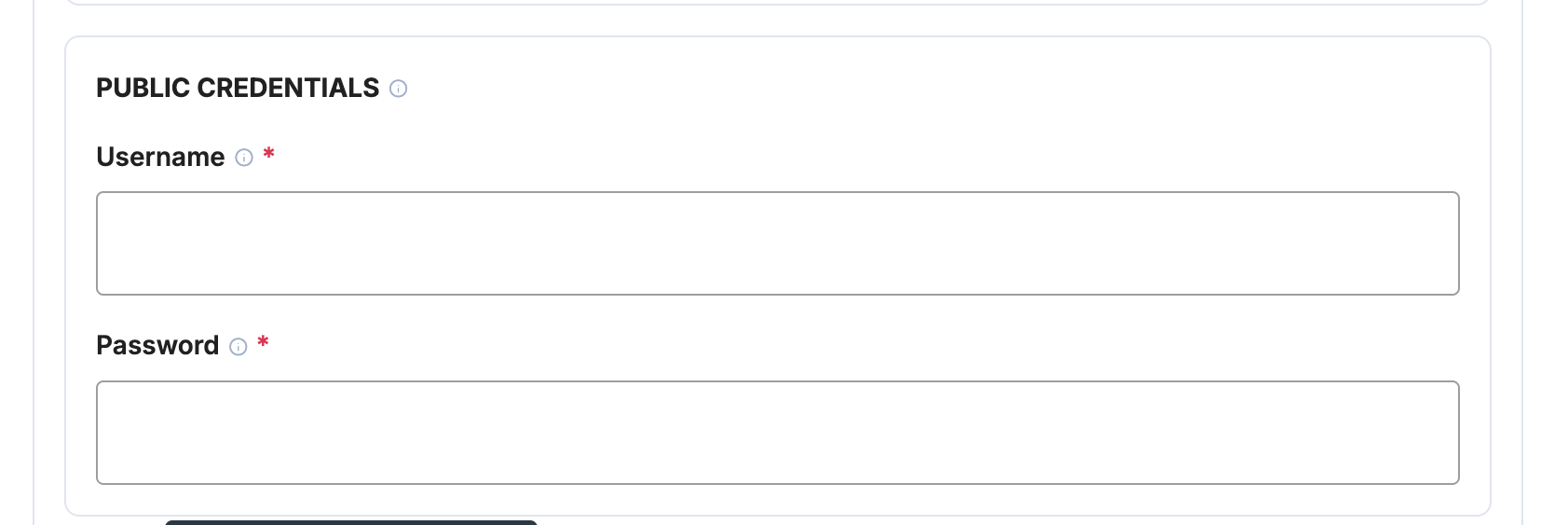
The public credentials are only used to tokenize the card on HiPay's vault host. The raw card number never reaches Payrails or your systems — it is sent as a vault placeholder through the Payrails vault proxy.
Payment methods
In Payrails
- Under Payment methods, enable Card.
Configure notifications in the HiPay Console
Unlike some providers, HiPay requires you to configure the notification (webhook) URL yourself, on the HiPay side.
In Payrails
- After saving your HiPay configuration, copy the generated notification URL from the provider config.
In HiPay
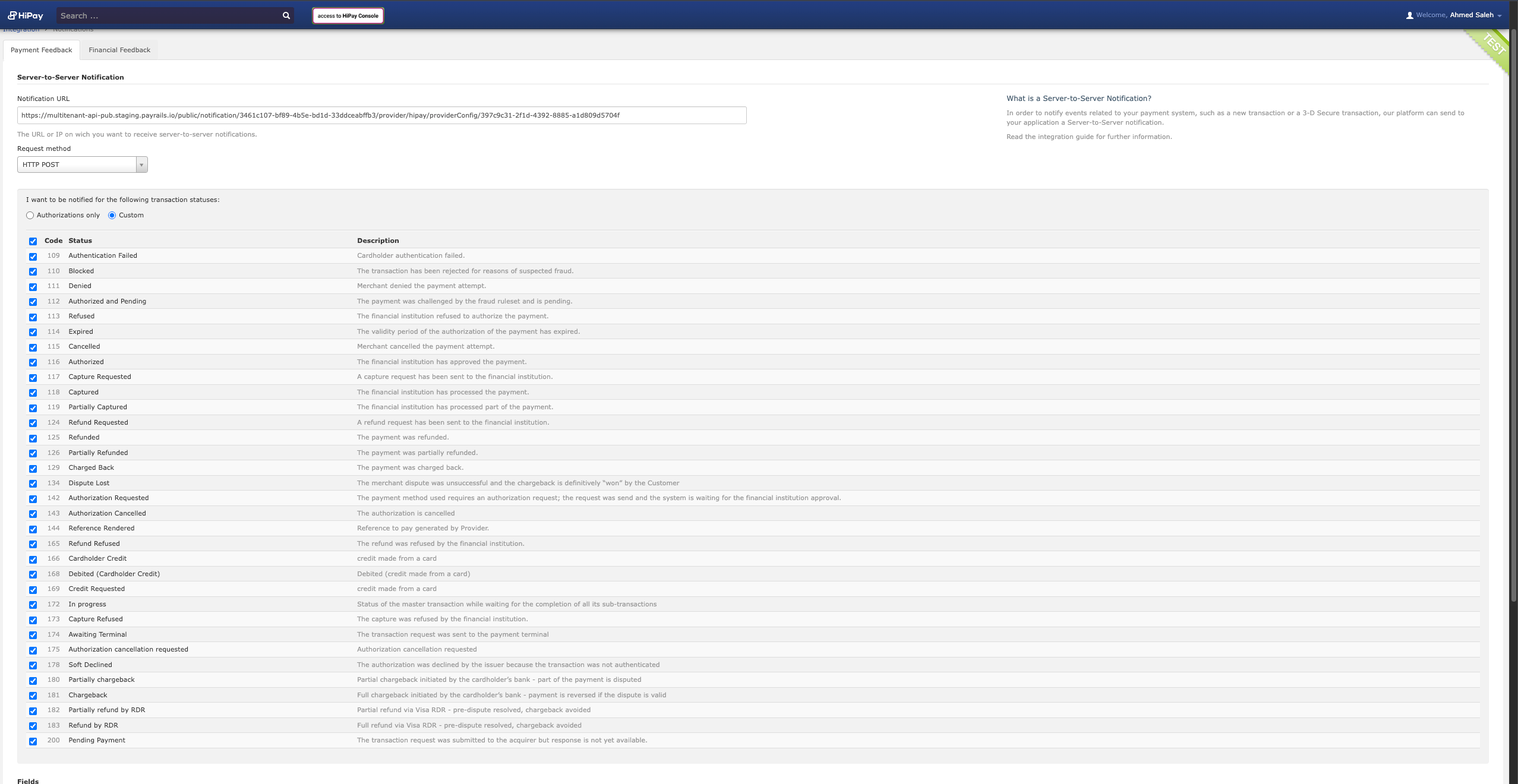
- In the HiPay Console, go to Integration → Notifications.
- Paste the Payrails notification URL.
- Select the transaction statuses to be notified on. At minimum, enable:
109–115,116–119,124–126,163,165, and173–175.
- Enable the
operation[...]fields in the notification settings. These are off by default.
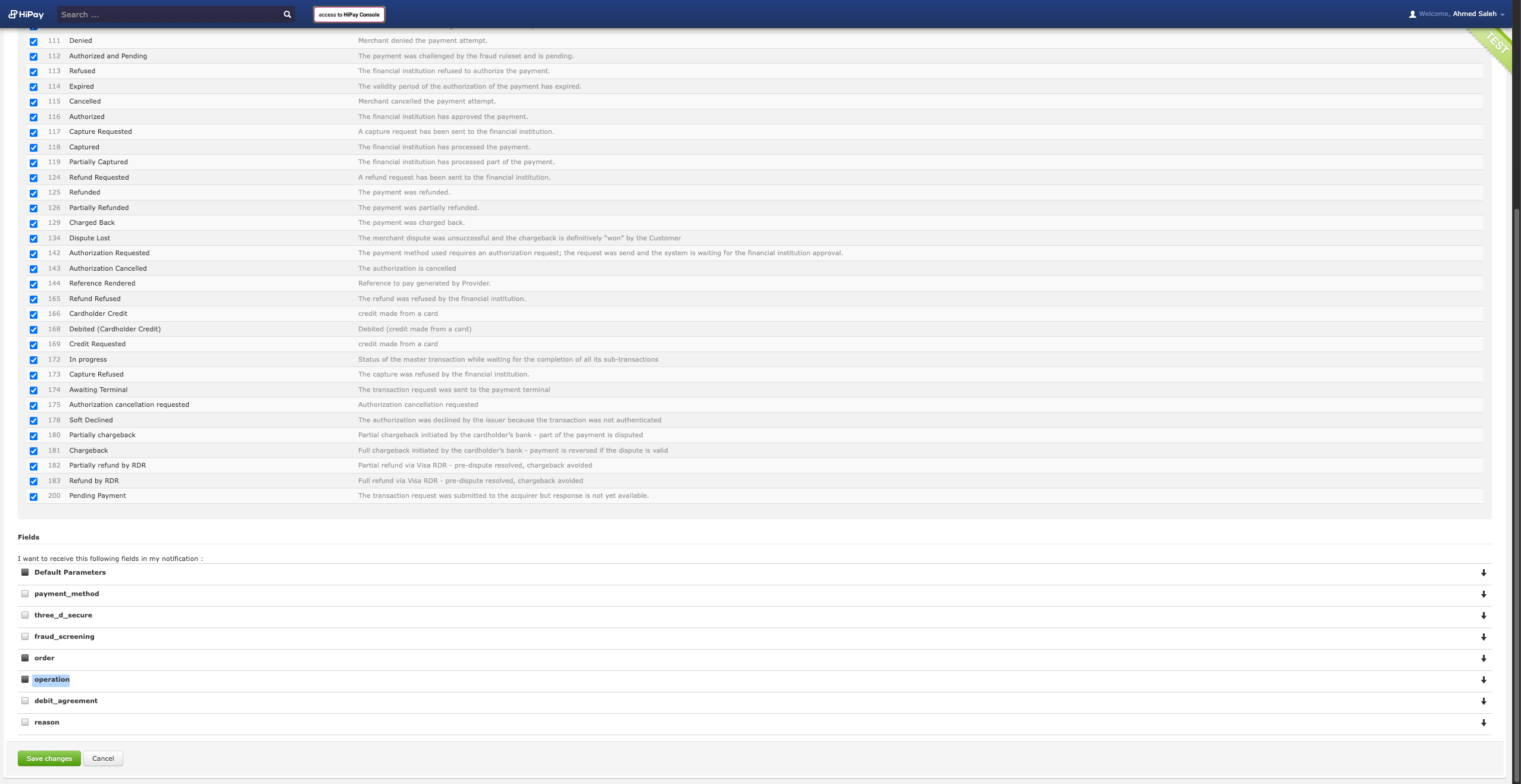
This step is required. Without theoperation[...]fields enabled, Payrails cannot match partial captures and partial refunds back to the correct operation, and notifications for those operations may be dropped. Make sure this is turned on before going live.
Enable the integration
In Payrails
- Select Save account to save the configuration and enable the integration.
- The Enabled status confirms that the HiPay integration is active.
Your HiPay integration is now ready to process payments.
Next steps
- Run a test payment in test mode using a HiPay test card, in EUR:
- Frictionless: Visa
4111 1111 1111 1111, any near-future expiry, any 3-digit CVV. - 3DS challenge: Visa
4242 4242 4242 4242, any near-future expiry, any 3-digit CVV — complete the challenge on HiPay's page.
- Frictionless: Visa
- Verify that:
- The payment appears in your HiPay Console.
- The payment status updates correctly in Payrails.
- Once verified in test mode, repeat the setup in live mode.
→ Continue to: Test a payment
Updated about 1 month ago